Discover 8 Best 720p to 1080p Converters & Upscalers for Videos in 2026

Many older videos, gameplay recordings, and downloaded clips remain at a 720p resolution. When viewed on modern screens, they often look soft and slightly outdated. A reliable 720p to 1080p converter can enhance clarity, making your content appear sharper on YouTube, TVs, and social media platforms. In this guide, we'll explore the best tools available in 2026.
Part 1. 720p vs 1080p: What's the Real Difference & Should You Upscale Videos to 1080p
Before choosing a 720p to 1080p converter, it's important to understand what actually changes between these two resolutions. Not all resolution upgrades deliver visible improvements, so knowing the differences helps you make a smarter decision.
1. Differences Between 720p and 1080p
1080p contains more than double the pixel count of 720p. This means more detail, clearer edges, and better performance on large screens.
2. Should I Upscale 720p to 1080p?
Yes, if you plan to upload content to YouTube, watch large displays, or improve old recordings. However, simple resolution stretching does not add real detail. You should use an AI-powered 720p to 1080p converter that reconstructs textures rather than just resizing pixels. If you want visible improvement instead of blurry enlargement, AI upscaling is the better solution.
⚡ Part 2. Top 8 Best 720p to 1080p Converters & Upscalers for Videos in 2026
Below are the best tools tested for clarity, speed, and output quality.
1. 4DDiG AI Video Enhancer (Editor's Pick)
When it comes to real AI-based resolution enhancement, 4DDiG AI Video Enhancer stands out in 2026. Unlike basic converters that simply stretch 720p footage to 1080p, this tool uses advanced AI models to reconstruct details, sharpen edges, reduce noise, and enhance textures intelligently. The result is noticeably clearer in the video without artificial over-sharpening.
It supports multiple AI models tailored for anime, faces, general footage, and low-light content. This flexibility makes it suitable for gaming clips, old family videos, YouTube content, and even archived recordings.
Key Features
- Upscale to 4K, 1080p, or 8K with AI-driven detail addition
- Enhance video quality by 2X or 4X
- AI sharpening for videos, noise reduction, deblurring, color enhancement & restoration
- Face retouch and enhancement
- Multiple AI models (General, Anime, Face, Colorize model)
- No watermark after video enhancement
- Batch processing for multiple videos
- Beginner-friendly interface and preview before export
- GPU acceleration for faster rendering
Secure Download
Secure Download
- Pros
- Cons
-
- True AI detail reconstruction
- Excellent video clarity improvement for different video types
- Simple workflow
- Batch enhancement support
- Upscale video up to 8K
- Works on low-quality footage
- Multiple video formats support
-
- Full features require the paid version
How to Convert 720p to 1080p Using 4DDiG AI Video Enhancer
-
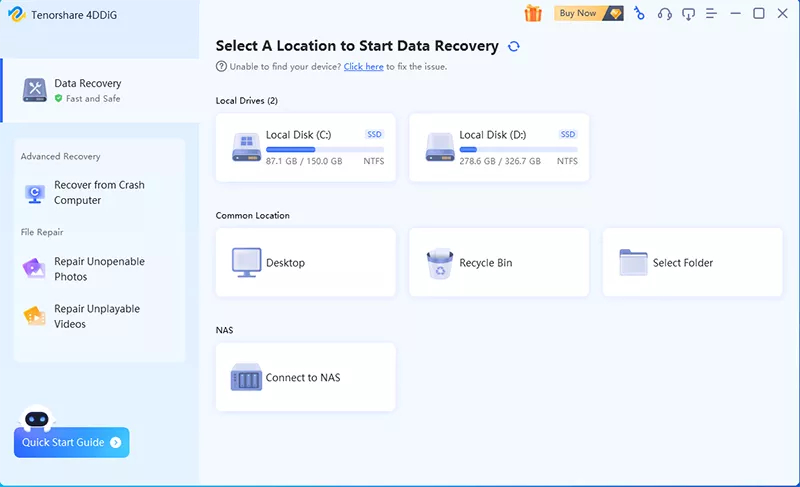
Download, install, and open the 4DDiG File Repair software on your computer. Go to the "AI Enhance" option on the left side and pick the "Video Enhancer" tool.
-
Now, click the "Add Videos" button or drag-and-drop to add the low-quality video (no more than 720p) that you wanna convert to 1080p.
-
In the right panel, choose an "AI Model" suited to your video:
- General Model for standard footage
- Face Model for videos with people (highly recommended for portraits)
- Anime Model for animated content Then set "Resolution" (e.g., X2 for ~1080p upscale, X4 for higher like 4K or 8K). Meanwhile, choose "Sharpen" (for crisper details) or "Soften" as needed. Finally, tap on "Enhance".
Tips:
Toggle "Apply to all videos" if batch processing multiple files.
-
Once the video resolution has been increased, check the side-by-side preview and if you are satisfied, click "Save".
The process is fast and requires no advanced editing skills.
2. Topaz Video AI
Topaz Video AI is known for professional-grade AI upscaling. It provides strong detail recovery and advanced customization options. It analyzes each frame for true detail reconstruction rather than traditional pixel stretching, making 720p to 1080p conversions clear and detailed. However, it is It's more complex than 4DDiG AI Video Enhancer.
Key Features
- Advanced AI scaling models
- Frame interpolation & optional smoothing
- Denoise, sharpen, recover details from old/low-res sources
- Real‑time preview before export
- Multiple preset modes (Film & TV, Sports, etc.)
- Pros
- Cons
-
- Best-in-class output quality for professionals
- Highly customizable AI model parameters
- Excellent for complex enhancements
- Plugin integration with major NLEs
- Great for archival or cinematic footage
-
- Expensive subscription pricing
- No free plan or trial version
- Requires powerful hardware/GPU
- Steep learning curve for beginners
3. HitPaw Online Video Enhancer
HitPaw Free Online AI Video Enhancer offers a browser‑based upscaler that doesn't require downloads. It's ideal for quick 720p to 1080p upscaling, with intuitive controls and simple drag‑and‑drop functionality. It is ideal for small files and casual users. While it's convenient for quick jobs, file size limits and processing queues can be a bottleneck for longer videos.
Key Features
- Online AI enhancement
- AI upscaling from 720p to 1080p and beyond
- Supports MP4, MOV, and AVI formats
- Noise reduction and brightness/color correction
- Easy drag-and-drop interface
- Pros
- Cons
-
- No installation required
- Beginner-friendly
- Good results for casual use
-
- File size limits
- Watermark in the free version
- Slower processing than desktop alternatives
4. VideoProc Converter AI
VideoProc Converter AI is an all-in-one video toolkit that combines format conversion, compression, editing, and AI upscaling in a single desktop app. Its Super Resolution feature powered by AI makes 720p-to-1080p upscaling straightforward, and its GPU acceleration support ensures fast processing on modern hardware. It supports hardware acceleration for faster rendering.
Key Features
- AI Super Resolution upscaling to 4K
- Format conversion, editing tools, batch processing
- GPU acceleration
- Noise reduction and video stabilization
- Pros
- Cons
-
- Multi-functional
- Stable performance
- Fast GPU-accelerated processing
- All-in-one media suite: Converter + recorder + editor
-
- Paid license required
- Interface may feel complex for pure upscaling
- AI upscaling quality is secondary to Topaz or 4DDiG
5. AVCLabs Video Enhancer AI
AVCLabs focuses on AI-based resolution scaling and noise removal. It features multiple AI models, supports upscaling to 4K, and includes face refinement capabilities. It performs well with old movies and low-bitrate videos.
Key Features
- AI upscaling to 1080p, 4K
- Deinterlacing, face refinement, deblur, denoise, and artifact removal
- Multiple enhancement models (standard, anime, face)
- Basic editor tools for brightness and contrast tweaks
- Pros
- Cons
-
- Strong restoration results
- Supports multiple formats
- Clean and modern user interface
-
- High system requirements
- Output quality doesn't always match Topaz Video AI or 4DDiG
- Trial version watermarks output
6. Vmake AI
Vmake AI is a cloud-based video enhancement platform that targets content creators and marketers. Beyond upscaling, it offers background removal, AI avatars, and marketing-oriented video tools. For 720p-to-1080p conversion, it delivers solid results for social media content without requiring any technical expertise.
Key Features Key Features
- Cloud-based upscaling, background removal, and replacement
- Pre-built social media content templates
- AI avatar and marketing video tools
- Adds generative details, color boost
- Pros
- Cons
-
- Fast processing, good for quick social media clip enhancement
- No software installation
- Clean online interface
-
- Max file size/resolution limits, watermark, limited free exports for free users
- Limited control over settings
- Not designed for cinematic or high-quality video work
- Slow processing on longer or larger video files
7. YouCam Online Editor
YouCam Online Editor, developed by CyberLink, is primarily a photo and video beautification platform known for its portrait enhancement features, aimed at social media creators. Its video upscaling function is part of a broader suite, making it a convenient option if you also need color grading, effects, or skin retouching alongside resolution improvement.
- Basic AI video upscaling to 1080p
- Portrait and face beautification tools
- Color correction filters and video trimming
- No installation required
- Pros
- Cons
-
- User-friendly, no software installation needed
- Good for short clips
- Useful for portrait-style social videos
-
- Not ideal for large files
- Very limited enhancement control
- Requires account registration
8. CapCut AI Video Upscaler
CapCut integrates AI enhancement within its editing suite, suitable for TikTok and short-form creators. You can enhance 720p clips directly in the timeline and export them at 1080p or higher with optional lighting and color corrections.
Key Features
- Built-in AI upscaler to 1080p
- Integrated editing tools
- Full export and sharing tools
- Auto contrast, noise reduction, sharpness
- Free with Capcut online AI video enhancer
- Pros
- Cons
-
- Free basic access
- Combines editing and upscaling
- Social-media ready, convenient for TikTok/Reels/Shorts creators
- Web version is video quality enhancer to 1080p online free without watermark
-
- Limited high‑end AI processing and export control
- Locked into the CapCut ecosystem
- Only suitable for short social media clips
Part 3. Quick Comparison: Which 720p to 1080p Converter Is Right for You?
If you want the strongest balance between quality, speed, and ease of use, 4DDiG AI Video Enhancer is the most practical choice in 2026.
Part 4. Bonus: How to Convert Videos from 720p to 1080p for Advanced Users
If you prefer professional editing software, here are manual options.
1. Upscale 720p to 1080p in DaVinci Resolve
If you prefer professional-grade video editing software, DaVinci Resolve offers powerful manual upscaling options. While it does not automatically reconstruct details like AI tools, it allows precise control over scaling, sharpening, and timeline resolution.
Import your 720p video.
-
Go to Project Settings. Set timeline resolution to 1920×1080.
Export in 1080p format.
How to Enhance Video with DaVinci Resolve Studio (Step-by-Step Guide)
2. Upscale 720p to 1080p in Premiere Pro
Adobe Premiere Pro provides flexible scaling and export settings for converting 720p footage to 1080p. Although it mainly resizes rather than intelligently enhances detail, you can fine-tune sharpness and clarity using built-in effects.
Import the 720p video.
Create a 1080p sequence and go to its settings.
-
Set "Editing Mode" to Custom" and insert "1920 x 1080" resolution.
Export as 1080p.
These methods require manual tuning and editing knowledge.
People Also Ask about 720p to 1080p Upscaling
Q1: Is 1080p better than 720p?
Yes, 1080p has more than twice the pixel count of 720p. This results in sharper visuals, especially on larger screens.
Q2: What's the best free 720p to 1080p converter online, free without a watermark?
Most free online tools add watermarks or impose limits. CapCut and some trials offer limited watermark-free exports.
Q3: Does 720p upscaled to 1080P look good?
If done with AI, it can look significantly better. Simple resizing, however, will not improve detail.
Q4: How to upscale 720p to 1080P gaming?
Use AI-powered tools like 4DDiG AI Video Enhancer for the best results. They reconstruct textures and sharpen gameplay footage effectively.
Conclusion
Choosing the right 720p to 1080p converter depends on your needs and experience level. While online tools are convenient, AI desktop solutions provide stronger quality and reliability. For the best balance of performance, clarity, and ease of use in 2026, 4DDiG AI Video Enhancer remains the top recommendation for upgrading your videos to crisp Full HD.
Secure Download
Secure Download
💡 Summarize with AI:
You May Also Like
- Home >>
- Video Tips >>
- Discover 8 Best 720p to 1080p Converters & Upscalers for Videos in 2026
ChatGPT
Perplexity
Grok