Best 9 Free & Paid MOV Players on Different Devices

5 mins read

Updated on 2026-01-26 17:01:48 to Video Tips

MOV files are widely used for high-quality videos, especially those created on Apple devices or professional editing software. However, many users still struggle to open them smoothly across different platforms. Whether you encounter playback errors on Windows, Android, or online browsers, choosing the best MOV player makes all the difference.

This guide walks you through the fastest solutions and the top MOV movie players available in 2026.

best mov player

Part 1. Comparable Table: Which Is the Best MOV Player for You

Choose Based on Your Device

Your Device Best Choice Why
Windows VLC or PotPlayer VLC = simple, PotPlayer = advanced
Mac IINA or VLC IINA = native design, VLC = cross-platform
Android MX Player Most popular, gesture controls
iPhone/iPad Infuse or VLC Infuse = premium, VLC = free
Can’t Install? Jumpshare Online, no download needed

Quick Comparison Table: Which Player Should Your Choose

Player Best For Platform 4K Support Price Codec Support Rating
VLC Universal playback All Free Excellent ⭐⭐⭐⭐⭐
5KPlayer High-res 4K/5K video Win/Mac Free Very good ⭐⭐⭐⭐½
PotPlayer Advanced control Windows Free Excellent ⭐⭐⭐⭐½
MX Player Android Android Free Very good ⭐⭐⭐⭐⭐
KMPlayer Legacy and damaged formats Multi Free Good ⭐⭐⭐⭐
IINA macOS Mac Free Very good ⭐⭐⭐⭐⭐
QuickTime Basic Mac playback Mac ⚠️ Free Limited ⭐⭐⭐½
Infuse Apple ecosystem iOS/tvOS $9.99/year Excellent ⭐⭐⭐⭐½
Jumpshare Online quick playback Web ⚠️ Free Moderate ⭐⭐⭐½

Part 2. Why MOV Files Don't Always Play on Windows / Android

Although MOV is a popular format, it is not universally supported by all systems and media players. Playback issues usually occur due to codec limitations rather than the file itself.

Typical Error Scenarios Include:

Quick Solutions: What Player Plays MOV Files

If your MOV file won’t open, these proven solutions resolve most issues quickly:

  • 90% of cases: Download VLC Media Player (free, instant MOV playback)
  • Windows 11 users: Install HEVC codec ($0.99) and use Movies & TV app
  • Mac users: Use QuickTime Player or upgrade to IINA
  • Android: Install MX Player (free)
  • iPhone/iPad/Apple TV: Use Infuse or VLC for Mobile
  • No installations allowed: Use the Jumpshare online MOV player

These options cover nearly every MOV playback scenario across platforms.

Part 3. How to Play MOV Files on Windows 11/10 (The Fastest Methods in 2026)

Here are the 2 most effective methods for playing MOV files on your Windows computer:

Method 1: Enable MOV Playback in Windows Built-in Players

Windows does not natively support all MOV codecs, but you can enable playback with minimal effort using official or free codec solutions.

✌ Best for: Windows 11/10 Movies and TV app users
💰 Cost: Free if installed from Device Manufacturer, otherwise $0.99 in Microsoft Store

This option is ideal for users who prefer Windows’ built-in Movies & TV app. HEVC support allows many MOV files to play without third-party software.

  • Open Microsoft Store and search for "HEVC Video Extensions" ($0.99) or go to HEVC Video Extensions from Device Manufacturer (free) directly.

    install microsoft hevc video extensions for mov playback
  • Click “Install” and purchase for $0.99 or install the free OEM version if available.

  • Restart Movies & TV and open your MOV file

This method works best for HEVC-encoded MOV videos on Windows 11.

Option B. Install K-Lite Codec Pack (Free)

✌ Best for: Windows Media Player users or those who want comprehensive codec support
💰 Cost: 100% Free

This popular pack bundles essential codecs (including for MOV, HEVC, ProRes, etc.) via LAV Filters and more, making almost any MOV playable in built-in or legacy players like Windows Media Player. It's lightweight and customizable.

  • Go to Codec Guide and download K-Lite Codec Pack (Standard) or the Full version.

    download klite codec pack for mov playback
  • Run the installer afterward and accept default settings. Choose "Normal" mode (recommended for most users) and click "Next"

  • When prompted, select Windows Media Player as your default player and click "Next".

    select windows media player as default player
  • Click "Install". Wait 1-2 minutes till the installation is completed. Once done, tap "Finish".

  • Open MOV files using Windows Media Player

This option is preferred by users who want system-wide codec support without cost.

Method 2: Use a Dedicated MOV Player (natural lead to Part 3)

If you want guaranteed compatibility without modifying system codecs, a dedicated MOV format player is the most reliable choice. dedicated media players offer:

  • Zero codec installation hassle – All codecs included
  • Better performance – Hardware acceleration for 4K/8K MOV files
  • Advanced features – Subtitles, audio sync, playback speed control
  • Cross-platform compatibility – Same player on Windows, Mac, Android

The following section compares the best MOV players for every device and use case.

Part 4. Best 9 Free & Paid MOV Players for Different Devices - 2026 Latest List (Real Test)

If you are looking for a good MOV format player, here are our top 9 picks:

1VLC Media Player – Go-to Freeware MOV Player for Any Platform

✌ Best for: Everyone. Seriously, if you only download one MOV player, make it VLC.

vlc media player for mov playback

✨ Main features:

  • Built-in codec support (MOV, HEVC, ProRes, etc.)
  • Cross-platform: Windows, Mac, Linux, Android, iOS, even ChromeOS
  • Smooth 4K/8K playback on modern GPUs
  • Auto-downloads subtitles; supports 20+ formats
  • Network and streaming playback
  • Audio/video sync controls
  • Pros
  • Cons
    • Completely free and open-source
    • Works on Windows, macOS, Linux, Android, and iOS
    • Lightweight and reliable
    • Outdated user interface
    • Limited media library management
    • No native Dolby Vision support

25KPlayer – Free MOV Format Player for 4K/5K Videos

✌ Best for: High-resolution MOV videos

play mov files on 5kplayer

5KPlayer is a free MOV movie player optimized for high-resolution playback, including 4K and 5K MOV files. It combines smooth local playback with wireless streaming technologies like AirPlay and DLNA, making it a solid choice for home entertainment and large-screen viewing.

✨ Main features:

  • AirPlay and DLNA support
  • Optimized for ultra-HD (better than VLC at 5K+)
  • Hardware decoding (NVIDIA/AMD/Intel)
  • High-quality video rendering
  • 360° VR video support
  • Pros
  • Cons
    • Excellent visual quality
    • Modern and intuitive interface
    • Supports large MOV files smoothly
    • Best 4K/5K performance in our tests
    • Occasional ads in the free version
    • Higher system resource usage
    • Windows/Mac only (no mobile)

3PotPlayer – Best MOV Player for Windows 11 with Advanced Features

✌ Best for: Advanced Windows users who want control

play mov files on windows potplayer

PotPlayer is a powerful MOV player for Windows users who want advanced control. It supports nearly all MOV codecs and offers extensive customization for video rendering, subtitles, and playback performance, making it ideal for technical users.

✨ Main features:

  • Manual codec and renderer control
  • Low CPU usage on HEVC
  • Extensive subtitle customization
  • Scene preview thumbnails
  • Pros
  • Cons
    • Highly customizable (skins, layouts)
    • Lightning-fast performance
    • Smooth playback performance
    • Free to use
    • Complex interface for beginners
    • Windows-only availability
    • Bundled software in installer (decline during setup)

4MX Player – Top MOV Player for Android Phones

✌ Best for: Android phones and tablets

play mov files on android mx player

MX Player is one of the most popular MOV players for Android devices. It supports hardware decoding, gesture-based controls, and multiple subtitle formats, ensuring smooth MOV playback even on mid-range smartphones and tablets.

✨ Main features:

  • Hardware and software decoding
  • Gesture-based subtitle and brightness controls
  • Wide MOV format compatibility
  • Kids lock (disable touch)
  • Background audio play
  • Network streaming (SMB, FTP)
  • Pros
  • Cons
    • Free and efficient
    • Optimized for touch devices
    • Stable performance on Android
    • Intuitive gesture interface
    • Ads in the free version
    • Limited desktop support

5KMPlayer – Plays Legacy and Unusual MOV Files on Windows/Android/iOS

✌ Best for: Playing Legacy and uncommon MOV formats

play mov files on kmplayer

KMPlayer is a versatile MOV video player known for its ability to handle legacy and uncommon codecs. Available on Windows, Android, and iOS, it can decode older MOV files that some modern players struggle with.

✨ Main features:

  • Advanced error recovery
  • Broad codec compatibility, including rare old codecs (Sorenson, Cinepak)
  • Plays incomplete downloads
  • Playback speed and audio control with 3D video support
  • Section repeat (great for learning)
  • Pros
  • Cons
    • Best at handling older or corrupted MOV
    • Works across multiple devices
    • Feature-rich playback options
    • Supports obscure formats
    • Advertisements in the free version
    • Bundled software during installation
    • Cluttered interface

6IINA – Free & Modern MOV Player for Mac

✌ Best for: macOS users wanting modern features

iina player

IINA is a modern MOV player built specifically for macOS. Designed with Apple’s native frameworks, it offers smooth performance, gesture controls, Touch Bar support, and excellent compatibility with modern MOV codecs.

✨ Main features:

  • Native macOS integration
  • Picture-in-Picture support
  • More features and better performance on M1/M2/M3 chips than QuickTime
  • Touch Bar and gesture support
  • Thumbnail preview
  • Online streaming (YouTube, Vimeo)
  • Pros
  • Cons
    • Free and open-source
    • Faster than QuickTime on Apple Silicon
    • Active development (monthly updates)
    • Minimalist, beautiful, native macOS UI
    • macOS-only
    • Limited advanced customization
    • Occasional HDR bugs

7QuickTime Player – Native Apple MOV Player for Mac

✌ Best for: Basic MOV playback on Mac

play mov files on mac quicktime player

QuickTime Player is a built-in Apple MOV player, preinstalled on all macOS systems. It works best with standard MOV files and Apple-encoded content but may struggle with newer or non-standard codecs. Since it comes built-in, you will never need to worry about updates, new features not available, or other problems that come with third-party software.

✨ Main features:

  • Native Apple media support
  • AirPlay to Apple TV
  • Simple recording and trimming tools
  • Seamless macOS integration
  • Pros
  • Cons
    • No installation required
    • Easy to use
    • Stable for standard MOV files
    • Limited codec support
    • Not suitable for advanced playback needs
    • Can't play some third-party MOV files

8Infuse – Popular MOV Media Player for iPhone, iPad, & Apple TV

✌ Best for: iOS and Apple TV users with media servers or cloud storage

play mov files on android via infuse

Infuse is a premium MOV player for Apple devices, including iPhone, iPad, and Apple TV. It excels at handling large MOV libraries, high-bitrate files, and network streaming while automatically fetching metadata and artwork.

✨ Main features:

  • Network and cloud streaming (NAS, Plex, Emby)
  • Automatic metadata fetching
  • High-bitrate video support
  • Cloud support (iCloud, Google Drive, Dropbox)
  • Offline downloads
  • Pros
  • Cons
    • Stunning UI with smooth animations
    • Plays any MOV codec on iOS
    • Excellent library management
    • Cross-device sync and ideal for home media servers
    • Excellent subtitle support
    • Some features require a paid plan ($9.99/year)
    • Limited use outside the Apple ecosystem
    • Free version limits cloud connections

9Jumpshare MOV Player – Best MOV Player Online Free Options

jumpshare online video player

✌ Best for: Quick online MOV playback

✨ Main features:

  • Drag-and-drop upload
  • Browser-based video playback
  • Mobile browser support
  • Simple sharing options
  • Password-protected sharing
  • Pros
  • Cons
    • Works on any device with a browser
    • Browser-based playback, no local installation
    • Fast uploads (100MB in ~15 sec)
    • Clean, ad-free interface
    • File size limitations
    • Requires uploading files to the web

⚡ Part 5. [Issue Fix] What Should You Do If MOV Files Not Playing on And Players

If your MOV videos are not playing anywhere, you can follow the 2 solutions below and play your content:

Fix 1. Repair Corrupted MOV Files Quickly and Safely

If your MOV file fails to play in every player, the file itself is likely corrupted. This commonly happens due to interrupted transfers, storage errors, or incomplete downloads. 4DDiG Video Repair is designed to fix such issues by rebuilding damaged video structures. Its Advanced Repair Mode can restore severely corrupted MOV files that standard tools cannot handle.

Steps to fix unplayable MOV Video Files in 4DDiG Video Repair

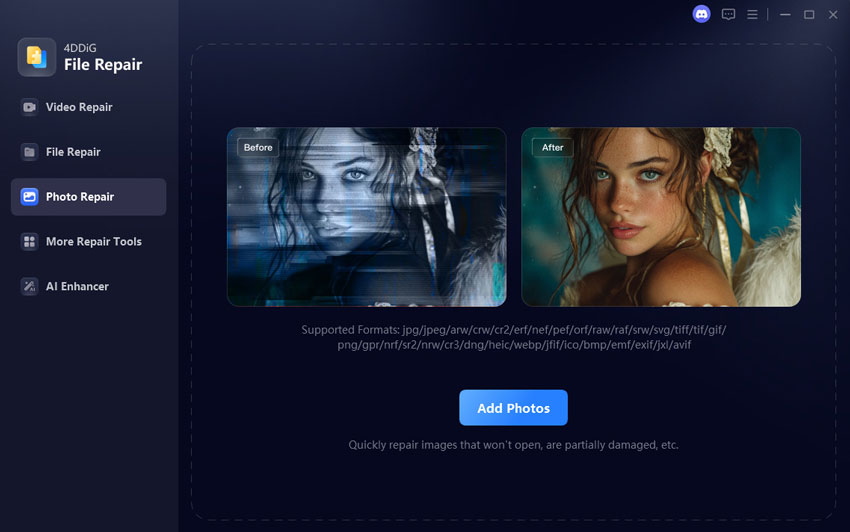
  • Launch 4DDiG File Repair after downloading and installing it on your computer. Go to “Video Repair” and click “Add Videos” to add corrupted MOV files.

    FREE DOWNLOAD

    Secure Download

    FREE DOWNLOAD

    Secure Download

    select video repair and add corrupted mov files
  • Click “Repair All” to begin repairing the videos without any manual efforts.

  • Preview the repaired videos by clicking "Preview" and clicking "Save" to choose a location and save the videos on your device.

    preview and save repaired mov files

Fix 2. Convert MOV Files to MP4 in VLC Media Player

Conversion is recommended when compatibility issues persist or when you need broader device support.

When to convert:

  • MOV codec unsupported
  • Playback stutters
  • Sharing across devices

Steps:

  • Open VLC. Go to “Media” > “Convert/Save”.

    add mov files to vlc
  • In the "Open Media" window, click the Add button to upload MOV file

  • Click the Convert / Save button at the bottom. A new "Convert" window will appear

  • Under Profile, click the dropdown menu and select “Video - H.265 + MP3 (MP4)”.

    convert mov to mp4 in vlc
  • Choose where to save your converted MP4 file and start conversion

Conclusion

Choosing the right best MOV player depends on your device, file type, and usage needs. While VLC remains the fastest universal solution, dedicated players like IINA, MX Player, and Infuse provide optimized experiences on specific platforms.

When MOV files still refuse to play, repairing them with 4DDiG Video Repair ensures reliable recovery and smooth playback without repeated trial and error.

FREE DOWNLOAD

Secure Download

FREE DOWNLOAD

Secure Download

William Bollson (senior editor)

William Bollson, the editor-in-chief of 4DDiG, devotes to providing the best solutions for Windows and Mac related issues, including data recovery, repair, error fixes.

(Click to rate this post)

You rated 4.5 ( participated)