How to Fix "Image Thumbnail Looks OK But Is Corrupted" Error Quickly

5 mins read

Updated on 2026-07-02 12:06:27 to Photo Error

Have you ever seen a perfect image thumbnail in your folder, only to open the file and find it broken, pixelated, or showing gray areas? This frustrating "image thumbnail looks OK but is corrupted" issue is surprisingly common. It often affects JPGs from cameras or phones. In this guide, we'll explain why it happens, how to fix it quickly, and simple steps to prevent it from ruining your memories again.

What Causes "Image Thumbnail Looks OK but Is Corrupted"?

This problem occurs because many image formats, especially JPEGs, store a small preview thumbnail separately in the file header. The thumbnail stays intact even if the main image data gets damaged. When you try to open the full photo, the viewer attempts to decode the corrupted sections and fails.

Incomplete File Transfers

Copying photos from cameras, memory cards, or external drives can be interrupted by connection issues, low battery, or sudden removal. This often damages the main image data while the thumbnail remains intact.

Storage Device Failures

Bad sectors on hard drives, failing SD cards, USB flash drives, or card readers frequently cause partial corruption. The file may appear normal in folder view but shows errors when opened.

Camera or Power Issues During Capture

A camera battery dying mid-shot or an unexpected shutdown can result in incomplete file writing. This is a very common cause of the "thumbnail OK but picture corrupt" problem for JPG, PNG, etc.

Software Glitches and Improper Editing

Errors during photo editing, aggressive compression, forced program closures, or incompatible software can corrupt the image structure without affecting the embedded thumbnail.

Long-term Data Degradation (Bit Rot)

Over months or years, aging storage devices can slowly corrupt bits of data. The main image data is usually affected before the smaller thumbnail.

Understanding these triggers helps you address the root cause instead of just treating the symptom.

⚡ Best Way to Repair Corrupted Images (JPG, HEIC, RAW, etc.)

Once you notice the "thumbnail OK but picture corrupt" problem, acting fast gives you the best chance of recovery. While basic tools like built-in viewers or simple converters sometimes help with minor issues, dedicated repair software is far more reliable for serious corruption across formats like JPG, HEIC, PNG, RAW, and CR2. One highly effective option is 4DDiG Photo Repair.

Warning:

It stands out with its high success rate, batch processing for multiple files at once, support for a wide range of camera and phone formats, and the ability to preview repairs before saving. The tool uses advanced algorithms to fix headers, restore image data, and handle complex issues without requiring technical expertise. It works on both Windows and Mac, keeps your original files safe, and delivers strong results even on heavily damaged photos.

Key Features of 4DDiG Photo Repair

  • Supports JPG, HEIC, PNG, RAW, CR2, and more
  • Batch repair for multiple files at once
  • Advanced algorithms to fix blurry pictures, headers, distortion, gray areas, and pixelation
  • Preview repaired images before saving
  • Multiple output formats support (JPG, PNG, Original, etc.)
  • Safe process that keeps original files untouched
  • Easy-to-use on both Windows and Mac
FREE DOWNLOAD

Secure Download

FREE DOWNLOAD

Secure Download

Here's how to repair multiple corrupted photo files:

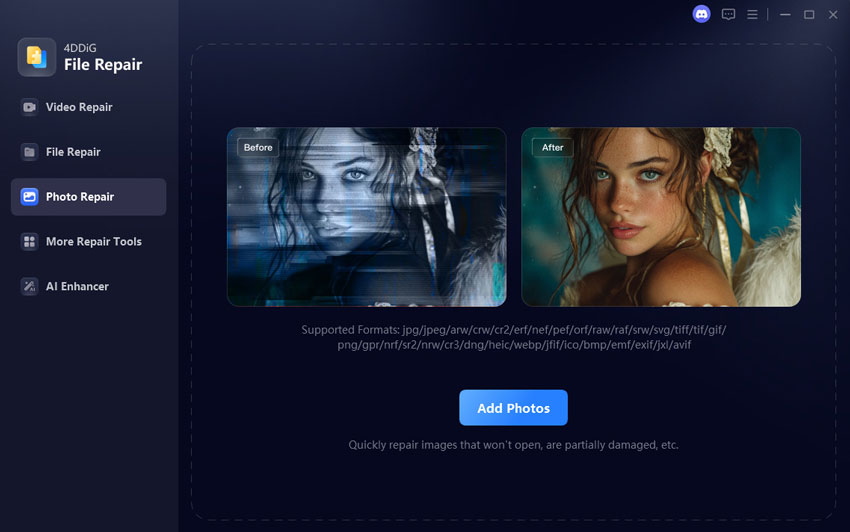
  • Install and fire up 4DDiG File Repair. Select the Photo Repair option from the menu and click Add Photos (or drag and drop your files) to import the corrupted JPGs, HEICs, RAW files, or others.

    add corrupted photos to 4ddig
  • Hit Repair All to let the software analyze and fix the issues in batch mode.

    repair all corrupted photos
  • Once complete, use the Preview button to check each repaired image. Verify that distortions, gray areas, or missing sections are gone.

    preview repaired photos
  • Choose your preferred output format (such as JPG, PNG, or Original) and click Save All to export the fixed photos to a safe folder.

    save repaired photos in preferred format

How to Prevent the "Thumbnail OK But Image Corrupted" Error

Prevention is always better than repair. Follow these practical habits to protect your images:

  • Safely eject devices: Always use the "Safely Remove Hardware" option before unplugging memory cards or external drives.
  • Back up regularly: Keep multiple copies on different storage types (external HDD, cloud, NAS) so you can restore from a good version if corruption occurs.
  • Use reliable transfer methods: Avoid copying large batches during low battery or unstable connections. Consider verifying file integrity after transfers.
  • Maintain your storage: Check SD cards and hard drives for errors periodically and replace aging media before it fails.
  • Handle files carefully: Close editing programs properly and avoid forcing shutdowns while saving or viewing photos.

By staying mindful of these steps, you can greatly reduce the chances of seeing that "JPG thumbnail OK but picture corrupt" warning in the future.

Conclusion

Dealing with the "image thumbnail looks OK but is corrupted" error can be stressful, but understanding its causes and using the right tools makes recovery straightforward. With reliable software like 4DDiG Photo Repair, you can quickly fix JPG, HEIC, RAW, and other corrupted images. More importantly, adopting good backup habits and careful file handling will help prevent this issue in the future. Protect your precious memories by acting promptly and staying proactive, your photos deserve it.

FREE DOWNLOAD

Secure Download

FREE DOWNLOAD

Secure Download

William Bollson (senior editor)

William Bollson, the editor-in-chief of 4DDiG, devotes to providing the best solutions for Windows and Mac related issues, including data recovery, repair, error fixes.

(Click to rate this post)

You rated 4.5 ( participated)