[Fixed] ChatGPT Unable to Upload Image | 9 Methods Proven by Users

5 mins read

Updated on 2026-05-20 10:59:34 to Photo Tips

Are you frustrated because you're finding ChatGPT unable to upload image files? This common bug often stems from model restrictions, server glitches, or corrupted files, leaving users with the "attachments disabled" error. The quickest fix is to switch to GPT-4o or refresh your session.

This article explains why this happens and provides nine proven solutions to resolve your ChatGPT image upload issue immediately.

chatgpt unable to upload image

Quick Answer & Solution Summary

If you are facing an upload error, the fastest solution is often to refresh your session or check if your image file is corrupted.

Workable Solution Short Summary of Steps
Switch Models Ensure you are using GPT-4o or GPT-4, as older models lack vision.
Start New Chat Start a new chat and upload your image again.
Check Image Size/Format <20MB, JPG/PNG recommended
Refresh Session Log out and log back in to clear temporary account glitches.
Repair Corrupted Images Use 4DDiG Photo Repair if the image file itself is corrupted.
Switch to Web or App Upload image to the ChatGPT web or its app to test again.
Disable Extension or Incoginito Mode Use Incognito mode or disable extensions like Cloudflare/AdBlock.
New Account Test with a new account or wait out rare limits
Check Network Connection Test your network. Switch to a Wi-fi or use a VPN

Part 1. Why Can't You Upload Images to ChatGPT?

Understanding why ChatGPT is not allowing me to upload images is the first step toward a fix. Generally, the problem falls into one of three categories:

  • Incompatible AI Model: Standard GPT-3.5 does not support image inputs. If you aren't using GPT-4 or GPT-4o, the feature won't work.
  • Server Overload: During peak hours, OpenAI may temporarily disable "vision" features to save bandwidth.
  • File Format & Size Errors: If your image exceeds 20MB or is saved in an unsupported photo format (such as certain RAW files), the upload will fail. See: How to Fix Photo Format Not Supported Error
  • Corrupted Browser Cache: Old data in your browser can interfere with the site's script, causing the upload button to malfunction.
  • Strict Security Settings: VPNs, firewalls, or aggressive ad-blockers can misidentify the image upload as a security threat.

Part 2. How to Fix ChatGPT Unable to Upload Image Bugs

If ChatGPT is unable to upload images, the fastest fixes are: switch to GPT-4o model, start a new chat, and ensure your image is under 20MB in JPG or PNG format. Most upload issues are caused by using unsupported models (like GPT-3.5), corrupted sessions, wrong file formats, or browser glitches. Follow the methods below to solve the problem quickly.

Method 1. Try First - Switch ChatGPT Models (GPT-4o, GPT-4, etc.)

According to OpenAI's official guidance, the fastest fix for ChatGPT unable to upload images is switching to a vision-supported model, such as GPT-40 and GPT-4. GPT-3.5 does not support image uploads, while GPT-4o does. This single change solves the problem for the majority of users.

Fix Steps:

  • Click the model selector at the top of the chat.

  • Select GPT-4o or GPT-4 (instead of GPT-3.5).

  • Start a new chat and retry.

    switch chatgpt model to fix image upload failed
Note:

If you are a free user, you have limited access to GPT-4o. If you hit the limit, the system might revert you to 3.5, where the image icon disappears.

Method 2. Refresh Browser and Start New Chat

Corrupted session data often blocks image uploads. Doing a hard refresh and starting a fresh chat clears temporary glitches, as recommended in OpenAI Developer Community. This quick step resolves many persistent upload issues.

Fix Steps:

  • Hard refresh: Ctrl + F5 (Windows) or Cmd + Shift + R (Mac).

  • Select "New Chat" from the top left corner.

  • Try uploading the image in a fresh session.

  • This often clears temporary session bugs that prevent file attachments.

    upload image to new gpt chat

Method 3. Use Correct Image Size or Format (<20MB, JPG/PNG recommended)

Images must be in JPEG, PNG, or WEBP format and under 20MB. Unsupported formats or oversized files are among the top reasons for upload failures. Compressing and converting your image properly dramatically increases success rate.

Fix Steps:

  • Right-click your image and select 'Properties' (Windows) or 'Get Info' (Mac).

  • Ensure the file is a JPG, PNG, or WEBP. Avoid HEIC, GIF, or large files.

    use correct image format for chatgpt image upload
  • If the size is over 20MB, use a tool like ILoveIMG to compress it.

Method 4. Log ChatGPT Out and Log Back In

Account session glitches can prevent image uploads even when everything else is correct. Logging out completely and logging back in refreshes your session and often resolves authentication-related upload bugs quickly.

Fix Steps:

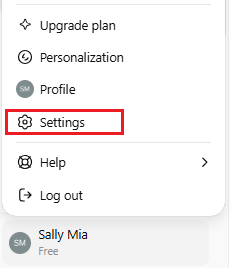
  • Click your profile icon/name in the bottom left.

  • Select "Log out".

    log chatgpt out
  • Refresh the page and log back in with your email and password.

Method 5. Repair Corrupted Images before Uploading

Sometimes the image file itself is corrupted or damaged, causing ChatGPT to reject it. Repairing the image with a professional tool like 4DDiG Photo Repair can fix hidden errors and make the file uploadable again, saving you time and frustration.

Why 4DDiG Photo Repair Works Well:

  • Fixes corrupted, broken, or unreadable image files that ChatGPT refuses to process
  • Supports major formats including JPG, PNG, HEIC, and more
  • Repairs images with issues like pixelation, blur, or header corruption
  • One-click repair with high success rate and original quality preservation
  • Batch convert PNG, BMP, CR2, and HEIC to JPG without quality loss
  • User-friendly interface suitable for both beginners and advanced users

Fix Steps:

  • Download and launch 4DDiG Photo Repair. Select 'Photo Repair'. Then click 'Add Photos' and import the images that fail to upload to ChatGPT.

    FREE DOWNLOAD

    Secure Download

    FREE DOWNLOAD

    Secure Download

    add corrupted images to 4ddig
  • Press the 'Repair All' button to let the AI engine fix damaged image structures and metadata.

    start repairing all damaged images in 4ddig
  • After the scan finishes, preview the repaired results to ensure the images display correctly.

    preview repaired images
  • Finally, export the repaired files in ChatGPT-supported JPG or PNG format. Later, upload them again to ChatGPT.

    save repaired images in chatgpt supported formats

Method 6. Switch Between ChatGPT Desktop, Web and Mobile App

The web version and mobile app use different systems. If image upload fails on desktop, the mobile app often works better, and vice versa. Switching platforms bypasses platform-specific bugs and provides a more stable upload experience.

Fix Steps:

  • On mobile: Open the official ChatGPT app and try uploading.

    upload image to chatgpt mobile app
  • On desktop: Use web version (chatgpt.com).

  • Ensure the app is updated to the latest version.

Method 7. Disable Browser Extensions or Try Incognito Mode

Browser extensions (especially Cloudflare, ad blockers, or VPN extensions) frequently interfere with ChatGPT's image upload feature. Disabling them or using Incognito mode creates a clean environment and eliminates extension-related conflicts.

Fix Steps:

  • Press Ctrl+Shift+N (Chrome) or Ctrl+Shift+P (Firefox) to open Incognito Mode.

    open browser incognito mode
  • Or, go to chrome://extensions/ to disable them in Chrome settings.

    disable conflicted extensions to fix chatgpt image upload failed issue
  • Log in to ChatGPT and try uploading again.

Method 8. Use a New Account or Wait Out Rate Limits

Rate limits or temporary account restrictions can trigger "You've made too many requests" or "ChatGPT image upload failed" errors that also affect image uploads. Using a new account or waiting a few hours often resolves these rare limitations.

Fix Steps:

  • If you are a free user, you must wait (usually 24 hours) for your limit to reset.

  • Alternatively, use a different account if you have one.

  • Avoid spamming the "Upload" button, as this further causes security flags.

    chatgpt image upload limits

Method 9. Check Your Internet Connection

Unstable or slow internet connections can interrupt image uploads midway, causing failures. A stable, fast connection ensures the full image file is properly transmitted to ChatGPT's servers.

Fix Steps:

  • Switch to a strong Wi-Fi network.

  • Disable VPN temporarily.

  • Test your internet speed and restart your router if needed.

    test internet speed

Part 3. ChatGPT Image Upload Limits & Supported Files: What You Need to Know

ChatGPT supports image uploads with clear limits: maximum 20MB per image, supported formats are JPG, PNG, and WEBP (non-animated GIF in some cases). General file uploads go up to 512MB, but images have stricter rules. Exceeding these limits is one of the most common reasons for "Unable to upload" errors.

Key ChatGPT Image Upload Limits (Updated 2026)

  • Maximum File Size: 20MB per image (anything larger is automatically rejected)
  • Supported Formats: JPG (.jpg, .jpeg), PNG (.png), WEBP (.webp)
  • Unsupported Formats: HEIC, animated GIFs, TIFF, RAW, SVG, and most proprietary formats
  • Maximum Images per Message: Up to 10 images (recommended 3–5 for best performance)
  • Free User Limits: Limited GPT-4o access (roughly 10–15 image messages every few hours)
  • ChatGPT Plus Limits: Significantly higher — around 80 messages / 3 hours with GPT-4o, allowing frequent image uploads
Pro Tips:

Always compress images under 20MB. High-resolution photos are automatically compressed by ChatGPT after successful upload, so quality is usually preserved.

Part 4. How to Upload Images to ChatGPT Correctly

Uploading images to ChatGPT is straightforward when using a supported model and following the correct process. The key is using GPT-4o, preparing files under 20MB, and waiting for full processing.

Step-by-Step Guide to Upload Images Successfully

  • Open ChatGPT and select a vision-capable model (GPT-4o or GPT-4).

  • Click the Paperclip icon or Image icon in the message bar.

  • Select your file (ensure it is under 10 images at once, under 20MB and saved in JPG or PNG format).

  • Add a text prompt explaining what you want the AI to do with the image.

  • Press Enter.

Part 5. How to Fix Specific ChatGPT Image Upload Errors

When the general fixes don't work, the exact error message usually points to a precise cause. Below are the most common ChatGPT image upload errors and the fastest ways to resolve them.

Fix "Unable to Upload Image.png to ChatGPT"

unable to upload image png to chatgpt

This error is often caused by unsupported mode selection, special characters, long filenames, file size limits, or file extension issues.

Fixes:

  • Ensure you have GPT-4o or GPT-4 selected.
  • Rename the file to something simple (e.g., test.png or image1.jpg).
  • Remove spaces, symbols, or non-English characters from the filename.
  • Ensure your .png file is under 20MB.

Fix "Unable to Upload Image. Max 0 Uploads at a Time"

unable to upload image max 0 uploads at a time

This error typically indicates that you've hit your account's rate limit for image uploads, or you're using an AI model that doesn't support image uploads (such as GPT-3.5).

Fixes:

  • Switch to GPT-4o or GPT-4 model immediately.
  • Refresh the page (Ctrl + F5) or start a completely new chat.
  • Log out and log back in to reset your session.

Fix ChatGPT Image Upload Failed with HTTP Errors (500, 429, 403, 401)

Error Code Meaning Quick Fix
500 Server-side error Wait 5–10 minutes and try again
429 Rate limit exceeded Wait (free users: up to 24h) or switch accounts
403/401 Authentication or permission issue Log out → Log in, or disable VPN

Fix "You do not have access to upload images"

This error typically appears when:

  • Your account is in a temporary "Limited" state (GPT-4o quota used up).
  • Using a blocked VPN or proxy.
  • Account under safety review.

Solutions:

  • Switch to GPT-4o and start a new chat.
  • Disable VPN or try a different server.
  • Wait a few hours and try again.

Part 6. Top ChatGPT Alternatives with Image Upload & Analysis

If you've tried all the fixes above and still can't upload images to ChatGPT reliably, here are the top alternatives with strong image upload and analysis capabilities:

  • Google Gemini: Extremely fast and offers the best free image analysis currently available.
  • Claude (Anthropic): Known for incredibly high-quality technical analysis of charts and diagrams.
  • Microsoft Copilot: Uses the same GPT-4o engine but often has different rate limits and is integrated into Windows.
  • Grok (by xAI): A strong contender for real-time data combined with image recognition.
  • Perplexity AI: Excellent for research-heavy tasks where you need to verify image data against web sources.

FAQs about ChatGPT Can't Upload Images Error

Q1: Is it safe to upload pictures of yourself to ChatGPT?

OpenAI uses data to train models unless you opt out. Avoid uploading sensitive or private photos unless you have disabled "Chat History & Training" in settings.

Q2: Why is the upload button greyed out / attachments disabled?

This usually means you are in a "Limited" state because you have used up your GPT-4o messages for the day, or you are on a model that doesn't support images.

Q3: Can I bypass ChatGPT image upload limits?

The only legitimate way is to upgrade to ChatGPT Plus or use the API (which is pay-as-you-go).

Q4: What does ChatGPT do with the photos you upload?

It "tokenizes" the pixels to understand the content. If history is on, the image is stored on OpenAI's servers.

Q5: Why can't I upload certain files to ChatGPT?

If you see you do not have access to upload images, it may be because you are trying to upload an executable or an unsupported file type like a .SVG or .TIFF.

Q6. What's the Size Limit for Images in ChatGPT?

The official limit is roughly 20MB per image. While you can upload high-resolution photos, ChatGPT compresses them for analysis. Anything over 20MB will be rejected automatically to prevent server lag.

Q7. How Many Images Can You Upload to ChatGPT for Free Per Day?

OpenAI frequently changes these limits, but free users typically get a small "taste" of GPT-4o (about 10-15 messages including images) every few hours. Once exhausted, you are reverted to GPT-3.5.

Q8. What Is the ChatGPT Plus Image Upload Limit?

Roughly 80 messages every 3 hours for GPT-4o. If you want to know "how many images can I upload with ChatGPT Plus", the limit is quite generous. You can generally upload up to 10 images in a single message, as long as you stay within the 3-hour message cap. This makes the Plus subscription essential for power users who rely on visual data analysis.

⚡ Conclusion

The ChatGPT unable to upload image issue is usually caused by model selection errors, upload limits, damaged files, or browser conflicts. In most cases, switching to GPT-4o, starting a new chat, or checking image size solves the problem quickly. If corrupted files keep failing, 4DDiG Photo Repair is a reliable solution for repairing images before uploading them successfully to ChatGPT.

FREE DOWNLOAD

Secure Download

FREE DOWNLOAD

Secure Download

William Bollson (senior editor)

William Bollson, the editor-in-chief of 4DDiG, devotes to providing the best solutions for Windows and Mac related issues, including data recovery, repair, error fixes.

(Click to rate this post)

You rated 4.5 ( participated)