How to Repair JPEG Header (Step-by-Step)

5 mins read

Updated on 2026-07-10 10:28:29 to Photo Error

Opening a favorite photo only to see an error message instead of the image can be frustrating, especially when the file appears to be intact. In many cases, the problem lies in a damaged header rather than the photo itself. If you’re looking to repair JPEG header issues, this guide explains what a JPEG header is, why it gets corrupted, and three proven methods to recover your photos quickly and safely.

What Is a JPEG Header?

Before attempting to repair a damaged image, it’s helpful to understand what the JPEG header actually does.

A JPEG file consists of two main parts:

  • Header: Stores important information that tells software how to interpret the image.
  • Image Data: Contains the actual pixel information that makes up the photo.

The header begins with a Start of Image (SOI) marker, identified by the hexadecimal value FFD8. This tells image viewers where the JPEG file begins. Following the SOI marker are several metadata segments, the most common being JFIF (JPEG File Interchange Format) or EXIF data (Exchangeable Image File Format).

These sections store details such as image dimensions, compression settings, camera information, orientation, color profiles, timestamps, and other metadata required to display the image correctly.

When you open a JPEG file, your photo viewer reads the header first. Only after successfully interpreting this information does it begin loading the actual image data.

That’s why header corruption is so serious. Even if every pixel in the image remains untouched, a damaged or missing header prevents software from understanding the file structure. As a result, the photo may appear corrupted, generate an error message, or fail to open altogether.

What Causes JPEG Header Corruption (Reasons & Symptoms)

Header corruption can happen for several reasons, many of which occur during normal file handling rather than image editing.

Here are the common reasons:

  • Interrupted file transfers: Disconnecting a USB drive, memory card, or external storage before the transfer finishes can damage the JPEG header.
  • Unexpected power failures: A computer shutting down while saving or copying images may leave the header incomplete.
  • Corrupted storage devices: Failing SD cards, USB drives, or hard disks can introduce file corruption.
  • Virus or malware attacks: Some malicious software modifies or damages file structures.
  • Improper image editing: Software crashes while editing or exporting images may corrupt the file.
  • Bad sectors on storage media: Physical storage issues can damage critical portions of the file.
  • Incomplete downloads: Download interruptions sometimes produce partially written JPEG files.

Common Symptoms

If the header is damaged, you may notice one or more of these symptoms:

  • The file cannot be opened because of a header error.
  • Image viewers display “Unsupported file format.”
  • Only a blank or gray image appears.
  • Photo editing software crashes when opening the file.
  • The image thumbnail is missing.
  • The file opens with strange colors or distortion.
  • Error messages indicating file corruption.

These issues often point toward the need to repair corrupt JPEG header information before the image becomes accessible again.

⚡ How to Repair JPEG Header | 3 Proven Ways

Repairing the JPEG header becomes easy when you know the right online and offline options.

Method 1: Using a Dedicated Photo Repair Software (High Success Rate)

When a JPEG header is damaged, manually rebuilding the file structure isn’t always practical, especially if several photos are affected. While advanced methods like hex editing may work in certain cases, they’re time-consuming and require technical knowledge.

If you’re looking for the quickest and safest way to repair JPG header problems, a dedicated repair tool can automatically analyze damaged files and restore them with minimal effort.

Among the available options, 4DDiG Photo Repair is one of the most reliable choices for repairing JPEG files affected by header corruption, storage device errors, interrupted transfers, virus attacks, and other forms of image damage.

Standout Features of 4DDiG Photo Repair

  • Repairs corrupted JPG, JPEG, PNG, RAW, TIFF, CR2, NEF, ARW, and many other image formats.
  • Fixes various photo issues, including JPEG header corruption, broken metadata, blurry images, pixelation, gray photos, and files that refuse to open.
  • Uses AI-powered repair technology to reconstruct damaged image structures with a high recovery success rate.
  • Supports batch repair and preview before save.
  • Handles photos corrupted by failed transfers, damaged SD cards, hard drive errors, system crashes, and malware attacks.
  • Features a beginner-friendly interface that requires no technical knowledge.
FREE DOWNLOAD

Secure Download

FREE DOWNLOAD

Secure Download

Steps to Repair Multiple JPEG Images Using 4DDiG Photo Repair

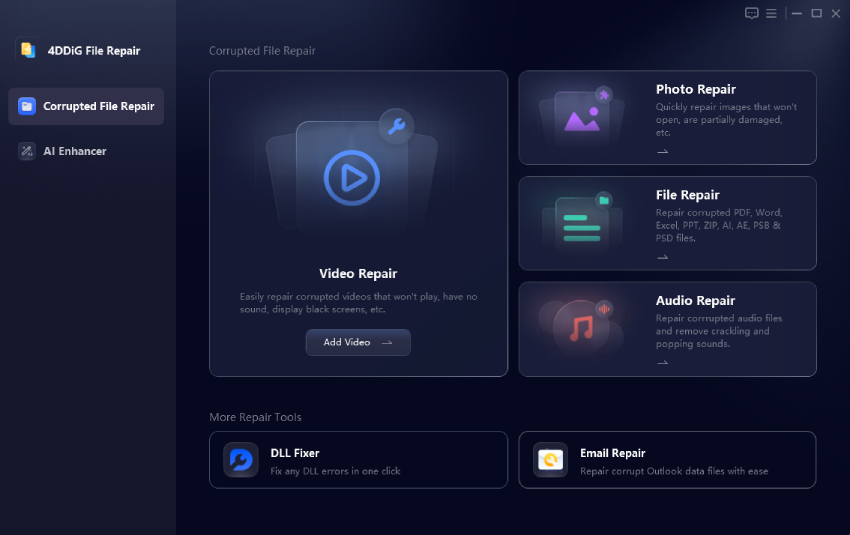
  • Install and launch 4DDiG Photo Repair. Select “Photo Repair” from the main interface, then click “Add Photos” and import one or multiple damaged JPG or JPEG files.

    add jpeg files to 4ddig
  • Click “Repair All” to begin scanning and repairing the images for header issues, and wait for the repair process to finish.

    start repairing jpeg header
  • Preview the repaired photos after the process is complete by clicking the "Preview" button.

    preview repaired jpeg files
  • When you like the results, save the recovered files in Original or PNG format to your preferred location by clicking “Save”.

    save repaired jpg files in preferred format

Method 2: Using a Free Online JPEG Header Repair Tool

If you only have one or two damaged images and prefer not to install software, an online repair service can be a convenient alternative. These web-based tools upload your JPEG file to a remote server, analyze the corruption, and attempt to rebuild the damaged header automatically.

While they may not be as effective with severe corruption, they offer a quick way to repair the JPEG header online for minor file damage.

  • Open a trusted online JPEG repair website like 4DDiG Free Online Photo Repair and upload the corrupted JPEG image by clicking “Upload Photo”.

    4ddig free online photo repair
  • Once uploaded, the online gadget will automatically start the JPEG header repair process. Wait for seconds.

  • When finished, download the repaired photo by clicking "Save" or “Save All” if you uploaded multiple corrupted JPG images.

Method 3: Fix JPEG Header with Hex Editor (HxD) – Powerful Manual Method

For advanced users, manually repairing a JPEG header using a hex editor is another option. HxD allows you to inspect and modify the binary contents of a file, making it possible to replace a damaged header with one copied from a healthy JPEG created by the same camera or device.

If you’re asking, " Can I use hxd to repair corrupt photos, the answer is yes, but only if you’re comfortable working with hexadecimal data and understand the risks involved.

  • Download and install HxD Hex Editor and open both the corrupted JPEG and a healthy reference JPEG taken by the same camera. Compare the file headers, then copy the correct header bytes from the healthy image. For example, a healthy JPG file header will be "FF D8 FF E0".

    hxd healthy jpeg header
  • Replace the first 4 bytes of damaged header with FF D8 FF E0 in the corrupted file.

  • Save the modified JPEG under a new filename and try opening the repaired image in your preferred photo viewer.

Prevention Tips: Protect Your JPEG Files from Header Corruption

Although most header problems can be repaired, prevention is always the better approach. Following a few simple habits can significantly reduce the risk of file corruption.

  • Always eject USB drives, SD cards, and external storage devices safely before disconnecting them.
  • Wait until file transfers finish before removing storage media.
  • Keep backups of important photos on a second drive or cloud storage service.
  • Use high-quality memory cards from reputable manufacturers.
  • Avoid editing images directly from removable storage whenever possible.
  • Keep antivirus software updated to protect against malware-related corruption.
  • Replace storage devices that begin showing read or write errors.
  • Use an uninterrupted power supply (UPS) when working on important editing projects.
  • Regularly verify backups to ensure your photos remain accessible.

Conclusion

Knowing how to repair JPEG header problems becomes much easier once you understand how the JPEG file structure works. Whether you choose dedicated repair software, an online service, or manually fix JPEG header information with HxD, the right method depends on the severity of the corruption and your technical experience.

For the highest recovery success rate, especially when repairing multiple damaged photos, 4DDiG Photo Repair offers a fast, reliable solution that can restore corrupted JPEG files with minimal effort.

FREE DOWNLOAD

Secure Download

FREE DOWNLOAD

Secure Download

William Bollson (senior editor)

William Bollson, the editor-in-chief of 4DDiG, devotes to providing the best solutions for Windows and Mac related issues, including data recovery, repair, error fixes.

(Click to rate this post)

You rated 4.5 ( participated)