Insta360 File Repair Guide: How to Repair Corrupted Insta360 Videos

5 mins read

Updated on 2026-09-24 20:27:04 to File Tips

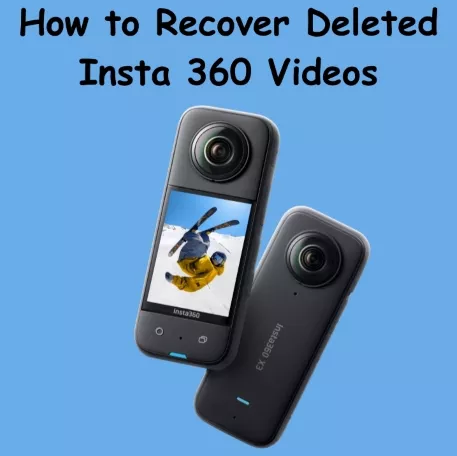
Corrupted Insta360 videos may fail to open, show import errors, or appear incorrectly in Insta360 Studio. Insta360 file repair can restore supported INSV and MP4 footage when the file contains recoverable data.

Our detailed guide explains what the official repair tool does, where to download it, and how to repair corrupted videos. It also covers what to do when Insta360 File Repair fails and introduces 4DDiG Video Repair as an alternative.

Part 1. What Is Insta360 File Repair?

Insta360 File Repair is an official utility for repairing certain corrupted video files recorded with Insta360 cameras. It is intended for footage that cannot be opened or properly previewed in Insta360 Studio or the Insta360 app.

The tool supports INSV and MP4 video files, depending on the Insta360 camera and repair scenario. Common problems include failed previews, import errors, and missing stitching information.

However, the tool cannot guarantee successful recovery for every damaged file. Insta360 states that recovery depends on the extent of corruption. Audio and gyroscope information may also remain unrecovered even when the video itself is restored.

Part 2. How Do You Download Insta360 File Repair?

The official Insta360 repair tool is available through Insta360's Downloads section. The correct version depends on your computer system and the availability of the repair utility for your camera model.

System Requirements For Insta360 Repair Tool

Before downloading the tool, check the following requirements:

Aspect Windows Mac
Operating System Windows 7 SP1 or higher macOS 10.13 or higher
Processor Any AMD or Intel mainstream processor from the last two years M1, M2, M3, or any AMD/Intel mainstream processor from the last two years
RAM 16GB or higher 16GB or higher
Main Hard Disk SSD 128GB or higher SSD 128GB or higher
Graphics Card Nvidia GeForce GTX 1060 (6GB) and above Mainstream processor from the last two years

Insta360's support documentation notes that the repair process should not be interrupted. Do not move the damaged file or disconnect power while the repair is running.

Steps To Download Insta360 File Repair

  • Open the official Insta360 Downloads page in your browser. Use the downloads section provided for Insta360 products and software.

  • Scroll through the available downloads until you find "Insta360 File Repair". The exact location can change as Insta360 updates its downloads page.

    mac download insta360 file repair
  • Select the version that matches your computer's operating system. Download the installation or executable package to your computer.

  • Open the downloaded package and follow the on-screen installation instructions if installation is required.

Part 3. How To Use Insta360 File Repair To Fix Corrupted Insta360 Videos?

The repair process differs slightly depending on whether the damaged footage is an INSV or MP4 file. Before starting, make a copy of the corrupted video and use the copy for repair when possible.

1. Repair Corrupted INSV Files

INSV repair software is commonly used for 360-degree Insta360 footage. When an INSV file cannot be previewed, produces an import error, or shows missing stitching information, the official repair tool may be able to reconstruct the damaged video data.

  • Launch "Insta360 File Repair" on your computer. Click "Add Files" to add the corrupted .insv files for your 360 video.

    add insv files to insta360
  • If required, add a healthy .insv file (instead of .lrv) recorded by the same Insta360 camera as a reference file. (The reference file is not required while repairing MP4.)

    add reference insv files to insta360 repair tool
  • Then start the repair process using the available "Repair" or "Repair all" button to let the tool analyze and rebuild the damaged video information.

    insta360 file repair start insv file repair
  • Wait until the process finishes. Do not move the file, close the repair utility, or disconnect the computer from power during processing.

  • Open the repaired file in Insta360 Studio. After that, check whether the video previews correctly and whether the 360-degree view and stitching information are available.

2. Repair Corrupted MP4 Files

Insta360 cameras can also produce MP4 footage, particularly for wide-angle recording modes and supported camera models. If an MP4 cannot be opened or imported correctly, Insta360 recommends trying its file repair utility when the file meets the supported conditions.

In this case, you do not need to import the 2 insv files as in the case of 360 videos. So, you only need the single MP4 file.

  • Open "Insta360 File Repair" and select the damaged MP4 file from your computer.

  • Confirm that the selected file is the original video recorded by the Insta360 camera. Avoid selecting a low-resolution preview or unrelated MP4 file.

  • Select "Repair" to begin the recovery process. The utility will analyze the MP4 structure and attempt to recover usable video data.

  • Let the repair finish without interrupting the process, and click "Save" once the process completes. Keep the original file available until you confirm that the repaired version works correctly.

If the repair fails, the result does not necessarily mean that every part of the video is unrecoverable. The success of official repair depends on the extent and type of corruption. Insta360 also notes that audio and gyroscope data may not be restored.

⚡ Part 4. Better Alternative To Repair Corrupted INSV And MP4 Video Files

The official utility may not repair every damaged recording. Users can encounter problems such as Insta360 File Repair failing to write file information or receive an unsuccessful repair result. In these situations, 4DDiG Video Repair provides another recovery option for corrupted INSV, MP4, and other supported video files.

4DDiG Video Repair is designed to repair videos that fail to play, show corruption, contain visual problems, or become damaged after recording. It can also process multiple videos in supported workflows.

Key Features of 4DDiG Video Repair

FREE DOWNLOAD

Secure Download

FREE DOWNLOAD

Secure Download

Steps To Repair Insta360 Videos Using 4DDiG Video Repair

  • Open 4DDiG File Repair and select the "Video Repair" function. Import the corrupted INSV or MP4 file that the Insta360 repair tool could not repair by clicking "Add Videos".

    add corrupted insv mp4 videos to 4ddig
  • Select "Repair All" to kick off the video analysis and repair. The software will examine the damaged footage and attempt to rebuild the recoverable video information.

    start insv mp4 video repair
  • Preview the repaired video with the "Preview" button before saving it. Check playback, image quality, frames, audio, and other important sections.

    preview repaired insv mp4 videos
  • Choose the save output option based on your needs: MP4, MKV, MOV, AVI, or the original. Store the recovered file in a new location instead of replacing the original damaged recording.

    save repaired insv mp4 in preferred format

4DDiG can be useful when the official Insta360 file repair utility cannot process a damaged file. However, no repair software can guarantee complete recovery when critical video data has been permanently destroyed.

People Also Ask About Insta360 File Repair

Q1: Can Insta360 File Repair Recover Audio And Gyroscope Data?

Not always. Insta360 states that a video may be visually recovered while audio or gyroscope information remains damaged or unavailable.

Q2: Is Insta360 File Repair Free?

The official Insta360 File Repair utility is provided by Insta360 for supported self-service repair cases. Availability and supported camera models can change, so check the current official download page before using it.

Q3: Is There An Insta360 File Repair Online Version?

The official self-service repair workflow is provided as a downloadable repair utility rather than a general browser-based repair service. If you need browser-based video repair, you would need to use a separate third-party service.

Conclusion

Insta360 file repair can help recover supported corrupted INSV and MP4 recordings that fail to open or import correctly. The official utility should be the first option for compatible files, but it cannot repair every type of corruption. When the tool fails to write file information or cannot recover the video, 4DDiG Video Repair offers an alternative for repairing INSV, MP4, and other damaged video files.

FREE DOWNLOAD

Secure Download

FREE DOWNLOAD

Secure Download

William Bollson (senior editor)

William Bollson, the editor-in-chief of 4DDiG, devotes to providing the best solutions for Windows and Mac related issues, including data recovery, repair, error fixes.

(Click to rate this post)

You rated 4.5 ( participated)