How to Use Adobe Acrobat Repair Tool to Fix Crashes, Installtion & PDF Issues

5 mins read

Updated on 2026-10-08 21:42:56 to File Tips

Are you dealing with Adobe Acrobat crashes, missing tools, installation errors, or PDFs that will not open? The Adobe Acrobat repair tool can often fix damaged installation files without removing the app. This guide explains how to repair Acrobat, reinstall it when needed, and handle corrupted PDF files. You will also learn when an Adobe Acrobat fix tool such as 4DDiG File Repair can help with damaged PDFs.

how to use adobe acrobat repair tool

Part 1. What Is the Adobe Acrobat Repair Tool?

The Adobe Acrobat repair tool is a suite of built-in and external resources for maintaining Adobe’s document software. When people mention the Adobe repair tool, they usually refer to the “Repair Installation” feature in the application, which scans core files and replaces damaged components.

It is important to distinguish software repair from file repair. An Adobe Acrobat fix tool addresses application crashes and startup errors caused by registry conflicts or corrupted program files. In contrast, repairing a corrupted PDF involves restoring the internal data of a document. While Adobe provides basic internal checks, severe corruption requires specialized recovery utilities. Knowing which tool to use is essential for efficient troubleshooting.

Part 2. How to Repair Adobe Acrobat Installation (3 Top Choices)

If your software crashes or fails to launch, you may need to download an Adobe Acrobat repair tool or use built-in diagnostic features to fix the installation. Here are the 3 most reliable ways to repair your software.

Way 1. Use Acrobat’s Built-in Repair Installation (Easiest Method)

The most direct way to fix software glitches is to use the Adobe Reader Repair Installation tool located within the application menu. This feature is specifically designed to handle common performance issues without requiring a full uninstallation.

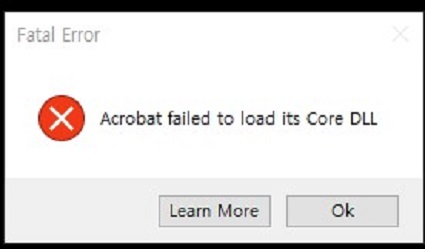
This tool can help with AcroCEF and RdrCEF errors, as well as problems where Acrobat does not open properly. If you see a “running instance” error, you may also need to close the Acrobat process in Task Manager before running the repair.

Steps to Perform a Built in Repair:

  • Open the Adobe Acrobat application on your Windows or Mac computer.

  • Click the “Menu” icon at the top left.

  • Scroll down to the “Help” section and select “Repair Installation.”

    adobe acrobat reader repair installation
  • When the confirmation window appears, click “Yes.”

    confirm to repair adobe acrobat installation
  • Once the process is complete, restart your computer to ensure all registry changes take effect.

Way 2. Repair via Windows Control Panel / Settings

If Adobe Acrobat is so damaged that it will not open at all, you cannot access the internal repair menu. In this case, you must use the Windows system settings to start the repair process. This method uses the Windows Installer service to verify the integrity of the application files against the original installation package.

Steps for Control Panel Repair:

  • Press Windows + R to open the Run window.

  • Type Control Panel and press “Enter.”

  • Select “Programs,” then “Programs and Features.”

    control panel programs
  • Find Adobe Acrobat in the list of installed programs.

  • Select the program, then click “Change” at the top.

    change adobe acrobat installation
  • In the setup dialog box, select the “Repair” option and click “Next.”

    repair adobe acrobat installation via windows settings
  • The system will check the files and replace any missing or damaged ones.

  • Once finished, restart your device to finalize the repairs.

Way 3. Full Clean Uninstall and Reinstall with Adobe Acrobat Cleaner Tool

When standard repair methods fail, the issue may stem from deep seated registry errors or leftover files from previous versions. Adobe provides a specialized Adobe Acrobat repair tool download known as the Creative Cloud Cleaner Tool (or the Acrobat Cleaner Tool). This utility removes all traces of the installation, including corrupted license files and registry entries that a standard uninstaller might miss.

Steps:

  • Open Control Panel, go to “Programs and Features,” select “Adobe Acrobat,” and click “Uninstall.”

    uninstall adobe acrobat
  • Restart your PC after the uninstall is complete.

  • Download and open Adobe’s official Cleaner Tool, accept the license, select “Acrobat,” and click “Clean Now.”

    full clean adobe acrobat installation
  • Restart your PC again after the cleanup finishes.

  • Download the latest Acrobat installer from Adobe, run “Setup.exe,” and follow the on screen instructions.

  • Open Acrobat and sign in to your Adobe account.

Important:

A clean reinstall is more involved than a normal repair. Use it when Acrobat remains broken after trying the simpler repair options.

⚡ Part 3. How to Repair Corrupted PDF Files (2 Best Ways)

Sometimes, the software is fine, but the document is broken. This can happen due to incomplete downloads, sudden power outages, or storage media failure.

Here are the best methods to fix a damaged PDF.

Method 1: Repair a Single PDF File Using Adobe Acrobat

Adobe Acrobat includes some basic “self healing” capabilities. When you attempt to open a slightly damaged file, Acrobat may try to reconstruct the cross reference table or fix minor syntax errors. If the file opens but looks garbled, you can use the Adobe Acrobat Fix Toolbar and other internal features to save the data.

Steps to Repair via Preflight:

  • Open the damaged PDF file in Adobe Acrobat Pro.

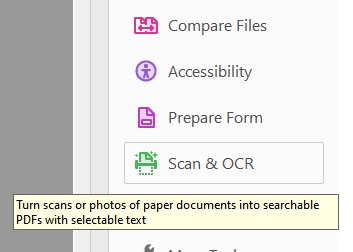
  • Search for the “Preflight” tool in the Tools pane or go to “Print Production,” then “Preflight.”

    adobe acrobat preflight pdf repair tool
  • In the Preflight dialog, click the “Profiles” tab.

  • Choose a fixup profile, such as “Fix common PDF errors” or “Correct problem areas”

  • Click the “Analyze and Fix” button.

    adobe acrobat preflight analyze and fix pdf
  • Save the repaired file with a new name to preserve the original.

Limitations: This method requires a paid subscription to Acrobat Pro and may not work if the file is so badly corrupted that it won’t open at all.

Method 2: Batch Fix Corrupted PDF Files Using 4DDiG File Repair

If file corruption is severe and Adobe Acrobat cannot handle it, or you need to repair hundreds of files at once, we recommend 4DDiG File Repair. 4DDiG File Repair is a powerful, AI-driven tool that restores broken documents, including PDFs, Word files, and Excel spreadsheets. 4DDiG File Repair focuses on the binary data within the file itself.

Key Features of 4DDiG File Repair:

  • AI powered reconstruction repairs damaged file components.
  • 98% High success rate across + different corrupted file scenarios.
  • Multi format support for common file types.
  • Handles various PDF issues: PDF not opening, shows gibberish text, blank pages, and more
  • High success rate for the heavily damaged files
  • Compatible with Windows and macOS 10.12 and above.
  • Batch processing repairs multiple files simultaneously.
  • Preview repaired files before saving them.
FREE DOWNLOAD

Secure Download

FREE DOWNLOAD

Secure Download

Steps to use 4DDiG File Repair:

  • Open 4DDiG File Repair and select “File Repair.” Click “Add Files” and choose the damaged PDFs you want to fix.

    add corrupted pdf files to 4ddig
  • Check the files you added, then click “Repair All.” 4DDiG will scan and repair the selected PDFs.

    start repairing all corrupted pdf files
  • After the repair is complete, click “Preview” to check the repaired PDF. You can also view the “AI Report” to see the detected issues.

    preview repaired pdf files
  • Click “Save” next to a repaired file, or select Save All to save all repaired PDFs.

FAQs about Adobe Acrobat Reader Repair Tool

Q1: Can Adobe Acrobat repair a corrupted PDF file?

Acrobat fixes minor errors automatically during opening, but lacks a dedicated file repair button. For severe damage, 4DDiG File Repair is recommended.

Q2: Can you repair Adobe Acrobat?

Yes. You can repair the installation by going to Help, then Repair Installation within the app, or by using the Windows Control Panel “Change” option to fix the installation files.

Q3: How do I run a repair on Adobe?

The fastest way is through the application’s Help menu. If the application won’t open, use the Windows “Programs and Features” menu, select Adobe Acrobat, click “Change,” and then select “Repair”.

Q4: How can I repair a corrupted PDF file?

If the file opens, use File, then Save As or the “Print to PDF” printer. If the file is unreadable, use 4DDiG File Repair, which specializes in reconstructing damaged PDF data using AI algorithms.

Conclusion

In conclusion, the Adobe Acrobat repair tool is an essential resource for maintaining software stability and resolving performance errors. While built-in features are excellent for fixing minor glitches, they may not always recover severely damaged documents. In those situations, we recommend using 4DDiG File Repair to restore broken PDFs quickly and reliably. This professional utility ensures your data remains accessible without compromising the original quality or formatting.

FREE DOWNLOAD

Secure Download

FREE DOWNLOAD

Secure Download

William Bollson (senior editor)

William Bollson, the editor-in-chief of 4DDiG, devotes to providing the best solutions for Windows and Mac related issues, including data recovery, repair, error fixes.

(Click to rate this post)

You rated 4.5 ( participated)