How to Fix 'Grok Image Upload Failed' Issue in 2026

5 mins read

Updated on 2026-04-08 17:08:13 to Photo Error

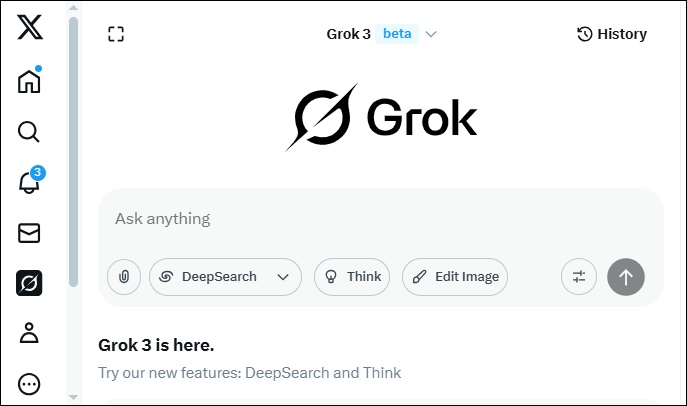
Frustrated because Grok keeps saying “Image upload failed? Whether you're trying to generate new pictures with Imagine or simply analyze a photo, the grok image upload failed error can stop you in your tracks.

In this guide, you'll discover eight proven solutions that actually work, plus step-by-step tips to upload images correctly and avoid the problem in the future, including: Resize image size, convert to Grok-supported format, remove sensitive content, use a VPN, switch to a personal account, etc.

grok image upload failed fix

Part 1. Why Does Grok Say "Image Upload Failed"?

Several factors can cause Grok to reject your image and show the “Grok image upload failed” message. Understanding the most common reasons helps you identify the exact problem quickly and move toward a fix. Here are the top causes:

1. Grok AI Image Uplaod Size Limits

Grok has a strict file size and upload limit. If your image is too large, you’ll usually see the message “Image is too large to be processed. Please try a smaller image.” Files over the limit are one of the top reasons for image upload failed grok.

2. Supported Image Formats & Incompatible Types

Grok works best with JPEG and PNG formats. Other types like BMP often cause a grok image upload error. Converting your image to JPEG or PNG solves this problem for many users.

3. Content Moderation & Policy Blocks

Grok’s safety filters are quite strict. Even ordinary photos with real people or some skin exposure can get blocked, especially when using Grok Imagine. This often leads to silent failures

4. Technical & Network Issues

Unstable internet or app glitches often result in “grok failed to upload image timed out”. Android users commonly face such an upload error, while differences between the web version, Grok app, and X app can also cause “grok unable to load” errors.

⚡ Part 2. How to Fix Grok Image Upload Failed (8 Quick Fixes)

If you’ve encountered the dreaded "Image Upload Failed" error while trying to upload an image to Grok, don’t panic! In this section, we’ll guide you through the top eight proven solutions to resolve the issue quickly. Whether the problem is a large file size, a corrupt image, or connectivity issues, these solutions will help get your image uploaded in no time.

1. Check Your Network Connection

One of the most common causes for Grok’s image upload failure is a poor or unstable network connection. If the internet connection is slow or frequently drops, your image upload may time out, resulting in an error.

  • Run a quick speed test on your phone or computer (aim for at least 5–10 Mbps download).

    network speed test
  • Switch from Wi-Fi to mobile data (or vice versa) to rule out router issues.

  • Restart your router or modem if the connection feels laggy.

2. Resize & Compress Image Under Grok Official Size Limit

Grok has a clear size limit, and hitting it triggers the exact error: “Image is too large to be processed. Please try a smaller image.” Keeping files under 10 MB is the official sweet spot for Grok AI image upload size limit.

  • Open your image to the Photos app (for Windows, Android, iPhone) or the Preview app (for Mac).

  • Resize the image dimensions:

a) In Preview (Mac): Go to Tools > Adjust Size. Change the width or height to a maximum of 1920 pixels (for example, set width to 1920 and let height adjust automatically to keep proportions).

b) In Windows Photos: Click the three dots >” Resize image”. Choose “Pixels” and set the longer side to 1920 or less.

resize image in windows photos app

c) In phone Photos app: Look for “Edit” > “Crop” or “Resize” and reduce it to a smaller size (many phones have a “Medium” or “Small” export option).

3. Convert to Grok-Supported Image Format (JPEG/PNG)

Grok only supports specific image formats like JPG and PNG, and uploading an unsupported file type can lead to upload failure. If you’ve been trying to upload an image in a format that isn’t supported, you might see an error message indicating that Grok is unable to process it.

  • Open the image in the built-in Photos/Preview app.

  • Go to “File” > “Export” or “Save As”.

  • Choose JPEG (for photos) or PNG (for images with sharp text or graphics).

    convert image format for smooth upload to grok
  • Click Save and upload the new file to Grok.

4. Repair Corrupted Images with 4DDiG Photo Repair

Sometimes your image looks perfectly fine on your phone or computer, but Grok still refuses to upload it. This usually means the file is slightly corrupted, damaged, or has hidden errors from transfers, crashes, or incomplete saves. That’s exactly when 4DDiG Photo Repair shines.

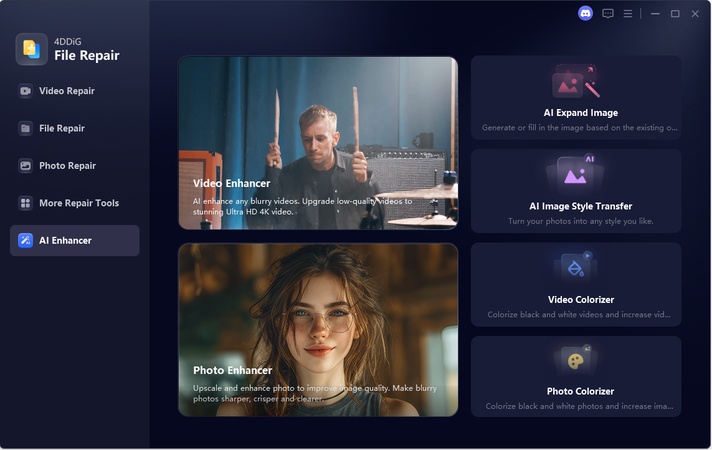
What makes 4DDiG Photo Repair stand out is its smart AI technology that quickly detects and fixes photos that are corrupted, blurry, pixelated, greyed-out, distorted, photo format not supported, and more, often in just a few clicks.

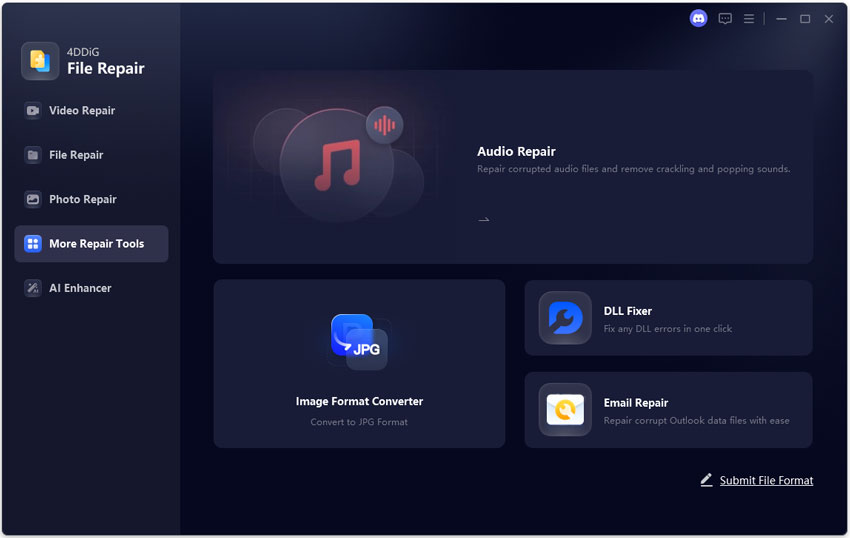
  • Open the 4DDiG File Repair program and select “Photo Repair”. Click “Add Photos” and choose your problematic image. You can upload many images at once.

    add images unable to grok
  • Click “Repair All”, then the AI will automatically analyze and fix the corruption.

    repair all added images
  • Once done, check the Before and After preview side by side. If you’re happy with the result, click “Save All” to download the repaired version.

    preview and save repaired images
  • Try uploading the fixed image to Grok again.

5. Clear Cache & Restart App/Browser

If you’re using the Grok app or browser on Android and your image upload keeps failing, a common culprit might be cached data or a software glitch. Clearing the cache and restarting the app can resolve these issues.

On Android (X app or Grok app):

  • Go to your phone’s Settings > “Apps” (or Apps & notifications).

  • Find and tap X (or Grok if you use the separate app).

  • Tap “Storage & cache” > “Clear cache” (do NOT tap “Clear data” unless you want to log out).

    clear x app caches
  • Go back and force-stop the app.

  • Restart your phone, reopen the X app, and try uploading again.

On desktop browser (Chrome/Edge):

  • Press Ctrl + Shift + Delete.

  • Select “Cached images and files” and set time range to “All time.”

  • Click “Clear data”, then restart the browser and log back into x.com.

    clear browser cache to fix grok image upload failed error

6. Crop or Remove Sensitive Content from Image

In some cases, Grok might reject your image upload due to the presence of sensitive content, like explicit or inappropriate imagery. If Grok detects such content, it may not allow the image to be uploaded, causing it to fail.

Using your phone’s built-in editor:

  • Open the image in the Photos app (iPhone or Android). Tap “Edit” > “Crop tool”.

  • Drag the corners to remove faces, text, or any potentially sensitive areas.

  • If needed, use the markup/pen tool to blur specific parts. Tap “Done”.

    crop image content in photos app
  • Upload the edited version to Grok.

7. Use a VPN to Bypass Geographic Restrictions

If you are located in a region where Grok has geographic restrictions, your image upload might fail due to regional blockages. A simple way to bypass this issue is by using a VPN (Virtual Private Network). Many Reddit users in U.S., Europe, and others said they can upload the image smoothly into Grok.

8. Switch to a Completely Separate Personal X Account

If you're seeing an error like "Grok image uploads are disabled for your team," this could be due to account or permission issues within a shared or team account. The solution is to use a completely separate personal account.

  • Log out of your current X account (tap your profile picture > Log out).

  • Create a new free personal X account (or log into one you already have that’s separate).

  • Open Grok in the new account.

  • Try uploading the image again.

This bypasses team-level blocks and returns full upload access.

Part 3. How to Upload an Image to Grok AI on X.com Correctly (Step-by-Step)

Once you've prepared your image using the fixes above, uploading it the right way makes a big difference. Many people run into image upload error in Grok simply because they miss a small step in the process.

Here's exactly how to do it on x.com:

  • Open your browser and go to x.com, then log into your account.

  • Click on the Grok icon (usually in the left sidebar) or visit x.com/i/grok to open the chat.

  • In the message box at the bottom, look for the Plus button or P aperclip icon next to where you type.

    upload image to grok
  • Click it and select your prepared JPEG or PNG file from your computer. Then click “Open” to upload it to Grok

  • Once the image appears in the chat, add any instructions and hit send.

Tip:

For the best results with Grok Imagine, use a clear, well-lit reference image under the size limit. If you're on mobile, the X app works similarly, just tap the attachment icon in the Grok conversation.

Following these steps carefully usually avoids basic image upload failed grok errors and lets you start chatting with your image right away.

Part 4. Tips to Prevent Grok Image Upload Failures

Once you’ve successfully uploaded an image, it’s worth adopting a few simple habits to avoid running into image upload failed error again. Here are some practical prevention tips:

  • Always check your image size before uploading and keep it well under Grok’s size limit, aiming for under 5 MB when possible.
  • Use JPEG or PNG formats, as they have the highest success rate with Grok.
  • Crop out unnecessary background or sensitive areas, especially for Grok Imagine, to reduce moderation blocks.
  • Clear your browser or app cache regularly, particularly if you often use Grok on Android.
  • Test with a small, simple image first whenever you try a new prompt or feature.
  • Use a stable Wi-Fi connection instead of mobile data to prevent timeout errors.
  • If you frequently see team-related restrictions, switch to a separate personal X account for image features.

Following these tips will save you time and help you upload images to Grok more smoothly and consistently.

FAQs about Grok Image Upload Limits & Policy

Q1: Does Grok save the images you upload?

Grok (and xAI) does not permanently store your uploaded images for public viewing or sharing. Your inputs are processed to generate responses, but conversations and uploaded content are generally not saved long-term unless you keep the chat history. If you delete the conversation, the data is typically removed within 30 days. For the highest privacy, use Private Chat mode when available.

Q2: How many images can I upload per message in Grok AI?

In most chat sessions on X or grok.x.ai, you can usually upload up to 3 images per message. This helps keep responses fast and focused. If you need to analyze more, send them in separate messages. Note that Grok AI image upload limits can vary slightly depending on your account type and current system load.

Q3: Does Grok AI support BMP image upload?

Grok primarily works best with JPEG and PNG formats. While some tools and older versions might handle BMP, it’s not reliably supported and often triggers grok image upload error messages. For the smoothest experience, always convert your image to JPEG or PNG before uploading.

Q4: Why does my image upload keep failing?

Persistent grok image upload keeps failing issues are usually caused by one of these: oversized files, unsupported formats, unstable internet, corrupted images, sensitive content, geographic restrictions, or account-level limits (like team accounts). Working through the 8 fixes in Part 2 resolves the problem for most users.

Q5: Why is Grok telling me it can't generate or edit images?

This message often appears because image generation and editing features are now limited to paid X Premium subscribers (following policy updates in early 2026). Free users may still upload images for analysis in some cases, but advanced Imagine or editing tools require a subscription. Check your account status or try a different personal account if you’re hitting restrictions.

Conclusion

Struggling with Grok image upload failed error? The 8 quick fixes above solve most issues fast. If your image is corrupted, try 4DDiG Photo Repair. Its AI tools fix damaged files quickly and make uploads smooth again. Follow these steps and you’ll upload images to Grok AI without hassle.

FREE DOWNLOAD

Secure Download

FREE DOWNLOAD

Secure Download

William Bollson (senior editor)

William Bollson, the editor-in-chief of 4DDiG, devotes to providing the best solutions for Windows and Mac related issues, including data recovery, repair, error fixes.

(Click to rate this post)

You rated 4.5 ( participated)