9 Best Batch HEIC to JPG Converters in 2026 for Smooth Image Viewing

5 mins read

Updated on 2026-03-05 16:45:34 to Photo Tips

HEIC saves storage space, but it still causes compatibility issues across many apps and devices. If you manage hundreds of iPhone photos, converting them one by one is simply not realistic. A reliable batch HEIC to JPG converter enables you to transform entire folders at once, keeping your workflow smooth and ensuring your images are universally viewable.

heic to jpg converter

Part 1. Choose Your Converter in 30 Seconds

If you are short on time and just want the right recommendation, this section will help you decide quickly based on your situation.

Your Situation Best Pick Reason
Transferred hundreds of iPhone photos and can't open HEIC on Windows 4DDiG Batch Image Format Converter Bulk convert many images instantly, no quality loss
Need to convert HEIC to JPG for free without losing photo date & location data iMazing HEIC Converter Free, retains EXIF metadata on both Windows & Mac
Want full control over output settings and already comfortable with Windows tools IrfanView + Plugins Lightweight, flexible batch processing for power users
Just need to preview HEIC files on Windows without converting everything CopyTrans HEIC Adds HEIC support to Windows Photo Viewer instantly
On a work or shared computer where you can't install software CloudConvert Runs entirely in your browser, no download required
Want the fastest way to convert without opening any app TunesBro HEIC Converter Right-click any HEIC file and convert from the desktop menu
Need to batch convert HEIC across Windows, Mac, and Linux with metadata intact XnConvert Free, cross-platform, and preserves metadata
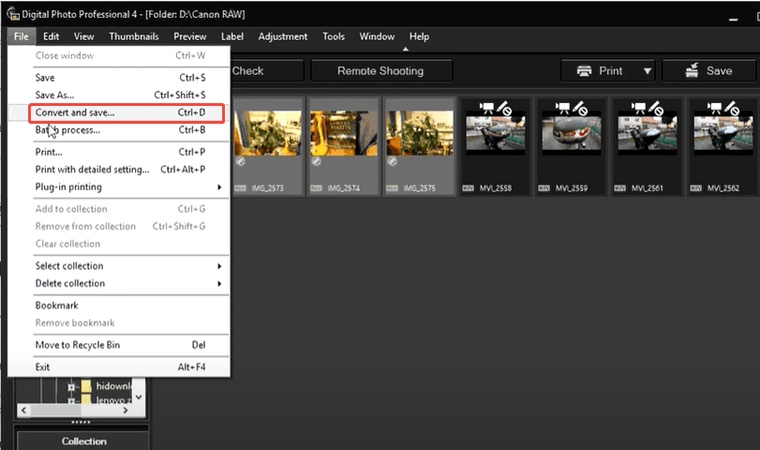
Already using Photoshop and need to automate conversion as part of your editing workflow Adobe Photoshop Record an Action and run batch processing across folders
On a Mac and don't want to install anything extra Preview App Built-in to macOS, select multiple HEIC files and export as JPG in seconds

⚡ Part 2. Top 9 Must-Try Batch HEIC to JPG Converters in 2026 (Tested & Ranked)

If you are looking for the best HEIC to JPG converters, this section will share the top 9 options you must consider:

1. 4DDiG Batch Image Format Converter – Mass Image Converter with AI Photo Repair & Enhance

4ddig heic to jpg converter

If you frequently deal with large volumes of images, speed and quality matter equally. The built-in Image Format Converter in 4DDiG File Repair is designed to mass convert BMP, CR2, PNG, and HEIC to JPG in seconds. It performs bulk conversion with no visible quality loss and supports true one-click processing.

This tool is more than a simple mass HEIC to JPG converter. It also integrates AI photo repair and enhancement features, making it useful when your images are slightly corrupted or need clarity improvement.

FREE DOWNLOAD

Secure Download

FREE DOWNLOAD

Secure Download

  • Best for: Users needing fast, no-quality-loss bulk conversion with optional AI repair
  • Platform: Windows & macOS
  • Batch Speed: Extremely fast, optimized for large folders
  • Free/Paid: Free trial; full features require paid version
  • Pros
  • Cons
    • True bulk conversion in seconds
    • No noticeable quality loss
    • Supports multiple formats beyond HEIC
    • Beginner-friendly interface
    • AI photo enhancement and photo repair included
    • · Full features require paid subscription

If you need a professional-grade HEIC to JPG batch converter for Windows or Mac with added repair capability, this option ranks first.

2. iMazing HEIC Converter – Free HEIC to JPG Batch Converter Keeping EXIF

imazing heif converter

iMazing HEIC Converter is one of the most trusted free tools for HEIC conversion. It handles batch jobs smoothly. Unlike many free converters, it faithfully preserves EXIF metadata (including timestamps, GPS location, and camera model), which matters if you organize photos by date or location.

  • Best for: Free HEIC to JPG batch conversion with metadata
  • Platform: Windows & macOS
  • Batch Speed: Fast for moderate file volumes
  • Free/Paid: Free
  • Pros
  • Cons
    • Completely free
    • Retains EXIF metadata (date, location, camera model)
    • Simple drag-and-drop interface
    • Limited to HEIC conversion only
    • No AI repair or enhancement

This is a practical HEIC to JPG batch converter for Mac and Windows users who only need basic conversion.

Tips:

If you’re concerned about personal information being exposed through EXIF data in your photos, you can follow this guide to check and remove metadata from your images: How to Remove EXIF Data from Photos to Protect Your Location & Privacy

.

3. IrfanView + Plugins – Lightweight Image Converter for Windows 10/11

irfanview batch image conversion

IrfanView has been a go-to image viewer and converter for Windows users for over two decades. When paired with its plugin pack, it gains HEIC support and a flexible batch conversion dialog that lets you control output quality, rename files, and apply basic adjustments simultaneously. That is useful if you want more than just a format change.

  • Best for: Advanced Windows users
  • Platform: Windows only
  • Batch Speed: Moderate
  • Free/Paid: Free
  • Pros
  • Cons
    • Highly customizable output settings (quality, resize, rename)
    • Lightweight installation (under 5MB even with plugins)
    • Supports multiple formats
    • Free for personal use
    • Requires plugin installation
    • Interface feels outdated
    • Windows only

It works well as a HEIC to JPG batch converter for Windows if you are comfortable adjusting technical settings.

4. CopyTrans HEIC – View HEIC Directly

batch convert heic to jpg with copytrans

CopyTrans HEIC takes a different approach. Instead of a standalone converter app, it installs a Windows codec that lets you open and preview HEIC files directly in Windows Explorer and Photos.

Besides, conversion to JPG is done via right-click, making it handy for occasional use without opening any extra software.

  • Best for: Windows users who want native HEIC viewing
  • Platform: Windows
  • Batch Speed: Moderate
  • Free/Paid: Free with limitations
  • Pros
  • Cons
    • Adds native HEIC viewing support to Windows Explorer and Photos app
    • Simple right-click conversion
    • Minimal setup in seconds
    • Limited advanced features
    • Not designed for true bulk conversion of large folders

5. CloudConvert – Online HEIC to JPG Batch Converter

cloudconvert heic to jpg converter

CloudConvert is a browser-based HEIC to JPG batch converter online that works without installation. You upload your files and convert them directly in the cloud.

  • Best for: Quick online conversions
  • Platform: Web-based
  • Batch Speed: Depends on the internet speed
  • Free/Paid: Free limited; paid credits available
  • Pros
  • Cons
    • No installation required
    • Supports many formats
    • Works on any device
    • Supports a wide range of file formats beyond images
    • Upload size limits
    • Slower for large batches
    • Privacy concerns for sensitive photos

6. TunesBro HEIC Converter – Right-Click Support

tunesbro heic converter

TunesBro offers right-click conversion support on Windows, making quick batch operations easy from the file explorer. Instead of opening a separate app, you simply select your HEIC files in File Explorer, right-click, and the conversion happens on the spot.

It is best suited for users who occasionally need to convert a folder of images quickly and prefer not to deal with a full software interface.

  • Best for: Quick desktop-based conversion
  • Platform: Windows
  • Batch Speed: Fast
  • Free/Paid: Paid
  • Pros
  • Cons
    • Convert files without opening any app, just right-click and go
    • Select and convert multiple files at once straight from File Explorer
    • Easy to use
    • Limited additional features
    • No way to adjust output quality or resize images
    • Windows only
    • Lacks any repair, enhancement, or metadata features

7. XnConvert – Free Bulk HEIC to JPG Converter

batch convert heic to jpg with xnconvert

XnConvert is a completely free and powerful bulk HEIC to JPG converter with metadata preservation and support for over 500 formats. On top of HEIC, it also handles conversion among 500+ photo formats. Also, it lets you resize, rename, or tweak the look of every photo in the same batch.

  • Best for: Free cross-platform bulk conversion
  • Platform: Windows, macOS, Linux
  • Batch Speed: Fast
  • Free/Paid: Free
  • Pros
  • Cons
    • Extensive format support, including RAW camera files
    • Metadata retained (original date, location, and camera info intact)
    • Lets you rename, adjust, or resize images without losing quality all in one batch
    • Free for personal use, works on Windows, Mac, and Linux
    • The interface may overwhelm beginners
    • No option to fix blurry or damaged photos
    • Steeper learning curve

8. Adobe Photoshop – Industry Standard with Batch Conversion

convert heic to jpg in photoshop

Photoshop allows batch conversion using actions and scripts. It is ideal for professionals already using Adobe tools.

  • Best for: Professional designers and photographers
  • Platform: Windows & macOS
  • Batch Speed: Moderate
  • Free/Paid: Paid subscription
  • Pros
  • Cons
    • Professional-grade control
    • Advanced editing features
    • Expensive
    • Overkill for simple conversion

9. Native Mac Preview App – Built-in Free Mac Batch Converter

batch convert heci to jpg in mac preview

Mac users can batch export HEIC files to JPG using Preview. This built-in solution works well for smaller folders.

  • Best for: Casual Mac users
  • Platform: macOS
  • Batch Speed: Moderate
  • Free/Paid: Free
  • Pros
  • Cons
    • No installation required
    • Simple interface
    • Limited control
    • Slower for large volumes

It works as a simple HEIC to JPG batch converter for Mac users who prefer built-in tools.

Part 3. How to Batch Convert HEIC to JPG on Windows in Seconds (No Quality Loss)

If you need speed, reliability, and image integrity, the built-in Image Format Converter in 4DDiG File Repair provides the smoothest experience. It is designed specifically for users who want bulk conversion without compromising quality. Here is how to bulk convert HEIC to JPG using 4DDiG:

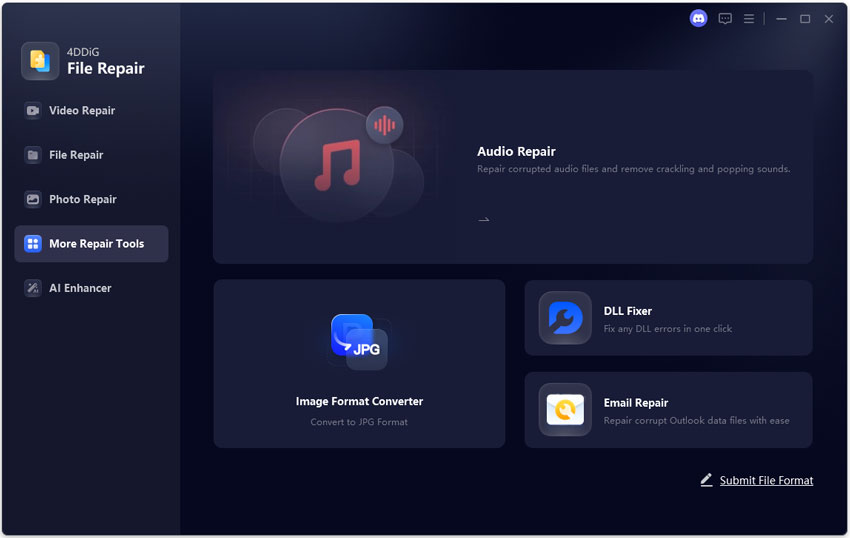
  • Download and install the 4DDiG File Repair software on your computer, then launch it. Click "More Repair Tools" from the left side and choose "Image Format Converter”.

    FREE DOWNLOAD

    Secure Download

    FREE DOWNLOAD

    Secure Download

    select image format converter from 4ddig
  • Now, click the "Add Files" button to add all your HEIC images to the software that you want to convert to JPG format.

    add heic files to convert to jpg in 4ddig
  • Click the "Convert” button while enabling the "Convert all to JPG” option, and 4DDiG will analyze and convert all images in one go. The best part is that it works without any quality loss, and you get results in seconds.

    start heic to jpg conversion in 4ddig
  • Once the conversion is complete, you can check the results and, if you are satisfied, click "Save”. Now, choose the location where you want to save the JPG images, and the process is complete.

    heic to jpg conversion completed in 4ddig

The process takes only seconds, even for large batches, making it an ideal mass HEIC to JPG converter for Windows users.

People Also Ask About Batch HEIC to JPG Converter

Q1: How to convert multiple photos from HEIC to JPG on iPhone?

You can use the Files app method by selecting multiple photos and sharing them as JPGs. Alternatively, transfer them to a computer and use a bulk converter for better control and quality.

Q2: How to convert bulk images to JPG from various formats?

Professional tools like 4DDiG or XnConvert allow you to import multiple formats, including HEIC, PNG, and BMP, then batch export everything as JPG in one operation.

Q3: How to change a photo from HEIC to JPG quickly?

For single images, you can rename and export via Preview on Mac or use right-click conversion tools on Windows. For multiple images, a dedicated batch HEIC to JPG converter is much faster.

Conclusion

Choosing the right batch HEIC to JPG converter depends on your workflow, device, and volume of images. While free tools work for small tasks, 4DDiG File Repair stands out for its speed, no-quality-loss conversion, and AI enhancement features. If you want reliable, large-scale image conversion in 2026, it is the smartest long-term choice.

FREE DOWNLOAD

Secure Download

FREE DOWNLOAD

Secure Download

Sawart Mashab (senior editor)

Sawart Mashab, the content writer for 4DDiG, is adept at creating informative and practical solutions related to Windows and macOS issues, data recovery, file repair, and RAID storage.

(Click to rate this post)

You rated 4.5 ( participated)