How to Fix YouTube White Screen Problem in 7 Proven Ways

5 mins read

Updated on 2026-04-03 00:00:28 to Video Error

Are you frustrated because your YouTube white screen won't go away? Whether you are using Chrome, Firefox, or the mobile app, a YouTube white fade during a video can ruin your entertainment. It is a common glitch where the YouTube video blank screen persists despite a good connection. It can appear on desktop, mobile, or even TV. This guide explains why it happens and how to quickly fix the YouTube screen problem.

youtube white screen fix

Part 1. Why Is YouTube Showing a White Screen?

1. Common YouTube White Screen Scenarios

Users experience the YouTube blank screen issue in different ways. Here are the most common cases:

  • The Loading Bar Hangs: You open a video, the page structure loads, but the video player itself remains a solid white block.
  • Audio Plays, Video Doesn't: You can hear the creator speaking and the background music, but the YouTube video blank screen prevents you from seeing anything.
  • The White Fade Effect: A strange YouTube white fade on video appears, making the content look washed out or completely invisible.
  • Infinite Loading: You see the YouTube logo and a spinning wheel, but it eventually transitions into a static white screen without any content.
  • App Launch Failure: On mobile or TV, the YouTube logo appears and then transitions into a persistent YouTube shows blank white screen.
  • The CSS Skeleton: The page looks like a white skeleton without any CSS or styling. You see blue links on a white background, making the site unusable.
  • The Account Switcher Glitch: A YouTube shows blank white screen only when you try to switch accounts or manage your channel settings.

These issues can happen on desktops, mobiles, or smart TVs.

2. What Causes a YouTube Blank White Screen

There are several underlying reasons behind the YouTube shows blank white screen problem:

  • Outdated Browser Cache: Browsers store copies of websites to load them faster. If YouTube updates its layout but your browser tries to use an old copy, it results in a "white screen of death."
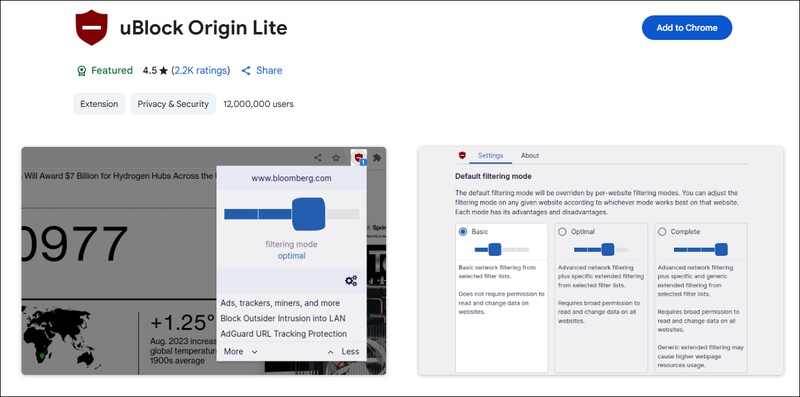
  • Incompatible Extensions: Adblockers frequently clash with YouTube’s new anti-adblock scripts. Extensions like uBlock Origin or AdBlock Plus are often the primary culprits.
  • Hardware Acceleration Errors: Modern browsers use your graphics card (GPU) to render high-definition videos. If there is a driver conflict or the GPU is overloaded, the video player might fail and display white.
  • Experimental Flags: Features such as Vulkan or GPU Rasterization in Brave or Chrome can cause rendering failures on certain hardware configurations.
  • DNS Issues: If your Domain Name System (DNS) server is slow or blocked, it might fail to load the style sheets (CSS) or JavaScript files required for YouTube to look and function correctly.
  • Corrupted Site Data: Sometimes, the "Service Workers" or "Local Storage" data associated with youtube.com becomes corrupted, preventing the site from initializing correctly.

Part 2. How to Fix Blank White Screen on YouTube App (Desktop, Mobile & TV)

Fixing a white screen on the YouTube app is easy if you follow the right steps. These methods work for your smartphone, computer, and even your smart TV.

1. Open YouTube Through Your Browser (on Desktop, Android, TV)

If the dedicated app is failing and the YouTube screen is blank, a quick workaround is to use a web browser. On mobile devices, open Chrome or Safari and type in the YouTube URL.

Steps:

  • Open Chrome or Safari on your device.

  • Type m.youtube.com (for mobile) or youtube.com (for desktop/TV).

  • Sign in and see if the video plays.

Why it works: Browser versions of YouTube often use different rendering engines than the app.

2. Clear YouTube Caches and Data

Corrupted local data is a primary culprit for the white screen for videos. Over time, the app accumulates "junk" data. If the YouTube blank white screen persists, you must clear the storage.

Steps for Android:

  • Open Settings, then “Apps,” then select “YouTube.”

  • Tap “Storage”

  • Select "Clear Cache" first.

    clear youtube app cache
  • If the problem persists, tap "Clear Data.”

  • Restart your device

  • Open YouTube and sign in again

Steps for Desktop (Browser Cache):

  • Open Chrome and press Ctrl+Shift+Delete (Windows) or Cmd+Shift+Delete (Mac)

  • Select "All time" from the time range

  • Check "Cookies and other site data" and "Cached images and files."

  • Click "Clear data."

  • Restart your browser

Why it works: This removes temporary files that may be "stuck" or corrupted.

3. Update or Reinstall the YouTube App

An outdated app version is a magnet for bugs. Developers release patches specifically to fix rendering errors. Reinstalling forces the device to re-register the app's components with the operating system, often fixing deep-seated file corruption.

Steps to Update (Android):

  • Open Google Play Store

  • Tap your profile icon and then select "Manage apps & device"

  • Look for YouTube under "Updates available.

  • Tap "Update" next to YouTube.

    update youtube
  • Open YouTube to test.

Steps to Reinstall (Android):

  • Long-press the YouTube app icon and select "Uninstall."

  • Open Google Play Store

  • Search for "YouTube" and tap "Install."

  • Open YouTube and sign in

Why it works: Updates contain patches for known bugs that cause the YouTube TV blank screen.

Part 3. How to Fix YouTube Display Issues on Chrome, Firefox & Brave

Web browsers are the most frequent places where users see youtube shows blank white screens. Misconfigured extensions or graphics settings are usually to blame for these issues.

1. Clear Cookies and Site Data

Corrupted cookies can lead to a YouTube white screen. It resets your session and helps your browser establish a fresh connection with YouTube’s servers.

It clears outdated login tokens and site preferences that might be clashing with YouTube's current layout or security protocols.

Steps: Steps:

  • Press Ctrl + Shift + Delete (Windows) or Cmd + Shift + Delete (Mac)

  • In the time range dropdown, choose “All time.”

  • Check “Cookies and other site data” and “Cached images and files.”

  • Leave “Browsing history” unchecked if you want to preserve it

  • Click “Clear data.”

    clear youtube web caches to fix youtube white screen
  • Wait for the process to complete (may take 30-60 seconds)

  • Restart Chrome and visit YouTube

2. Disable Adblockers and Extensions

Extensions are helpful but can be intrusive. To test this, open YouTube in an "Incognito" or "Private" window. If YouTube works there, a browser extension is likely causing the problem.

Disable your ad blockers one by one until the site loads. This is a common fix for YouTube TV blank screen users who cast from a browser with heavy filtering.

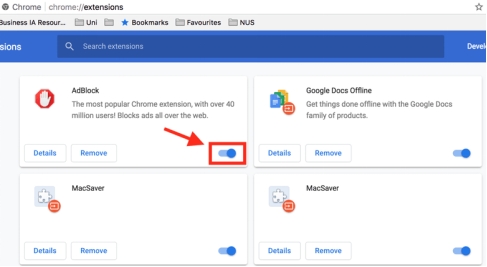
  • Click the puzzle piece icon (Extensions)

  • Click "Manage extensions."

  • Locate your AdBlocker and toggle it off.

  • Disable other extensions one by one.

    disable dblocker to fix youtube video white screen
  • Refresh YouTube after each disable to identify the culprit.

Why it works: Disabling extensions removes third-party scripts that interfere with YouTube's player.

3. Turn Off Hardware Acceleration

Hardware acceleration shifts the processing load from your CPU to your GPU. While usually faster, it often causes a white screen for videos if the drivers are old.

Steps:

  • Open the “Google Chrome. Click the three-dot menu, then select “Settings.”

  • Click "System" and find "Use graphics acceleration when available."

  • Toggle the switch to OFF

    turn off chrome hardware accleration to fix youtube video white screen
  • Click "Relaunch" to restart Chrome

Why it works: It forces the CPU to handle video rendering, which is often more stable.

4. Disable Video Decode / Vulkan Flags on Brave

Brave users often face unique issues due to its aggressive "Shields." If YouTube isn't working in your browser and shows a white screen, you may need to tweak hidden settings.

Steps:

  • Open the Brave browser. Type brave://flags in the address bar.

    go to brave flags
  • Search for "vulkan."

  • Search for these flags:

    a. #enable-accelerated-video-decode → set to “Disabled”.

    b. #use-vulkan or related Vulkan flags → set to “Disabled” (or “Default” if no direct option).

    c. #enable-gpu-rasterization (optional, test toggling).

    disable brave vulkan yo fix youtube white screen error
  • Click Relaunch at the bottom.

  • Clear YouTube cookies/site data afterward and test.

Why it works: This forces the browser to use more stable, software-based rendering paths, bypassing buggy GPU drivers.

⚡ Part 4. How to Fix Downloaded YouTube Video Showing Black or Blank Screen

Sometimes, the issue isn't with the streaming site, but with the files you have already downloaded to your computer. This is often due to file corruption or codec mismatches in your media player. If your downloaded content shows a YouTube white screen, or if the audio works perfectly but the video image is missing, we highly recommend using 4DDiG Video Repair.

This powerful tool can address various video issues, including blank white screens, black screens, video lag, audio-video sync issues, and more. It uses advanced AI algorithms to reconstruct corrupted video headers and frames, ensuring your favorite content is restored to perfect quality.

It can repair corrupted files from any source (SD cards, hard drives, or downloads) and ensures your offline viewing experience is seamless and high-quality. Whether the file header is broken or the frames are damaged, 4DDiG can restore it with a few clicks.

FREE DOWNLOAD

Secure Download

FREE DOWNLOAD

Secure Download

  • Download and install 4DDiG Video Repair by clicking the above FREE DOWNLOAD button.

  • Launch the program and select the “Video Repair” tab. Click “Add Videos” to add your white-screen YouTube video files.

    add youtube white screen video to 4ddig
  • Click “Repair All”, then the 4DDiG’s powerful AI will analyze and fix the corruption automatically.

    repair all white screen youtube videos
  • Preview the repaired video in the built-in player. If satisfied, click Export or Save to save the fixed file to your computer.

    preview and save repaired videos

Part 5. How to Prevent Playback Problems in the Future

Prevention is always better than a fix. Follow these tips to avoid seeing that annoying empty screen again:

  • Keep Browsers Updated: Always run the latest version of Chrome, Firefox, or Brave.
  • Limit Extensions: Only keep extensions you actually use; more extensions mean more potential for conflict.
  • Update Graphics Drivers: Regularly update your GPU drivers (NVIDIA, AMD, or Intel).
  • Regular Maintenance: Clear your browser cache once every 30 days to prevent data bloat.
  • Stable Internet: A weak connection can cause a YouTube white fade on video because the player fails to load the script.

People Also Ask: YouTube White Screen Problem

Q1: Is AdBlock causing my YouTube white screen?

Yes, adblockers are the #1 cause. YouTube's recent script changes often break adblockers, resulting in a YouTube blank white screen. Try disabling them to see if the video loads.

Q2: Why am I stuck on the white screen?

You are likely stuck because a script or a cookie has failed to load. This "hangs" the page before the video player can render, leaving you with a YouTube screen that is blank.

Q3: Why does a YouTube video show a blank screen but the audio works?

This is typically a hardware acceleration or codec issue. The browser is receiving the audio data but cannot render the visual component, leading to a YouTube video blank screen. Disabling hardware acceleration usually solves this.

Q4: Can a DNS change fix the YouTube blank white screen?

Sometimes, yes. If your ISP's DNS is failing to resolve the addresses for YouTube's content delivery networks (CDNs), a blank screen might result. Switching to Google DNS (8.8.8.8) or Cloudflare (1.1.1.1) can help.

Conclusion

In summary, fixing the YouTube white screen involves checking your browser extensions, clearing your cache, or disabling hardware acceleration. For those dealing with corrupted downloads, 4DDiG Video Repair is the ultimate tool to restore your files to perfect quality. You can eliminate the YouTube white screen error and get back to your favorite videos without any further interruptions by following these steps.

FREE DOWNLOAD

Secure Download

FREE DOWNLOAD

Secure Download

William Bollson (senior editor)

William Bollson, the editor-in-chief of 4DDiG, devotes to providing the best solutions for Windows and Mac related issues, including data recovery, repair, error fixes.

(Click to rate this post)

You rated 4.5 ( participated)