How to Fix Forza Horizon 6 Error Code FHE01 on PC?

5 mins read

Updated on 2026-09-22 10:39:42 to game

Seeing the Forza Horizon 6 error code FHE01 when launching or playing Forza Horizon 6 on PC can be frustrating, especially when the game suddenly crashes or refuses to start. This error may be related to outdated game services, corrupted files, graphics drivers, Windows components, or conflicts with background software.

In this guide, we’ll explain what Forza Horizon 6 error FHE01 means and walk you through practical fixes, including updating Gaming Services, repairing the game, checking your GPU driver, disabling overlays, and reinstalling related Xbox components.

1. What Does Forza Horizon 6 Error Code FHE01 Mean?

The Forza Horizon 6 FHE01 error means that the game has encountered an unexpected error and cannot continue running normally. When this happens, you may see the message “Forza Horizon 6 has hit an unexpected error: FHE01,” and the game may crash or fail to launch.

And the message does not necessarily mean that your graphics card or other hardware is damaged. The following sections will explain what may cause the forza horizon 6 fhe01 error and how to fix it on your PC.

forza horizon 6 fhe01 error

2. Common Causes to Check for a Forza Horizon 6 FHE01 Error

  • Peripheral conflicts: input drivers, wheel utilities, virtual controllers, or several connected devices may need isolation testing.
  • Background software: overlays, monitoring utilities, remote-work applications, and capture tools can interact with games.
  • Installation problems: interrupted updates or missing files justify checking the game through its launcher.
  • Graphics software: driver changes and cached shader data deserve attention when crashes follow a graphics update.
  • Runtime components: damaged application dependencies may require repair, particularly when a runtime message accompanies the crash.

Low free space is worth checking separately, especially if updates cannot complete. However, finding temporary files does not establish that they caused FHE01.

⚡ 3. How to Fix Forza Horizon 6 Error Code FHE01?

Try one method at a time. Once the game works, reintroduce disabled components individually rather than changing everything back together.

Fix 1: Disconnect Your Racing Wheel, Controller, and Extra USB Devices

Start with a minimal input setup. Shut down the game, safely eject any removable storage before unplugging it, and leave your keyboard and mouse connected.

  • Disconnect the wheel base, pedals, shifter, extra controllers, and unnecessary USB hubs.

  • Close wheel configuration utilities and controller-mapping applications.

  • Restart Windows and launch the game with the keyboard and mouse.

If it opens successfully, reconnect one device at a time and retest. If removing devices changes nothing, move on rather than repeatedly reinstalling the same controller driver.

Fix 2: Turn Off Background Applications

  • Close overlay and recording features in Discord, graphics utilities, and other optional gaming applications.

    disable background apps
  • Exit unnecessary hardware-monitoring and RGB tools, then test again.

  • Use Task Manager to confirm an optional application has actually closed, but do not end unfamiliar Windows services indiscriminately.

If Citrix Workspace is installed, include it in the isolation test. Merely closing its window may leave components active.

Fix 3: Verify Game Files

Verification lets the launcher inspect its installed files and replace missing or damaged content. It is usually a more focused first step than deleting the whole installation.

  • In Steam, open Library, right-click Forza Horizon 6, and select Properties.

  • Open Installed Files and select Verify integrity of game files.

    verify integrity of game files
  • Wait for checking and any downloads to finish before launching again.

For an Xbox app installation, open the game’s management options and look under Files for Verify and Repair. If verification repeatedly downloads the same files, record that behavior for support. Preserve local saves and avoid manually deleting unfamiliar game directories.

Fix 4: Clear Shader Cache

Shader cache is generated graphics data. Rebuilding it is a reasonable test when a crash follows a driver update, but it is not a guaranteed FHE01 repair.

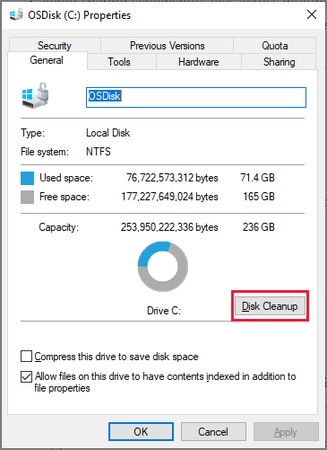
  • Close the game and launcher. Open Windows Settings > System > Storage > Temporary files.

  • If DirectX Shader Cache appears, select that category and review the other checked items before removing files. Leave personal downloads and unrelated categories unselected.

    clear shader cache
  • Restart and launch the game again.

The next run may spend additional time rebuilding shader data or briefly feel less smooth. If the error is unchanged, do not clear the cache before every launch; proceed to the driver check.

Fix 5: Update Microsoft Visual C++ Redistributables

A runtime repair is especially relevant when Windows also reports a missing runtime component or the game fails during initialization.

  • Go to the official Microsoft page: Latest Supported Visual C++ Redistributable Downloads

  • Download both versions: vc_redist.x64.exe (64-bit) and vc_redist.x86.exe (32-bit).

    download redistributable version
  • Run the x64 installer first. Accept the license terms and click Install.

  • If the package is already installed, choose Repair. Repeat the same process with the x86 installer.

  • Restart your PC after both installations (or repairs) are complete.

Launch Forza Horizon 6 and check whether the FHE01 error is resolved.

How to Fix Microsoft Visual C++ Runtime Error?

Advanced option: Use 4DDiG DLL Fixer to Repair Runtime Library Issues

If repairing the official Microsoft Visual C++ Redistributables doesn’t fix the FHE01 error (often linked to missing or corrupted files like VCRUNTIME140.dll or MSVCP140.dll), you can try 4DDiG DLL Fixer. It automatically scans for damaged runtime libraries and restores them in one click.

  • Download and open 4DDiG DLL Fixer on your Windows PC. Go to the Full Check tab and click Full Scan to let the tool thoroughly check your system for errors.

    FREE DOWNLOAD

    Secure Download

    run full check
  • After the scan finishes and any problems are found, click the Repair button. The software will automatically fix and replace any missing or corrupted DLL files.

    repair dll files
  • Wait until the repair process is finished. Once completed, the missing DLL files should be downloaded and correctly installed.

    complete repairing

You can now launch your program again. It should start and run without any issues.

Fix 6: Update Your GPU Driver and Windows

  • Identify your graphics card and download its driver from NVIDIA, AMD, Intel, or the PC manufacturer as appropriate. Close applications during installation and restart when requested.

  • Next, open Windows Update, click Check for Updates, and install applicable updates, and complete pending restarts.

    check for updates

Update the game and launcher as well. Test before changing graphics settings so you can tell whether the software update affected the crash.

Conclusion

Approach the Forza Horizon 6 FHE01 error with controlled tests: simplify connected devices, close conflicting applications, verify game files, and check graphics software along with Visual C++ runtimes. If the crash continues, submit the full error code, game platform, hardware details, driver version, and the steps you have already tried to Forza Support.

When missing or corrupted runtime libraries are suspected and the official Visual C++ repair does not help, 4DDiG DLL Fixer can serve as an optional tool to scan and restore those files. Keep your saves protected throughout the process.

FREE DOWNLOAD

Secure Download

William Bollson (senior editor)

William Bollson, the editor-in-chief of 4DDiG, devotes to providing the best solutions for Windows and Mac related issues, including data recovery, repair, error fixes.

(Click to rate this post)

You rated 4.5 ( participated)