How to Fix Windows 11 26H2 Blue Screen Errors

5 mins read

Updated on 2026-09-28 18:20:22 to Windows Fix

If your PC started crashing, restarting unexpectedly, or showing a blue screen error after installing Windows 11 26H2, do not assume the update alone is to blame. A Windows blue screen can also result from incompatible drivers, corrupted system files, low disk space, faulty RAM, or an SSD/HDD problem—so the stop code and the timing of the crashes are important clues.

Before making major changes, note the error message and back up important files if you can still access Windows. The solutions below walk you through safe, practical ways to fix a Windows 11 26H2 BSOD

1. Common Causes of Windows 11 26H2 Blue Screen Errors

A blue screen after a Windows 11 update can have several explanations. Focus on what changed immediately before the first crash rather than assuming the entire operating system needs replacing.

  • Driver incompatibility: Graphics, network, or storage drivers can conflict with updated Windows components.
  • Update or installation problems: An interrupted upgrade or a faulty update can leave Windows unstable. Record the installed build and recent KB numbers before choosing an update to remove.
  • Storage problems: Read errors can prevent Windows from loading essential files. Very low free space can also interfere with updates and normal system operations.
  • Memory or hardware instability: Faulty RAM or unstable hardware settings can produce crashes during startup, gaming, or ordinary desktop use.
  • Corrupted system files: Unexpected shutdowns and storage errors can damage files Windows needs to run reliably.

⚡ Before You Fix the BSOD Back Up Your Important Data

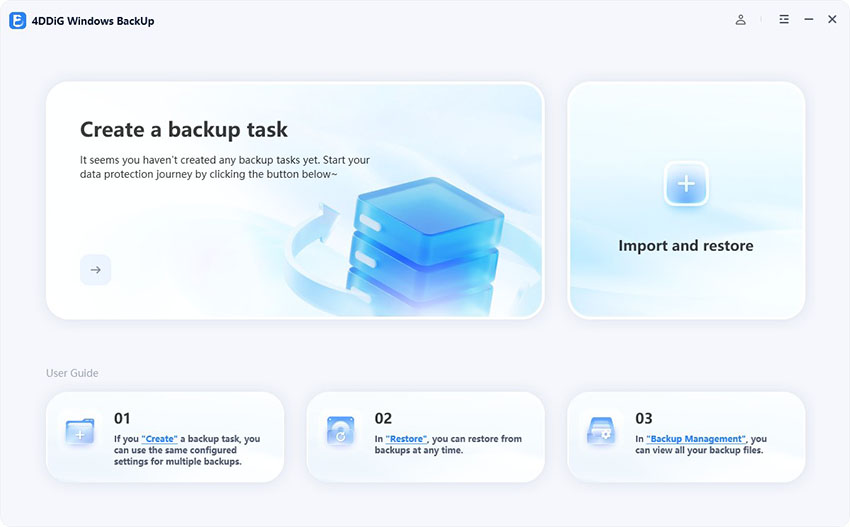
tuck in a blue screen loop after updating to Windows 11 26H2? Before resetting or reinstalling Windows, back up your important data. If you can’t reach the desktop, use 4DDiG Windows Backup on another working PC to create a bootable USB. Then boot the affected PC from that USB and back up accessible data to an external drive before proceeding with repairs.

  • Connect an external drive with sufficient space, launch the software, and select “Create a backup task.”

    FREE DOWNLOAD

    Secure Download

    create a backup task
  • Select the required partitions, or switch to “File Backup” and add essential documents and folders. Choose the external drive as the destination.

    select partitions or files to backup
  • Start the backup, review the confirmation, and wait for completion before disconnecting it.

    backup successfully

If Windows will not start, the documented rescue-USB workflow restores an existing backup. On another working PC, choose “Create Rescue USB,” select a spare USB, and confirm creation. This erases that USB. Boot the affected PC from it using the manufacturer’s boot menu, then use “Import and Restore” to select your previous backup.

2. How to Fix Windows 11 26H2 Blue Screen Errors
Choose the fix that matches your symptoms. Startup Repair and update removal through recovery suit a PC that cannot boot; the DISM commands below require a running Windows environment.

Fix 1: Disconnect Nonessential Devices

  • Shut down the PC and disconnect external storage, printers, webcams, docks, and other unnecessary accessories. Keep the keyboard, mouse, and display connected.

  • Restart and repeat the activity that previously triggered the crash. If Windows becomes stable, reconnect accessories individually to identify the trigger.

  • Check the manufacturer’s driver or firmware guidance for that device. Disconnecting peripherals will not resolve every internal hardware fault, but it provides a quick, reversible test.

Fix 2: Run Startup Repair in Windows Recovery Environment

Use Windows 11 Startup Repair when the computer crashes before sign-in or repeatedly fails to load Windows. It attempts to repair startup problems, including damaged boot configuration; it is less relevant to a PC that only crashes during gaming.

  • At the sign-in screen, hold Shift while selecting Power > Restart. If Windows cannot reach that screen, use the automatic recovery screen after failed starts, or boot Windows installation media and choose the repair option.

  • Select Troubleshoot > Advanced options > Startup Repair.

    startup repair
  • Provide your BitLocker recovery key if requested, then allow the diagnostic process to finish.

  • Restart normally and check whether Windows reaches the desktop.

Startup Repair is separate from Safe Mode, which is accessed through Startup Settings. If repair fails, record its message and move to a relevant next step rather than running it repeatedly.

Fix 3: Remove a Recent Update

To fix BSOD after a Windows 11 update, first establish which update preceded the failures. Avoid removing an unrelated KB simply because another user mentioned it.

  • If Windows starts, open Settings > Windows Update > Update history > Uninstall updates.

    uninstall updates
  • Find the removable update whose installation date matches the start of the crashes. Select Uninstall and follow the prompts.

  • If Windows cannot start, enter WinRE and choose Troubleshoot > Advanced options > Uninstall Updates > Uninstall latest quality update.

  • Restart, test stability, and check Microsoft’s release notes for an applicable replacement fix.

Removing a monthly quality update is different from returning to the previous Windows version. For a feature-version rollback, check Settings > System > Recovery > Go back, if available.

Fix 4: Repair Corrupted Windows System Files

DISM repairs the Windows component store; SFC then checks protected system files and replaces damaged copies where possible. Use DISM and SFC when Windows runs but system corruption is suspected.

  • Open Terminal or Command Prompt as administrator in normal Windows, then run:

    $ DISM /Online /Cleanup-Image /RestoreHealth
  • Wait for completion before running:

    $ sfc /scannow

Restart after repairs and check whether the same crash returns. DISM normally obtains repair files through Windows Update. If it reports missing source files, record the error rather than repeatedly running the same command.

Bonus: How to Recover Data After a Computer Blue Screen

Once Windows is stable, check the original folders, Recycle Bin, and existing backups for missing files. To recover data after a blue screen when no usable backup exists, 4DDiG Data Recovery can scan a readable local disk for recoverable files.

  • Download and launch 4DDiG Data Recovery. Select the local disk, then click Start to begin scanning. You can also specify the file types to find from the upper-right corner before starting.

    FREE DOWNLOAD

    Secure Download

    recover data from disk
  • You can pause or stop the scan once you find the data you need. Browse results using Path View or switch to Type View to locate photos, videos, documents, audio files, emails, and more. You can also use the search bar or Filter feature to narrow down the results.

    check the results
  • Preview the files you need, select them, and recover them to a safe location on a different drive or partition to prevent overwriting and permanent data loss.

    recover selected files

This local-disk procedure assumes Windows and the application can run. It does not repair the BSOD itself. Recovery is not guaranteed, particularly when data has been overwritten or removed through SSD TRIM.

More FAQs About Windows 11 Blue Screens

1. Is the latest Windows 11 update causing BSODs?

An update can contribute, but a crash alone does not confirm an update defect. Match your version, build, and KB number against Microsoft’s Windows release health information.

2. How to check if RAM is causing a blue screen?

Press Windows + R, enter mdsched.exe, and choose the restart-and-test option after saving your work. Review MemoryDiagnostics-Results in Event Viewer afterward. A reported error warrants further hardware testing; a clean result does not exclude intermittent RAM instability.

3. How to check what caused blue screen in Windows 11?

Record the stop code, then open Reliability Monitor by running perfmon /rel. Compare the crash time with recent changes. If available, preserve files in C:\Windows\Minidump for analysis. Kernel-Power Event ID 41 records an unexpected shutdown, not its underlying cause.

Conclusion

A Windows 11 26H2 blue screen needs troubleshooting based on when it happens and whether Windows still starts. Record the error, protect your files, and choose the relevant repair instead of applying every method blindly. If crashes continue, use the collected details to investigate drivers or hardware before reinstalling. For future updates, use 4DDiG Windows Backup to create a backup while the PC is stable, store it externally, and prepare rescue media. Having a usable backup gives you a clearer recovery path if another update leaves Windows unable to boot, while keeping important data separate from the troubled system.

FREE DOWNLOAD

Secure Download

William Bollson (senior editor)

William Bollson, the editor-in-chief of 4DDiG, devotes to providing the best solutions for Windows and Mac related issues, including data recovery, repair, error fixes.

(Click to rate this post)

You rated 4.5 ( participated)