How to Fix Virtual Disk Service Error: The Volume Size Is Too Big

5 mins read

Updated on 2026-10-08 10:20:59 to Windows Fix

The virtual disk service error the volume size is too big message usually appears when Windows tries to format a partition larger than its built-in FAT32 formatting limit. If FAT32 is not required, exFAT or NTFS is usually the simplest choice.

If a device specifically needs FAT32, you can format a smaller partition or use a partition manager that supports the required layout. This guide explains the cause, safe fixes, and key compatibility questions before you format the drive.

1. Why Does Virtual Disk Service Say the Volume Size Is Too Big?

This error almost always appears when you try to format a partition, USB drive, or external hard drive larger than 32 GB to the FAT32 file system using Windows’ built-in tools.

Even though the FAT32 file system can theoretically support much larger volumes (up to about 8 TB), Microsoft’s native tools block any attempt to create or format a FAT32 volume bigger than 32 GB. When you try, Virtual Disk Service returns the error: “The volume size is too big.”

⚡ 2. How to Fix Virtual Disk Service Error: The Volume Size is Too Big?

Choose the method according to the device’s actual requirement. If you only need removable storage, use exFAT or NTFS.

If an older console, camera, car system, or firmware utility explicitly requires FAT32, create a compatible smaller partition or use a tool that supports a larger FAT32 layout.

Method 1: Format the Drive to FAT32 with 4DDiG

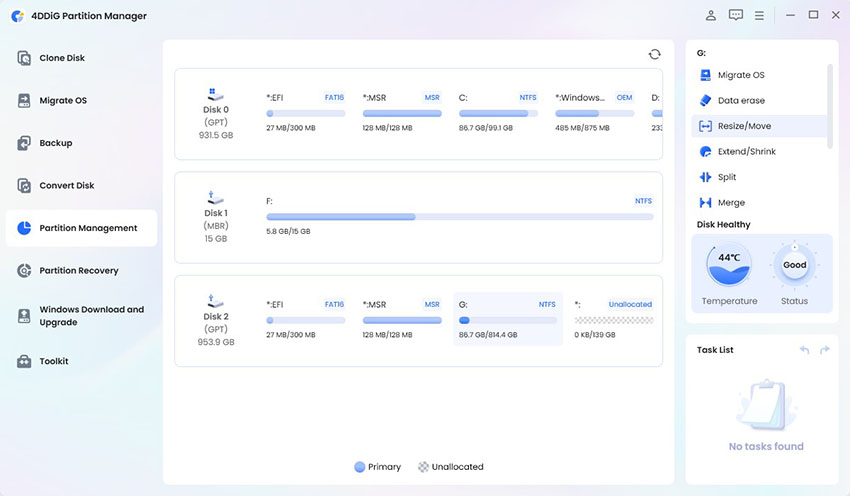
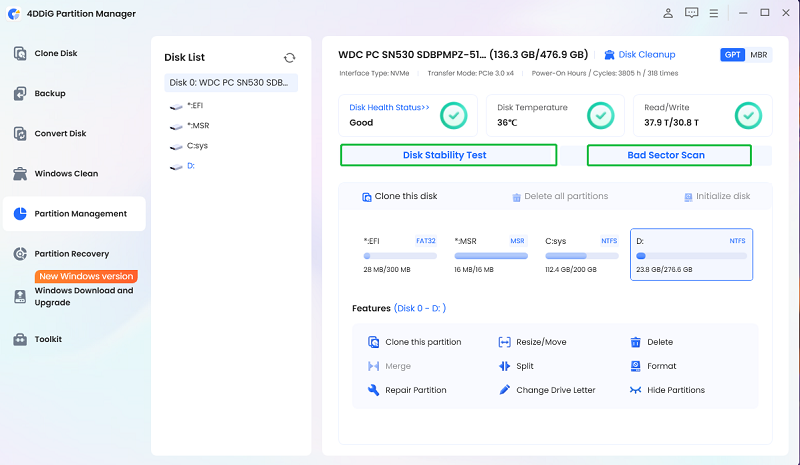
When Windows cannot create FAT32 on a large partition, 4DDiG Partition Manager can provide an alternative for formatting and managing partitions. It is useful when you need to select a file system, adjust the target partition, or avoid repeated DiskPart commands.

Note:

Back up all important files from the USB drive, SD card, or external disk. Formatting the target partition may remove its contents.

  • Install and open 4DDiG Partition Manager, then review the disk map carefully. Identify the target drive and choose the format option.

    FREE DOWNLOAD

    Secure Download

    format target drive
  • Select FAT32 as the file system and review the partition size, volume label, and allocation settings.

    select fat32
  • Confirm the pending operation only after checking that the correct disk is selected.

    click ok to confirm
  • After formatting, safely eject and reconnect the drive. Test it on the device that needs FAT32.

    format successfully

Method 2: Create a Smaller FAT32 Partition

If the device requires FAT32 but does not need the full drive capacity, the safest built-in workaround is to create a smaller partition that stays within Windows’ 32 GB FAT32 limit. This avoids forcing an entire 64 GB or 128 GB drive into a single FAT32 volume.

  • Right-click the Start button and select Disk Management.

  • Right-click the existing partition and choose Delete Volume or Shrink Volume.

    shrink volume
  • Right-click the unallocated space and select New Simple Volume.

  • Set the volume size to roughly 32 GB or less.

  • When prompted for the file system, choose FAT32 (if available).

  • Leave the remaining space unallocated, or create a second partition formatted as exFAT or NTFS.

Note:

Some older devices only recognize the first partition on the drive.

More FAQs about Virtual Disk Service Error

1. What is Virtual Disk Service?

Virtual Disk Service is a Windows component that helps applications and management tools perform storage tasks such as creating, formatting, resizing, and assigning volumes.

2. Can I format a 64 GB USB drive as FAT32?

Yes, but Windows built-in formatting tools may not create a FAT32 volume of that size. Use a reputable partition manager that explicitly supports large FAT32 formatting. Also remember that FAT32 does not support individual files larger than 4 GB.

3. Is exFAT better than FAT32?

For most modern USB drives and external storage, exFAT is more convenient because it supports large files and avoids the common Windows FAT32 formatting barrier.

FAT32 remains preferable when a legacy device explicitly requires it. Check the device documentation instead of choosing FAT32 solely because it sounds more compatible.

📞 File System NTFS vs exFAT: Which Format Should You Use?

Conclusion

The virtual disk service error the volume size is too big message does not automatically mean that the USB drive, SD card, or external disk is failing. If FAT32 is required, create a smaller compatible partition or use 4DDiG Partition Manager to format and manage the drive through a guided interface.

Always back up data, verify the disk identity, and confirm the target device’s file-system and partition requirements before applying changes.

FREE DOWNLOAD

Secure Download

Ehtsham Ahmed (senior editor)

Ehtsham Ahmed, the content writer for 4DDiG, is dedicated to offering workarounds for Windows Data Recovery, Windows Troubleshooting, iDevices System Repair, etc.

(Click to rate this post)

You rated 4.5 ( participated)