4 Best Ways to Convert ISO to MP4 Effortlessly

5 mins read

Updated on 2026-10-14 11:41:48 to Video Tips

You've got an ISO file, maybe ripped from a DVD, maybe downloaded, and your media player just stares back at you blankly. A totally normal problem. Converting ISO to MP4, a format that works with almost everything, is the answer. HandBrake, VLC, a free online application, and FFmpeg are the four effective ways covered in this post; you can choose the one that best suits your system.

Way 1. Convert ISO to MP4 with HandBrake

HandBrake is the go-to free tool for anyone serious about video conversion. It's open source, handles large ISO files without complaining, and gives you genuine control over output quality. This is your best option for a desktop solution to change ISO to MP4 if you want dependable results and don't mind a slightly more complicated setup.

  • Download and install HandBrake: Get the version for your operating system by visiting HandBrake.fr. Installation is standard and takes a couple of minutes.

  • Open your ISO file: Click Open Source in the top left corner. Browse to your ISO file location and select it. HandBrake will scan the file, this takes a moment depending on the ISO size.

  • Select the title to convert: HandBrake displays the available titles within the ISO after scanning. The longest title is typically a DVD ISO's primary feature. From the Title dropdown, choose it.

  • Set output format to MP4: Under the Summary tab, make sure the Output Format is set to MP4. Choose your quality preset from the Presets panel on the right, Fast 1080p30 works well for most purposes.

    handbrake convert iso to mp4
  • Set your destination and start: Click Browse under the Destination field to choose where your MP4 saves. Then hit Start Encode. Conversion time depends on file size and your hardware.

Way 2. Convert ISO to MP4 Using VLC

VLC is already on most people's computers as a media player, which makes it the most convenient starting point for a quick ISO to MP4 conversion. It's not as feature-rich as HandBrake for this job, but for straightforward conversions it gets the work done without installing anything new.

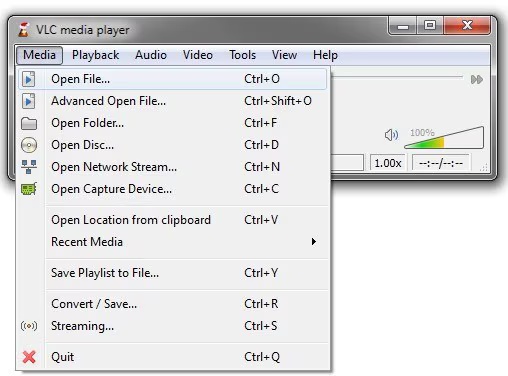
  • Open VLC and go to Media Menu: Launch VLC. Click Media in the top menu bar, then choose Convert/Save from the drop-down menu. If you'd rather, the keyboard shortcut is Ctrl+R.

  • Add your ISO File: In the Open Media window that appears, click "Add" and browse to your ISO file. Select it and click Convert/Save at the bottom of the window.

  • Choose MP4 as output profile: In the Convert window, click the Profile dropdown and select Video H.264 + MP3 (MP4). This is the standard MP4 output option in VLC.

    vlc convert iso to mp4
  • Set destination file: Next to the Destination field, click Browse. Make sure your output file's name ends in .mp4. Decide where to store it.

  • Start the conversion: Click Start. VLC's progress bar will show the conversion moving along. Don't try to use VLC for playback during this process, it ties up the application until it finishes.

Way 3. Convert ISO to MP4 Online Free

Best Free ISO to MP4 Converters Online Free

For anyone who doesn't want to install software at all, browser-based tools are the most frictionless option to turn ISO into MP4. No downloads, no setup, just upload, convert, download.

The tool worth using here is File-Converter-Online.com, it handles ISO files directly in the browser and outputs clean MP4 without requiring an account or payment for basic use.

How to Convert ISO File to MP4 Free Online

  • Open the converter: Go to ISO to MP4 Converter Online in your browser. No account needed.

  • Upload your ISO file: Click the upload area or drag your ISO file directly onto the page. Keep in mind that very large ISOs may take time to upload depending on your internet speed. This is the main limitation of online tools.

    add iso files to file convert online
  • Confirm output format: The tool should default to MP4 output. Verify this before proceeding. Some tools let you adjust quality or resolution at this stage.

    file convert online convert iso to mp4
  • Convert and download: Click Convert. Once processing completes, a download link appears. Click it to save your MP4 file locally.

Note that online converters work best for smaller ISO files. For convert DVD ISO to MP4 jobs involving large disc images, a desktop tool like HandBrake will be faster and more reliable.

Way 4. Convert ISO File to MP4 with FFmpeg

FFmpeg works through commands rather than a graphical interface, so you'll need to type in a few instructions to convert your files. It may look a bit technical at first, but the actual command for how to convert an ISO file to MP4 process is not that difficult. It's a good option if you're comfortable using the command line, especially when working with different video formats or converting several files at once.

  • Install FFmpeg: Install FFmpeg according to your operating system's installation instructions after downloading it from FFmpeg.org. For the instructions to function from any folder on Windows, you must add FFmpeg to your system PATH.

  • Mount or extract your ISO: FFmpeg can't read ISO containers directly. Either use a program like 7-Zip to extract the video files first, or mount the ISO as a virtual drive (Windows 10 and 11 can do this automatically by right-clicking the ISO and choosing Mount).

    mount iso file
  • Open Command Prompt and navigate to the file: Open Terminal (Mac/Linux) or Command Prompt (Windows). To access the folder that has your video files from the mounted ISO, use the cd command.

  • Run the conversion command: After entering the following command, hit Enter:ffmpeg -i input.vob -c:v libx264 -c:a aac output.mp4. Change output.mp4 to whatever you want to call the outcome and input.vob to your actual filename. Then convert disc image file to mp4 job is processed by FFmpeg, which saves the result in the same directory.

  • Wait for processing to complete: FFmpeg will display conversion progress in the terminal. When it finishes, your MP4 file will be in the directory you specified.

Editor's Experience: Which Is the Best Way to Convert ISO Image to MP4

After testing all four methods, here's how they stack up honestly:

HandBrake VLC Online (File-Converter-Online) FFmpeg
Ease of Use Medium Easy Very Easy Difficult
Large ISO Support Excellent Good Limited Excellent
Conversion Speed Fast Medium Depends on internet Very Fast
Main Strengths Quality control, presets, batch support No extra install needed Zero setup, browser-based Maximum control, scripting
Best For Most users who want quality results Quick one-off conversions Small files, no installs Technical users, automation

For the majority of people, HandBrake is the sweet spot: good balance of ease and output quality. FFmpeg wins for power users. Online tools work for small, occasional jobs. VLC is fine when you just need something done quickly without overthinking it.

⚡ How to Fix Converted MP4 Corrupted or Unplayable Errors

Conversion doesn't always go cleanly. Interrupted processes, incompatible codecs, or source file issues can leave you with an MP4 that won't play or throws errors on open. Before assuming the file is lost, there's a proper fix worth trying.

4DDiG Video Repair is built specifically for this situation. It repairs corrupted, broken, or unplayable video files, including MP4s that came out wrong after an ISO conversion, and gets them back to working condition without quality loss.

Why 4DDiG Video Repair Stands Out

  • Uses a single tool to fix MP4, MOV, AVI, MKV, and other popular video formats
  • Handles a variety of repair circumstances, including codec problems, pixelation, missing audio, playback errors, and unfinished files
  • Processes multiple corrupted videos in one batch rather than one at a time
  • Previews repaired video before you commit to saving; you see the result first
  • Completely offline processing, nothing gets uploaded to external servers
  • Works on Windows 10, Windows 11, and macOS
  • Simple three-step workflow with no technical knowledge required
FREE DOWNLOAD

Secure Download

FREE DOWNLOAD

Secure Download

Steps to Fix Damaged MP4 Files After Conversion with 4DDiG Video Repair

  • Install and open the 4DDiG File Repair app and click "Video Repair" > "Add Video" to import the damaged MP4 files. You can add multiple files at once for batch repair.

    add converted mp4 files to 4ddig
  • Click Repair All. 4DDiG analyzes each file and applies the appropriate fix. There are no manual settings to change because the procedure is automated.

    repair all corrupted mp4 files
  • Click Preview on any file after repair is finished to see the outcome before saving.

    preview repaired mp4 files
  • If it looks right, select an ouput format (original MP4 or MKV, MOV, AVI), and click Save All to export the repaired files to your chosen location.

    save repaired mp4 files

FAQs about ISO Image to MP4 Conversion

Q1: Can you convert ISO to MP4?

Yes, directly and without losing quality, using the right tool. HandBrake and FFmpeg handle this on desktop with full control over output settings. VLC works for quick conversions. Online tools cover smaller files without any software installation. All four methods are covered in detail above.

Q2: Can VLC open an ISO file?

VLC can mount and play ISO files directly, you don't need to convert first just to watch. Go to Media, then Open Disc, and point it at your ISO. But if you want to change iso to mp4 for use on other devices or platforms, you'll still need to run it through VLC's Convert function or use HandBrake for better quality control.

Conclusion

There's no single right way to convert ISO to MP4, it depends on what you're working with and how much control you want over the output. HandBrake and FFmpeg are the strongest desktop options. Online tools handle quick, small-file jobs.

VLC works when you just need something fast. And when a converted file comes out broken, 4DDiG Video Repair is the tool that fixes what the conversion process left behind, reliably, quickly, and without uploading your files anywhere.

FREE DOWNLOAD

Secure Download

FREE DOWNLOAD

Secure Download

William Bollson (senior editor)

William Bollson, the editor-in-chief of 4DDiG, devotes to providing the best solutions for Windows and Mac related issues, including data recovery, repair, error fixes.

(Click to rate this post)

You rated 4.5 ( participated)