How to Convert DVD to MP4: 5 Best Ways to Rip DVDs Easily

5 mins read

Updated on 2026-09-22 18:38:25 to Video Tips

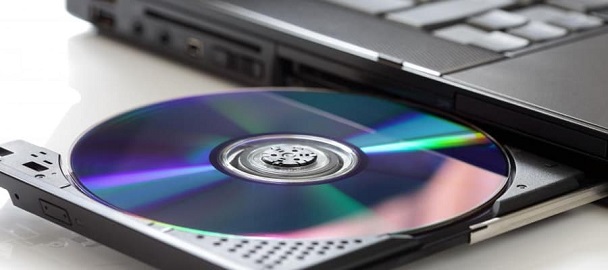
Are your favorite movie collections stuck on physical discs that you can no longer play on your modern smartphone, tablet, or laptop? Many users face this frustration, but the best solution is to convert DVD to MP4 using reliable ripping software. This article explores the five best ways to digitize your library for seamless playback. You will learn how to transfer DVD videos to MP4 easily across all your favorite devices.

Key Takeaways
  • Convert DVDs to MP4 for easier playback on modern devices.
  • MakeMKV extracts DVD content while preserving video and audio quality.
  • HandBrake converts DVD files into compatible, high quality MP4 videos.
  • VLC provides a free option for converting unencrypted DVDs.
  • DVDFab offers faster, automated DVD ripping and conversion.
  • Restream converts legally obtained VOB files online.
  • Use 4DDiG Video Enhancer to upscale ripped low-resolution MP4 videos to 4K.
  • Always consider copyright laws before converting protected DVDs.
how to convert dvd to mp4

Part 1. Is It Illegal to Convert DVD to MP4?

The legality of converting DVDs to digital formats often depends on your local jurisdiction and the purpose of the conversion. Generally, if you own the physical disc and are creating a digital backup for personal, non commercial use, it is often considered “fair use” in many regions.

However, converting without digital rights management (DRM) or copy protection on commercial discs to distribute the content to third parties is strictly prohibited and illegal. Always ensure you have the rights to the content before you extract DVD to mp4.

Part 2. Best Way to Convert DVD to MP4 with MakeMKV and HandBrake ✨

The combination of MakeMKV and HandBrake is widely considered the gold standard for high quality, watermark free conversions. MakeMKV excels at extracting the raw data from the disc into a lossless MKV container. HandBrake is perfect for compressing that data into a highly compatible MP4 file.

Step 1: Extract with MakeMKV

MakeMKV is a “transcoder” that converts proprietary video clips from encrypted discs into a set of MKV files without changing the underlying data. It preserves all video and audio tracks, including HD audio and chapter information.

Steps to Rip DVD with MakeMKV:

  • Download MakeMKV from the official website and install it.

  • Insert your DVD into the optical drive and launch the application.

  • Click the large “Open disc” or the large optical drive icon to let the software scan and decrypt the disc.

  • Select the titles and audio tracks you wish to preserve.

    makemkv extract dvd title settings
  • Choose an output folder and click the “Make MKV” button to begin the extraction.

    Convert VOB / MKV to MP4 with HandBrake

Step 2: Convert VOB / MKV to MP4 with HandBrake

Once you extract the video, you may find the files in VOB or MKV format. To copy the DVD to an MP4 file for better compatibility, use HandBrake to process these files.

Steps to convert VOB/MKV to MP4 with HandBrake:

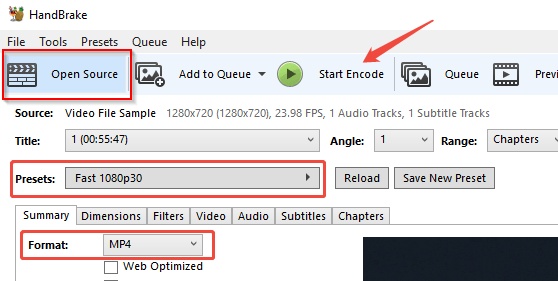
  • Download HandBrake from handbrake.fr and open the VOB or MKV file via “Open Source”.

  • In the Presets panel on the right side, choose “Very Fast 1080p30” or HQ 1080p30 Surround for a standard DVD.

    handbrake preset settings
  • In Summary tab, set Format to “MP4” as the container.

  • In Video tab, select “H.264” for maximum compatibility. RF 18–22 is a sensible starting range for constant-quality encoding.

    handbrake video encoding settings
  • Keep the original aspect ratio, choose a destination, and click “Start Encode.”

    handbrake convert dvd to mp4

This is a strong answer to how to export DVD to MP4 without a watermark. A standard DVD has limited detail, so increasing the resolution will not create genuine 1080p quality.

Part 3. Other 4 DVD to MP4 Converters to Rip DVDs without Watermark Easily

If the MakeMKV and HandBrake duo feels too complex, several other excellent tools are available. Whether you need a free dvd to mp4 converter or a professional solution for protected discs, these options have you covered.

1. VLC Media Player (For Copy-Protected DVDs)

VLC is primarily a media player, but it can also convert a DVD source. It’s free to use and it is compatible with macOS, Linux and Windows. Its conversion workflow is less direct than a dedicated ripper, and results can vary with chapters, menus, and audio tracks. Still, it is useful when VLC is already installed, and you want to copy a DVD to MP4 file for personal use.

Steps to convert DVD to MP4 using VLC

  • Insert the DVD and open VLC. Go to “Media” > “Convert/Save.”

    vlc convert save button
  • Open the Disc tab, select DVD, and check “No disc menus” if available.

  • Select your computer’s DVD drive. Click Convert/Save.

    vlc disc selection
  • In the Profile dropdown, choose Video - H.264 + MP3 (MP4).

  • Choose a destination ending in .mp4 and click “Start.”

    vlc convert dvd to mp4

VLC is best for straightforward backups. If audio and video become unsynchronized, review the audio settings and test a short segment first.

2. DVDFab DVD Ripper (to MP4) (For Both Homemade & Copy-Protected DVDs)

DVDFab DVD Ripper stands out for handling both homemade and heavily protected DVDs. It decrypts most discs via its Cloud Decryption Service automatically and offers device-specific presets for high-quality MP4 output. DVDFab supports over 1,000 formats and can extract DVDs to MP4 up to 50x faster with GPU acceleration.

Steps to rip DVD into MP4 with DVDFab

  • Open DVDFab 13 and then choose the “Ripper” module.

    dvdfab ripper module
  • Insert your DVD, import an ISO file or DVD folder into the workspace. The software loads and decrypts the content automatically.

  • Tap on the doprdown icon of the right tab showing format, then pick “Choose Other Profile” from the drop-down list.

    dvdfab dvd ripper choose other profile
  • In the pop-up window, select one “MP4” option. Also, you can also adjust advanced settings for video, audio, and subtitles.

    dvdfab dvd ripper convert dvd to mp4
  • Select your output directory and click “Start” to begin the high-speed rip.

3. Handbrake (For Copy-Protected DVDs)

HandBrake remains one of the most popular free tools for turning DVDs into modern video files. While HandBrake itself does not defeat copy protection, it is often used alongside third-party libraries (like libdvdcss) to handle commercial discs. With the right setup (including libdvdcss support), it can process many protected discs and output clean MP4 files.

Steps to grab DVD to MP4 with Handbrake:

  • Place the libdvdcss file in the installation folder if you need to handle protected discs.

  • Insert your DVD and open HandBrake. Click Open Source and select the DVD drive or VIDEO_TS folder. Wait for the scan to finish.

  • Choose the main title from the Title dropdown.

  • In the Summary tab, set Format to MP4. Pick a preset such as Fast 480p30 (for NTSC) or adjust quality to RF 18–20 for better results.

  • Select an output folder, then click Start Encode.

HandBrake is a good way to change DVD to MP4 free when you do not mind learning a few settings.

4. Restream VOB to MP4 Converter Online

The Restream VOB to MP4 Converter is a convenient option if you already have legally obtained VOB files stored on your computer from DVDs. It is not a complete DVD reader, and online services may have upload, file-size, privacy, or retention limits. Do not upload private content unless you understand the service terms.

Steps to convert DVD to MP4 online for free with Restream

  • Open the Restream VOB to MP4 converter site.

  • Drag and drop your file into the upload area.

  • Click "Convert" to start the conversion process.

  • Once the conversion finishes, download the resulting MP4 file to your computer.

    restream vob to mp4 converter

Part 4. How to Enhance the Quality of Ripped MP4 Videos to 4K

The main pain point for many users after a successful MP4 convert from DVD is that the video resolution looks worse. Standard DVDs sit around 480p or 576p, so the MP4 you create can still feel blurry or lack detail on modern screens. Many people want sharper playback, better colors, and true high quality results without starting over.

That’s where 4DDiG Video Enhancer comes in. This AI-powered tool is designed to take those low-resolution MP4 files ripped from DVD and lift them to clearer 1080p or 4K. It works directly on the files you already have, so you keep the convenience of digital video while improving how it looks.

Key Features of 4DDiG Video Enhancer:

  • Upscale videos to 4K and up to 8K while adding detail and reducing softness  
  • Multiple AI models for different footage types: General Denoise, Face, Anime, and Colorize
  • Reduce grain/noise and sharpen videos to clean compression artifacts common in older DVD rips  
  • Colorize faded or B&W videos and adjust contrast to make them look more vibrant    
  • Support batch processing multiple videos at once to save time
  • Provide clear before-and-after preview so you can check results before saving
FREE DOWNLOAD

Secure Download

FREE DOWNLOAD

Secure Download

Steps to Enhance Low-Resolution MP4 Videos Ripped from DVD with 4DDiG

  • Install 4DDiG File Repair (features a built-in Video Enhancer) and launch the program. Select AI Enhancer on the left, then choose Video Enhancer.

    open 4ddig ai video enhancer
  • Click Add Videos or drag your converted MP4 files into the window. You can add one or several at once.

    add blurry ripped mp4 to 4ddig
  • Pick an AI model that fits your video (General or Denoise Model works well for most DVD rips). Set the output resolution to the higher level you want (X2 or X4). Click Enhance.

    select ai model and reset resolution to enhance mp4
  • Wait for the process to finish. Preview the improved frames side by side with the original. If needed, try a different model or resolution and run it again. Once you’re happy with the result, click Save and choose a folder.

    preview and save enhanced mp4 videos

FAQs About DVD to MP4 Conversion

Q1: Can DVD players play MP4?

Most modern DVD players with a USB port can play MP4 files, as long as the video is encoded with compatible codecs like H.264. However, older standard players only support the MPEG-2 format found on physical discs.

Q2: What is the best tool to convert DVD movie to MP4 for Mac?

Both HandBrake and DVDFab DVD Ripper offer excellent macOS versions. DVDFab is particularly noted for supporting both Intel and Apple Silicon chips natively.

Q3: What are the best HandBrake settings for DVD to MP4?

For most DVDs, use the "Fast 480p30" preset. Set "Constant Quality" between RF 18-22 and set the frame rate to "Same as source" to maintain the film’s original look.

Q4: What is the best free DVD to MP4 converter?

VLC Media Player and HandBrake are the top free choices. While VLC is easier for quick tasks, HandBrake offers more granular control over encoding settings.

Q5: Is there a free DVD to MP4 converter with no watermark?

Yes, HandBrake and MakeMKV are completely free and do not add any watermarks to your videos. If the result is corrupted rather than watermarked, 4DDiG Video Repair may help restore playback.

Conclusion

Digitizing your library is essential for accessibility. Whether you convert DVD to MP4 using MakeMKV and HandBrake or the automated speed of DVDFab, the process is now seamless. You can also transcode MP4 to DVD for older systems. If conversion results in corrupted files, we highly recommend 4DDiG Video Repair to restore your footage. These steps help preserve your movie collections for years to come.

FREE DOWNLOAD

Secure Download

FREE DOWNLOAD

Secure Download

Sawart Mashab (senior editor)

Sawart Mashab, the content writer for 4DDiG, is adept at creating informative and practical solutions related to Windows and macOS issues, data recovery, file repair, and RAID storage.

(Click to rate this post)

You rated 4.5 ( participated)