Top 6 Free XviD to MP4 Converters (Online, Windows, Mac & Android)

5 mins read

Updated on 2026-04-27 19:54:46 to Video Tips

If you just need the fastest way to convert XviD to MP4 right now: install HandBrake, drag your file in, pick the "Fast 1080p30" preset, and hit Start. Done in under 5 minutes for most files.

But "fastest" isn't always "right". If you have 50 files to batch-process, no admin rights to install software, an Android phone with the file stuck on it, or the worst case, an XviD file your converter keeps refusing to open, you need a different tool. This guide tests 6 free XviD to MP4 converter options across desktop, browser, and mobile, then shows what to do when none of them work because the source file itself is corrupted.

xvid to mp4 converters

Part 1. Quick Overview: Which XviD to MP4 Converter Should You Choose?

Pick by your situation, not by what's "best" in the abstract:

  • I have 1-2 files and want them done now → FreeConvert (browser, no install)
  • I have 10+ files and care about quality → HandBrake (desktop, batch queue)
  • I already have VLC open → VLC (one-off, no extra install)
  • I want it done in seconds with no quality loss → FFmpeg with -c copy (terminal, advanced)
  • File is on my phone → Video Converter, Compressor (Android)
  • My XviD file won't open or convert anywhere → Repair it first with 4DDiG Video Repair, then convert (covered in Part 3)

Comparison Table: 6 XviD to MP4 Converters at a Glance

Tool Platform Free Tier Limit Speed (700 MB AVI) Output Quality Best For
HandBrake Win, Mac, Linux Unlimited ~3 min (M2 / i7) Excellent Batch jobs, quality control
FreeConvert Browser 1 GB / file ~6 min (incl. upload) Good One-off, no install
Convertio Browser 100 MB / file (free) ~5 min (incl. upload) Good Cloud workflow (Drive/Dropbox)
VLC Win, Mac, Linux Unlimited ~5-7 min (slower codec) Acceptable You already have it installed
FFmpeg CLI (all OS) Unlimited ~30 sec (with -c copy) Lossless option Power users, scripting
Video Converter (Android) Android Ad-supported, unlimited ~4 min (mid-range phone) Good Files stuck on your phone
Note on VLC:

VLC's converter occasionally produces audio-sync drift on long videos. If sync matters, use HandBrake instead.

Part 2. Top 6 Best XviD to MP4 Converters in 2026 (Free & Online)

Each tool below is reviewed in the same format: who it's for, the 2-3 things you only learn after using it, then the steps.

1. HandBrake -- Best Free XviD to MP4 Converter Overall

HandBrake is the gold-standard desktop transcoder, the only free tool here with both batch queueing and full encoder control (CRF, two-pass, x265). For anyone with an old hard drive of XviD AVIs from the DVD-rip era, this is the default answer.

Why pick Handbrake:

Worth the 5-min learning curve if you have more files than fingers. Skip it if you only need to convert one file, FreeConvert gets that done faster with zero install.

Pros & Cons (from actually using it):

  • ✅ Pros
  • ❌ Cons
    • Hardware acceleration on Mac M-series and NVIDIA NVENC cuts time by 40-60%
    • Built-in queue handles 50+ files unattended overnight
    • Subtitle pass-through and burn-in both work for SRT, ASS, VobSub
    • Open-source, no telemetry, no nag screens
    • Default "Fast 1080p30" upscales 480p XviD, which wastes ~60% disk space
    • Refuses XviD files with damaged headers ("scan: invalid" error)
    • Format setting hidden in Summary tab, which is confusing for first-timers
    • No drag-drop folder watch, files queued one by one

✨ Best for: Anyone with more than 5 XviD files, or anyone who cares about output file size.

Steps to convert XviD to MP4 in HandBrake:

  • Open HandBrake and click "Open Source" to select your XviD .avi file (or a whole folder for batch mode).

  • In the right-side preset panel, pick "Fast 1080p30" for HD sources or "Very Fast 480p30" for low-res XviD rips.

  • In the "Summary" tab, confirm Format = MP4. In the "Video" tab, encoder = H.264 (x264), Quality = RF 22 (sweet spot for XviD sources).

  • Pick a destination folder at the bottom. For batch jobs, click "Add to Queue" instead of "Start Encode", then add the next file.

  • Click "Start Encode" (or "Start Queue" for batch). Expect ~3 minutes per 700 MB file on Apple M2 / Intel i7.

    handbrake xvid to mp4 settings

2. FreeConvert -- Best Online XviD to MP4 Converter

FreeConvert is the cleanest browser-based convert XviD to MP4 online option. No account required, 1 GB per file on the free tier -- which actually covers most XviD AVI files (they're rarely larger than 700 MB).

Why pick FreeConvert:

When you don't have admin rights to install software (work laptop, library computer, school) or you just want one file converted without commitment, FreeConvert is the lowest-friction option.

  • ✅ Pros
  • ❌ Cons
    • 1 GB free cap fits 99% of XviD AVI files (DVD rip ~700 MB)
    • Lets you set codec, resolution, bitrate before converting
    • No signup, no email required
    • Auto-deletes uploads after 24 hours; SSL-encrypted transfer
    • Works on Chromebook, work PC, anywhere with a browser
    • Free users queued behind paid users, 5–15 min wait at peak
    • Upload speed is the bottleneck, 700 MB needs ~2 min on 50 Mbps
    • Daily cap of 25 conversions per IP
    • No two-pass encoding, loses to HandBrake on fine-tuning

✨ Best for: 1-3 files, no software install, file under 1 GB.

Steps to use FreeConvert (free online XviD to MP4 converter):

  • Go to freeconvert.com/xvid-to-mp4.

  • Click "Choose Files" and upload your XviD video (drag-drop also works).

    freeconvert xvid to mp4 converter online
  • Click the gear icon next to your file and set Video Codec = H.264, Resolution = "Same as source". Skip this step if you're in a hurry.

  • Click "Convert" and wait. Download appears as a button when done.

3. Convertio XviD to MP4 Converter Online -- Best for Cloud Workflows

Convertio is another solid XviD video converter online to MP4 with one feature FreeConvert lacks: native Google Drive and Dropbox integration. You can pull a file from Drive, convert it, and push the MP4 straight back to Drive, never touching your local disk.

Why pick Convertio:

Best when your XviD files live in cloud storage (shared family archives, work Drives) or when you're switching between phone and PC mid-task. Skip it if your file is over 100 MB.

  • ✅ Pros
  • ❌ Cons
    • Direct Google Drive / Dropbox / OneDrive import + export;
    • Supports 300+ formats; ad-light interface;
    • File deletion confirmation email
    • Free tier caps at 100 MB per file (smaller than FreeConvert) and 10 conversions per day;
    • "unlimited" requires the $9.99/month Light plan; no advanced encoder options

✨ Best for: Cloud-stored files under 100 MB, mobile-to-desktop workflow.

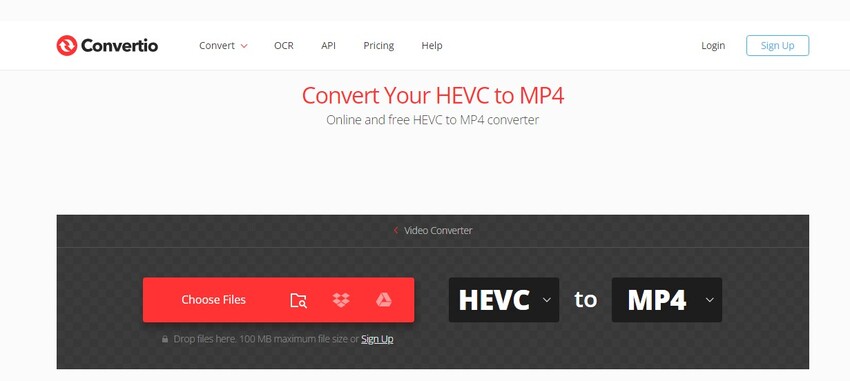
Steps to use Convertio Free Online XviD to MP4 Converter:

  • Go to convertio.co/xvid-mp4.

  • Click the red "Choose Files" and pick from Computer, Drive, Dropbox, or URL.

    convertio xvid to mp4 converter online
  • Confirm "MP4" is selected as the output (it's the default for this URL).

  • Click "Convert". When done, click "Download" or send straight to your cloud.

4. VLC Media Player -- The Tool You Already Have

VLC is famously the "play anything" media player, but it's also a working XviD video codec to MP4 converter. The catch: VLC's converter is built for occasional one-off use, not as a primary tool.

Why pick VLC:

Because it's already installed. If you only have one XviD file to convert and you don't want to download anything new, VLC will get the job done in 5-7 minutes.

  • ✅ Pros
  • ❌ Cons
    • Already installed for most people; truly offline (no upload needed);
    • Handles slightly damaged XviD streams better than dedicated converters because of VLC's permissive demuxer
    • Output MP4 is 30–50% larger than HandBrake at same quality
    • Audio drifts 1–3 sec on XviD videos longer than 60 min
    • VLC 4.0 moved menus. That means old guides will lead you wrong
    • No batch queue. One file at a time

✨ Best for: Occasional one-off conversions, short videos under an hour, no install needed.

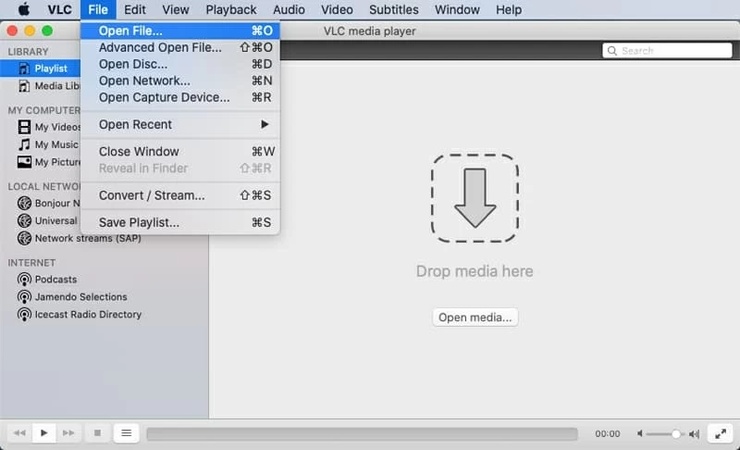
Convert XviD video codec to MP4 in VLC (Windows):

  • Open VLC > Media > Convert / Save (or press Ctrl+R).

  • Click "Add" > select your XviD file > click "Convert / Save" at the bottom.

    add xvid files to vlc for mp4 convert
  • Profile dropdown and choose "Video - H.264 + MP3 (MP4)".

    vlc convert xvid to mp4 step
  • Click the wrench icon and confirm encapsulation = MP4, video codec = H-264. Then tap on Save.

  • Set destination filename ending in .mp4 and click "Start". Progress shows on the timeline.

5. FFmpeg -- The Fastest Option (For People Who Don't Mind a Terminal)

FFmpeg is the engine behind almost every other tool on this list, including HandBrake. Used directly, it's ugly but unmatched in speed and flexibility.

Why pick FFmpeg:

Because of one trick: if your XviD video is already in an MP4-compatible container (most XviD AVIs use a compatible bitstream), you can do a stream-copy and finish a 700 MB file in under 30 seconds with zero quality loss. No other tool here does this.

  • ✅ Pros
  • ❌ Cons
    • Stream-copy mode rewraps 700 MB XviD AVI to MP4 in ~30 sec
    • Re-encode fallback is still 2–3x faster than HandBrake GUI
    • Scriptable: One bash loop converts 1000 files overnight
    • Free, no install on Mac/Linux via brew/apt, no ads
    • Powers half the open-source video tools you already use
    • Stream-copy fails on non-compliant XviD with cryptic error
    • Broken-index XviD files need extra -fflags +genpts flag
    • No GUI, command line only
    • Error messages written for developers, not end users

✨ Best for: Developers, automation, batch jobs over 50 files, anyone who's ever opened a terminal.

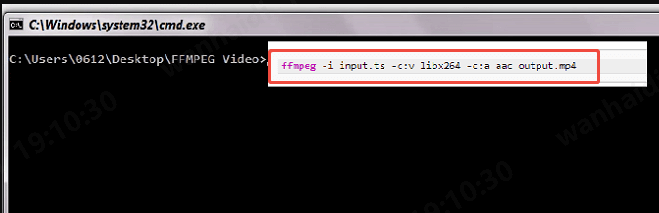
Using FFmpeg to convert XviD files to MP4 (advanced users):

  • Install FFmpeg: Mac → brew install ffmpeg; Windows → download from ffmpeg.org

  • Open Terminal (Mac) or Command Prompt (Windows) and cd into your file's folder.

  • Try the fast path first (works ~70% of the time): ffmpeg -i input.avi -c copy output.mp4

  • If that fails (bitstream error), re-encode with this command: ffmpeg -i input.avi -c:v libx264 -crf 22 -c:a aac -b:a 192k output.mp4

  • Press Enter, wait for the prompt to return. Done.

6. Video Converter, Compressor -- Best XviD to MP4 Converter for Android

If the XviD file is sitting on your phone (downloaded torrent, transferred from old SD card, sent over Bluetooth), you don't need a desktop. The XviD to MP4 converter for Android by Inverse AI is the most reliable free Android option in the Play Store right now.

Why pick this app:

It's the only free Android converter we tested that handles XviD AVI without crashing, and the built-in compressor lets you trim a 700 MB file to ~150 MB MP4, which is useful if you're trying to send it over WhatsApp (16 MB-100 MB cap depending on region).

  • ✅ Pros
  • ❌ Cons
    • Converts 500 MB+ XviD AVI without OOM crashes (rare on Android)
    • Built-in compressor squeezes XviD-to-MP4 below WhatsApp's 100 MB cap
    • Hardware acceleration: 700 MB file in ~4 min on Snapdragon 7-gen
    • Fully offline. File stays on phone, privacy-safe
    • Works on Android 7.0+ (phones from 2017 onward)
    • Default 1080p preset upscales 480p XviD (Amid this, set "Same as source")
    • Some XviD files crash on first import (Amid this, clear cache and retry)
    • Full-screen ad after every conversion
    • Android only, no iOS version
    • 4K presets paywalled (Pro upgrade)

✨ Best for: Files stuck on Android, on-the-go conversion, social media creators.

Steps to use Video Converter on Android:

  • Install "Video Converter, Compressor" from the Play Store (search "Inverse AI").

  • Grant storage permission when prompted.

  • Tap "Video Converter" → browse to your XviD .avi file.

  • Customize sttings: Format = MP4, Codec = H.264, Resolution = Same as source. Tap "Convert".

  • When finished, find the MP4 in the app's output folder (usually /Movies/VideoConverter/).

    android xvid to mp4 converter step

⚡ Part 3. What If Your XviD File Is Corrupted and Won't Convert?

If two of the converters above failed on the same file, the converter isn't the problem, your XviD file is. Old XviD AVIs are especially fragile: most were ripped from DVDs in the early 2000s, stored on FAT32 drives, burned to CD-Rs, or downloaded over half-broken P2P connections. Any of these leaves the file partially intact: playable for a few seconds, then frozen, glitchy, or refused outright.

Match your symptom below to find the fix:

Symptom you see Likely cause Solution
HandBrake says "Source: scan: invalid" Broken AVI header (common in interrupted downloads) Repair with 4DDiG Video Repair → reconvert
MP4 has audio but black video Damaged video index, audio stream intact Repair → then convert with HandBrake
Conversion freezes at the same percentage every time Bad sector / corrupted frame Repair → 4DDiG reconstructs the frame
Pixelated, glitchy output Source already had visual corruption Repair the source first; convert second
Error code 0xc00d36c4 Corrupt container metadata 4DDiG repairs the container metadata

All five symptoms have the same fix: repair the source first, then run any converter from Part 2. 4DDiG Video Repair is built specifically for this. Unlike generic file recovery tools, it understands video container formats (AVI, MP4, MKV, MOV) and rebuilds corrupt frames or broken indexes at the codec level.

FREE DOWNLOAD

Secure Download

FREE DOWNLOAD

Secure Download

Key features of 4DDiG Video Repair (relevant to XviD):

  • Repairs XviD-encoded AVI, MKV, MP4, MOV, M4V, FLV, not just modern formats
  • Fixes XviD-era errors: 0xc00d36c4, 0xc10100be, "not a valid AVI"
  • Optional AI upscaling, push 480p XviD DVD rips to 1080p or 4K
  • Batch repair & free preview before saving, no commitment

Steps to fix corrupted XviD files using 4DDiG Video Repair:

  • Launch the 4DDiG File Repair app and pick "Video Repair" from the left sidebar. Click "Add Videos" and select your broken XviD file (or multiple files for batch).

    add corrupted xvid files t repair
  • Click "Repair All". Repair time scales with file size, expect ~2-4 min per 700 MB file.

    repair all corrupted xvid files
  • When finished, click "Preview" to confirm the video plays correctly. Click "Save" → choose where to export. Now run the repaired file through HandBrake (Part 2) to get your MP4.

    preview and save repaired files

People Also Ask About XviD to MP4

Q1: What is the XviD video codec?

XviD is an open-source video compression library based on MPEG-4 Part 2, released in 2001 as a free alternative to DivX. It was the dominant codec for DVD ripping from roughly 2003 to 2010 because it could compress a 4 GB DVD into a single 700 MB file that fit on a CD. It has since been replaced by H.264 (and now H.265 / AV1), but huge volumes of XviD content still exist on old hard drives, USB sticks, and disc archives.

Q2: How do I open an XviD file?

On desktop, VLC and MPC-HC both play XviD files natively without extra codec installs. On Windows, you may need the K-Lite Codec Pack if you want XviD to play in Windows Media Player. On modern smartphones, browsers, and smart TVs, XviD usually doesn't play at all, converting to MP4 is the practical fix.

Q3: Does converting XviD to MP4 reduce video quality?

Yes, slightly, any re-encoding causes generation loss. But with HandBrake at CRF 22 or FFmpeg with -crf 22, the loss is invisible to the human eye on a normal screen. If you want zero loss, use FFmpeg's -c copy mode (works for ~70% of XviD files), that just rewraps the video into an MP4 container without re-encoding.

Q4: Are XviD to MP4 converters free and safe?

All six tools in this guide are free and safe when downloaded from official sources: handbrake.fr, videolan.org, ffmpeg.org, freeconvert.com, convertio.co, and the Google Play Store. Avoid sites with names like "xvid-converter-free-download.xyz" that are typically ad-redirect traps that bundle adware. Also avoid running .exe files from torrent downloads of "premium" converters.

Q5: What is the best XviD video codec converter to MP4?

There's no single best, it depends on your situation. For desktop and quality control: HandBrake. For one-off browser conversions: FreeConvert. For pure speed: FFmpeg with stream copy. For files stuck on Android: Video Converter by Inverse AI. And if your file is corrupted before any of these can touch it: repair first with 4DDiG Video Repair, then convert.

Conclusion

Picking the right XviD to MP4 converter comes down to what you have and where the file is: HandBrake for batch desktop work, FreeConvert for quick browser jobs, FFmpeg for speed, the Android app for files on your phone. If your XviD file refuses to convert no matter what tool you try, the source is corrupted, repair it first with 4DDiG Video Repair, then send the fixed file through HandBrake to get a clean MP4 you can play anywhere in 2026.

FREE DOWNLOAD

Secure Download

FREE DOWNLOAD

Secure Download

Sawart Mashab (senior editor)

Sawart Mashab, the content writer for 4DDiG, is adept at creating informative and practical solutions related to Windows and macOS issues, data recovery, file repair, and RAID storage.

(Click to rate this post)

You rated 4.5 ( participated)