7 Best Adobe Flash Player Alternatives to Play Flash Games and SWF Files

5 mins read

Updated on 2026-10-28 11:14:28 to Video Tips

Adobe ended support for Flash Player years ago, yet many classic games and old SWF files still exist. If you want to play them again, you need a reliable Adobe Flash Player alternative.

This guide covers the 7 top free options that work on modern browsers, Windows, and Mac. You'll find simple comparisons and practical choices so you can keep enjoying Flash content without complicated steps or outdated software.

adobe flash player alternative

Part 1. Why Do You Need an Adobe Flash Player Alternative?

Adobe Flash Player was the standard tool that let websites run animations, videos, and interactive games for nearly two decades. Millions of people used it every day to play browser-based titles and view rich media.

In 2020, Adobe officially discontinued Flash Player. The company cited growing security risks and the rise of modern web standards like HTML5. Browsers such as Chrome, Firefox, and Edge quickly blocked the plugin, and Microsoft later removed it from Windows.

Today you cannot safely install or run the original Adobe Flash Player on current operating systems. Official downloads no longer exist, and any remaining installers carry serious security warnings. That is why users now look for a practical alternative to Adobe Flash Player that can still open SWF files and restore access to classic Flash games.

Part 2. Quick Comparison Table of Top Adobe Flash Player Substitutes

Here is a simple side-by-side look at the seven strongest options available in 2026. The table focuses on the features most people care about when choosing a player for Flash content. Use this table to narrow down your options before reading the detailed reviews.

Tool Platform Best For Cost Main Limitations
Ruffle Windows, macOS, Linux, browsers Playing many Flash games and animations Free, open source Some content may not work correctly
Lightspark Windows, Linux Running Flash content on desktop systems Free, open source Compatibility is still incomplete
BlueMaxima's Flashpoint Windows; macOS and Linux support varies Playing and preserving classic Flash games Free Requires storage space and setup
Internet Archive Flash Content Web browser Finding and playing archived Flash content Free Availability and playback vary by item
CheerpX for Flash Modern desktop browsers Supporting legacy business applications Commercial licensing Requires integration and licensing
SuperNova Player Windows; browser integration Playing supported online SWF games Free download Limited platform support
Elmedia Player macOS Opening local SWF files on a Mac Free download; some features may be paid SWF support has limitations, especially on Apple silicon

Which Adobe Flash Player Alternative Should You Choose?

  • For browser-based Flash content: Try Ruffle first. It offers browser extensions and desktop applications for supported platforms.
  • For classic Flash games: Choose Flashpoint if you want a large collection of preserved games and animations.
  • For Windows users: Compare Lightspark and SuperNova Player based on whether you need a general Flash runtime or a player for supported SWF games.
  • For Mac users: Consider Ruffle for emulation or Elmedia Player for local SWF files.
  • For archived games online: Browse the Internet Archive's Flash collection.
  • For business applications: Consider CheerpX for Flash, which is designed to help organizations keep legacy applications accessible through modern browsers.

Keep in mind that these tools are not interchangeable. Ruffle and Lightspark attempt to reproduce Flash functionality, Flashpoint focuses on preserving playable content, and CheerpX for Flash targets enterprise use. Your best choice depends on whether you want to play a game, open a file, revisit an archived website, or maintain an older application.

The next section walks through each option in more detail so you can pick the one that fits your needs.

Part 3. 7 Best Adobe Flash Player Alternatives for Windows, Mac & Online in 2026

Now that you've seen the quick comparison, let's look closer at each option. These seven tools stand out as practical ways to open old SWF files and play classic Flash games in 2026. Each one works a bit differently, so you can choose based on whether you prefer a browser solution, a desktop app, or a large game collection.

1. Ruffle - Browser & desktop Flash emulator

✨ Best for: Everyday users who want the simplest way to play Flash games in the browser or open SWF files on their computer.

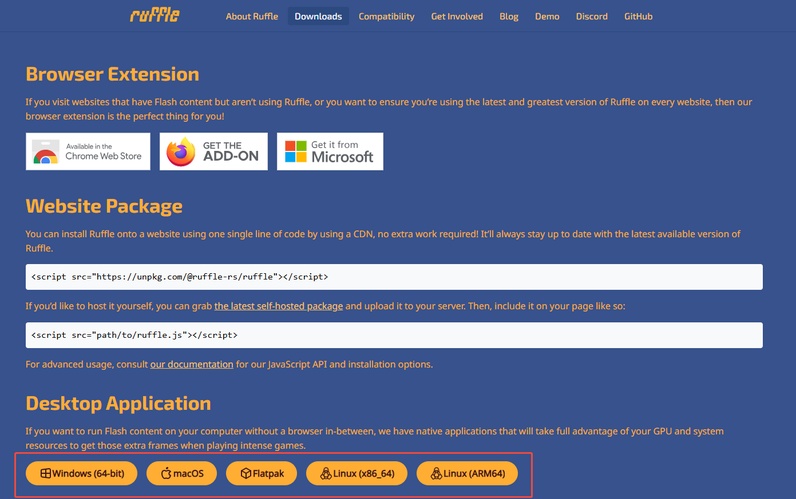
Ruffle is a modern, open-source emulator that brings Flash content, like many older Flash animations and games, back to life without the original plugin. It runs smoothly in most browsers and also offers a desktop version for local files. Thus, many people use it as an Adobe Flash Player alternative for Chrome and other supported browsers, working on thousands of sites.

ruffle flash emulator
  • Pros
  • Cons
    • Works in Chrome, Firefox, Edge, and Safari
    • Easy browser extension plus standalone desktop app
    • Actively updated and free, and no complicated setup
    • Handles both online games and local SWF files well
    • Helps run Flash content without installing the original plugin.
    • Some advanced or newer Flash features still missing
    • Very complex games may not work correctly

2. Lightspark - Open-Source Flash player for Windows & Linux

✨ Best for: Windows and Linux users who want a pure desktop player without relying on browser extensions.

Lightspark is a free, community-driven project that aims to recreate Flash Player functionality on the desktop, including ActionScript features, but its compatibility is still incomplete. It focuses on Windows and Linux systems and can open many older SWF files directly. It serves as a solid Adobe Flash Player alternative for Windows when you prefer a native application over a browser tool.

lightspark
  • Pros
  • Cons
    • Completely open-source and free
    • Runs natively on Windows and Linux
    • Good support for basic animations and games
    • Handle multiple Flash formats
    • Lightweight and does not need a browser
    • Development is slower than Ruffle
    • Limited success with more complex or recent Flash content

3. BlueMaxima's Flashpoint (Flashpoint Archive) - Play & archive classic Flash games

✨ Best for: Fans who want to explore and keep a big collection of old Flash games without searching the web every time.

BlueMaxima's Flashpoint is a preservation project that collects thousands of web games and animations from the plugin era. Rather than acting as a simple standalone SWF player, it provides a library of preserved content and the tools needed to run it. It is a strong choice for people who want to play and archive Adobe Flash Player games.

flashpoint archive
  • Pros
  • Cons
    • Thousands of ready-to-play classic games and animations
    • Works offline after download
    • Supports Windows, Mac, and Linux
    • Regular community updates and new additions
    • Built-in tools to manage your collection
    • Initial download is large
    • Interface can feel a bit technical for complete beginners

4. Internet Archive Flash Collection - Find & play archived Flash games online

✨ Best for: Casual players who want quick access to a wide range of old Flash games without installing anything.

The Internet Archive hosts a large public collection of classic Flash games and animations that would otherwise be lost. You can browse the collection in your browser and play many titles directly with the help of built-in or browser-based emulators. It is one of the easiest ways to rediscover old web games without downloading large software packages.

internet archive flash collection
  • Pros
  • Cons
    • Completely free and available online
    • Huge variety of classic Flash games and animations
    • Easy search and browsing for archived Flash content
    • Works on most modern devices with a browser, no installation needed
    • Depends on your internet connection
    • Not every game works perfectly on every device

5. CheerpX for Flash - Best enterprise or high-compatibility solution

✨ Best for: Businesses, developers, or advanced users who need reliable playback of demanding or legacy Flash applications.

CheerpX for Flash uses advanced technology to run Flash content inside a secure virtual machine in the browser. It aims for higher compatibility than simpler emulators, making it useful for complex applications, internal company tools, or older web projects that still rely on Flash. While it is more technical, it often handles demanding content that other free tools struggle with.

cheerpx for flash
  • Pros
  • Cons
    • Strong support for complex and advanced Flash features
    • Runs securely inside modern browsers
    • Suitable for business and professional environments
    • No need to install the discontinued Adobe Flash Player and traditional Flash plugin
    • Continues to receive updates for better compatibility
    • Setup can feel more technical than consumer tools
    • Free usage may have limits compared with fully open-source options

6. SuperNova Player - Simple SWF player for Windows

✨ Best for: Windows users who just want a no-frills desktop tool to open and view SWF files quickly.

SuperNova Player is a lightweight Windows program made specifically to open and play Flash-based web games and local SWF files. You simply load the file and start watching or interacting with it. The interface stays clean and straightforward, so it works well when you only need basic playback without extra features or browser extensions.

supernova player playing swf files
  • Pros
  • Cons
    • Very simple and clean interface
    • Fast opening of local SWF files
    • Free to download and use
    • Small program size that runs lightly
    • No complicated settings for everyday use
    • Available only on Windows
    • Limited features beyond basic SWF playback

7. Elmedia Player - Adobe Flash Player alternative for Mac

✨ Best for: Mac users who want a versatile media player that can also handle old SWF files without switching tools.

Elmedia Player is a media player for Mac that includes support for SWF files along with many other formats. It gives Mac users a convenient way to handle old Flash content without switching to a different operating system. Many people treat it as a practical Adobe Flash Player alternative for Mac. However, opening an SWF file is not the same as fully emulating every interactive Flash game.

elmedia player
  • Pros
  • Cons
    • Native Mac application with a familiar look
    • Supports SWF files plus many video and audio formats
    • Clean and easy-to-use interface
    • Free version available for basic needs
    • Regular updates from the developer
    • Some advanced features require the paid version
    • Not focused only on Flash games or complex interactions

Part 4. How to Play Flash Content Without Adobe Flash Player

Once you know the best tools, the next step is actually using them. Below are two of the easiest and most popular methods. Both work well in 2026 and require no old plugins.

Method 1. Run Flash Content with Ruffle

Ruffle is the simplest choice for most people. You can use it either as a browser extension for websites or as a desktop app for local SWF files.

1.1 Use the Ruffle Browser Extension (best for websites)

This is the fastest way to play Flash games and animations that still live online.

  • Open your browser (Chrome, Firefox, or Edge).

  • Go to your browser's extension store and search for "Ruffle".

  • Click "Add to browser" (such as "Add to Chrome") or "Install" and confirm the permission.

    add flash
  • Once installed, visit any page that contains Flash content. Ruffle will usually detect it automatically and start playing.

1.2 Use the Ruffle Desktop App (best for local SWF files)

When you have SWF files saved on your computer, the desktop version is more convenient.

  • Visit the official Ruffle website and download the desktop version for Windows or Mac.

  • Install or simply unzip the file (it is portable on many systems).

  • Open the Ruffle app.

  • Drag and drop your SWF file into the window, or use the "Open" button to select it.

    ruffle open flash games
  • The content should start playing immediately. Use the on-screen controls if available.

Method 2. Play Classic Flash Games with Flashpoint Archive

If you want a large ready-made library of old games, Flashpoint Archive is the best option. It lets you browse and play thousands of titles without hunting for individual files.

  • Go to the official Flashpoint website and download the latest version (Infinity or Ultimate, depending on how many games you want).

    flashpoint archive download page
  • Run the installer or extract the files. The first launch may take a few minutes while it sets up.

  • Open the Flashpoint launcher.

  • Use the search bar or browse the categories to find a game.

  • Double-click any title to start playing. The launcher handles the rest automatically.

You now have an offline collection of classic Flash games that you can enjoy anytime. Both Ruffle and Flashpoint cover the needs of most users who simply want to play old content again.

Part 5. The Best Flash Format Alternative - HTML5

While the tools above help you play existing Flash files, the long-term solution is moving away from Flash completely. HTML5 has become the standard that modern browsers support natively. It offers better security, faster performance, and works on phones, tablets, and computers without any extra plugins.

HTML5 uses everyday web technologies (HTML, CSS, and JavaScript) to create animations, games, and interactive content. Most new websites and games already use it, which is why browsers no longer need the old flash player.

Steps to migrate away from Flash to HTML completely with Adobe Animate

If you still have old Flash projects or websites, here is a practical path to update them:

  • Open your original Flash (.fla) project in Adobe Animate.

  • Go to File > Convert To > HTML5 Canvas (or Commands > Convert to Other Document Formats in older versions), select HTML5 Canvas, and save the new file.

    adobe animate convert swf to html5 canvas
  • Review the Output panel for warnings about commented ActionScript, removed features, or multi-scene splits.

  • Open Window > Actions and rewrite commented ActionScript as JavaScript (CreateJS syntax), e.g., stop(); → this.stop();. Use Code Snippets for common interactions.

    adobe animate html5 canvas javascript actions
  • Optimize assets: convert complex vectors to bitmaps, enable sprite sheets in Publish Settings, convert text to outlines if needed, and clean the library.

  • Open File > Publish Settings, configure HTML5 Canvas output options, then publish.

    adobe animated html5 canvas public settings
  • Test with Control > Test in browsers and devices; verify animation, interactivity, and performance.

  • Embed the HTML/JS/images/sounds into your site; add CSS/JS for responsive scaling if required.

  • Keep the original .fla as backup; complex code-heavy projects may need partial rewriting.

Bonus Tip: How to Repair SWF Videos Corrupted or Won't Play

Sometimes an old SWF file simply refuses to open, even with a good emulator. The file may be incomplete, damaged during download, or corrupted over time. Before you give up on it, try a dedicated repair tool.

4DDiG Video Repair is a straightforward option that supports SWF files along with many other video formats. You just add the broken file, let the software scan it, and then save the repaired version. It works on both Windows and Mac, needs no advanced technical knowledge, and often recovers files that regular players cannot open. Its main related features include but more than:

  • Supports SWF and many other video formats
  • Repairs files that won't play or show, and other more errors
  • Keeps original quality as much as possible
  • Simple and fast process
  • Support exporting repaired videos in MP4, MKV, MOV, AVI, or the original format
  • Allow to preview results before saving
FREE DOWNLOAD

Secure Download

FREE DOWNLOAD

Secure Download

4ddig video repair

FAQs about Adobe Flash Equivalent

Q1: What is the Adobe Flash Player?

Adobe Flash Player was a browser plugin that played interactive animations, videos, and games made in the Flash format. It was widely used for more than fifteen years until Adobe ended support in 2020.

Q2: Are Adobe Flash Player alternatives safe?

Most well-known alternatives such as Ruffle and Flashpoint Archive are safe when you download them from official sources. They do not require the old, vulnerable Flash plugin and are regularly updated by their communities.

Q3: Is Ruffle better than Lightspark?

For most people, yes. Ruffle is easier to install, works in modern browsers, and receives more frequent updates. Lightspark is a solid open-source choice for desktop use on Windows and Linux, but it supports fewer complex games.

Q4: Can I play every old Flash game with an emulator?

No. Simple and moderately complex games usually work well, yet some titles that used advanced or rare Flash features may still have problems. Flashpoint Archive currently offers the highest success rate for classic games.

Q5: Can I still use Adobe Flash Player?

Officially, no. Adobe stopped distributing and supporting it, and modern browsers block it for security reasons. Using any remaining old installers is not recommended.

Final Thoughts

Finding a reliable Adobe Flash Player alternative is the easiest way to keep enjoying classic games and old SWF files in 2026. Tools like Ruffle, Flashpoint Archive, and the others listed above cover almost every common need on Windows, Mac, and online.

If you ever run into a damaged SWF file that will not open, 4DDiG Video Repair can often fix it quickly so you do not lose the content. Choose the solution that fits your situation, and you can continue playing Flash content without the risks of the discontinued original player.

FREE DOWNLOAD

Secure Download

FREE DOWNLOAD

Secure Download

William Bollson (senior editor)

William Bollson, the editor-in-chief of 4DDiG, devotes to providing the best solutions for Windows and Mac related issues, including data recovery, repair, error fixes.

(Click to rate this post)

You rated 4.5 ( participated)