What Is LRF File in DJI? How to Open and Convert It?

5 mins read

Updated on 2026-09-24 20:26:23 to Video Tips

Have you noticed strange files ending in .lrf on your DJI SD card and wondered: "What is .lrf file in DJI?" You are not alone. Many drone pilots find these extra clips confusing. Simply put, these are low-resolution proxy files created for easier playback and editing. This guide explains the LRF file format, its specific purpose, how to manage these files, and whether you can safely delete them.

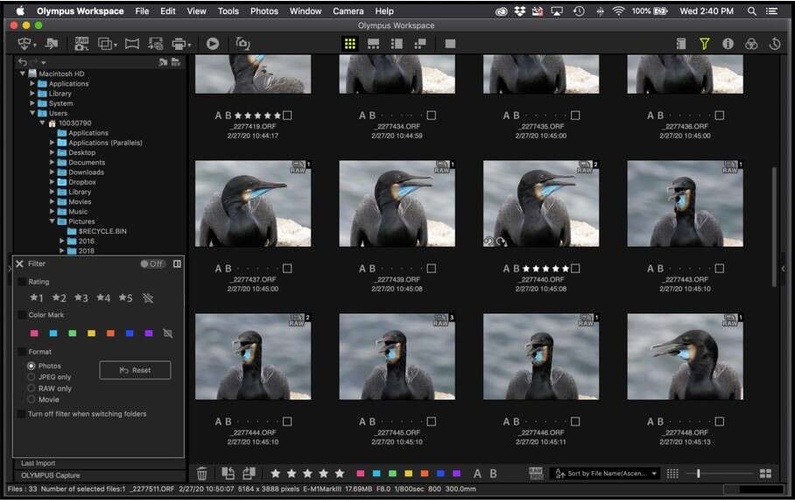
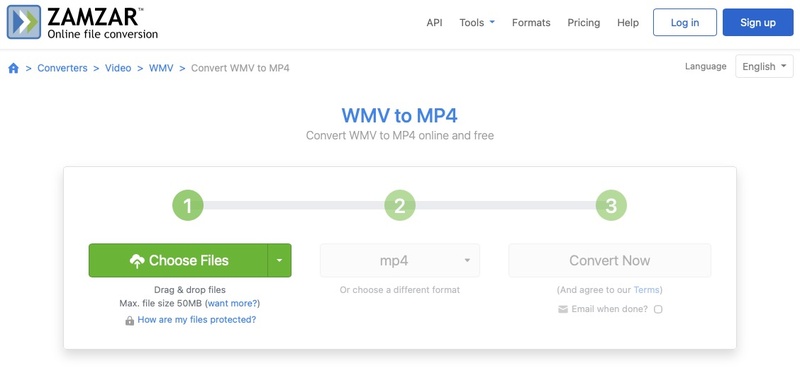
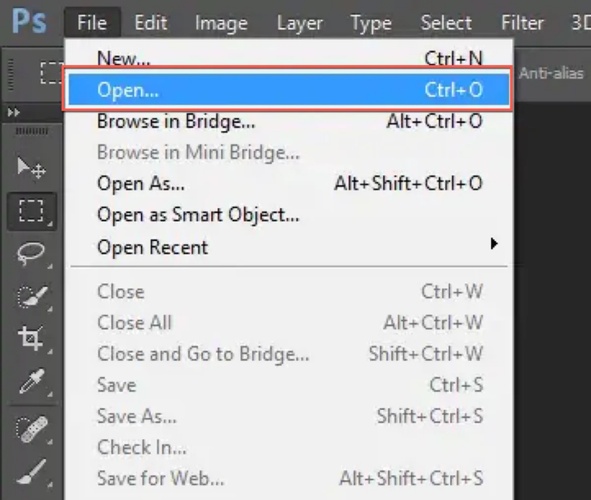
what is lrf file in dji

Part 1. What Is a DJI LRF File? What Is It Used For?

DJI LRF File Meaning

LRF file stands for Low Resolution File. When you start recording on a device like the DJI Osmo Action 4 or a Mavic drone, the camera's processor works overtime to capture stunning 4K or 5K footage. At the same time, it generates a much smaller, highly compressed companion file ending in .lrf.

The LRF file format is essentially a digital proxy. It contains the exact same visual content as your primary MP4 or MOV file but uses a significantly lower bitrate and resolution. This makes the file much lighter than the "master" footage. While the master file is intended for professional editing and high-fidelity viewing, the LRF version helps it run smoothly on devices with limited processing power.

What Is LRF File Used For

  • Quick playback and preview on the drone controller, camera screen, or in the DJI Fly / DJI Mimo app (without needing to decode the full high-resolution file).
  • Trim/Download feature in the DJI apps allows previewing and selecting clips on a phone or tablet without transferring large files.
  • Proxy editing in software like Adobe Premiere Pro, DaVinci Resolve, or Final Cut Pro (edit the lightweight version, then relink to the original high-res files for export).
  • Quick sharing or review (rename .LRF to .MP4 for use on social media, messengers, or team collaboration).
Note:

Once you have the original high-quality video on your computer and no longer need previews on the device or proxies, the LRF files can usually be deleted to free up space.

Part 2. Why Do DJI Cameras and Drones Create LRF Files? (DJI LRF vs MP4)

DJI deliberately creates LRF files to ensure compatibility across different hardware tiers. High resolution video files, especially those shot in 10-bit D-Log or at high frame rates, require immense processing power to decode. By generating a parallel version, DJI ensures that even a mid-range smartphone or tablet can review footage instantly after a flight.

DJI creates a smaller companion, so previews load faster and mobile apps use less data. The LRF file format is therefore a practical proxy or preview format, not a replacement for the original. The table below shows the main differences between DJI LRF and MP4:

Feature DJI LRF File (Proxy) DJI MP4 File (Master)
Resolution Usually 480p or 720p 4K, 5.3K, 2.7K, or 1080p
Bitrate Very Low (e.g., 2-4 Mbps) High (up to 150 Mbps)
File Size Tiny (a few MBs) Huge (can be several GBs)
Compatibility Needs renaming for OS support Natively supported everywhere
Primary Use Mobile playback, trimming Final production, archiving
Encoding Highly compressed Optimized for quality (H.264/H.265)
Color Depth Always standard 8-bit Rec.709 Often 10-bit D-Log or D-Cinelike

The 480p and 720p resolutions of the LRF files are a fraction of the master MP4's quality, but they are perfect for a phone screen.

Part 3. Do I Need to Keep LRF Files? Is It Safe to Delete Them?

A common question among drone pilots is whether these extra files are necessary. The short answer is: Yes, it is safe to delete LRF files once you have transferred your high resolution footage to your computer.

Deleting these files will not affect the quality, integrity, or metadata of your original MP4 or MOV files. They are entirely redundant once the preview or editing phase is complete.

However, you should keep them if:

  • You plan to use the DJI Mimo app for quick social media edits.
  • You intend to use them as proxies in professional video editing software.
  • You want to review the footage on the drone's remote controller (like the DJI RC 2 or RC Pro) without loading the heavy master files.

If storage space on your SD card is a concern, you can safely wipe the .lrf files to free up room for more 4K recordings.

Part 4. How to Open DJI LRF File on Mac and Windows?

Most default players identify files by their extension. Because.LRF is not widely recognized as a standard video suffix, a file may appear unplayable even when its underlying video stream is valid. Make a copy first, then try one of the following methods.

1. On Windows

Windows Media Player might not recognize the .lrf extension by default. The most reliable method is to use VLC Media Player or manually change the extension so standard playback apps can see the file.

  • Copy the LRF file to a new folder. Keep the original on the memory card as a backup.

  • Open File Explorer and select "View," then "Show," then select "File name extensions".

    windows view file name extensions
  • Right click the copied file and choose "Rename".

  • Replace.LRF with .MP4, then confirm the warning.

  • Double click the new MP4. Try Windows Media Player or VLC if the default player fails.

  • If it plays, use Properties to check its size and keep in mind that it is only a low resolution preview.

2. On Mac

If you are wondering how to open LRF file on Mac, the process is the same. macOS may not know which application should open the file, but VLC can test it without a complex conversion process.

  • Open Finder and locate the .lrf file.

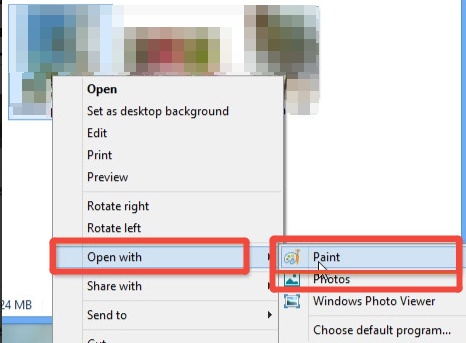
  • Control click it and choose "Open With," then "VLC".

    open lrf with vlc
  • If it does not play, duplicate the file first.

  • Select the duplicate, press "Return," and change LRF to .MP4.

  • Choose Use .mp4 when macOS asks for confirmation.

  • Open the renamed copy in VLC or QuickTime Player.

If the file remains black or silent, it may be incomplete, damaged, or specific to a DJI model. Check the original MP4 first. A proxy cannot repair missing data in the main recording.

Part 5. How to Convert DJI LRF Files to MP4 (The Best Way Only)

The best approach is usually not a full re-encode. If the LRF already contains a compatible video stream, create a copy and rename its extension from .lrf to .MP4. This is fast, avoids another quality loss, and gives players a familiar label.

Steps:

  • Copy the LRF file to a new folder.

  • Rename the copy from filename.LRF to filename.MP4.

  • Confirm the extension change.

  • Open the new MP4 in VLC or your preferred editor.

  • Keep the original DJI MP4 or MOV for final production.

    rename lrf to mp4

This process changes the filename extension, not the resolution or quality. The resulting MP4 is still a low resolution proxy. If the renamed copy will not open, try re-encoding it with HandBrake. Import the file, choose MP4, select a suitable preset, and start the encode. Re-encoding takes longer and may compress the clip again, so use it only when simple renaming fails.

⚡ Part 6. How to Repair Original or Converted MP4 Files That Are Corrupted

It is a common frustration for creators: you finish a flight, only to find your MP4 files won't open or appear choppy. Whether the corruption happened because of a drone crash or a sudden power loss during recording, we recommend 4DDiG Video Repair as the best solution for restoring your valuable footage.

4DDiG Video Repair stands out because it uses advanced AI algorithms to reconstruct damaged file headers and frame data. It is specifically designed to handle DJI specific metadata, ensuring your repaired videos are as good as the originals.

Key Features of 4DDiG Video Repair:

  • Repairs unplayable, choppy, frozen, flickering, blurry, or distorted videos.
  • Works with SD cards, internal drives, and DJI drone internal storage.
  • Supports MP4, INSV, MOV, MKV, and various DJI specific formats.
  • Fixes multiple corrupted videos simultaneously.
  • Upscales repaired videos up to 8K resolution.
  • View the repaired footage before you decide to save it.
  • Includes an advanced repair option for more seriously damaged files.
  • Optimized for DJI drones and action cameras (Osmo Action/Pocket).
FREE DOWNLOAD

Secure Download

FREE DOWNLOAD

Secure Download

Steps to Repair Corrupted DJI Videos using 4DDiG

The restoration process is designed to be simple and user friendly:

  • Install and open 4DDiG Video Repair. Select "Video Repair" and click "Add Videos" to import one or more damaged DJI MP4 files.

    add corrupted mp4 videos to 4ddig
  • Click the "Repair All" button. The software will analyze the file headers and frames to reconstruct the video.

    start repairing corrupted mp4 videos
  • Once the repair is complete, click "Preview" to verify that the footage is smooth and the audio is synced.

    preview repaired mp4 videos
  • Click the triangle icon next to the Save button, choose your desired output format (MP4, MOV, etc.), and click "Save All" to export your fixed videos to your computer.

    save repaired mp4 videos in preferred format

FAQs about What is the LRF File in DJI

Q1. What is an LRF file used for in DJI cameras?

It is a compressed companion video for preview, playback, and DJI Mimo's Trim Download function. It is not a full quality master recording.

Q2. How to play lrf files without renaming them?

Some DJI apps may handle them, but desktop players may not recognize the extension. Copy the file, rename the copy from .LRF to .MP4, and open it in a compatible player.

Q3. Does renaming LRF to MP4 recover the original 4K video?

No. It only makes the lower-resolution companion file easier to open. Use the original MP4 for full detail.

Conclusion

So, what is .lrf file in DJI? LRF files are small preview or proxy clips that make DJI footage easier to browse and handle. They are optional, and you can usually remove them after confirming that your original MP4 or MOV files are backed up and healthy. Rename a copy when you need quick compatibility, but use the original for final quality. If an important video is corrupted, 4DDiG Video Repair is worth testing before giving up on the footage.

FREE DOWNLOAD

Secure Download

FREE DOWNLOAD

Secure Download

Ehtsham Ahmed (senior editor)

Ehtsham Ahmed, the content writer for 4DDiG, is dedicated to offering workarounds for Windows Data Recovery, Windows Troubleshooting, iDevices System Repair, etc.

(Click to rate this post)

You rated 4.5 ( participated)