How to Recover Data from a NAS Drive in 5 Proven Ways

5 mins read

Updated on 2026-06-15 15:28:32 to Windows Recovery Solutions

NAS devices are widely used for storing and sharing files across multiple devices in homes and businesses. However, data loss can still happen due to accidental deletion, system errors, RAID issues, or hardware failure.

In this guide, we'll walk you through the common causes of NAS data loss and the most effective methods to recover your data from NAS drive step by step.

how to recover data from nas drive

How Does a NAS Drive Store Data?

A NAS (Network Attached Storage) is a dedicated storage device that connects to your network, allowing multiple users and devices to store and access files in one central location. To understand how it works, here's a simple breakdown of how a NAS drive stores data.

Step 1: Connect the NAS to a Network

The process starts when the NAS is connected to your home or office network via Wi-Fi or Ethernet. Once it's online, it becomes accessible to all authorized devices on the same network.

Step 2: Write Data to the NAS

When you upload or save a file, your device sends the data to the NAS over the network. At this point, the NAS begins receiving and preparing the file for storage.

Step 3: Store Data on Internal Drives

After receiving the data, the NAS writes it onto its internal hard drives. If RAID is enabled, the system may split or duplicate the data across multiple drives to improve performance and protect against drive failure.

Step 4: Manage and Organize Files

Once stored, the NAS manages how files are organized and accessed. It ensures that different users and devices can easily retrieve the data whenever needed, without affecting each other's access.

Common Causes of NAS Data Loss

Although NAS drives are designed for reliable storage and easy access, data loss can still happen for several reasons. Understanding the common causes can help you better protect your files and respond quickly when issues occur.

  • Hard Drive Failure: NAS drives rely on internal hard drives, which can wear out over time. When a drive fails, stored files may become inaccessible or lost.
  • RAID Configuration Issues: Although RAID helps improve data protection, it is not a backup solution. Incorrect setup or multiple drive failures can still lead to data loss.
  • Accidental Deletion or User Error: Files may be accidentally deleted or overwritten by users, especially in shared NAS environments.
  • File System Corruption: Power outages, unexpected shutdowns, or system crashes can damage the file system and make data unreadable.
  • Network or Firmware Problems: Network interruptions or outdated firmware can cause sync errors or make files appear missing or corrupted.

How to Recover Data from a NAS Drive Manually

When NAS data becomes inaccessible or accidentally deleted, you may still be able to recover it manually depending on the situation. Before using third-party tools, it's worth trying a few basic recovery steps to see if the files can be restored directly from the NAS system.

1 Check the NAS Recycle Bin or Snapshot Feature

Many NAS systems, including Synology devices, offer a Recycle Bin or snapshot feature that helps retain deleted files for a certain period of time. However, this recovery method is only available if the feature was enabled before the data was deleted.

On Synology NAS, the Enable Recycle Bin option is often selected by default when creating a shared folder. Once enabled, deleted files are not immediately removed from the system. Instead, they are stored in a dedicated subfolder, where they can be restored or permanently deleted later.

If this feature was enabled, we'll take a Synology device as an example to show you how to perform data recovery from NAS via the Synology Recycle Bin:

  • Go to File Station and open the shared folder where the Recycle Bin feature is enabled. Then locate the #recycle subfolder inside it. recycle folder nas
  • Right-click the file or folder you want to restore, choose "Copy to / Move to...", and then select "Move to..." to recover the deleted files from the Synology NAS server to your desired location. click move to of nas recycle bin
Notes

If this feature was not enabled in advance, recovery through the Recycle Bin will not be possible. In that case, it is recommended to enable it now to reduce the risk of future data loss.

  • Go to "Control Panel > Shared Folder" in DSM and select the shared folder you want to configure. Click "Edit", then check the option "Enable Recycle Bin". enable recycle bin in synology
  • If you want to limit access, you can also select Restrict access to administrators only so that only admins can view or restore deleted files from the Recycle Bin. Finally, click OK to save your changes.

2 Restore from a Backup (If Available)

If you have configured automatic backups for your NAS, restoring from a backup is often the safest and fastest way to recover lost files. Depending on your setup, backups may be stored on another NAS, an external drive, a computer, or a cloud storage service.

  • Start by identifying where your backups are stored and locating a backup version that was created before the data loss occurred.
  • Open your backup management tool or NAS backup application, browse the available backup versions, and select the files or folders you want to restore.

Before restoring, verify that the backup contains the correct data. Then restore the files to their original location or a new folder to avoid overwriting existing data.

tips

Tips

Many NAS systems support versioned backups, allowing you to restore files from a specific point in time. If the latest backup also contains the deletion or corruption, try choosing an older backup version.

3 Re-login and Check Shared Folders

Sometimes files appear missing due to permission changes or connection issues. Reconnecting to the NAS or reviewing shared folders may help you locate the data. Before attempting more advanced recovery methods, verify that you can still access the correct NAS location.

  • Log out of your NAS account and sign in again. If you're accessing the NAS through File Explorer, Finder, or a mapped network drive, disconnect and reconnect the network share.
  • Next, review all shared folders available on the NAS. Make sure you are checking the correct folder and that your account still has permission to view its contents. check nas shared folders

If other users can access the missing files while you cannot, the issue is likely related to account permissions rather than data loss. In this case, an administrator may need to restore your access rights.


tips

Tips

If your NAS supports multiple user accounts, try signing in with an administrator account to determine whether the missing files are hidden by permission settings.

4 Access the NAS via Admin Tools

In some cases, files may still exist on the NAS but become inaccessible due to indexing issues, permission changes, or storage errors. Accessing the NAS management interface can help you determine whether the data is truly lost.

  • Sign in to the NAS admin interface and check the system logs for any errors or abnormal events that may have affected file access.
  • Next, review the storage status to ensure all drives, volumes, and storage pools are healthy and online. check storage pool on storage manager
  • Finally, browse shared folders in the file manager. In some cases, files may still exist but are not displayed properly due to indexing or permission issues.

If the files can be found through the administrator interface, restore the appropriate permissions or rebuild the file index according to your NAS manufacturer's instructions.

How to Recover Data from a NAS Drive Using Data Recovery Software

If the manual methods above don't help, or if the files are permanently deleted or inaccessible due to system issues, you can turn to data recovery software for a deeper scan of your NAS storage.

One reliable option is 4DDiG data recovery, which is designed to detect lost, hidden, or corrupted files that are no longer visible through the NAS interface.

It supports data recovery from multiple NAS brands, including Synology, QNAP, and other common NAS systems. With it, you can scan the affected drive, preview recoverable files, and restore them in just a few steps.

Here's how to recover data from NAS drive with automatic NAS data recovery software:

FREE DOWNLOAD

Secure Download

FREE DOWNLOAD

Secure Download

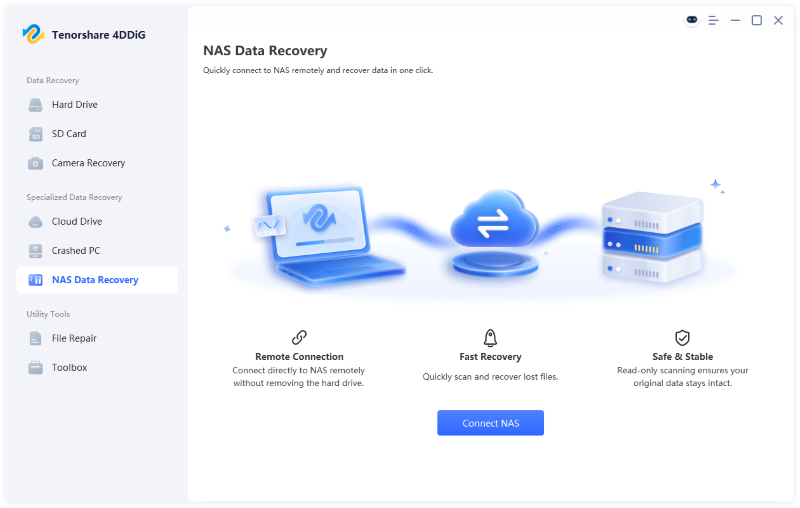
  • Download 4DDiG and install it on your PC, then launch it. Go to the "NAS Data Recovery" tab and let 4DDiG connect to your NAS.

    4ddig nas data recovery interface
  • If the NAS is not connected automatically, click "Connect to NAS" to enter details manually and connect it with the "Connect Now" button.

    enter nas information to connect
  • After a successful connection, your volumes will be visible. Click one of the volumes to start scanning it, and note that scanning may take a few minutes.

    select a location on nas
  • Search for your desired files with the "Filters" or the "Search" option in 4DDiG.

    scan nas device
  • Once you have the file you need, click it to get its preview and click “Recover” to save it.

    recover nas files

When to Contact Professional NAS Data Recovery Services

If the NAS is severely damaged or the data cannot be recovered using manual methods or software, professional NAS data recovery services may be required. You should consider contacting them in the following situations:

Multiple Drive Failures in a RAID Array

When more than one disk fails, especially in RAID 5 or RAID 6 systems, recovery becomes highly complex and risky to handle manually.

Physically Damaged Hard Drives

If the NAS drives make unusual noises, are not detected, or have suffered physical damage, DIY recovery methods are not recommended.

Severely Corrupted RAID Configuration

When the RAID structure is broken or cannot be rebuilt properly, professional tools and cleanroom recovery may be required.

NAS Not Recognized or Inaccessible

If the entire NAS system fails to boot or cannot be accessed through the network or admin tools, it may indicate deeper hardware or system-level failure.

Failed Recovery Attempts Using Software Tools

If data recovery software cannot detect or restore the lost files, it usually means the issue is beyond logical recovery.

Tips to Avoid Data Loss on NAS Devices

To reduce the risk of data loss on your NAS device, it's important to follow some basic practices for data protection and system maintenance.

  • Enable automatic backups: Regularly back up your NAS data to an external drive or cloud storage to ensure you always have a copy of important files.
  • Use RAID for redundancy, not backup: RAID can protect against single drive failure, but it should not replace a proper backup strategy.
  • Monitor drive health regularly: Check the status of your NAS hard drives and replace any drive showing signs of failure early.
  • Keep firmware up to date: Updating NAS firmware helps fix bugs, improve stability, and reduce the risk of system errors.
  • Avoid sudden shutdowns: Properly shut down your NAS to prevent file system corruption and data damage.
  • Limit user permissions: Control access rights to reduce the risk of accidental deletion or unauthorized changes.

Conclusion

NAS data loss can happen for many reasons, including accidental deletion, system errors, or hardware failure. In many cases, you can try manual recovery methods such as checking backups, using the Recycle Bin, or reviewing NAS admin tools before moving on to more advanced solutions.

If these methods don't work, 4DDiG NAS Recovery can help. It can scan NAS-related drives to find lost, hidden, or corrupted files and allows you to preview and restore them in just a few steps.

FREE DOWNLOAD

Secure Download

FREE DOWNLOAD

Secure Download

William Bollson (senior editor)

William Bollson, the editor-in-chief of 4DDiG, devotes to providing the best solutions for Windows and Mac related issues, including data recovery, repair, error fixes.

(Click to rate this post)

You rated 4.5 ( participated)