Can’t Connect to Synology NAS? 9 Fixes to Get Back Online

5 mins read

Updated on 2026-05-14 09:53:22 to Windows Recovery Solutions

If you can’t connect to Synology NAS, the problem can quickly disrupt file sharing, backups, media streaming, and remote access. In some cases, the NAS appears offline even though the device is powered on. In others, users can detect the NAS but cannot open shared folders or DSM.

This article explains the most common reasons behind Synology connection failures and provides step-by-step solutions to restore access safely and quickly.

cant connect to synology nas

Why Can’t You Connect to Synology NAS?

When users cannot connect to a Synology NAS, the issue is usually related to the network, system services, permissions, or DSM configuration. Some problems are temporary, while others may require changes to settings or services.

Below are the most common reasons:

  • Incorrect NAS IP address after router restart
  • Faulty Ethernet cable or unstable LAN connection
  • DSM services are not responding properly
  • Firewall or antivirus blocking access
  • SMB or file-sharing services are disabled
  • Synology QuickConnect or DDNS misconfiguration
  • NAS firmware or DSM update issues
  • Incorrect user permissions for shared folders
  • Storage pool or volume problems
  • Network discovery is disabled on Windows or macOS

Sometimes users may also experience temporary connection failures after changing routers, switching Wi-Fi networks, or enabling stricter firewall rules. Understanding the root cause helps you choose the correct fix instead of trying random troubleshooting steps.

Common Signs Your Synology NAS Is Offline

Before applying fixes, it helps to confirm whether the NAS is completely offline or only partially inaccessible. Some users can still ping the device but cannot access DSM, while others cannot detect the NAS at all.

Common signs include:

  • Synology NAS does not appear in File Explorer or Finder
  • The DSM web portal cannot be opened
  • Shared folders suddenly disappear
  • Synology Assistant cannot detect the NAS
  • Remote access through QuickConnect fails
  • Backup tasks stop working
  • The NAS shows as disconnected in the network devices
  • You receive messages such as “unable to connect to Synology NAS.”
  • File transfers freeze or fail unexpectedly

How to Check If Your Synology NAS Is Online?

You can verify whether the NAS is online using these quick checks:

  • Check the NAS power LED and LAN indicators.

  • Open your router admin page and look for the NAS device in connected devices.

  • Use Synology Assistant to scan your local network.

  • Try opening DSM through a browser with your NAS IP.

If the NAS responds, but shared folders remain inaccessible, the issue is likely related to permissions or file services rather than the network itself.

How to Fix the Can't Connect to Synology NAS Issue?

When you cannot connect to the Synology NAS, it is important to start with the simplest fixes first. Many connection issues are caused by temporary network interruptions or service conflicts that can be resolved without advanced troubleshooting. Below are the most effective fixes for Synology NAS connection problems.

Fix 1. Restart Your Synology NAS and Router

A temporary network conflict or DSM service freeze can prevent devices from communicating correctly. Restarting both the NAS and router refreshes the network connection and reloads Synology services. This is often the fastest solution for random connection failures.

Fix 2. Check Ethernet Cable and LAN Connection

A damaged cable or unstable LAN port can make the NAS appear offline even when the system itself is working correctly. Loose connections may also cause random disconnects during file transfers.

Checking the physical connection helps rule out hardware-related issues. If the NAS becomes accessible after changing the cable or port, the issue was likely caused by a faulty network connection.

Fix 3. Verify the NAS IP Address

Sometimes the NAS receives a new IP address after the router restarts. If your computer is trying to connect using an old address, the connection will fail. Confirming the current NAS IP ensures you are connecting to the correct device.

  • Go to “https://finds.synology.com/," and it will find your Synology NAS on the LAN.

  • Locate the Synology NAS and note the current IP address, and enter the IP into your browser.

Fix 4. Use Synology Assistant to Find the NAS

If you do not know the NAS IP address or the device does not appear on the network, Synology Assistant can help locate it automatically. The tool scans the local network and identifies available Synology devices. It is especially useful when the NAS becomes inaccessible after network changes.

  • Download and install Synology Assistant from Synology’s official website.

  • Open the application and wait for the network scan to finish.

  • Locate your NAS in the results list. If it is not available, click "Search."

    use synology assistant to find the nas
  • Double-click the device to open DSM. If the NAS appears as “Not Configured” or “Connection Failed,” follow the provided prompts.

This method can also help confirm whether the NAS is online but misconfigured.

Fix 5. Disable Firewall or Antivirus Blocking Access

Windows Firewall or third-party antivirus software may block SMB, DSM ports, or local network communication. This can prevent computers from detecting or accessing the NAS. Temporarily disabling these security tools helps determine whether they are causing the issue.

  • Open Windows Security and go to “Firewall & network protection.”

  • Temporarily disable the firewall.

    temporarily disable firewall
  • Disable third-party antivirus software if installed.

  • Try reconnecting to the NAS.

  • If access works, create exceptions for Synology DSM ports:

  • 5000 (HTTP)
  • 5001 (HTTPS)
  • SMB ports

Do not leave security software disabled permanently.

Fix 6. Re-enable SMB or File Services on Synology NAS

If file-sharing services are disabled, computers may detect the NAS but fail to open shared folders. SMB is the most common protocol used for Windows file sharing. Re-enabling these services restores normal network access.

  • Log in to DSM and open “Control Panel,” then go to “File Services.”

  • Under the SMB tab, click “enable SMB service” and click “Apply.”

    confirm to enable smb service
  • Restart your computer.

  • Reconnect to the NAS shared folder.

Mac users should also verify AFP or SMB compatibility depending on their setup.

Fix 7. Check QuickConnect or DDNS Settings (for Remote Access)

If local access works but remote access fails, the problem may involve QuickConnect or DDNS configuration. Incorrect credentials or disabled services can block remote connections. Verifying these settings helps restore external access to the NAS.

  • Log in to DSM locally, then open “Control Panel” and go to “QuickConnect”. Check the QuickConnect status, and it must be enabled.

    enable quickconnect option
  • Verify your Synology account login.

  • Confirm DDNS settings if configured by going to “External Access” and checking “DDNS” section.

  • Test remote access again.

You should also ensure the router allows the required DSM ports.

Fix 8. Restart DSM and Network Services

DSM services may occasionally freeze or stop responding even though the NAS hardware remains active. Restarting the services refreshes network communication without requiring a full shutdown. This method is useful when the NAS partially responds, but shared folders fail.

  • Log in to DSM and click your "Profile Icon."

  • Select the “Restart/Sign-out” option.

This process reloads network services and may resolve temporary communication problems.

Fix 9. Update DSM or Roll Back Recent Changes

Connection issues sometimes begin immediately after a DSM update or configuration change. Updating DSM can fix bugs, while rolling back recent changes may restore stability. Reviewing recent modifications helps identify the trigger.

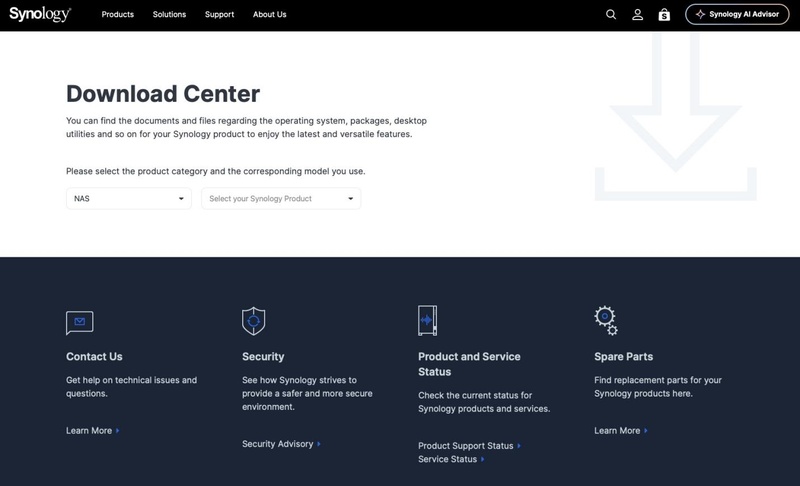
  • Open the Synology Download Center and search for the files for your device.

  • Download the right version to update or rollback.

  • Install the DSM file manually and restart the system.

Keeping the DSM updated also improves security and network compatibility.

⚡ What If Synology NAS Is Connected but Files Are Inaccessible?

Sometimes users can access DSM or detect the NAS on the network, but files and shared folders remain unavailable. This usually points to permission issues, hidden folders, or storage problems rather than a complete network failure.

Below are the best ways to fix inaccessible Synology NAS files.

Method 1: Check User Permissions and Access Rights

Incorrect permissions can prevent users from opening shared folders even when the NAS is connected normally. DSM allows administrators to restrict folder access by account or group. Verifying permissions helps restore access quickly.

  • Open DSM, then go to "Control Panel", then “User & Group.”

    check user permission on dsm
  • Verify your account has read/write access. If not, you may need to get permission from the admin or edit these permissions yourself if you are the admin.

Method 2: Check If the Shared Folder Is Missing or Hidden

Shared folders may become hidden after configuration changes or accidental edits. In some cases, the folder still exists but is no longer visible to users. Checking folder visibility helps confirm whether the data remains intact.

  • Open DSM and navigate to “Control Panel” then “Shared Folder.”

  • Verify the folder exists.

  • Check whether the folder is hidden by clicking “Edit” and checking the hidden status.

    check shared folder on dsm
  • Re-enable visibility if necessary.

  • Test folder access again.

Method 3: Check Storage Pool or Volume Status

If the storage pool becomes degraded or the volume crashes, files may become inaccessible even though DSM still loads. Storage problems often appear after drive failures or unexpected shutdowns. Checking volume health helps identify serious hardware-related issues.

  • Open “Storage Manager” in DSM and check the status of the storage pool.

    check storage pool on storage manager
  • Review the volume condition.

  • Back up important data immediately if the condition is not "Healthy”.

If drives show warning signs, avoid heavy file operations until the issue is resolved.

Method 4: Recover Data from an Inaccessible Synology NAS

If your Synology NAS cannot be accessed due to RAID failure, corrupted volumes, accidental deletion, or failed storage pools, there is still a chance that your data can be recovered using professional tools. This is especially important when business documents, backups, or personal media are stored on the NAS.

In such situations, tools like 4DDiG NAS Data Recovery can help retrieve data from inaccessible storage devices. It supports data recovery from multiple NAS brands, including Synology, QNAP, and other common NAS systems, as well as various RAID configurations. This makes it suitable for both home users and enterprise storage environments facing complex data loss scenarios. To use it:

FREE DOWNLOAD

Secure Download

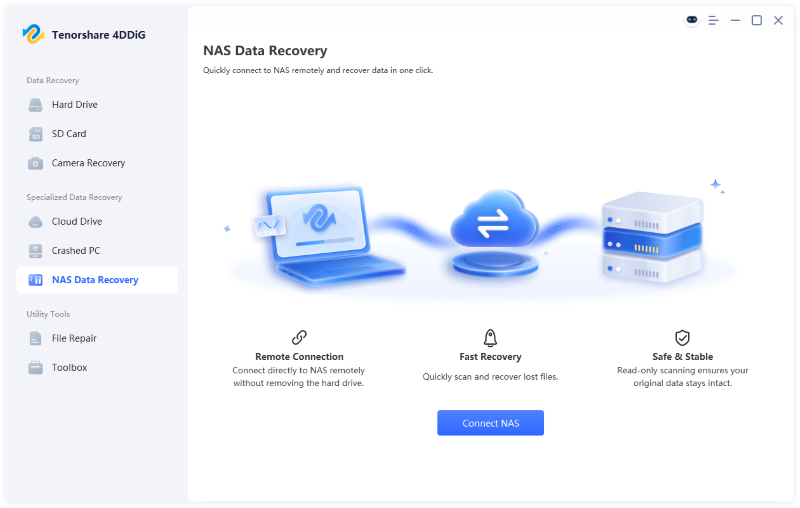
  • Download 4DDiG Windows Data Recovery and install it on your PC, then launch it. Go to the "NAS Data Recovery" feature and let 4DDiG connect to your NAS.

    4ddig nas data recovery interface
  • If the NAS is not connected automatically, click "Connect to NAS" to enter details manually and connect it with the "Connect Now" button.

    enter nas information to connect
  • After a successful connection, your volumes will be visible. Click one of the volumes to start scanning it, and note that scanning may take a few minutes.

    select a location on nas
  • Search for your desired files with the "Filters" or the "Search" option in 4DDiG.

    scan nas device
  • Once you have the file you need, click it to get its preview and click “Recover” to save it.

    recover nas files

This method helps protect files before performing major repairs or rebuilding the storage pool.

How to Prevent Synology NAS Connection Problems?

Preventive maintenance can reduce the chance of future NAS connection failures. Many Synology problems develop gradually due to outdated firmware, unstable networks, or neglected storage health. Here are the best prevention tips:

  • Assign a static IP address to the NAS
  • Use high-quality Ethernet cables
  • Keep DSM updated regularly
  • Enable SMART monitoring for drives
  • Back up important NAS data frequently
  • Avoid sudden power loss by using a UPS
  • Keep firewall rules organized
  • Monitor storage pool health regularly
  • Use strong passwords and two-factor authentication
  • Reboot the NAS occasionally to refresh services

Regular monitoring helps identify small issues before they turn into major connection or data-loss problems.

Conclusion

If you can’t connect to Synology NAS, the problem is usually related to the network, DSM services, permissions, or storage configuration. By checking the NAS IP address, verifying file services, restarting DSM, and reviewing firewall settings, most connection issues can be resolved quickly.

If files become inaccessible or the NAS storage fails, tools like 4DDiG Data Recovery can help recover important data safely before performing advanced repairs or rebuilding the NAS environment.

FREE DOWNLOAD

Secure Download

William Bollson (senior editor)

William Bollson, the editor-in-chief of 4DDiG, devotes to providing the best solutions for Windows and Mac related issues, including data recovery, repair, error fixes.

(Click to rate this post)

You rated 4.5 ( participated)