How to Connect to Synology NAS Easily (2026 Complete Guide)

5 mins read

Updated on 2026-05-14 09:53:22 to Windows Recovery Solutions

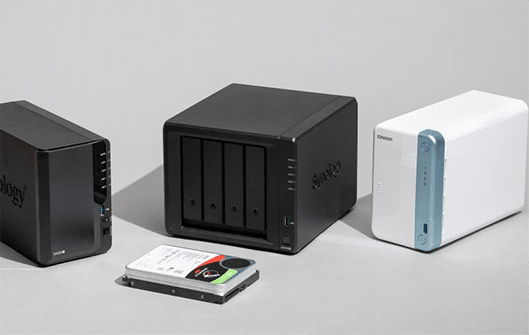
If you are wondering how to connect to a Synology NAS, the process is usually simple once your device and network are properly configured. Whether you want to access files from your PC, connect remotely while traveling, or manage backups from your phone, Synology provides several easy connection methods.

Let us discuss everything you need to prepare, the best ways of connecting to Synology NAS, common connection problems, and how to recover your files if access fails.

how to connect to synology nas

What You Need Before Connecting to Synology NAS?

Before you start connecting to Synology NAS, it is important to make sure your NAS device, network, and login information are ready. Many connection problems happen because of missing setup steps or incorrect network details. Preparing these basics first will make the connection process much smoother.

Proper Hardware Setup

Your Synology NAS should be properly connected to power and to your router or switch using an Ethernet cable. Make sure the NAS status LEDs are normal, and the LAN indicator is blinking.

If you want to know how to connect to a Synology NAS with an Ethernet cable, the cable should run directly from the NAS LAN port to your router or computer network port.

Stable Network Connection

Your computer, phone, or tablet must be connected to the same network as the NAS during local setup. A weak or unstable network may prevent the NAS from appearing in Synology Assistant or browser searches.

DSM System Installed

DSM (DiskStation Manager) is the operating system used by Synology NAS devices. If the NAS is brand new, DSM may need to be installed before you can access storage or settings.

NAS Identification Information

You should have at least one of the following:

  • NAS IP address
  • QuickConnect ID
  • Device name visible in Synology Assistant

These details help you locate and connect to the NAS quickly.

Admin Account Credentials

Prepare the NAS administrator username and password. Without valid credentials, you cannot manage files or settings on the NAS.

How to Connect to Synology NAS?

Synology NAS supports several connection methods for different usage scenarios. Some methods work best for local networks, while others are designed for remote access or mobile devices. The sections below explain each method clearly with step-by-step instructions.

Method 1: Connect via Synology Assistant

Suitable for: First-time setup or when the NAS cannot be found on the network.

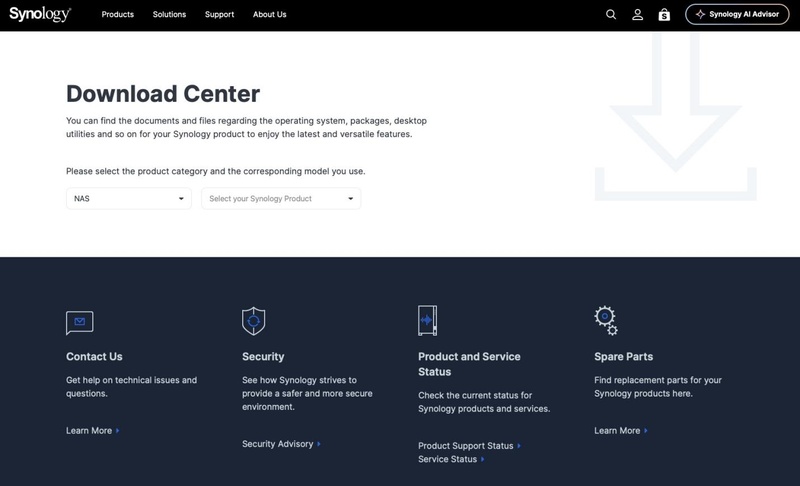
Synology Assistant is an official desktop tool that automatically scans your local network for Synology NAS devices. This method is especially useful if you do not know the NAS IP address yet. It also helps during initial setup or troubleshooting situations where browser access fails.

  • Download Synology Assistant from the official Synology website.

  • Install and launch the program on your computer, and make sure your NAS and computer are connected to the same network.

  • Wait for Synology Assistant to scan and detect your NAS; otherwise, click "Search" to scan manually.

    connect to synology nas via synology assistant
  • Select your NAS device from the list and click “Connect.”

  • Your default browser will open the DSM login page automatically.

  • Enter your NAS username and password to log in.

If your NAS does not appear, restart the NAS and router, then scan again.

Method 2: Connect via Web Browser

Suitable for: Users who know the NAS IP address or have enabled QuickConnect access.

Connecting through a web browser is one of the fastest and most common ways to access a Synology NAS. It gives you full access to DSM, file management, user settings, and installed applications. This method works well for both beginners and advanced users.

  • Find your NAS IP address using Synology Assistant or your router settings.

  • Open a browser such as Chrome, Edge, or Safari and enter the NAS address.

  • The DSM login page should appear. Enter your NAS account username and password.

  • Click “Sign In.”

You can now manage files, storage, backups, and apps directly from the browser.

Method 3: Connect via QuickConnect

Suitable for: Remote access when you are outside the local network or do not want to configure port forwarding.

QuickConnect is Synology’s remote access feature that allows you to connect to your NAS over the internet without manually opening router ports. This is one of the easiest remote connection methods for beginners.

  • Log in to DSM from your local network first.

  • Open “Control Panel” and go to “QuickConnect", then click the "Enable QuickConnect” box.

    connect to synology nas via quickconnect
  • Sign in with your Synology account, then create or confirm your QuickConnect ID and click “Apply”. If the QuickConnect link is not visible, click "Advanced" and enable "DSM."

To access remotely:

You can now access your Synology NAS remotely from almost anywhere.

Method 4: Connect via File Explorer

Suitable for: Accessing shared folders and managing files directly from your computer.

If you mainly want to open NAS folders like a regular network drive, File Explorer is very convenient. This method allows you to browse files without opening DSM in a browser every time.

  • Log in to your Synology NAS DSM and launch the "Control Panel," then go to "File Services" to check the "Enable SMB Services" option and click "Apply."

  • Press Windows + E to open File Explorer and go to "This PC," then click "Map Network Drive".

  • Now, you need to select the drive name as well as the folder name in this format: [\DiskStation\Photo](file:///\DiskStation\Photo) and click “Finish”.

    connect to synology nas via file explorer
  • Enter your NAS username and password when prompted.

  • Shared folders should appear automatically.

Many users ask, “Can I connect my Synology NAS directly to my computer?” The answer is yes, but both devices may require manual IP configuration if you connect them directly without a router.

Method 5: Connect via Synology Mobile App

Suitable for: Mobile users who want to access, manage, or back up files on the go.

Synology offers mobile apps like DS File, Synology Drive, and DS Finder for Android and iPhone users. These apps make it easy to access NAS files remotely or locally from your phone.

  • Download a Synology app from Google Play or the Apple App Store.

  • Open the app and enter your NAS login credentials.

  • Tap “Sign In.”

You can now upload photos, stream media, back up files, or manage NAS data directly from your mobile device.

Common Problems When Connecting to Synology NAS

Even after proper setup, some users still experience problems connecting to the Synology NAS. Common issues include the NAS not appearing on the network, browser connection timeouts, incorrect passwords, SMB access failures, firewall blocking, or QuickConnect not working properly. Sometimes, antivirus software or router settings also interfere with NAS communication.

Possible fixes include restarting the NAS and router, checking Ethernet cables, verifying the NAS IP address, enabling SMB services, disabling firewalls temporarily, updating DSM, and using Synology Assistant to rediscover the device. If remote access fails, confirm that QuickConnect or DDNS is configured correctly.

⚡ How to Access Synology NAS Data When Connection Fails?

Sometimes your Synology NAS may become inaccessible due to system crashes, storage pool issues, RAID degradation, accidental deletion, or corrupted volumes. In some cases, it may still appear on the network but shared folders fail to load or show empty.

When this happens, reconnecting the NAS may not be enough, especially if the RAID structure or file system is damaged. A professional NAS data recovery tool may be required.

Many users rely on 4DDiG Data Recovery in these cases. It helps recover data from inaccessible Synology NAS devices, including RAID failures, formatted volumes, accidental deletion, and corrupted drives. Instead of depending on the NAS system, it scans the underlying storage to locate recoverable files such as documents, photos, videos, and backups.

FREE DOWNLOAD

Secure Download

It also supports RAID recovery, partition recovery, and formatted drive recovery, making it suitable for complex data loss scenarios. Here’s how it works:

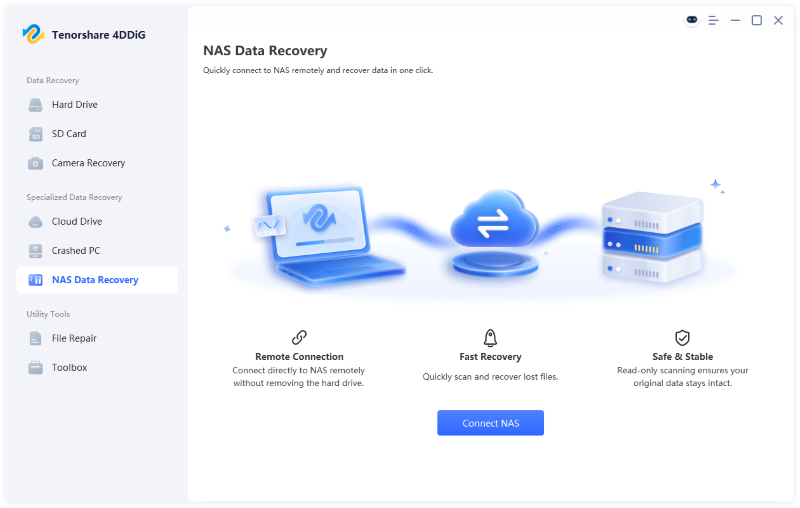
  • Launch 4DDiG Windows Data Recovery after installing it on your PC, and go to "Nas Data Recovery". Wait for 4DDiG to automatically connect with your NAS.

    4ddig nas data recovery interface
  • If it connects automatically, then you can skip this step and go to the next step. Otherwise, click “Connect to NAS” to provide the details of your NAS and click “Connect Now”.

    enter nas information to connect
  • Click any of the available locations from your NAS to start scanning it. Please note that this scanning may take a few minutes, depending on the data.

    select a location on nas
  • When the scanning is complete, you can easily access the files inside your NAS. To make finding your desired files easier, you may click the "Search" or "Filter" options from the top.

    scan nas device
  • As you locate your desired files from the NAS, click them to get the preview and click “Recover” to save them to a secure location.

    recover nas files

This method is especially useful if your NAS connection problem is caused by storage corruption or damaged RAID data.

Tips for Stable Synology NAS Connection

A stable NAS connection depends on both good network practices and proper system maintenance. Following a few simple habits can help prevent frequent disconnections or access failures. Here are some useful tips:

  • Use wired Ethernet connections whenever possible
  • Keep DSM updated regularly
  • Restart the NAS occasionally to refresh services
  • Enable QuickConnect for remote access backup
  • Use strong passwords and two-factor authentication
  • Avoid sudden power loss by using a UPS
  • Check NAS drive health regularly
  • Keep router firmware updated
  • Avoid filling the NAS storage completely
  • Enable automatic SMART tests for disks

These small maintenance steps can greatly improve NAS reliability and reduce future connection issues.

Conclusion

Knowing how to connect to a Synology NAS becomes much easier once you understand the available connection methods and setup requirements. Whether you prefer browser access, QuickConnect remote login, File Explorer integration, or mobile apps, Synology offers flexible options for both home and business users.

If connection problems lead to inaccessible files, tools like 4DDiG NAS Data Recovery can help recover important NAS data safely. With proper setup and regular maintenance, your Synology NAS can remain fast, secure, and easy to access every day.

FREE DOWNLOAD

Secure Download

William Bollson (senior editor)

William Bollson, the editor-in-chief of 4DDiG, devotes to providing the best solutions for Windows and Mac related issues, including data recovery, repair, error fixes.

(Click to rate this post)

You rated 4.5 ( participated)