NAS vs Computer Server: Which Is Better for Home and DIY Use?

5 mins read

Updated on 2026-05-14 09:53:22 to Windows Recovery Solutions

It can be confusing when comparing NAS vs computer server solutions for home or DIY setups if you don't know what you need. Some want simple file storage and backups, while others need more control for hosting apps, media servers, or virtualization. The right choice depends on your budget, technical experience, and performance expectations.

Let us explain the key differences between a NAS and a computer server in a practical and beginner-friendly way.

Introduction to a NAS

A NAS, short for Network Attached Storage, is a dedicated storage device connected to your network. Its main purpose is to store, organize, and share files across multiple devices such as PCs, Macs, smartphones, and smart TVs.

Unlike a traditional computer, a NAS is designed specifically for file management and backups. Most NAS systems come with an easy-to-use interface, making them suitable for beginners and home users. A NAS device usually includes:

  • Multiple drive bays for hard drives or SSDs
  • Built-in backup tools
  • Remote file access
  • Media streaming support
  • RAID protection for data redundancy
  • Low power consumption

Popular NAS brands include Synology, QNAP, TerraMaster, and Asustor. Many users install a NAS at home to create a private cloud, stream movies, store photos, or automatically back up family devices.

One major advantage of a NAS is simplicity. Most systems can be configured within minutes using guided setup software. Even users without advanced networking knowledge can manage storage efficiently.

Introduction to a Computer Server

A computer server is a more flexible and powerful system designed to provide services, applications, or resources to other devices on a network. Unlike a NAS, a server is not limited to storage functions.

A server can be built using:

  • A standard desktop PC
  • A dedicated server machine
  • Custom-built hardware
  • Enterprise-grade rack servers

Computer servers can run operating systems such as:

  • Windows Server
  • Linux
  • Ubuntu Server
  • TrueNAS Scale
  • Proxmox
  • VMware ESXi

A server can handle many tasks beyond file sharing, including:

  • Website hosting
  • Virtual machines
  • Game servers
  • Database hosting
  • Security monitoring
  • Media transcoding
  • Application development

Compared to NAS systems, servers offer significantly greater customization and performance. However, they also require more setup, maintenance, and technical knowledge.

For DIY enthusiasts, a computer server provides maximum flexibility because you can upgrade components, install specialized software, and configure advanced networking features.

NAS vs Computer Server: Key Differences Overview

Understanding the core differences between NAS vs computer server setups helps you choose the right solution for your environment.

  • Aspect
  • NAS
  • Computer Server
  • Purpose
  • Centralized storage, backups, and media sharing
  • Runs applications, services, and complex workloads
  • Setup
  • Beginner-friendly with guided setup tools
  • Requires manual OS and network configuration
  • Flexibility
  • Focused mainly on storage tasks
  • Supports virtualization, hosting, automation, and development
  • Maintenance
  • Low maintenance with automated updates
  • Needs regular monitoring and troubleshooting
  • Use Cases
  • Home backups, personal cloud, media streaming
  • Businesses, developers, gamers, high-performance workloads

NAS vs Computer Server: How to Choose and Which One Is Better for You?

Choosing between a NAS and a computer server depends on your technical skills, workload requirements, and long-term goals.

Below are the most important factors to consider before making a decision.

1Ease of Setup and Usage

A NAS is much easier to install and manage. Most NAS devices include a web-based dashboard with guided instructions, making setup straightforward even for non-technical users. You simply install drives, connect the device to your router, and follow the setup wizard.

A computer server requires significantly more configuration. You may need to manually install an operating system, configure storage pools, manage networking, and install server applications yourself. This gives you more control but also increases complexity.

If convenience matters most, NAS devices are the better choice for beginners and casual home users.

2Performance Requirements

NAS devices are optimized for storage tasks like file sharing, backups, and media streaming. For basic home usage, performance is usually more than enough.

Computer servers provide higher processing power, memory capacity, and expandability. They are better suited for demanding workloads such as virtualization, Plex transcoding, software hosting, and game servers.

If you only need centralized storage, a NAS is sufficient. If you plan to run multiple services simultaneously, a server delivers better long-term performance.

3Budget and Cost Efficiency

A NAS is generally more affordable for home users because it combines hardware and software into one optimized solution. It also consumes less electricity, which reduces long-term operating costs.

Building or maintaining a computer server can become expensive. Costs may include:

  • More powerful CPUs
  • Additional RAM
  • Cooling systems
  • Power consumption
  • Software licensing

However, older desktop hardware can sometimes be repurposed into a budget DIY server.

For users focused on low maintenance and energy savings, NAS systems are usually more cost-efficient.

4Flexibility and Scalability

NAS devices provide limited upgrade options compared to servers. While many support additional drives or memory upgrades, their functionality is still centered around storage.

A computer server offers nearly unlimited customization. You can upgrade hardware, install various operating systems, run containers, create virtual machines, and host multiple applications simultaneously.

Advanced users often prefer servers because they can adapt to changing requirements over time.

5Maintenance and Management

NAS systems are designed to minimize manual maintenance. Automatic updates, RAID management, health monitoring, and backup scheduling simplify administration.

Computer servers require more active management. You may need to troubleshoot software conflicts, configure firewalls, manage permissions, and monitor hardware performance regularly.

For users who want a “set it and forget it” solution, NAS devices are easier to maintain.

Which One Is Better for You?

Choose NAS if you want:

  • Simple setup and maintenance
  • Reliable file storage and backups
  • Media streaming for home entertainment
  • Low power consumption
  • Easy remote access
  • A beginner-friendly experience

Choose a computer server if you want:

  • Full system control and customization
  • Higher performance for demanding workloads
  • Virtualization or Docker containers
  • Hosting websites or applications
  • A scalable DIY environment
  • Advanced networking capabilities

For most home users, a NAS provides the best balance between simplicity and functionality. However, DIY enthusiasts and power users often benefit more from a dedicated computer server.

⚡ How to Recover Data from a NAS Device?

Although NAS devices are generally reliable, data loss can still happen because of accidental deletion, RAID failure, formatting issues, firmware corruption, or damaged drives. Recovering files from a NAS system often requires specialized recovery software.

This is where 4DDiG Windows Data Recovery becomes useful. The software supports NAS recovery scenarios and helps users retrieve lost files from inaccessible or damaged storage environments. Here is a simplified recovery process:

FREE DOWNLOAD

Secure Download

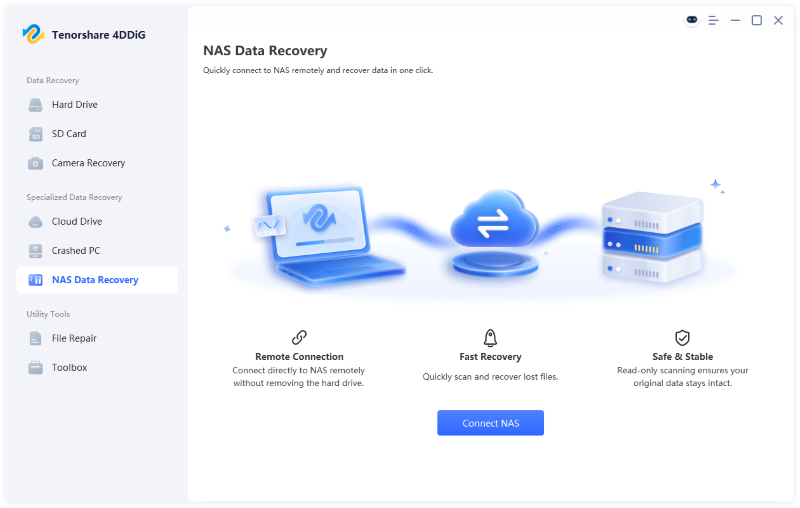
  • Open 4DDiG Windows Data Recovery and choose the “NAS Data Recovery” option. Ensure your NAS device is connected to the same network as your computer.

    4ddig nas data recovery interface
  • If your NAS is connected, you may go to the next step. Otherwise, click "Connect to NAS" to manually perform the connection.

    enter nas information to connect
  • Now, 4DDiG will show the details of your NAS device and you can choose the locations from where you want to recover the data.

    select a location on nas
  • After the scanning is complete, you can use the "Search" and "Filter" features to quickly find your desired files.

    scan nas device
  • Click on a file to get its quick preview and click the "Recover" button to save this file to another safe location.

    recover nas files

This type of recovery solution is especially helpful when users accidentally delete important files or experience RAID-related problems.

Conclusion

Understanding NAS vs computer server differences is important before investing in a storage or home network solution. NAS devices are perfect for users who want simple setup, reliable backups, and easy file sharing with minimal maintenance. Computer servers offer greater flexibility, performance, and scalability for advanced workloads and DIY projects.

Your final decision should depend on your technical skills, budget, and long-term needs. If you ever experience NAS-related data loss, 4DDiG NAS Data Recovery can help recover important files safely and efficiently.

FREE DOWNLOAD

Secure Download

William Bollson (senior editor)

William Bollson, the editor-in-chief of 4DDiG, devotes to providing the best solutions for Windows and Mac related issues, including data recovery, repair, error fixes.

(Click to rate this post)

You rated 4.5 ( participated)