[2026 Guide] How to Block Outside My Country's IP on Synology NAS

5 mins read

Updated on 2026-05-14 09:53:22 to Windows Recovery Solutions

If your NAS is connected to the internet, unwanted login attempts from foreign IP addresses are almost unavoidable. Many users search for how to block outside my country's IP on Synology NAS to improve security and reduce hacking risks.

The good news is that Synology DSM already includes built-in firewall and auto-block features that make this process much easier. In this guide, you’ll learn the exact steps to block foreign IPs, prevent suspicious logins, and secure your Synology NAS properly.

TL;DR

If you want a quick answer for how to block outside my country's IP on Synology NAS, here's the short version:

  • Enable the Synology firewall
  • Create an allow rule for your own country
  • Deny access from all other countries
  • Enable Auto Block for repeated failed logins
  • Use an IP blocklist package for stronger protection
  • Enable 2FA and keep DSM updated

This setup significantly reduces unauthorized access attempts and protects your NAS from external attacks.

Why Block Outside IPs on Synology NAS?

When a Synology NAS is exposed to the internet, attackers often scan it automatically from different countries. Blocking outside IP addresses reduces the attack surface and limits who can even attempt to connect. For home users and small businesses, this is one of the easiest ways to improve NAS security. Here are the main reasons users block foreign IPs:

  • Reduce brute-force login attacks
  • Prevent unauthorized remote access
  • Lower the risk of ransomware attacks
  • Stop suspicious traffic from unknown regions
  • Improve NAS security without additional hardware
  • Keep DSM login activity cleaner and easier to monitor

If you only access your NAS from one country, there is usually no reason to allow worldwide access.

How to Block Outside My Country's IP on Synology NAS?

Synology DSM includes a built-in firewall that lets you allow or deny traffic based on geographic location. This is the safest and most direct way to block external countries.

Before creating rules, make sure you know your current IP location and have a backup access method available. Incorrect firewall settings can temporarily block your own access.

  • Open your browser and enter your “Synology NAS address” to log in with an administrator account.

  • Go to “Control Panel” and click "Security", then open the “Firewall” tab.

  • Click "Create" to create new rules and choose your network adapters, like "LAN 1"

  • Click "Create" then choose "Allow or Deny" rules and switch "Source IP" from "All" to the "Location" option.

  • Select the countries you want to allow or deny and set the " Allow " or " Deny" action.

  • Apply these changes, then click "OK" and test the setup now.

How to Automatically Block Suspicious Login Attempts?

Country blocking helps reduce exposure, but failed login attempts can still happen. Synology DSM includes an Auto Block feature that automatically bans IP addresses after repeated failed logins.

This is useful because attackers often try password combinations repeatedly. Auto Block detects this behavior and temporarily or permanently blocks those IPs.

  • In the DSM, go to "Security" then open the “Account” tab and click “Auto Block”.

  • Turn on "Auto Block" and set it to block IPs after "X" number of failed attempts.

This prevents lockouts during password mistakes or testing while protecting your NAS from brute-force attacks.

Want Stronger Protection? Use an IP Blocklist

The built-in firewall is effective, but advanced users often want stronger filtering. A dedicated IP blocklist can automatically block known malicious networks and suspicious regions.

Synology Package Center includes several security-related packages that help improve protection.

  • Log in to DSM and open “Package Center."

  • Go to "All Packages” and look for the available IP Blocklist packages to choose a trusted and actively maintained package.

  • Click “Install” and wait for it to complete. You may need to click “Buy” or “Try” for the paid packages.

  • After installation is complete, you can access this package from the "Main Menu."

Most packages allow:

  • Blocking suspicious countries
  • Blocking malicious IP databases
  • Automatic updates
  • Real-time protection

This adds another security layer beyond standard firewall rules.

Will This Block Your Own Access Too?

Many users worry that configuring firewall rules incorrectly may lock them out of their NAS. This is possible if your own IP address does not match the allowed region or if your ISP changes routing unexpectedly. For example:

  • You travel internationally
  • You use a VPN
  • Your ISP assigns foreign IP ranges
  • You connect through mobile networks

To avoid problems:

  • Always whitelist your trusted IP addresses
  • Test firewall rules before leaving remote access enabled
  • Keep local network access available
  • Avoid blocking your own VPN region accidentally

If you travel frequently, consider allowing both your home country and your VPN server region. The good news is that a Synology NAS blocked IP address can usually be adjusted locally if you still have LAN access.

Additional Ways to Secure Your Synology NAS

Blocking foreign IPs is only one part of NAS security. A properly secured NAS should combine multiple protection methods.

Here are additional ways to secure your Synology NAS:

Enable Two-Factor Authentication (2FA)

2FA adds another verification step after entering your password. Even if someone obtains your password, they still cannot log in easily.

Keep DSM Updated

Outdated DSM versions may contain security vulnerabilities. Enable automatic updates whenever possible.

Disable Unused Services

Unused services increase security risks. Turn off services you do not use, such as:

  • Telnet
  • FTP
  • SSH
  • WebDAV

Only keep necessary services enabled.

⚡ What to Do If Firewall Rules Lock You Out of Your NAS?

Incorrect firewall rules can accidentally block legitimate access. This usually happens after changing IP restrictions, country filters, or Auto Block settings.

If you lose access to your NAS, first try:

  • Accessing from the local network
  • Disabling VPN connections
  • Restarting your router
  • Logging in from a previously trusted device

However, severe lockouts or failed configurations may also lead to inaccessible files or NAS-related data issues. In these situations, many users rely on tools like 4DDiG NAS Data Recovery to recover important NAS data safely. Here’s how to do:

FREE DOWNLOAD

Secure Download

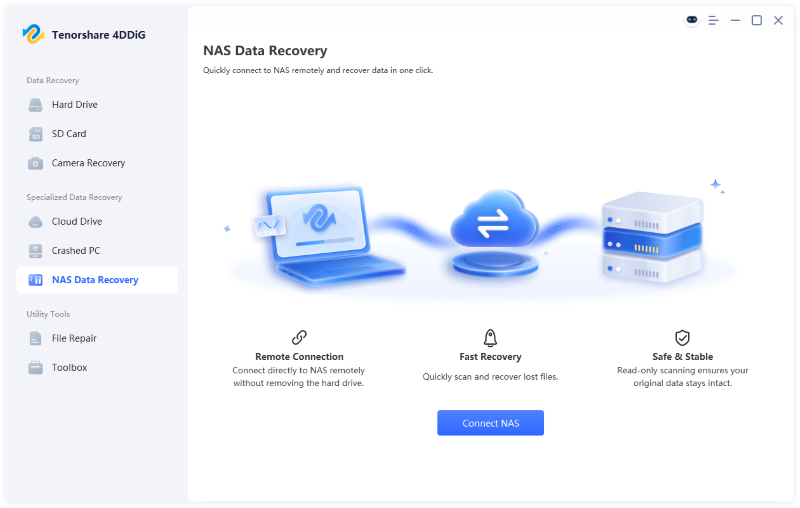
  • Download and install 4DDiG Windows Data Recovery software on your PC and launch it. Now, go to the “NAS Data Recovery” tab from the left menu pane and check if it connects to the NAS automatically.

    4ddig nas data recovery interface
  • If your NAS is connected automatically, you can proceed to the next step; otherwise, click the "Connect to NAS" button and provide the required details to continue by clicking the "Connect Now" button.

    enter nas information to connect
  • Now, 4DDiG will display the information of your NAS. You can choose a location to begin scanning from where you want to recover your desired files.

    select a location on nas
  • Once the scanning is complete, you can go through the available files. Use the "Filters" and Search" options to quickly find the desired files on your NAS storage.

    scan nas device
  • Click any available file from the NAS recoverable files to get its quick preview, and if you want to save it, click "Recover”. This time, choose a different and safe location to store the files for easy and reliable access.

    recover nas files

So, if the firewall has locked you out of your NAS, you can still recover your data with 4DDiG easily.

Conclusion

Learning how to block outside my country's IP on Synology NAS is one of the best ways to improve NAS security quickly. By combining firewall rules, Auto Block, IP filtering, and proper DSM security settings, you can significantly reduce unauthorized access attempts.

If firewall mistakes or NAS issues ever lead to inaccessible files, tools like 4DDiG Data Recovery can help recover important data safely and efficiently.

FREE DOWNLOAD

Secure Download

William Bollson (senior editor)

William Bollson, the editor-in-chief of 4DDiG, devotes to providing the best solutions for Windows and Mac related issues, including data recovery, repair, error fixes.

(Click to rate this post)

You rated 4.5 ( participated)