NAS vs Cloud Storage: Key Differences & Which One to Choose

5 mins read

Updated on 2026-04-21 15:08:15 to Windows Recovery Solutions

When choosing a storage solution, many users compare NAS vs cloud storage to decide what works best. Both options help store, manage, and access data, but they operate in very different ways. Some prefer full control with local storage, while others value flexibility and remote access.

Understanding how each system works will help you make a smarter and more practical decision.

What Is NAS?

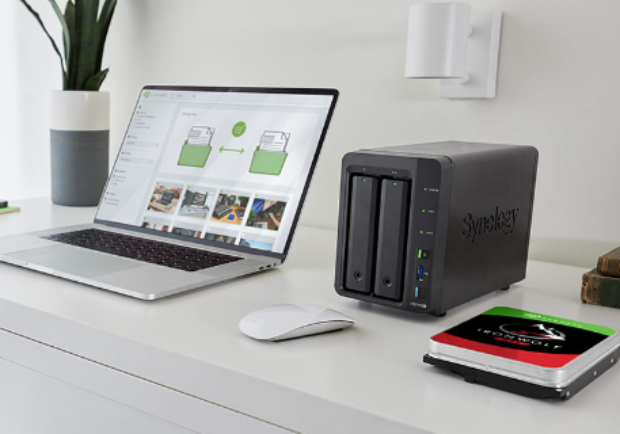
NAS stands for Network Attached Storage. It is a physical device that connects to your home or office network. It allows multiple users to store and access files from one central location. A NAS device usually contains one or more hard drives. These drives store your data locally. You can access the files through your network using a computer, phone, or tablet.

NAS is popular among users who want control over their data. It works well for personal backups, media storage, and small business file sharing. Many NAS systems also allow remote access, but this depends on the setup and the internet connection.

What Is Cloud Storage?

Cloud storage allows you to store data on remote servers instead of a physical device. These servers are managed by service providers and can be accessed over the internet. There are two main types of cloud storage:

Public Cloud Storage

Public cloud storage is the most common type. Services like Google Drive and Dropbox fall into this category. Your data is stored on shared infrastructure managed by a provider. This option is easy to use and requires no setup. It is ideal for personal use and small businesses that need quick access and collaboration.

Private Cloud Storage

Private cloud storage is more controlled. It can be hosted by a company or set up internally. Only specific users can access it. This option is often used by businesses that require higher security and more control over their data. It offers flexibility but may require technical setup.

NAS vs Cloud Storage: Key Differences

When comparing NAS drives vs. cloud storage, it is helpful to look at their core differences. Each solution has strengths and limitations depending on your needs.

  • Feature
  • NAS
  • Cloud Storage
  • Storage Location and Accessibility
  • Local device means local controlLocal network gives high-speed access
  • Remote servers mean less direct local controlRemote access from anywhere in the world is possible
  • Cost Structure
  • One-time + maintenanceCheaper for long-term with no subscriptions
  • Subscription-basedNo need to invest in costly hardware upfront
  • Security and Privacy
  • User-controlled and can be compromised if the user is not secure enoughMalware risks if no proper security measures are taken
  • Provider-managed security through MFA and moreStill vulnerable to data breaches
  • Backup and Disaster Recovery
  • Manual or configured with local data storageOffsite backups are needed
  • Automatic backups are maintained by the providerQuick recovery if you have good internet
  • Performance and Speed
  • Fast locally
  • Depends on the internet

Storage Location and Accessibility

NAS stores data locally in your home or office. This gives you full control, but access is limited to your network unless configured for remote use.

Cloud storage allows access from anywhere with internet. This makes it ideal for remote work and collaboration.

Cost Structure

NAS usually requires an upfront investment. You buy the device and drives. Over time, costs remain stable.

Cloud storage uses a subscription model. You pay monthly or yearly. Costs increase as storage needs grow.

Security and Privacy

NAS gives you full control over security settings. Your data stays in your environment. However, you must manage protection yourself.

Cloud storage providers offer built-in security features. These include encryption and monitoring. However, your data is stored on external servers.

Backup and Disaster Recovery

NAS requires manual setup for backups. You can create scheduled backups, but it depends on the configuration.

Cloud storage often includes automatic backup and version history. This makes recovery easier in case of data loss.

Performance and Speed

NAS offers faster speeds within a local network. File transfers are quick and stable.

Cloud storage speed depends on your internet connection. Slow connections can affect performance, especially for large files.

Advantages and Limitations of NAS

Wondering whether NAS is the right storage solution for you? The answer often comes down to control, speed, and long-term value. NAS systems are designed to give users direct ownership of their data while maintaining strong performance.

Let’s explore how NAS benefits both home users and businesses in practical ways.

NAS for Home Users:

  • Local control: You can store and manage your files privately without relying on third-party services.
  • Media streaming: NAS allows smooth streaming of movies, music, and photos across multiple devices at home.
  • Cost efficiency over time: For large storage needs, NAS can become more affordable compared to ongoing cloud subscriptions.

NAS for Business Data Control:

  • Data privacy: Businesses can keep sensitive information in-house, reducing reliance on external providers.
  • Fast access: Local storage ensures quicker file transfers, especially for large files and databases.
  • Long-term savings: A one-time hardware investment can reduce recurring costs for companies with high storage demands.

Challenges of NAS:

  • Ongoing expenses: Beyond the initial purchase, you may need to account for power usage, hardware upgrades, and backup solutions.
  • Risk of data loss: Without an off-site backup strategy, events like system failure or physical damage can lead to permanent data loss.
  • Security management responsibility: Since you control the system, you must handle updates, firewalls, and access protection to avoid vulnerabilities.
  • Regular maintenance required: NAS systems need monitoring, updates, and occasional troubleshooting to keep them running smoothly.
  • Remote access limitations: Accessing files outside your local network may require additional setup or external services.

Advantages and Limitations of Cloud Storage

Cloud storage has become a popular choice due to its simplicity and flexibility. It allows users to store and access data without managing physical hardware. This makes it especially appealing for those who want convenience and scalability.

Let’s look at how cloud storage supports both individuals and businesses.

Convenience for Home Users:

  • Anytime access: You can access your files from any device with an internet connection.
  • User-friendly experience: Most cloud platforms offer simple interfaces for uploading and managing files.
  • Flexible storage plans: You can easily upgrade or reduce storage based on your needs.

Cloud Storage for Businesses:

  • Scalable infrastructure: Businesses can expand storage without investing in new hardware.
  • Data redundancy: Files are stored across multiple servers, reducing the risk of data loss.
  • Reduced maintenance: No need to manage physical storage systems or IT infrastructure.

Challenges of Cloud Storage:

  • Accumulating subscription costs: Monthly or yearly fees can become expensive over time, especially with growing storage needs.
  • Internet dependency: You need a reliable connection to upload, access, or manage files, which can be limiting in some situations.
  • Platform dependency: Switching providers can be difficult if your workflow depends heavily on one platform’s tools and ecosystem.
  • Less direct control: Your data is stored and managed by a third party, which may raise concerns about privacy and compliance.

Hybrid Storage: Combining NAS and Cloud

If you cannot decide between NAS vs cloud storage for personal use, Hybrid storage combines NAS and cloud storage. It allows users to enjoy the benefits of both systems. In this setup, data is stored locally on NAS and backed up to the cloud. This improves data safety and accessibility.

For example, you can store large files on NAS for fast access. At the same time, important data can be synced to the cloud for remote access and backup. This approach is useful for businesses and advanced users. It provides flexibility, security, and better disaster recovery.

NAS vs Cloud Storage: Which One Should You Choose?

Choosing between NAS vs cloud storage depends on your needs and usage.

When to Choose NAS?

Choose NAS if you want full control and fast local access. It is ideal for storing large files, media libraries, and backups at home or in an office.

Example: A photographer storing high-resolution images locally.

When to Choose Cloud Storage?

Choose cloud storage if you need easy access and collaboration. It is perfect for remote work and sharing files.

Example: A team working on shared documents from different locations.

When to Choose Hybrid Storage?

Choose hybrid storage if you want both control and flexibility. It is suitable for users who need local speed and cloud backup.

Example: A small business storing files locally but backing them up online.

⚡ How to Recover Lost Data from NAS?

Data loss is a problem for both NAS and cloud environments. It may occur due to accidental deletion, system errors, syncing issues, or even hardware failure. When files become inaccessible, having the right recovery solution is important.

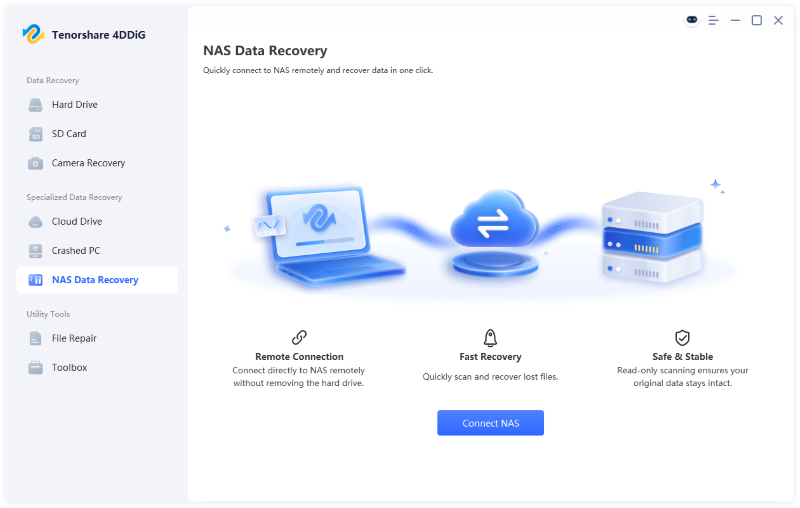
Professional tools like 4DDiG Data Recovery can help restore lost files efficiently. It supports recovery from NAS systems and can connect directly to devices over a network without requiring drive removal. Besides that, it can get back data from cloud storage like iCloud, Dropbox and more.

FREE DOWNLOAD

Secure Download

FREE DOWNLOAD

Secure Download

The software performs deep scans to locate lost, deleted, or corrupted files. It supports a wide range of file types, including documents, videos, images, and more. Whether the issue is simple or complex, it provides a practical and user-friendly way to recover valuable data. Here’s how to recover lost data from NAS with 4DDiG:

  • Launch 4DDiG on your computer after downloading and installing it, then select the "NAS Data Recovery” feature.

    4DDiG NAS data recovery interface
  • 4DDiG will automatically detect your NAS device, and in that case, you can move to the next step. If it cannot detect your device, you need to input the device information for NAS connection and click “Connect Now”.

    Enter NAS information to connect.
  • Now, your NAS connection will be successful, and 4DDiG will show all the details. Choose the location where you want 4DDiG to recover your lost data.

    Select a location on the NAS.
  • The recovery process may take a few minutes. Wait, and when it completes, use the Search and Filter options to find the exact files you are looking for.

    Scan NAS device
  • Click a recoverable file to see its preview, and if you are satisfied with the results, click "Recover" to save the file to a safe location.

    Recover NAS files

FAQs

Q1: Is NAS better than Google Drive?

It depends on your needs. NAS offers full control and no subscription fees. Google Drive offers easy access and collaboration.

Q2: Can I use a NAS as cloud storage?

Yes, many NAS systems support remote access. This allows you to use them like private cloud storage.

Q3: Can Synology replace OneDrive?

Yes, Synology NAS can replace OneDrive for storage and sharing. However, setup and maintenance are required.

Conclusion

When comparing NAS vs cloud storage, the right choice depends on your needs. NAS offers control and speed, while cloud storage provides flexibility and convenience. A hybrid setup can combine the strengths of both. No matter which option you choose, data safety is essential. Tools like 4DDiG NAS Data Recovery can help you recover lost files quickly and keep your data protected.

FREE DOWNLOAD

Secure Download

FREE DOWNLOAD

Secure Download

William Bollson (senior editor)

William Bollson, the editor-in-chief of 4DDiG, devotes to providing the best solutions for Windows and Mac related issues, including data recovery, repair, error fixes.

(Click to rate this post)

You rated 4.5 ( participated)