How to Convert TIFF to PDF with Losing Quality: 4 Quick & Free Methods
TIFF files are widely used for storing high-quality images, especially in scanning, design, and professional printing workflows. However, sharing or archiving TIFF images can be inconvenient due to their large file size and limited compatibility. That’s why many users seek reliable methods to convert TIFF to PDF while maintaining the original quality.
This guide explains why conversion matters, compares formats, and walks you through several quick and free methods across Windows, Mac, and online platforms.
Part 1. Why Convert TIFF to PDF?
Before diving into the conversion methods, it’s important to understand what TIFF and PDF formats are and why converting between them is so common.
What Is TIFF?
TIFF (Tagged Image File Format) is a high-quality image format often used for scanned documents, photography, and professional graphics. It preserves image detail exceptionally well but usually results in very large file sizes. (See: How to resize an image without losing quality)
What Is PDF?
PDF (Portable Document Format) is designed for consistent document sharing across devices and operating systems. PDFs preserve layout, text, and images while offering better compression and universal compatibility.
Key Reasons to Convert TIFF to PDF
- PDFs are easier to share and open on any device
- PDF files are usually smaller than TIFF images
- PDFs support multi-page documents more efficiently
- PDFs are better suited for archiving, printing, and signing
- TIFF images embedded in PDFs retain visual quality
TIFF vs PDF: Key Differences
Now that you have a basic understanding of both formats and are aware of the reasons for conversion, let's create a quick comparison table to gain a more in-depth and comprehensive understanding.
When to use TIFF or PDF
- Use TIFF when image quality and accuracy are the top priority, and storage is not a concern.
- Use PDF when you need portability, easy sharing, and long-term storage. https://4ddig.tenorshare.com/file-tips/convert-a-pdf-to-a-webpage.html
Part 2. How to Convert TIFF to PDF without Losing Quality (4 Quick Ways)
Converting a TIFF file to PDF does not have to reduce quality if you choose the right method. Below are four practical options covering online tools, professional software, and built-in system features.
1Convert TIFF File to PDF Online for Desktop or Mobile
Online converters are ideal when you need a quick solution without installing any software. They work on both desktop and mobile browsers, making them convenient for occasional use. As long as you choose a reputable service, online tools can handle TIFF to PDF conversion efficiently.
-
Open your browser and go to the iLovePDF TIFF to PDF converter page. Click “Browse” and upload your TIFF file.
-
Adjust basic settings if needed and click "Convert to PDF," then download the converted PDF file.
This method works well for small to medium files. It is a popular online TIFF to PDF converter for quick document sharing.
2Change TIFF Format to PDF Using Adobe Acrobat (Professional Quality)
Adobe Acrobat is a professional-grade solution that offers precise control over file quality and layout. It is widely used in business and publishing environments where accuracy matters. If you need consistent results without compression artifacts, this method is reliable.
This approach is best when converting high-resolution TIFF images into PDFs for printing or official documentation.
-
Open Adobe Acrobat on your computer and click “Create PDF” from the home screen or “Tools” menu to select your TIFF file and click “Select Files”.
-
Click "Create," and Acrobat automatically converts the TIFF image to PDF. Save the PDF to your preferred location.
Adobe Acrobat preserves resolution and color depth, making it ideal to transform TIFF to PDF without visible quality loss.
3Transfer TIFF to PDF Using Microsoft Print to PDF (Built-in Method for Windows 10/11)
Windows 10 and Windows 11 include a built-in virtual printer called Microsoft Print to PDF. This feature allows you to convert almost any printable file into a PDF without additional software. It is a simple and reliable method for Windows users. This method is especially useful for users who want a quick TIFF file to PDF solution using native tools.
-
Right-click the TIFF file and select "Open with", then choose "Photos”.
-
Press Ctrl + P to open the Print dialog and choose “Microsoft Print to PDF” as the printer.
-
Adjust page layout and orientation if needed, and click "Print" and save the PDF file.
This built-in method works well for single or multi-page TIFF images and requires no downloads.
4Convert TIFF to PDF on Mac Using Native Preview App
Mac users can convert TIFF images to PDF using the built-in Preview app. Preview is powerful enough to handle basic conversions while maintaining image clarity. It is especially useful for users who prefer native macOS tools. This approach ensures a smooth change from the TIFF to PDF process without third-party software.
-
Open the TIFF file with Preview and click "File" then choose "Export as PDF."
Choose a destination folder and click “Save”.
Adjust the Quartz filter if needed.
-
Click "Save" to generate the PDF.
Preview handles TIFF image to PDF converter tasks efficiently and supports batch conversion through Finder.
⚡ Part 3. What To Do If TIFF or PDF Is Corrupted
Sometimes, files become corrupted during conversion, transfer, or storage. When a TIFF image fails to open, or a PDF shows blank pages, conversion alone will not solve the issue. In such cases, file repair is required. 4DDiG File Repair is designed to repair corrupted image and document files with a high success rate. It supports batch repair and works with both TIFF images and PDF files.
Steps to Repair Corrupted TIFF or PDF Files Using 4DDiG File Repair
-
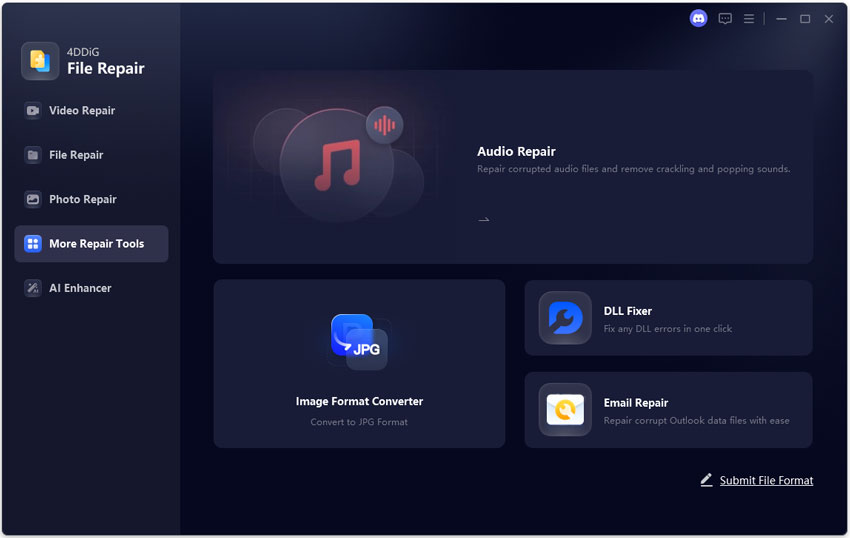
Install and launch 4DDiG File Repair on your computer.
FREE DOWNLOADSecure Download
a. To repair corrupted PDF files, choose "File Repair" from the main interface and click "Add Files".
b. To repair corrupted TIFF images, choose “Photo Repair" from the main interface and click "Add Photos".
-
Add corrupted TIFF or PDF files and click “Repair All” to start repairing.
-
Preview the repaired files by clicking “Preview” and clicking "Save" to save them on your computer.
This solution is especially helpful when the TIFF to PDF conversion fails due to file damage.
Part 4. People Also Ask about TIFF to PDF Conversion
Q1: Can you convert TIFF to PDF for free?
Yes. Tools like iLovePDF, Microsoft Print to PDF, and macOS Preview allow you to convert TIFF to PDF for free.
Q2: Does converting TIFF to PDF reduce quality?
No, if done correctly. Most tools preserve image resolution, especially when compression settings are not applied.
Q3: Is online TIFF to PDF conversion safe?
It can be safe if you use reputable services and avoid uploading sensitive documents.
Q4: What’s the best TIFF to PDF converter?
The best option depends on your needs. Online tools are convenient, built-in methods are reliable, and Adobe Acrobat offers professional-grade control.
Conclusion
Converting image files doesn’t have to be complicated or result in quality loss. With the right approach, you can easily convert TIFF to PDF using online tools, built-in system features, or professional software. Each method serves different needs, from quick sharing to high-quality printing.
If you encounter corrupted TIFF or PDF files during the process, 4DDiG File Repair provides a dependable solution to restore them efficiently. Choosing the right conversion and repair tools ensures both quality and reliability.
Secure Download
💡 Summarize with AI:
You May Also Like
- Home >>
- Photo Tips >>
- How to Convert TIFF to PDF with Losing Quality: 4 Quick & Free Methods
ChatGPT
Perplexity
Grok