Convert ODT to PDF in 2025: Quick & Easy Methods for All Devices
ODT files are widely used in LibreOffice, OpenOffice, and other OpenDocument tools. However, when it's time to share files with clients, teachers, or teammates, PDF is often the safer and more professional choice.
PDF files preserve formatting, open on almost any device, and are ideal for printing and official sharing. That's why many users search for fast, reliable ways to convert ODT to PDF without losing layout or content. In this guide, you'll learn:
- The difference between ODT and PDF
- The fastest free ways to convert ODT to PDF
- Offline, online, mobile, and batch conversion methods
- What to do if your converted PDF won't open
Part 1. What Is an ODT File & Why Convert ODT Format to PDF
An ODT file (OpenDocument Text) is a word-processing format based on the open OpenDocument standard. It's used by suites like:
- OpenOffice
- LibreOffice
- Google Docs
- Microsoft Word (with compatibility support).
Inside a single ODT file you can have: formatted text, images, tables, styles and page layouts, similar to a DOCX file but in a format that's open, flexible and easy to modify.
A PDF (Portable Document Format), on the other hand, is designed for viewing and sharing, not active editing. A PDF always looks the same on any device, regardless of fonts, apps, or operating systems.
Because of this, many users edit in ODT but export to PDF for final delivery.
Why Convert ODT to PDF? (ODT vs PDF)
While ODT is good for editing, PDF is better for sharing and viewing. Here's why many users convert from ODT to PDF:
- Stable formatting – Fonts, spacing, and layout stay exactly the same
- Universal compatibility – Opens on almost all devices
- Better security – Supports passwords and prevents accidental edits
- More professional – Standard format for resumes, contracts, invoices
- Print-ready – What you see is exactly what gets printed
☞ In short: ODT is for editing, PDF is for sharing and final output. Converting ODT to PDF makes your document portable, stable and professional.
Part 2. Quick Comparison Table: All ODT to PDF Conversion Methods
Below is a concise comparison of common ways to convert ODT files to PDF:
How to choose:
- Want speed & convenience → Online tools
- Want maximum accuracy & offline control → LibreOffice
- Want cloud editing → Google Docs
- Need bulk automation → Command line
- Already using Office → Microsoft Word
Part 3. How to Convert ODT to PDF in 5 Quick & Free Ways
Below are all the reliable ways to convert an ODT file to PDF, including online, offline, mobile, and batch conversion options.
Way 1. Use a Free Online ODT to PDF Converter (Fastest & Free)
Online converters are ideal if you want a quick, free and device-independent solution without installing anything. They also work great when you're using shared computers, mobile devices or need instant results. Below are the top three reliable online ODT to PDF converters and how to use them.
1) Zamzar ODT to PDF Converter
Zamzar is a browser-based ODT to PDF converter designed for quick, no-install conversions. You simply upload your ODT file, choose PDF as the output format, and download the result within seconds. It works on any device and is best suited for small files and one-off conversions.
Best for: Fast online conversion with no installations and multi-format support.
How to Use ZamZar:
-
Visit ZamZar's ODT to PDF page.
Drag & drop your .odt file (or click Upload).
-
Choose "PDF" as your output format. (Optional) Enter your email if you want download links sent to you.
Click "Convert Now" and wait a few seconds.
Download the converted PDF.
- Pros
- Cons
-
- Fast conversions even for multi-page documents.
- Supports over 1100 file formats from the same platform.
- Works on any device (mobile, tablet, PC).
- The email delivery option makes downloads convenient.
-
- File size cap for free users (typically 1MB).
- Requires internet access to upload and download files.
- Batch conversion is limited on the free plan.
2) FreeConvert ODT to PDF Converter
FreeConvert's ODT to PDF Converter is a simple online tool that lets you upload one or multiple ODT files and convert them into high-quality PDFs in seconds. It supports batch conversion, optional advanced settings and password-protected files. The service is free, browser-based and uses SSL encryption with automatic file deletion for privacy.
Best for: Users who want optional advanced conversion settings online.
Steps to Convert with FreeConvert:
-
Visit the FreeConvert ODT to PDF page.
Click "Choose Files" and upload your ODT document(s).
Adjust the optional "Advanced Settings" if needed.
Press "Convert to PDF".
Wait for the process to finish.
Click "Download PDF" to save your converted file.
- Pros
- Cons
-
- Free and easy to use
- Supports large files (up to 1GB)
- Allows batch conversion
- Secure 256-bit SSL file protection
- Optional advanced customization
-
- Requires internet access
- Uploading large files may take time
- Limited editing features (conversion only)
Uploading large-size PDF requires a paid plan. Check and view how to
3) CloudConvert ODT File to PDF Converter
CloudConvert is an online ODT to PDF converter known for its strong layout accuracy. It runs entirely in the browser, requires no installation, and offers optional features like page-range selection, password protection, and PDF/A output. It supports over 200 file formats and is suitable when you need more control over the final PDF.
Best for: Users who care about layout accuracy and cloud integrations.
Steps to Convert ODT to PDF in CloudConvert:
-
Go to the CloudConvert ODT to PDF converter page.
Click "Select File" and upload your ODT document.
Choose "PDF" as the output format.
(Optional) Pick page range, PDF/A or add a password.
Click "Convert".
Once processing is complete, download your PDF file.
- Pros
- Cons
-
- Supports 200+ formats for versatile conversions
- High-quality output comparable to Microsoft Office
- Fully online, no installation required
- Offers advanced settings (page range, PDF/A, password protection)
- Secure platform (ISO 27001 certified)
- Fast and easy to use
-
- Requires an internet connection
- Free plan has usage limits
- Conversion speed may vary depending on file size and server load
- Some advanced features may require paid credits
Way 2. Convert ODT File to PDF Using LibreOffice/OpenOffice (Most Reliable Offline)
The manual method for converting ODT files to PDF on a Mac involves using LibreOffice Writer (or OpenOffice). This word-processing tool is part of the LibreOffice suite, which also includes a spreadsheet editor, presentation creator and graphics editor. It makes them ideal for professionals who need consistent output quality without relying on the internet.
Best for: Offline users and those who want maximum formatting accuracy.
Steps (Same as on OpenOffice):
Install the LibreOffice suite on your Mac.
-
Open LibreOffice Writer and click "File", then "Open". Select the "ODT file" you want to convert.
-
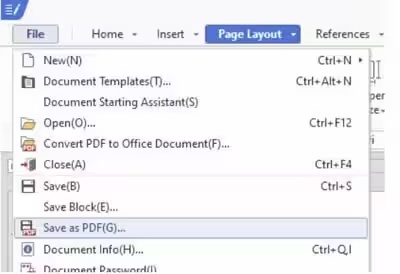
Go to "File", and then select "Export as PDF".
Adjust the PDF export settings if needed.
-
Click "Export", choose a save location on your Mac, and then click "Save".
Way 3. Convert ODT Document to PDF in Microsoft Word (For Office Users)
Microsoft Word can open and convert ODT files, making it perfect for users already in the Microsoft Office ecosystem. It's a paid word-processing program from Microsoft Office. It has useful editing tools like changing fonts, colors, text alignment and adding images.
Best for: Users already working in Microsoft Office.
Steps to Export ODT as PDF:
-
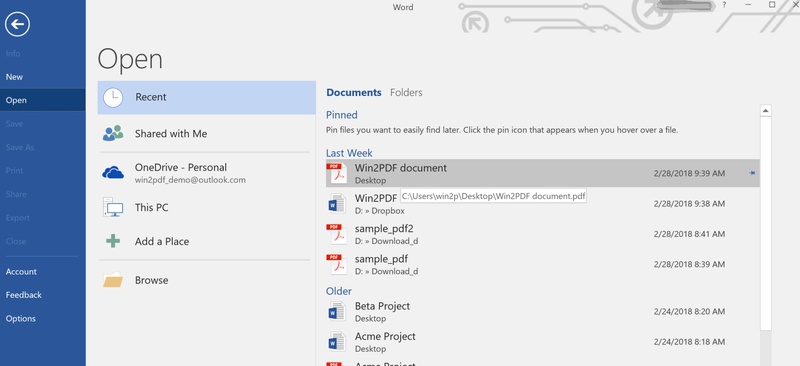
Open Microsoft Word and click "File", then "Open". Choose your "ODT file". If a message appears, click "OK".
Edit the document if you want.
Click "File", then "Save As".
-
Choose "PDF" from the file type dropdown. Save the file.
Way 4. Change ODT to PDF in Google Docs/Google Drive (No Installation)
Google Docs allows you to convert ODT files to PDF entirely online without downloading any software. This is especially helpful for Chromebook users, students and anyone who needs a free, cloud-based editing and export solution. It also allows basic formatting edits before exporting.
Best for: Users who prefer cloud editing and collaboration.
Steps:
Upload your ODT file to Google Drive.
Right-click the file and choose "Open with" Google Docs.
Click "File", then "Download".
-
Select PDF Document (.pdf).
Way 5. Batch Convert ODT to PDF Using Command Line (for Tech Savvies)
If you work on Linux or Unix and often deal with many ODT files, the command line is one of the fastest ways to convert them in bulk. Instead of opening each file manually, you can convert a whole folder in one go using LibreOffice in headless mode.
Before you begin, ensure you are on a Linux or Unix-based system. You should know basic terminal commands. Close every LibreOffice window, or the conversion may fail.
Best for: Power users needing fast bulk automation.
Steps :
Install LibreOffice. Open Terminal / Command Prompt.
-
Run the command:
soffice --headless --convert-to pdf .odt
-
For multiple files in a folder (example Linux/macOS):
soffice --headless --convert-to pdf --outdir output_folder .odt -
Press "Enter". All ODT files in the folder will convert to PDF automatically.
LibreOffice also supports advanced PDF parameters (page ranges, PDF/A, encryption) via the command line.
Part 4. What If the Exported PDF Is Corrupted or Won't Open After ODT Conversion?
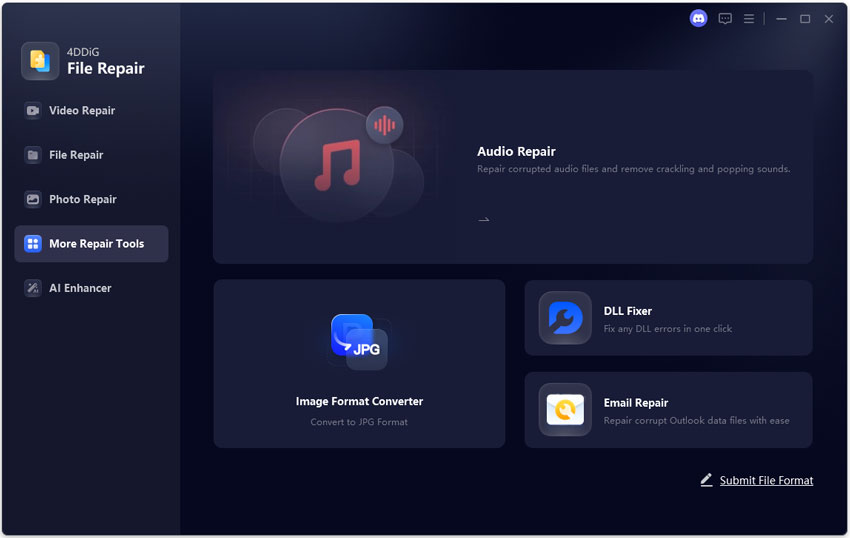
Sometimes, after converting an ODT file to PDF, the exported PDF may not open, may show blank pages, or may display unreadable text. This usually happens due to file corruption during download, conversion errors, or damaged document content. If this happens, you can repair the corrupted PDF easily using 4DDiG File Repair. It is a smart AI-powered tool designed to fix damaged documents of any type.
4DDiG File Repair is an all-in-one AI file repair tool that can fix PDF issues in seconds. It works for many types of corruption and supports almost all office and document formats. For PDFs specifically, it offers:
- Fixes the PDF file not opening or not readable
- Repairs blank pages, gibberish text, missing text, or broken formatting
- Restores damaged PDF structure caused by failed conversion or download
- Supports repairing other file types (Word, Excel, PPT, ZIP, AI, PSD, etc.)
- Fast repair with preview option before saving
If your PDF won't open after ODT conversion, 4DDiG File Repair is one of the quickest ways to recover it.
How to Fix Unreadable or Corrupted PDF Files Using 4DDiG
-
Launch the software on your computer. Click "File Repair" from the left menu and then click "Add Files" to upload the corrupted PDF.
FREE DOWNLOADSecure Download
-
Click "Repair All". 4DDiG will analyze the damaged PDF and automatically fix issues like corruption, blank pages, or file errors.
-
When the repair is done, click "Preview" to check the first page and make sure the PDF has been restored properly.
-
Click "Save" or "Save All" to download the repaired PDF to your computer. Now you can open it normally without errors.
If your newly created odt format to pdf file is broken, this is a fast way to rescue it without re-creating the document manually.
FAQs about ODT to PDF Conversion
Q1: How to turn OpenOffice documents into PDF?
Open the ODT in OpenOffice Writer, click File, choose Export as PDF, then save. LibreOffice and OpenOffice use very similar export steps.
Q2: Can Google Docs convert ODT to PDF?
Yes. Upload the ODT to Google Drive, open it with Google Docs, then go to File, select Download, and choose PDF.
Q3: Does OpenOffice have a PDF converter?
Yes, built in. Use Export as PDF from the File menu.
Q4: How to convert ODT to PDF on iPhone?
Use Google Docs mobile export to PDF or an online converter in Safari. This is the most practical convert ODT to PDF iPhone approach.
Q5: What is the easiest way to convert ODT to PDF?
For most people, the simplest is an online tool like Zamzar or FreeConvert. For best accuracy, LibreOffice export is the winner.
Conclusion
Converting ODT to PDF is easier than ever, whether you use online tools, Google Docs, Microsoft Word, or LibreOffice. You can now convert ODT to PDF quickly on any device, no matter which method you prefer. But if your PDF becomes corrupted or won't open after conversion, using a professional repair tool is necessary. That's why 4DDiG File Repair is highly recommended. It fixes corrupted PDF files in seconds and keeps your documents safe and intact.
Secure Download
Secure Download
ChatGPT
Perplexity
Grok