How to Convert TIFF to JPG on Windows, Mac, Online and Mobile

5 mins read

Updated on 2026-07-10 10:28:31 to Photo Tips

If you have recently gotten a TIFF file from a photographer or graphic designer, you already know how huge the file size can be. While the TIFF format is excellent at preserving image quality, it's unsupported by websites and social media platforms. That's why it's important to convert TIFF to JPG, which is smaller and easier to share.

What Is a TIFF File and Why Convert TIFF to JPG?

TIFF is a lossless, print-grade image format that can store multiple pages without losing fine detail. It supports CMYK and high bit depth rather than just screen RGB. Graphic designers use it for professional publishing, and governments use it to digitize physical records. On top of this, photographers use TIFFs as masters or source files. Here are the benefits you enjoy when you convert TIFF to JPG:

  • Free Up Storage: TIFF files take up a lot of storage on your devices, so when you convert TIFF to JPG, the files compress, shrinking to a fraction of their original size and freeing up storage.
  • Enhanced Compatibility: JPG files are easy to share and compatible with almost every digital device, web browser, and email.
  • Faster Loading: Due to their small size, JPG files load quickly, which is crucial for a smooth customer experience and SEO rankings.

Best Free Online TIFF to JPG Converter (Recommended for Most Users)

To convert your TIFF files to JPG, you don't always need expensive tools. We have compiled a list of free converters that you can try without compromising on security and file quality:

1. CloudConvert TIFF to JPG Converter

cloudconvert tiff to jpg converter

Founded back in 2012, CloudConvert is a free online TIFF to JPG file converter. Other than that, it optimizes files, captures websites, and creates as well as extract archives.

  • Best Advantages
  • Limitations
    • Doesn't store your files permanently.
    • Easy-to-use interface.
    • Uses SSL/TLS encryption while uploading or downloading your files.
    • Supports over 200 formats.
    • Allows only 25 conversions per day and has limitations on file size and conversion time.

2. Clideo Free TIFF to JPG Converter

clideo tiff to jpg converter

Clideo is a beginner-friendly platform that offers a range of tools for editing and converting TIFF video and audio files. Since it’s web-based, you don't need to get into the hassle of downloading separate applications. Just open it on your browser and make conversions with a few clicks.

  • Best Advantages
  • Limitations
    • Drag-and-drop functionality makes it a treat for beginners.
    • Compatible with Windows, Mac, Android, and iOS.
    • Support various video formats including MP4, AVI, MOV, and WMV.
    • Files uploaded are encrypted and deleted automatically.
    • The free plan includes watermarks.

3. ZamZar TIFF File to JPG Converter

zamzar tiff file to jpg converter

Another tool you may use to convert TIFF to JPG is ZamZar, which works directly in your browser. It supports multiple tile types, including audio, video, image, and ebook. Simply upload the file, choose the format you need, and you'll have the converted file within minutes. You also get an email notification when the file is ready.

  • Best Advantages
  • Limitations
    • Allows batch conversion, saving time.
    • Works on any device with internet access.
    • No learning curve.
    • Converted files are available on their server for 24 hours for easy access.
    • The free plan has file size limits.

4. iLoveIMG TIFF to JPG Converter

iloveimg tiff to jpg converter

Are you looking for a versatile tool to resize, crop, or compress your images? iLoveIMG is the right tool. You also get a variety of editing tools to improve your image clarity and remove unwanted backgrounds. In addition, you can add text, effects, frames, or stickers as needed.

  • Best Advantages
  • Limitations
    • Rotate the image or file to select the right landscape or portrait orientation.
    • Blurs faces and license plates for privacy.
    • Supports various file formats.
    • Allows bulk processing without losing quality.
    • The free version comes with advertisements.

How to Convert TIFF to JPG on Windows/Mac?

As a Windows or Mac user, you might often encounter a blank icon when opening TIFF files. Don't stress out; here are the ways you can convert TIFF to JPG high quality:

Convert Tagged Image File Format to JPG in Photoshop

To convert TIFF to JPG on Windows, you need to install Adobe Photoshop. If it's already done, follow the given steps:

  • Open the TIFF image in Photoshop.

  • Click on File > Export > Save for Web (Legacy).

    photoshop save tiff as jpg
  • Select JPG to convert the TIFF file and save it as a JPG.

Save TIFF as JPG with Windows Photos (for Windows)

If you don't have access to Adobe Photoshop, you can also save a TIFF as a JPG using the Windows Photos app. Follow these steps:

  • Right click on the TIFF file.

  • Click Open > Photos.

  • Click the three-dot menu at the top.

  • Choose Save As > JPG.

  • Save the converted file.

Export TIFF as JPEG in Preview (for Mac)

On your Mac, you can convert from TIFF to JPEG with the following steps:

  • Double-click the TIFF to open it in Preview.

  • Click on File and then Export.

  • Change the format to JPEG.

    mac preview export tiff to jpg
  • Click Save.

Batch Convert TIFF to JPG Using XnConvert

XnConvert is a user-friendly, web-based TIFF-to-JPG converter that supports a wide range of file types. Let's see how you can use it:

  • Download and install XnConvert (free from xnview.com).

  • Drag and drop your TIFF files into the program.

  • Go to the Output tab and select JPEG as the format.

  • Set quality level and destination folder.

  • Click Convert to process all files.

    xnconvert export tiff to jpg

How to Format TIFF to JPG on iPhone/Android?

If you need a quick, no-app solution directly on your iPhone or Android, Safari, Chrome, etc. combined with a reliable online converter is one of the fastest ways. This method works smoothly on iOS and Android and doesn’t require installing any additional software. It’s perfect for occasional conversions when you’re on the go.

  • Open a browser, and go to a trusted online converter such as CloudConvert TIFF to JPG converter.

  • Tap Select Files (or the upload button) and paste the file or select it from your device.

  • Select JPG as the output format and tap Convert.

    cloudconvert change tiff to jpg
  • Once done, tap Download to save the JPG version to your Photos or Files app.

⚡ Bonus: How to Fix Corrupted TIFF or JPG Photos

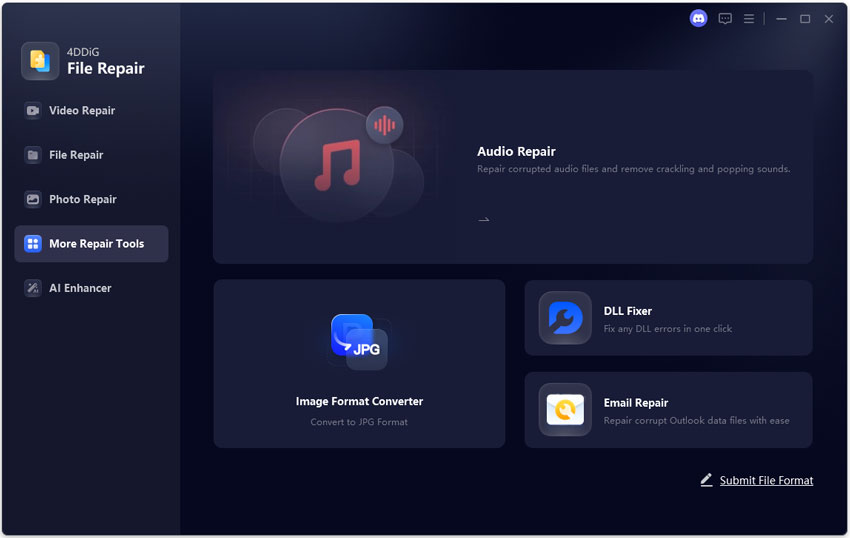
Sometimes your TIFF or JPG file may become corrupted during transfer, storage, or conversion. The image may not open, appear blurry, or show an error message. In this situation, you need to repair the files with 4DDiG Photo Repair. With its AI functionality, it enhances your image quality and removes noise. It also supports PNG, BMP, CR2, and HEIC to JPG conversion, and you can repair up to 3,000 photos at once.

FREE DOWNLOAD

Secure Download

FREE DOWNLOAD

Secure Download

Here's how you can use it:

  • Open 4DDiG File Repair > Photo Repair. Click Add Photos or drag and drop the corrupted image.

    add corrupted tiff jpg files to 4ddig
  • Press Repair All and wait for a few seconds.

    repair all corrupted tiff or jpg files
  • Preview the repaired images to check for quality.

    preview repaired tiff or jpg files
  • Click the triangle icon next to the Save or Save All option, then select the desired format to export the repaired TIFF or JPG files in preferred format. Tap Save All and move the images to the desired folder.

    save repaired tiff or jpg files in preferred format

Conclusion

Once you convert TIFF to JPG, you can share your files and photos across various social media platforms and websites. Try 4DDiG Photo Repair today to fix your converted or damaged photos right away!

FREE DOWNLOAD

Secure Download

FREE DOWNLOAD

Secure Download

William Bollson (senior editor)

William Bollson, the editor-in-chief of 4DDiG, devotes to providing the best solutions for Windows and Mac related issues, including data recovery, repair, error fixes.

(Click to rate this post)

You rated 4.5 ( participated)