How to Open TIFF Files on Android/iPhone/PC (2026 Guide)

5 mins read

Updated on 2026-01-19 16:46:12 to Photo Tips

Wondering how to open TIFF files on your device? TIFF files are a lossless file format popular among photographers, graphic designers, and medical professionals for their high quality and flexibility. Unlike JPG or PNG, TIFF files are not always supported by default, especially on Android and mobile platforms.

If you’ve ever downloaded a TIFF image and couldn’t view it, you’re not alone. This article explains how to open TIFF files on Android, iPhone, Windows, and online using simple, quick, and reliable methods that work for everyday users.

how to open tiff files

Part 1. What is a TIFF File? Why Can't I Open It?

TIFF stands for Tagged Image File Format, a versatile raster file format developed in 1986 by Aldus Corporation (later acquired by Adobe). This format stores high-quality images with extensive metadata in tagged data fields, making it ideal for professional use. It is commonly used in professional photography, graphic design, publishing, medical imaging, and document archiving.

Why Most Devices Don’t Open TIFF Files Natively

Many devices don’t support TIFF files by default because:

  • TIFF files are large in size
  • They use multiple compression methods
  • Some TIFF files contain multiple pages
  • Mobile operating systems prioritize lighter formats like JPG or PNG

That’s why users often search for how can I open a TIFF file or a reliable TIFF opener.

Are TIFF Files Safe to Open?

Yes, TIFF files are generally safe as long as they come from a trusted source. They are image based, not executable. However, if a TIFF file is corrupted or incomplete, it may fail to open or show errors. This doesn’t mean it’s dangerous. It just means it's damaged or incompatible.

TIFF vs JPG/PNG

Feature TIFF JPG (JPEG) PNG
Compression Type Mostly lossless Lossy Lossless
File Size Very large Small Medium
Image Quality Keeps original quality Quality decreases after compression High quality (no loss)
Supports Layers Yes No No
Color Space Support RGB and CMYK Mostly RGB Mostly RGB
Best For Printing, publishing, and professional editing Social media, web images, and everyday photos Web graphics, logos, screenshots
Web Compatibility Low High High

TIFF offers unmatched quality but poor universal compatibility.

Part 2. How to Open TIFF Files on Android

Android devices don't always natively support TIFF files, yet several methods exist to view these high quality images. Here are three effective approaches to open TIFF files on your Android smartphone or tablet.

Method 1: Using Google Photos (Built in)

Google Photos is preinstalled on most Android devices and offers limited TIFF support, especially for cloud backed images. While it doesn’t handle all TIFF variations, it’s still worth trying first since it requires no extra apps.

Steps to open TIFF files using Google Photos:

  • Open “Google Photos” on your Android phone.

  • Browse or search for the TIFF file.

  • Tap on the file to open and view it.

    open tiff files on android via google photos

Google Photos often converts TIFF files to JPEG when they are backed up to the cloud. That’s why some TIFF images open correctly online but appear blank when stored locally. This method works best for single page, simple TIFF files.

Method 2: Best App to Open TIFF Files on Android

If you need full compatibility, a dedicated app is the most reliable option. TIFF Image Viewer is one of the best apps on Google Play for opening TIFF files, including multi page and compressed TIFF documents.

Why this app works well:

  • Supports multi-page TIFF documents

  • Handles CCITT G3, CCITT G4, LZW, ZIP, Deflate, and JPEG compression

  • Smooth zooming and panning without quality loss

Steps to open TIFF files using TIFF File Viewer:

  • Download and install the TIFF File Viewer from the Google Play Store.

  • Open the app. If it’s your first time, allow access to photos and media. After that, tap “Open File” to continue.

  • Select where your TIF file is saved, Internal Storage or SD card.

    open tiff files on tiff image viewer
  • Scroll through the files (usually in the Downloads folder). Look for the file ending in .tif or .tiff, then tap it to open.

This method is recommended for architectural drawings, scanned documents, medical images, and professional TIFF files.

Method 3: Converting TIFF to JPEG/PNG on Android

If you only need to view or share the image and don’t require TIFF-level quality, converting the file to JPEG or PNG is the easiest option. Most Android apps and social platforms fully support these formats.

Steps to convert TIFF files on Android:

  • Install TIFF Image Viewer or similar conversion app.

  • Open the app and select your TIFF file.

  • Tap the "Convert" button.

  • Choose output format (JPEG, PNG, BMP, or WEBP)

    convert tiff to jpg on android
  • Select a save location and confirm conversion.

This approach sacrifices some image quality for improved compatibility across all Android apps and devices.

Part 3. How Can I Open a TIFF File on iPhone/iPad or Online

Opening TIFF files on iPhones and iPads presents unique challenges compared to desktop systems. Fortunately, several solutions exist for iOS users and those preferring online options.

Method 1. Using Files App on iPhone/iPad

The Files app on iOS and iPadOS can open single page TIFF files without installing any third party app. This method is best for quick viewing of basic TIFF images received via email, AirDrop, or cloud storage. However, complex or multi-page TIFF documents may not display correctly.

Steps to open a TIFF file using the Files app:

  • Open the “Files” app (blue folder icon in the Dock)

  • Tap “Browse” at the bottom of the screen.

  • Go to the folder where the TIFF file is saved (On My iPhone, Drive, iCloud Drive, etc.)

  • Tap the “TIFF file” to preview it.

This method is ideal if you only need to quickly view a simple TIFF file on your iPhone or iPad. Multi-page TIFF files may open only the first page or fail to load. It has no editing or advanced zoom features.

Method 2. Using Jumpshare Online Free TIFF Viewer

If you don’t want to install any app or your TIFF file won’t open on your device, Jumpshare’s online TIFF viewer is one of the easiest and safest solutions. It works directly in your browser and supports almost all TIFF variations.

Key advantages include:

  • No registration required
  • Works across all devices and browsers
  • AES 256 encryption for security
  • Files automatically deleted after 24 hours
  • Support for all TIFF variations (.tif, .tiff, .tiff64)

Steps to open a TIFF file using Jumpshare:

  • Open any browser on your iPhone, iPad, or computer

  • Visit jumpshare.com/viewer/tiff.

    jumpshare free online tiff viewer
  • Click the “upload” area or drag and drop your TIFF file.

  • Wait a few seconds for the file to process until the “Lock your file” button appears.

  • Click “Lock your file” to open a pop-up with options like Send, Invite, Embed, Advanced Link, and Privacy Settings. Use them to protect your file or simply close the pop up.

  • View the TIFF file instantly online.

This approach remains ideal for occasional TIFF viewing without dedicated software.

Part 4. How to Open TIFF Files on Windows 11/10

Windows users have several reliable options for opening TIFF files directly on their systems without additional software. The operating system includes built in support that handles most TIFF files effectively.

Method 1: Using the Windows Photos app

The Windows Photos app comes preinstalled on both Windows 11 and Windows 10 and can open most standard TIFF files with a double click. This method is ideal for quick viewing of single page TIFF images such as photos, scans, or design previews.

Steps to open a TIFF file using Windows Photos:

  • Open “File Explorer” on your PC

  • Go to the folder where the TIFF file is saved.

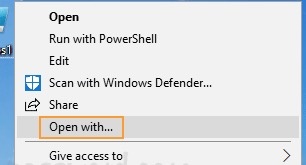
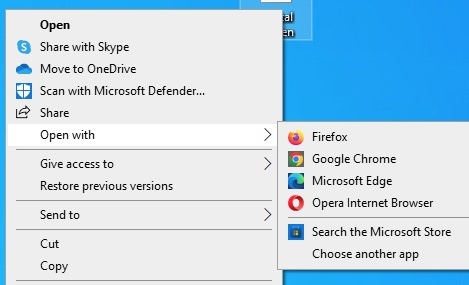
  • Right-click the .tif or .tiff file and select “Open with” > “Windows Photo Viewer”.

    open tiff with windows photo viewer
  • The image will open automatically in the Photos app.

Things to note:

Works well for single-page TIFF files. Multi-page TIFF files usually show only the first page. No advanced editing or layer support.

This method is best when you only need to view or check a TIFF file quickly on Windows.

Method 2: Opening TIFF Files in Photoshop

If you need to edit, zoom deeply, or work with layers and color profiles, Adobe Photoshop is one of the most powerful tools for opening TIFF files on Windows. It supports high resolution images, CMYK color mode, and advanced TIFF settings.

Steps to open a TIFF file in Photoshop:

  • Launch Adobe Photoshop on your computer

  • Click “File” in the top menu

  • Select “Open”

    open tiff with photoshop
  • Browse to your TIFF file and select it.

  • Click “Open” to load the image.

Helpful tip:

If Photoshop shows a color space warning, click "OK" to continue.

This method is recommended when you need full control over the TIFF file, including editing, exporting, or preparing it for print.

⚡ Part 5. Can't Open TIFF File? Here Are the Fixes

Sometimes, TIFF file still won’t open after trying different apps or devices, the problem is often file corruption rather than compatibility. This can happen due to interrupted downloads, improper transfers, storage errors, or unsupported compression. In such cases, regular viewers fail, showing blank images, wrong colors, or error messages. That’s where a professional photo repair tool becomes essential.

4DDiG Photo Repair offers a comprehensive solution for corrupted TIFF files. This professional utility excels at repairing damaged TIFF images affected by pixelation, blurriness, artifacts, or other issues. The software can simultaneously repair up to 3,000 images in batch mode from any device.

FREE DOWNLOAD

Secure Download

FREE DOWNLOAD

Secure Download

Why 4DDiG Photo Repair works well for TIFF files:

  • Supports TIFF, JPG, JPEG, PNG, RAW, CR2, DNG, HEIC, and many more
  • Repairs images in batch
  • Fixes severe issues like missing headers, color distortion, and broken pixels
  • Uses advanced AI algorithms for high repair success rates
  • Works on Windows and Mac

Steps to Repair Corrupted TIFF Files Using 4DDiG Photo Repair

  • Open 4DDiG Photo Repair from the official website. Select "Photo Repair" from the main interface. Click "Add Files" and upload one or multiple corrupted TIFF images that won’t open.

    select photo repair and add corrupted tiff files
  • Click the "Repair All" button. The AI engine will analyze and fix damaged image structures automatically.

    start repairing all tiff files
  • Once repaired, preview the restored TIFF images. Click "Save" or "Save All" to store them on your device.

    preview and save repaired tiff files

What makes 4DDiG effective is its sophisticated AI powered technology that analyzes file structures to restore damaged TIFF data. The software supports various repair scenarios, including header corruption, data loss, and format errors.

People Also Ask about Opening TIFF Files

Q1: How can I open TIFF files on my Samsung Android phone?

You can open TIFF files on Samsung phones using Multi-TIFF Viewer Free or TIFF Image Viewer. These apps support single and multi-page TIFF files and common compression formats like LZW and JPEG.

Q2: What is the best TIFF file opener for Android?

Multi-TIFF Viewer Free is considered the best TIFF opener for Android due to its speed, smooth zooming, and ability to handle large files.

Q3: Can I convert TIFF to PDF on mobile?

Yes. Apps like TIFF Viewer TIFF Converter or online tools like SmallPDF allow you to convert TIFF to PDF easily on Android and iOS devices.

Q4: How do I open a TIFF document without installing software?

You can use Jumpshare’s free online TIFF viewer to open TIFF files directly in your browser without installing any software.

Conclusion

TIFF files offer excellent image quality but often need special tools to open properly. The steps above explain how to open TIFF files on Android, iPhone, Windows 11, and online. If a file won’t open, converting it or repairing it is the best solution. 4DDiG Photo Repair is highly recommended for fixing damaged TIFF images. After recovery, you can also convert TIFF to PDF for easier sharing and long term storage.

FREE DOWNLOAD

Secure Download

FREE DOWNLOAD

Secure Download

William Bollson (senior editor)

William Bollson, the editor-in-chief of 4DDiG, devotes to providing the best solutions for Windows and Mac related issues, including data recovery, repair, error fixes.

(Click to rate this post)

You rated 4.5 ( participated)