How to Restore Old Photos Online Free to Make Them New (No Sign-Up, No Watermark)

5 mins read

Updated on 2026-04-08 20:53:50 to Photo Tips

Old family photos often hold our most cherished memories, but time can leave them faded, scratched, or blurry. The good news is you can now restore old photos online free using simple AI tools, no expensive software or professional skills needed. In this guide, we'll explore what these tools can fix, share the top options for 2026, and walk you through easy steps to remove scratches, sharpen a blurry face, or bring color back to a black-and-white snapshot, etc.

Part 1: What Can Free Online Photo Restoration Tools Actually Fix?

Old family photos hold some of our most precious memories, but time often leaves them scratched, faded, or blurry. Before diving into the tools, it helps to know what free online AI photo restoration can and can't realistically do. Most of these tools are surprisingly capable for everyday fixes. Here's what they typically handle well:

  • Scratches and physical damage: AI can detect and remove scratches, tears, creases, and dust spots while filling in damaged areas naturally. If you want to remove scratches from old photos online free, these tools perform especially well. See: How to Remove Blemishes from Photos
  • Faded or washed-out colors: Years of light exposure can drain color from old images. Many tools restore and colorize old photos online free, bringing back vibrant, natural tones.
  • Blur and low sharpness: Old blurry photos are very common. AI sharpening and upscaling help recover fine details in faces and backgrounds, making old blurry photo restoration online free quick and effective.
  • Low resolution: Tools can enhance old photos online free by upscaling them to higher resolution for sharper prints or sharing.
  • Black-and-white to color conversion: Some tools intelligently colorize black-and-white photos, guessing realistic skin tones, clothing, and backgrounds.
  • Noise and grain: AI reduces film grain and digital noise while preserving important details.

Keep in mind that free tools work best on moderately damaged photos. Severely torn or heavily overexposed images may only see partial improvement. For more challenging cases, advanced options like 4DDiG (covered in Part 4) often deliver better results.

The best part? Many of these tools let you repair old photos online free without watermark on several tries, so you can safely test them on your family albums. Their speed and simplicity make them a popular first choice for bringing old memories back to life.

Part 2: The 6 Best Old Photo Restoration Online Free Tools in 2026 (No Watermark)

With so many choices available, it helps to know which tools stand out for restore old photos online free in 2026. Here are six reliable options that offer strong free access, often without watermarks on basic exports. Each has its own strengths depending on your needs.

1. Canva AI Photo Restoration --- Best for Beginners

Canva's photo editor includes AI-powered tools like Magic Enhance and background noise reduction. While it isn't a dedicated old photo repair tool, it works surprisingly well for fixing faded, low-quality, or slightly damaged images. It's especially beginner-friendly because everything happens inside Canva's familiar drag-and-drop interface. Free users get limited AI credits per month.

Key Features

  • One-click Magic Enhance for automatic brightness, contrast, and color correction
  • AI background removal and photo noise reduction
  • Easy export with no watermark on free plan (within usage limits)
  • Works directly in the browser, no installation needed
  • Pros
  • Cons
    • Extremely easy to use, ideal if you've never edited a photo before
    • No watermark on downloaded images
    • Integrates with other Canva design tools for creative projects
    • Not purpose-built for damaged photo repair, lacks scratch removal
    • Free plan has monthly AI credit limits
    • Less effective on severely degraded images

Best for: Casual users who want to fix old photos online free without complexity.

2. VanceAI Photo Restorer --- Best All-in-One AI Tool

vanceai old photo restoration

VanceAI Photo Restorer stands out as a comprehensive choice for old damaged photo repair online free. It uses deep learning to tackle multiple types of damage in one pass: scratches, blur, noise, and fading. It's more specialized than general design tools, which means better results for genuinely old or damaged photos. The free plan allows a limited number of image credits per month, and downloads come without a watermark.

Key Features

  • Dedicated scratch and damage removal
  • AI sharpening and upscaling in one workflow
  • Old photo color restoration option available
  • Batch processing on paid plans
  • Pros
  • Cons
    • Handles multiple types of damage simultaneously
    • Clean, no-watermark downloads on the free tier
    • Consistently strong results on faces and fine details
    • Free plan is limited to a small number of credits per month
    • Processing can take a little longer than simpler tools
    • Some advanced features require a subscription

Best for: Users needing a full set of restoration features in one place without paying upfront.

3. Picsart AI Photo Restoration --- Best for Quick Results & Creative Touch

picsart ai photo restoration

Picsart combines AI photo enhancement with a wide range of creative editing options. Its one-tap enhancement and AI upscaling tools work well for fixing old blurry photos and giving faded images a refreshed look. The app is available on both desktop and mobile, making it convenient for on-the-go edits.

Key Features

  • AI-powered one-tap photo enhancement
  • Upscaling to improve low-resolution old photos
  • Background removal and color adjustment tools
  • Mobile app available for iOS and Android
  • Pros
  • Cons
    • Fast results, great when you need a quick fix
    • Creative tools available alongside restoration features
    • Works well on mobile
    • Free plan includes a Picsart watermark on some exports
    • Less specialized than dedicated restoration tools for heavy damage
    • Ad-supported on the free tier

Best for: Users who want fast improvements and enjoy having creative editing tools on hand.

4. Pixelbin --- Best for One-Click Convenience & HD Quality

pixelbin ai old photo restoration tool

Pixelbin's AI Old Photo Restoration tool focuses on delivering high-quality results with minimal user input. Upload your photo, select the restoration option, and download --- it's about as straightforward as it gets. It handles noise reduction, sharpening, and upscaling well, making it a solid choice when you want HD-quality output without a lengthy editing process.

Key Features

  • One-click AI enhancement and upscaling
  • HD-quality output on free plan
  • Clean, no-watermark downloads
  • Simple interface with no account required for basic use
  • Pros
  • Cons
    • Very fast and easy with minimal steps between upload and download
    • Good output quality, especially for sharpening and resolution improvements
    • No watermark on free downloads
    • Limited creative control, not ideal if you want to fine-tune results
    • Free usage has monthly limits
    • Doesn't specialize in colorization

Best for: Users who want a clean, HD result as quickly as possible with print-ready quality no fuss.

5. MyHeritage Photo Enhancer --- Best for Faces

myheritage photo enhancer

MyHeritage Photo Enhancer uses AI that's specifically trained on portrait and family photography. It's exceptionally good at restoring facial features in old, blurry, or low-quality photos: sharpening eyes, smoothing damage, and recovering detail that other tools miss. It also offers colorization, so you can restore and colorize old photos in a single step. Free users get a limited number of enhancements per month.

Key Features

  • Face-focused AI enhancement and sharpening
  • One-click colorization for black-and-white photos
  • Simple upload-and-enhance workflow
  • Integrated into the MyHeritage family history platform
  • Pros
  • Cons
    • Best-in-class results for facial detail and portrait restoration
    • Colorization is natural-looking and well-suited for family photos
    • No technical experience needed
    • Free plan is quite limited in the number of enhancements allowed
    • Less effective on landscape or non-portrait images
    • Requires account creation for full access

Best for: Anyone restoring old family portraits or group photos where face quality is the priority.

6. NoteGPT AI Photo Restoration --- Best Truly Free & No Signup Option

notegpt ai photo restoration

NoteGPT AI Photo Restoration offers AI-powered photo repair that's genuinely free to use. No account required, no hidden credits, and no watermark on downloads. It handles common restoration tasks including scratch removal, sharpening, and color enhancement. For anyone who's been searching for a truly accessible way to fix old damaged photos online for free, this is one of the most user-friendly options available.

Key Features

  • No account or signup required
  • AI-powered scratch and blemish removal
  • Sharpening and color enhancement
  • Clean downloads with no watermark
  • Pros
  • Cons
    • Truly free, no credits, no subscription prompts
    • No registration barrier makes it accessible to everyone
    • Simple interface suitable for all experience levels
    • No watermark on exported images
    • Fewer advanced features compared to paid-tier tools
    • May have usage limits during peak times
    • Less effective on very heavily damaged photos

Best for: Anyone who wants a quick, free, and no-strings-attached way to restore old photos online free without signing up for anything.

These tools cover most everyday needs for ai old photo restoration online free without watermark. Start with one or two that match your style, and compare results on the same photo for the best outcome.

Part 3: How to Restore Old Photos Online Free (Step-by-Step)

Now that you know what free online tools can fix, it's time to try them yourself. Here are clear, easy-to-follow steps for two of the best options to repair old photos online free. Both processes take just a minute or two and require no prior editing experience.

1. Repair Old Photos Online Free with Canva

Canva is an excellent starting point for beginners thanks to its simple interface and reliable AI tools.

  • Go to Canva.com and sign in (or use it without an account for basic features).

  • Click Create a design or go directly to Magic Studio.

  • Upload your old photo using the Uploads button.

  • Select the image and look for the Magic Edit or Enhance option. Apply the AI restoration with one click, it will automatically remove scratches, sharpen details, and improve colors.

  • Compare the before-and-after preview, make minor adjustments if needed, then download your restored photo.

Canva works especially well when you want to enhance old photos online free quickly on your phone or computer.

2. Restore Old and Damaged Photos with VanceAI

For more powerful old damaged photo repair online free, VanceAI delivers deeper AI processing.

  • Visit the VanceAI Photo Restorer page.

  • Upload your damaged or blurry photo.

  • The AI will automatically analyze and fix scratches, faded colors, and blur.

  • Review the enhanced result and adjust settings for sharpness or color if available.

  • Download the improved version (check your free credit balance first).

Many users switch from Canva to VanceAI when they need stronger results for heavily faded or scratched images. Start with one photo to see which tool gives the most natural look for your family memories.

⚡ Part 4: Magic Way to Repair Old Damaged Photos with AI & Make It New

While free online tools do a great job for many everyday needs like remove scratches from old photos online free or old blurry photo restoration online free, they still have limitations. Daily credit caps, occasional unnatural blending, and difficulty handling complex tears or large missing areas can leave some photos only partially improved.

If you want more control and higher-quality results, try a dedicated AI tool like the AI Image Expander in 4DDiG File Repair. It goes beyond basic fixes and common black-and-white photo colorizing by letting you repair old photos using simple text prompts. You can remove scratches, restore natural colors, fix blemishes, and even refine details while keeping the photo authentic and realistic.

FREE DOWNLOAD

Secure Download

FREE DOWNLOAD

Secure Download

Option A. Restore Old Damaged Photos with 4DDiG AI Prompt

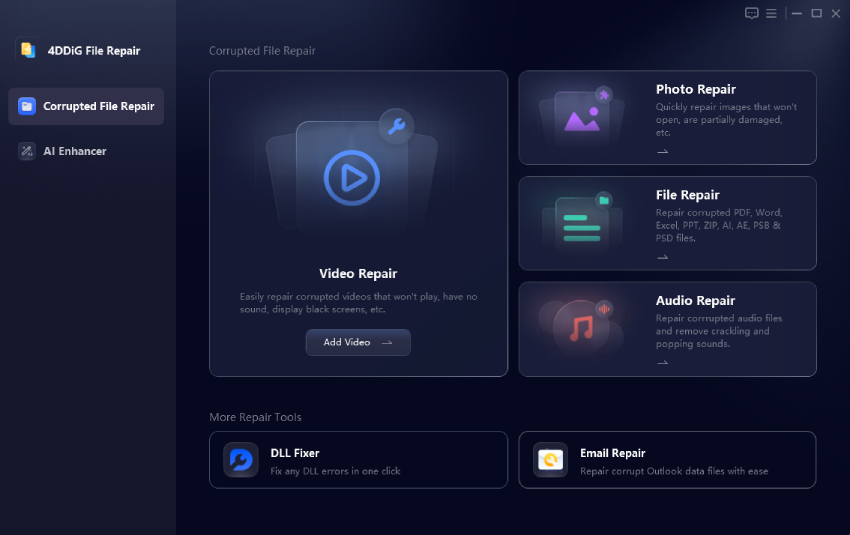
  • Get and open 4DDiG File Repair on your computer. Go to the "AI Enhancer" section and select "AI Expand Image".

    select 4ddig ai expand image
  • Import your old photo by clicking the "Add an image to expand" button.

    add old photos to 4ddig
  • Use the AI prompt box to describe what you want, for example: "Remove scratches and creases, restore natural skin tones and colors, enhance clarity." Then click "AI Expand Image" to analyze and repair the old image based on your instructions.

  • Preview the result, make small adjustments if needed, and export the final high-quality photo.

    4ddig repair old damaged photos

This prompt-based approach gives you more precise control than most free online tools, making it ideal when you want to bring heavily damaged family photos back to life with professional-looking results.

Option B. Repair Old Photos with 4DDiG AI Photo Colorizer

  • Go to "AI Enhancer" and select "Photo Colorizer".

  • Upload your old images to 4DDiG by clicking "Add Photos".

  • From the right menu, select "Old Photos" or "B&W Photos". Then click "Colorize". Oonce finished, you can preview the result.

    4ddig old photo restoration

Conclusion

Restoring old photos online free has never been easier thanks to powerful AI tools. From quick fixes with Canva and VanceAI to more advanced repairs, you can now remove scratches, sharpen blurry images, and bring faded memories back to life. For the best results on heavily damaged photos, 4DDiG File Repair is a poweful shot. Its AI prompt feature delivers professional-quality restoration with full control.

FREE DOWNLOAD

Secure Download

FREE DOWNLOAD

Secure Download

William Bollson (senior editor)

William Bollson, the editor-in-chief of 4DDiG, devotes to providing the best solutions for Windows and Mac related issues, including data recovery, repair, error fixes.

(Click to rate this post)

You rated 4.5 ( participated)