[2026] How to Turn Off HEIC on iPhone Easily

5 mins read

Updated on 2026-09-30 23:28:49 to Photo Tips

Are your iPhone photos saving as HEIC instead of the more widely supported JPG format? HEIC saves storage space, but it can cause compatibility issues when sharing photos with Windows PCs, websites, or older apps. If you need broader compatibility, you can change your iPhone camera settings in a few taps. This article explores how to turn off HEIC on iPhone, convert existing iPhone HEIC photos to JPG, and fix common HEIC problems.

how to turn off heic on iphone

Part 1. What Is an HEIC File? Why Does iPhone Use HEIC?

What Is HEIC on iPhone

HEIC (High Efficiency Image Container) is the default photo format on iPhones (iOS 11 and later). It is Apple’s version of the open HEIF (High Efficiency Image Format) standard, using HEVC (H.265) compression. Files end with .heic.

HEIC vs HEIF on iPhone

HEIF is the general container format; HEIC is the specific HEIF + HEVC combination Apple uses, identifying an HEIF image using HEVC-based compression. That is why people search for HEIC vs HEIF on iPhone. The terms are related but not identical. You may see .heic on an iPhone photo, while .heif may appear in other apps.

Feature HEIC HEIF
Full Name High Efficiency Image Container High Efficiency Image Format
What it is Image container commonly used for Apple photos Open standard container
File extension .heic .heif / .heic
Typical iPhone use Photos captured by iPhone The underlying format
Main use iPhone, iPad, Mac Broader (some Android, cameras)

Why Are iPhone Photos HEIC Format

Apple switched to HEIC in iOS 11 mainly to save storage space. Modern iPhone photos are high-resolution; HEIC compresses them to roughly 50% smaller than JPEG while keeping (or improving) visual quality, letting you store more photos.

It also better handles advanced camera features (Live Photos, Portrait mode, HDR) in a single file and higher color depth, providing better dynamic range and more detailed highlights and shadows.

Part 2. How to Turn Off HEIC on iPhone Camera (Save Photos as JPG)? ⚡

If you want your new iPhone photos to be JPG instead of HEIC, you don’t need a separate converter. Apple provides a built-in camera setting for this.

1. How to Stop iPhone from Taking HEIC Photos

If you frequently share photos with Windows users or upload to older web platforms, you might want to know how to make iPhone photos JPEG instead of HEIC. By changing the iPhone camera setting, you can ensure that every photo you take from that moment forward is saved in the widely compatible JPG format.

Apple calls the JPG option “Most Compatible”. When you select it, your iPhone saves new photos as JPEG and compatible videos as H.264 instead of using the high efficiency formats.

Follow these steps:

  • Go to the Settings app on your iPhone.

  • Then find and pick the “Camera” > “Formats” > “Most Compatible”.

    change iphone camera settings to turn off heic
  • Open the Camera app and take a test photo. Check the new file on your PC or in the Files app to make sure it is saved as JPG or JPEG.

If you do not see the Formats option, your iPhone model or current iOS version may not support HEIF/HEVC capture in the same way. Update iOS, then return to Camera settings and check again.

2. What Happens When You Turn Off HEIC on iPhone

When you shut off HEIC on iPhone, the device stops using the high efficiency codec and reverts to the older, more widely supported JPEG format. This ensures that you can make iPhone photos JPEG instead of HEIC without needing any third party conversion tools later. By choosing this setting, you disable HEIC on iPhone for all new media.

This shift has many immediate changes:

  • Increased File Size: JPEGs typically take up about twice the space of HEIC files for the same image quality
  • Improved Compatibility: You will no longer need special extensions to view photos on Windows 10/11 or older smart TVs.
  • Workflow Changes: You won’t need to convert files before uploading them to websites or sharing them with friends who use non Apple devices.
  • Loss of Advanced Features: Some high end features, such as 4K video at 60 fps, may require High Efficiency mode to function

Part 3. How to Convert Existing HEIC Photos to JPG

Changing your camera settings only affects photos you take in the future. If you already have HEIC images saved on your iPhone, you’ll need to learn how to change HEIC to JPG on iPhone for those existing photos.

1. Using the iPhone Photos App (Official)

The Photos app does not normally show a universal “Convert to JPG” button. However, iOS may convert HEIC photos during sharing or transfer when the destination does not support HEIC. This built-in option is useful when you only need to convert a few pictures.

Steps to Convert HEIC to JPG on iPhone

  • Open the “Photos” app and select the HEIC photos you want to convert.

  • Tap the “Share” icon, then choose “Copy Photos” from the available options.

  • Open the “Files” app and navigate to a folder (like “On My iPhone”).

    convert heic to jpg on iphone
  • Long-press in an empty space and select “Paste.”

  • The iPhone will automatically convert the HEIC files to JPEG during the paste process.

Limitations of the iPhone Photos Method

  • Best for a small number of photos; large batches become tedious.
  • Creates copies only, with original HEIC files remaining unchanged in Photos.
  • Live Photo motion, depth maps (Portrait mode), and some advanced metadata are lost.
  • No quality settings or advanced options.
  • Does not convert the entire library automatically.

This built-in method is convenient for a few images. For a complete album or a large iPhone backup, batch conversion is more efficient.

2. Batch Convert HEIC Photos to JPG (No Quality Loss)

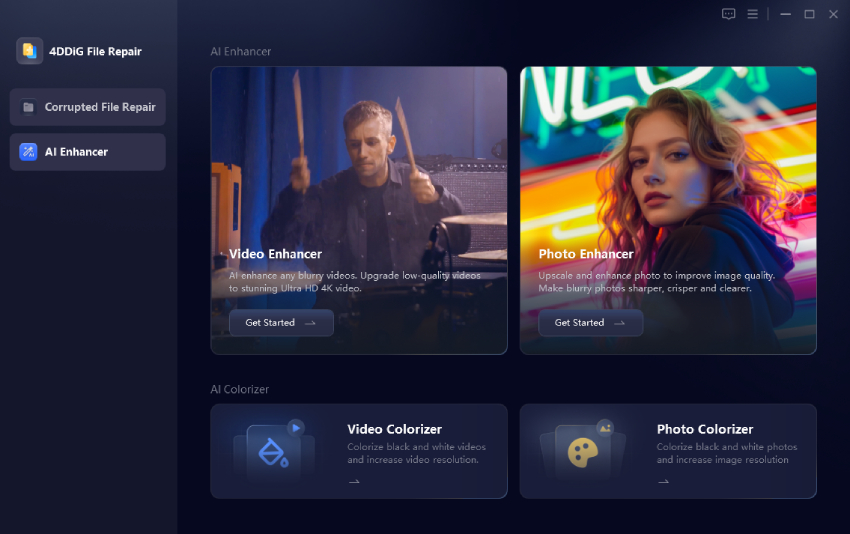
For converting many HEIC photos at once while keeping high quality and privacy, use the built-in Image Format Converter in 4DDiG File Repair. It processes files locally on your computer (Windows or Mac), supports batch conversion of HEIC (plus PNG, BMP, CR2, etc.) to JPG, and avoids quality loss from unnecessary compression.

Key Features of 4DDiG’s Image Format Converter:

  • Batch convert HEIC, PNG, BMP, and CR2 images to JPG in one click
  • High-quality output with no image compression or quality loss
  • Fully local processing, with no file uploads to the cloud for 100% privacy
  • Fast conversion that finishes in seconds
  • Simple steps without tech-savvy required
  • Preview results before saving
FREE DOWNLOAD

Secure Download

FREE DOWNLOAD

Secure Download

Steps to mass convert HEIC photos to JPG using 4DDiG:

  • Download and launch 4DDiG File Repair on your Windows or Mac. Click “More Repair Tools” from the main interface, then select “Image Format Converter.”

    open 4ddig image format converter
  • Use the “Add Files” button to select the photos you want to transform.

    add heic files to 4ddig
  • Click the “Convert” button. The software will rapidly analyze the data and re-encode it as JPG.

    start iphone heic file to jpg conversion
  • Click “Save” to choose a destination for your new files. You can then use the “Open Folder” button to see your universally compatible JPEGs in File Explorer.

    preview and save converted jpgs

Part 4. Should You Turn Off HEIC on iPhone?

The direct answer is: It depends on your workflow and the devices you use most.

If you primarily use Apple devices (Mac, iPad, iPhone) and have plenty of iCloud storage, you should keep HEIC enabled. It offers superior image quality at significantly smaller file sizes, and the Apple ecosystem handles the format seamlessly.

However, turn off HEIC if you frequently share photos with Windows users, upload images to older websites, or use professional editing software that doesn’t support H.265 encoding. In these cases, JPEG’s universal compatibility far outweighs HEIC’s storage savings.

FAQs about iPhone HEIC

Q1: Why are my iPhone HEIC photos not showing in Messages?

This usually happens if the recipient’s device or carrier doesn’t support the HEIF standard. If you disable HEIC on your iPhone, your outgoing photos will be sent as JPEGs, which should resolve the visibility issue for all recipients.

Q2: How to open HEIC photos on Windows?

Windows requires specific codecs to view HEIC files. You must install the HEIF Image Extension (free) and the HEVC Video Extension ($0.99) from the Microsoft Store. Alternatively, you can use a third-party viewer like XnView MP or a codec pack like K-Lite.

Q3: Why can’t I open a HEIC file even on my iPhone?

If a HEIC file won’t open on the device that took it, the file may be corrupted. This can happen during a failed iCloud sync or a storage error. In these cases, you can use 4DDiG Photo Repair to fix the damaged data and restore the image.

Q4: Why is my iPhone showing HEIC instead of JPG?

Your Camera format is probably set to High Efficiency. To disable HEIC iPhone capture, open Settings, then choose Camera, then Formats and choose Most Compatible. This changes to new photos only. It does not alter files already in your library.

Conclusion

Understanding how to turn off HEIC on iPhone gives you more control over your digital memories and helps you avoid compatibility hurdles. Whether you shoot in JPEG by default or keep HEIC’s efficiency benefits and convert later, the tools are at your fingertips. For those dealing with large libraries or corrupted files, we highly recommend the 4DDiG Image Format Converter for its speed, batch capabilities, and AI powered repair features. It is the ultimate solution for managing modern image formats across all your devices.

FREE DOWNLOAD

Secure Download

FREE DOWNLOAD

Secure Download

William Bollson (senior editor)

William Bollson, the editor-in-chief of 4DDiG, devotes to providing the best solutions for Windows and Mac related issues, including data recovery, repair, error fixes.

(Click to rate this post)

You rated 4.5 ( participated)