How to Convert HEIC to PDF | Free Methods for iPhone, Mac & Windows

5 mins read

Updated on 2026-04-08 20:53:53 to Photo Tips

If you've ever transferred photos from your iPhone to a Windows PC and found them impossible to open, you've already run into the HEIC problem. Apple's default image format isn't universally supported, and that's exactly why so many people need to convert HEIC to PDF. PDF works on virtually every device, is easy to share, and keeps your images looking sharp. In this guide, you'll learn about 5 free online HEIC to PDF converters (Smallpdf, iLovePDF, CloudConvert, etc.) as well as simple built-in methods on Mac, Windows, and iPhone.

convert heic to pdf

Part 1. What Is a HEIC File and Why Convert HEIC to PDF?

HEIC stands for High Efficiency Image Container. It's the default photo format used by iPhones and iPads running iOS 11 and later. Apple adopted it because HEIC files are roughly half the size of JPEGs without sacrificing image quality — which is great for saving storage space on your device.

Under the hood, HEIC uses the HEVC (High Efficiency Video Coding) compression standard, which is why it's so efficient. But that efficiency comes with a trade-off: HEIC is an Apple-centric format, and support outside of Apple's ecosystem is still inconsistent.

Why Can't You Always Open HEIC Files?

The short answer is compatibility. While macOS and iOS handle HEIC files natively, older versions of Windows, most Android devices, and a wide range of third-party apps simply don't support the format. You might have experienced one of these frustrating scenarios:

  • A colleague opens your photo attachment and sees a blank file or an error message
  • You upload a HEIC image to a website, and it gets rejected
  • You try to print a photo and the software doesn't recognize the format
  • You send a photo to someone on Android, and they can't open it

Part 2. Top 5 Online HEIC to PDF Converters (Free, No Installation, Across Devices)

If you don’t want to use built-in tools or prefer working directly in your browser, online converters offer a quick and convenient solution. These free online HEIC to PDF converters let you turn HEIC files into PDFs from any device: Mac, Windows, iPhone, or Android, without installing anything. Most also support batch processing, so you can combine HEIC to PDF or merge HEIC to PDF in one go for easier sharing or archiving.

Quick Comparison Table

Tool Free Limits Batch / Merge Support No Signup Required Best For
Smallpdf 2 tasks/day ✅ Batch Quick, everyday conversions
CloudConvert 25 conversions/day ✅ Batch Format flexibility & advanced settings
iLovePDF Generous free tier ✅ Batch + Merge Merging multiple HEIC into one PDF
PDFgear Fully free ✅ Batch No limits, no account, desktop too
Adobe Acrobat Online Limited free use ❌ Single file only ❌ Signup needed for full access Trustworthy brand, professional output

1. Smallpdf

smallpdf heic to pdf converter

Smallpdf is one of the most recognized names in the online PDF space, and for good reason. Its interface is clean, intuitive, and refreshingly free of clutter. The HEIC to PDF converter works exactly as advertised — you drop in your file, and it comes out the other side as a PDF, ready to download or share.

The free tier allows up to two tasks per day, which is enough for occasional use. If you find yourself converting files regularly, a Pro subscription unlocks unlimited conversions, larger file sizes, and additional tools.

Key Features:

  • Drag-and-drop upload interface; Fast processing
  • Batch conversion supported (merge multiple HEIC files into one PDF at once)
  • Files are automatically deleted from servers after one hour, strong privacy protection
  • Available on desktop and mobile browsers

How to convert HEIC to PDF with Smallpdf:

  • Go to smallpdf.com/heic-to-pdf

  • Click Choose Files or drag your HEIC file directly onto the upload area

  • Wait a few seconds for the conversion to complete

  • Click Download to save your PDF

2. CloudConvert

cloudconvert heic to pdf converter

CloudConvert supports over 200 file formats, making it one of the most versatile online converters available. What sets it apart for HEIC to PDF conversion specifically is the degree of control it gives you over the output. You can adjust page size, image quality, margins, and DPI before converting — useful if you need the final PDF to meet specific formatting requirements.

The free plan includes 25 conversions per day, which is generous compared to most competitors.

Key Features:

  • Advanced output settings (page size, DPI, margins, orientation)
  • High-quality conversion
  • Batch conversion supported
  • No signup required for basic use
  • Cloud storage integration (Google Drive, Dropbox, OneDrive)

How to convert HEIC to PDF with CloudConvert:

  • Visit cloudconvert.com/heic-to-pdf

  • Click Select File and upload your HEIC image (or import from cloud storage)

  • Optionally, click the wrench icon to adjust output settings

  • Click Convert and wait for the process to finish

  • Hit Download to save your converted PDF

3. iLovePDF

iLovePDF is a well-rounded PDF toolkit that goes slightly beyond simple conversion. Its standout advantage for this use case is how smoothly it handles merging. If you want to combine multiple HEIC images into a single PDF document, iLovePDF makes that process especially straightforward. You can upload several files at once, reorder them before converting, and export everything as one tidy PDF.

The free tier is fairly generous, and most standard tasks don't require an account.

Key Features:

  • Easy batch upload and merge HEIC to PDF in one step
  • Reorder images before converting
  • No signup needed for basic conversions
  • Additional PDF tools available (compress, split, rotate, etc.)

How to convert HEIC to PDF with iLovePDF:

  • Head to ilovepdf.com and select the HEIC to JPG tool

  • Click Select HEIC images to upload one or more HEIC files

  • Rearrange the order of images if needed using the thumbnail view

  • Once converted HEIC to JPG, select the JPG to PDF converter to resume the conversion.

  • Download your merged or individual PDF once it's ready

4. PDFgear — Best Free Option with No Limits and No Account

pdfgear heic to pdf converter

PDFgear deserves special mention because it's one of the rare tools that is genuinely, completely free, no daily conversion caps, no forced signups, and no watermarks on the output. It works in the browser for quick online conversions, and also offers a desktop app if you prefer to keep things offline.

For users who regularly need a free online HEIC to PDF converter without hitting frustrating usage walls, PDFgear is hard to beat.

Key Features:

  • Truly unlimited free conversions, no account required
  • Batch conversion supported
  • Clean, ad-light interface
  • Desktop app available for Windows and Mac

How to convert HEIC to PDF with PDFgear:

  • Go to pdfgear.com/heic-to-pdf

  • Click Select Image Fil e s or drag and drop your HEIC file onto the page

  • The conversion starts automatically

  • Click Download PDF once it's done

5. Adobe Acrobat Online — Best for Professional, Trusted Output

adobe acrobat online heic to pdf converter

Adobe invented the PDF format, so it's no surprise that Adobe Acrobat produces clean, reliable results. The online version of Acrobat includes a HEIC to PDF tool that's straightforward to use and produces high-quality output, particularly useful when you need a PDF that looks polished and professional.

The main trade-off is that free access is more limited here than with the other tools on this list. Full functionality requires signing in with a free Adobe account, and heavier use will push you toward a paid plan. That said, for one-off conversions where quality and brand trustworthiness matter, Adobe remains a solid choice.

Key Features:

  • High-quality PDF output backed by Adobe's conversion engine
  • Simple, guided interface
  • Files stored securely in Adobe's cloud (accessible via account)
  • Integrates with Adobe's broader ecosystem (Acrobat, Creative Cloud)

How to convert HEIC to PDF with Adobe Acrobat Online:

  • Visit acrobat.adobe.com/heic-to-pdf

  • Click Select a file and choose your HEIC image

  • Sign in with a free Adobe account if prompted

  • Wait for Adobe to process and convert the file

  • Download your finished PDF or save it to Adobe cloud storage

Part 3. How to Convert HEIC to PDF on Mac (Built-in Free Method)

If you use a Mac, you don’t need any third-party apps or online services. The free Preview app that comes with macOS can turn your HEIC files into PDFs in just a few clicks, perfect whether you’re handling one photo or several at once.

Here’s how to do it:

  • Locate the HEIC file (or files) in Finder and double-click to open it in Preview.

  • If you have multiple photos, open them all in the same Preview window, they’ll appear as thumbnails on the left side.

  • From the top menu, click File > Export as PDF.

  • Choose a file name and location and click Save.

    mac preview app export heic as pdf
  • Pick your save location, give the file a name, and click Save.

Your HEIC photo (or photos) will now be a single, ready-to-share PDF. This built-in method is completely free, works offline, and keeps the original image quality intact.

Part 4. How to Convert HEIC to PDF on Windows

If you’re using a Windows PC and want to convert HEIC to PDF without downloading extra software, there’s a simple built-in trick using the Photos app. This method works well for both single images and multiple photos, and it turns your HEIC files into a clean, printable PDF in just a few clicks.

Note:

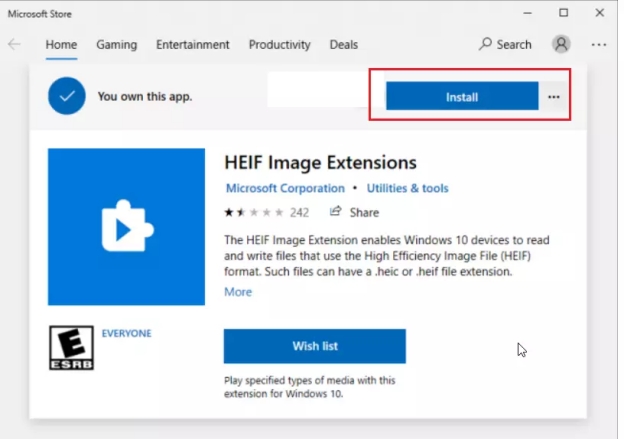
Windows doesn't natively support HEIC files out of the box on older versions, but Windows 10 and Windows 11 both handle HEIC smoothly once the HEIF Image Extension is installed (it's free from the Microsoft Store and takes about 30 seconds to set up).

Here’s how to do it step by step:

  • Open the Photos app on your Windows computer and locate the HEIC photo (or photos) you want to convert.

  • Select the image. If you want to combine multiple HEIC files into one PDF, hold down the Ctrl key and click each additional photo.

  • Once selected, click the three-dot menu (...) in the top-right corner and choose Print.

  • In the Print window, change the Printer dropdown to Microsoft Print to PDF.

    print heic to pdf windows photos app
  • Adjust the layout if needed, you can choose “Fit picture to frame” or select multiple images per page for a cleaner look.

  • Click Print, choose where to save the file, give it a name, and click Save.

Your HEIC files will now be saved as a PDF that opens on any device. This method is completely free, requires no internet connection, and preserves good image quality.

Part 5. How to Convert HEIC to PDF on iPhone

Since HEIC is the default photo format on iPhone, it’s very convenient to convert HEIC to PDF directly on your device. You don’t need any extra apps for basic conversions. Here are two easy built-in methods that work great for single photos or multiple images.

Method 1: Use the Built-in "Print" Trick in Photos App

This quick trick is perfect when you need to turn one or a few HEIC photos into a PDF fast.

  • Open the Photos app and select the HEIC image (or tap Select to choose multiple photos).

  • Tap the Share button at the bottom-left.

  • Scroll down and tap Print.

  • In the Print preview screen, use a two-finger pinch-out gesture on the image to expand it into a full-page preview.

  • Tap the Share button again (top-right) and choose Save PDF to Files (or Save to Files).

  • Pick a folder in the Files app and tap Save.

The result is a clean PDF file stored right on your iPhone that you can share via email, Messages, or AirDrop.

Method 2: Change Multiple HEIC to PDF in Files App

If you have several photos and want to combine HEIC to PDF into one document, this method gives you more control.

  • Open the Photos app, select all the HEIC images you want to convert, then tap Share > Save to Files. Save them into a new folder in the Files app.

  • Open the Files app and go to the folder you just created.

  • Tap the three-dot menu (...) in the top-right, then choose Select.

  • Select all the HEIC files, tap the three-dot menu again, and choose Create PDF.

  • The iPhone will automatically combine the selected HEIC photos into one PDF file.

  • Rename the file if needed and save it.

Both methods are free, work offline, and let you merge HEIC to PDF directly on your iPhone. They’re especially useful when you need to quickly prepare photos for submission, printing, or sharing with non-Apple users.

⚡ Part 6. Advanced Tip: Convert HEIC to PDF without Losing Quality

The methods we’ve covered so far do a great job of turning your photos into PDFs. However, sometimes the final images can look a bit soft or lose detail after conversion, especially if you plan to print them or view them on large screens.

If you want sharper, clearer results, try enhancing your photos before you convert HEIC to PDF. One excellent tool for this is 4DDiG AI Photo Enhancer. It uses AI to upscale images, reduce noise, restore details, and bring out natural clarity, even pushing quality up to 4K or higher. It works directly with HEIC files and can also improve photos you’ve already extracted from PDFs.

FREE DOWNLOAD

Secure Download

FREE DOWNLOAD

Secure Download

Here’s a simple way to use it:

  • Download and open 4DDiG AI Photo Enhancer on your computer. Click “AI Enhancer” and select “Photo Enhancer”.

    select 4ddig ai photo enhancer
  • Then add your HEIC photos or other images from PDF.

    add heic or pdf images to enhance
  • Choose an AI model (General for most photos, Face for portraits, or Denoise for blurry shots) and pick your desired resolution (such as 2x or 4x).

    select ai model and adjust resolution
  • Click “Enhance” and preview the improved image. Save the enhanced version, then use any of the earlier methods to convert HEIC to PDF.

    preview and save enhanced heic or pdf images

This extra step helps you create high-quality PDFs that look professional and crisp, without any noticeable loss in detail.

People Also Ask about Converting HEIC Files to PDF

Q1: What is the easiest way to convert HEIC files?

The easiest way is using the built-in Print trick on your iPhone or the Preview app on Mac. For quick browser-based results, free online HEIC to PDF converters like Smallpdf or iLovePDF work well with just a few clicks—no installation needed.

Q2: Why are my Photos suddenly HEIC instead of JPG?

Starting with iOS 11, Apple switched to HEIC as the default format because it creates smaller files while keeping excellent quality. You can change this setting in your iPhone’s Camera app if you prefer JPG, but HEIC is more efficient for storage.

Q3: How to change HEIC images to PDF on Android phone?

Android doesn’t support HEIC natively, so first convert the files using an online HEIC to PDF converter on your browser, or install a free app like Image Converter. Once converted, the PDF will open easily on any Android device.

Q4: Can Adobe convert HEIC to PDF?

Yes, Adobe Acrobat Online has a dedicated HEIC to PDF converter. It offers reliable results, though you may need to sign in for full features. It’s a good option when you want the trusted quality of Adobe’s PDF tools.

Conclusion

Converting HEIC to PDF is one of the simplest ways to make your iPhone photos truly universal. Whether you prefer quick online tools, built-in methods on Mac, Windows, or iPhone, or want to enhance quality first with 4DDiG AI Photo Enhancer, you now have everything you need to create clean, shareable PDFs that anyone can open, print, or archive.

Next time you need to turn HEIC to PDF, just pick the method that fits your situation. Your photos will look great and work everywhere—without the usual compatibility headaches.

FREE DOWNLOAD

Secure Download

FREE DOWNLOAD

Secure Download

William Bollson (senior editor)

William Bollson, the editor-in-chief of 4DDiG, devotes to providing the best solutions for Windows and Mac related issues, including data recovery, repair, error fixes.

(Click to rate this post)

You rated 4.5 ( participated)