CopyTrans HEIC for Windows: How to View, Convert HEIC to JPG & Install Safely

5 mins read

Updated on 2026-03-30 22:41:22 to Photo Tips

Are you struggling to open iPhone photos on your PC? You are not alone. Apple’s HEIC format delivers high-quality images at nearly half the file size of JPG but Windows doesn’t always support it natively. That’s where CopyTrans HEIC for Windows comes in.

This lightweight plugin seamlessly enables HEIC support in Windows Explorer and Photo Viewer no complicated software required. This article explores everything about CopyTrans HEIC for Windows, including how to download and install it safely

copytrans heic for windows

Part 1. What Is CopyTrans HEIC for Windows

CopyTrans HEIC is a free Windows plugin that integrates directly into the operating system to enable native HEIC file support. It was released in 2017 when Apple introduced the High Efficiency Image Format with iOS 11. The tool addresses Windows’ inability to recognize HEIC files.

The plugin allows Windows to display HEIC images in Windows Photo Viewer and the Photos app without requiring additional software. Using the same integration technology employed by Nikon and Canon for RAW formats, CopyTrans HEIC operates seamlessly in the background. It effectively acts as an HEIC viewer for Windows by extending the capabilities of the classic Windows Photo Viewer.

copytrans heic for windows

Key Features of CopyTrans HEIC for Windows

The plugin offers several core functionalities:

  • Thumbnail display: Shows HEIC previews directly in Windows Explorer
  • One-click conversion: Converts HEIC to JPEG via right-click while preserving EXIF data (date, location, camera settings)
  • Batch processing: Converts up to 100 images simultaneously
  • Microsoft Office compatibility: Allows insertion of HEIC images into Word, PowerPoint, Outlook, and Excel
  • Third-party viewer support: Works with tools like FastStone and IrfanView
  • Metadata preservation: Keeps all EXIF data intact during conversion
  • Offline functionality: Photos never leave your computer, ensuring full privacy

Best For Who?

This tool is ideal for Windows users who frequently transfer photos from iPhones and prefer a simple, built-in viewing experience. It is especially useful for users on older systems like Windows 7 (64-bit), where HEIC support is limited.

Part 2. How to Download CopyTrans HEIC for Windows 11/10/8/7 (Step-by-Step)

Downloading CopyTrans HEIC for Windows requires accessing the official source to avoid potentially harmful third-party sites. The authentic copytrans heic download is available exclusively at www.copytrans.net/copytransheic/ . Many unofficial websites distribute modified versions that may contain unwanted software.

System Requirements:

  • The CopyTrans HEIC for Windows plugin supports Windows 7, 8, 10, and 11.
  • The installer file size measures approximately 7.5 to 8 MB, making it a quick download even on slower connections.

Installation Process:

Follow these steps to install the CopyTrans HEIC for Windows plugin safely:

  • Navigate to the official “CopyTrans HEIC page” and scroll to the Download button.

    download copytrans heic for windows
  • Click the button and wait for CopyTransHEICforWindows.exe to finish downloading

  • Run the downloaded file and grant administrative privileges when prompted

  • Click “Next” in the setup wizard.

  • Read the License Agreement and choose "I accept the agreement."

  • Click “Next” and then Install.

    install copytrans heic for home use

The entire installation completes in under two minutes. Once finished, the copytrans heic converter integrates directly into Windows Explorer and Photo Viewer. No separate application icon appears since the tool functions as a background plugin. Double-clicking any HEIC file opens it immediately in the default photo viewer.

Part 3. How to Use CopyTrans HEIC for Windows

Once installed, using CopyTrans HEIC for Windows is incredibly intuitive. The plugin works silently in the background, requiring no configuration or manual launching.

Windows Explorer gains immediate HEIC file recognition capabilities, displaying thumbnails alongside standard image formats.

1. How to View HEIC Files on Windows with CopyTrans

The copytrans HEIC plugin enables Windows Photo Viewer and the Photos application to display HEIC images natively. Users can preview and browse HEIC files directly through Windows Explorer without running additional software. The process mirrors viewing standard JPG or PNG files.

  • Open any folder containing .heic files.

  • You will notice that the generic icons have been replaced by actual image thumbnails.

  • Double-click an image, and it will open automatically in Windows Photo Viewer.

    open heic images with windows photo viewer

Thumbnails appear automatically in folder views, matching the display behavior of JPEG files.

2. How to Convert HEIC to JPG with CopyTrans HEIC

The copytrans heic converter preserves date taken, geolocation, and other EXIF metadata during conversion. All processing happens locally on the PC without uploading files elsewhere.

Steps to convert HEIC to JPG:

  • Locate the HEIC file in your folder.

  • Right-click on the file (or a batch of up to 15 files).

  • Choose “Convert to JPEG with CopyTrans” from the right-click menu.

    convert heic to jpg with copytrans heic for windows
  • A JPEG copy will appear in the same folder instantly.

The tool converts up to 100 images simultaneously using this method.

Part 4. Is CopyTrans HEIC for Windows Free?

Yes, CopyTrans HEIC for Windows is completely free for personal use.

There are no hidden fees or subscriptions. You can view HEIC images, convert them to JPG, and even use them in Microsoft Office apps without paying anything.

However, there is one limitation: you can convert up to 100 images at a time. This only affects batch conversions, while viewing remains unlimited.

For businesses, CopyTrans offers a paid license with a 2-year commercial plan for use across multiple devices.

In short, personal users get full functionality without restrictions or additional costs.

Part 5. Is CopyTrans HEIC for Windows Safe?

Yes, CopyTrans HEIC for Windows is safe and legitimate software.

Antivirus scans confirm it is free from malware, and it has a strong reputation with no known privacy issues. The tool works entirely offline, meaning your photos remain on your device and are never uploaded.

To stay safe, always download it from the official website: www.copytrans.net. Avoid third-party sources, as they may contain harmful files.

Occasionally, antivirus programs may show warnings, but these are typically false positives. The software also preserves EXIF data (such as date and location), and Windows permission prompts during installation are standard security procedures.

Part 6. CopyTrans HEIC for Windows Review: Pros & Cons

Evaluating CopyTrans HEIC requires considering both features and real user experiences. While it has received high ratings (over 3,700 votes), real-world feedback presents a more balanced view.

  • Pros
  • Cons
    • Straightforward interface
    • Free for personal use
    • Batch converts up to 100 images
    • Preserves EXIF metadata
    • Microsoft Office compatible
    • One-click operation
    • Occupies minimal storage space
    • Windows-only, no Mac version
    • Fewer features than competitors
    • Cannot customise image quality
    • Doesn't support Windows XP/2000
    • Converts only to JPG format
    • Doesn't support Canon HEIC files
    • Commercial use requires a paid license

Reddit User Experiences for CopyTrans HEIC

  • User opinions on Reddit are mixed.

  • One user praised the CopyTrans HEIC converter for smooth photo transfers but raised concerns about security permissions.

  • Another user was disappointed, stating the software has become “more complicated and limited” than earlier versions.

  • A third user described their experience as “absolutely brutal,” mentioning timeouts and an outdated interface, and recommended alternatives like iMazing.

    copytrans heic for windows review 1

Trustpilot Feedback to CopyTrans HEIC

  • Users frequently highlight fast and helpful customer support.

  • Many report quick solutions to activation issues and antivirus warnings.

  • Some users even describe it as a reliable alternative to iTunes, especially for managing older Apple devices.

    copytrans heic for windows review 2

⚡ Part 7. Best CopyTrans HEIC for Windows Alternatives

Several copytrans alternative tools handle HEIC files on Windows, each addressing specific user requirements that the copytrans HEIC plugin does not.

1. 4DDiG Photo Repair's Image Format Converter (Best for Batch Conversion)

If you have thousands of photos or need to fix corrupted HEIC files, 4DDiG Photo Repair is the superior choice. Its built-in Image Format Converter allows you to batch-convert HEIC, PNG, BMP, and CR2 images to JPG quickly. It maintains high image quality and processes everything locally, so your files stay safe and private.

  • Best for: Professional photographers managing thousands of iPhone images.
  • When to use: Converting entire photo libraries or fixing damaged HEIC files during conversion.
  • Pros
  • Cons
    • Fast, bulk conversion
    • 100% offline and secure
    • Batch conver many HEIC images to JPG at once in seconds
    • Also convert BMP, CR2, and PNG to JPG
    • AI photo repair and enhancement
    • No quality loss during conversion
    • Supports multiple formats
    • Premium features require payment

Steps to Batch Convert HEIC to JPG with 4DDiG:

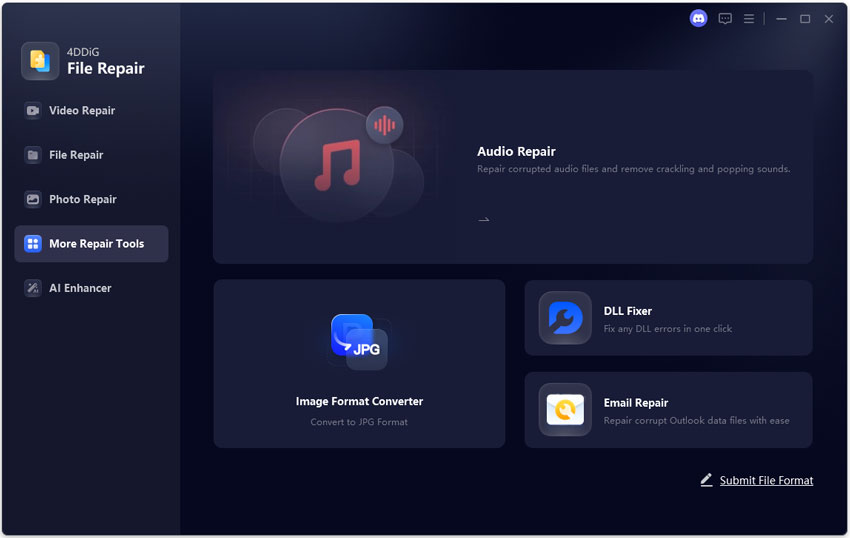
  • Install and open 4DDiG File Repair. Then click “More Repair Tools” > “Image Format Converter.”

    FREE DOWNLOAD

    Secure Download

    FREE DOWNLOAD

    Secure Download

    select image format converter
  • Click “Add Files” or drag your HEIC images into the tool.

    add multiple heic images to convert
  • Click “Convert” to start batch conversion to JPG (no quality loss).

    start batch heic to jpg conversion
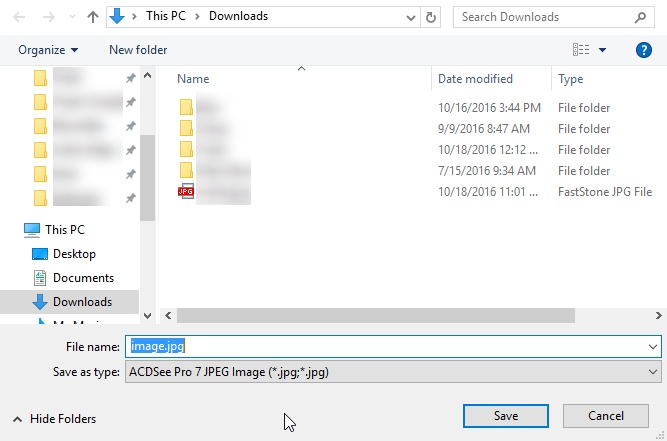
  • Preview the converted JPG images after processing. Click “Save” to download all JPG files to your computer.

    preview and save converted jpg images

2. IrfanView (Best Lightweight Viewer + Converter)

IrfanView stands as a veteran image viewer supporting numerous formats including HEIC, after installing a plugin pack. This freeware application consumes minimal system resources while offering batch conversion capabilities. The interface follows traditional desktop software design principles with straightforward menus and toolbars. Users seeking a multipurpose image viewer rather than a dedicated HEIC solution find this option compelling.

irfanview
  • Best for: Users who need a comprehensive image viewer handling multiple formats beyond HEIC.
  • When to use: When managing diverse image collections or requiring advanced viewing features like zoom and rotation.
  • Pros
  • Cons
    • Extremely lightweight and fast
    • Supports many image formats
    • Batch conversion available
    • Free for personal use
    • Requires HEIC plugin installation
    • Interface feels outdated
    • Slight learning curve for beginners

3. Microsoft HEIC Extension (Best Built-in Solution)

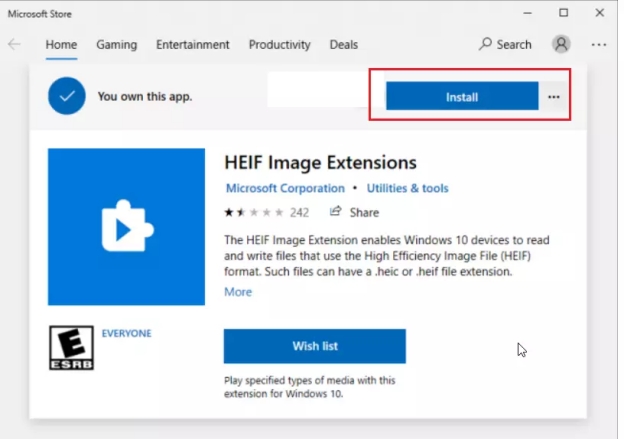
The Microsoft HEIC (HEIF Image Extension) is the official solution from Microsoft that enables native HEIC support in Windows. Once installed, Windows can display thumbnails and open HEIC files in Photos and other apps without third-party software. However, it mainly focuses on viewing rather than converting images.

heif image extensions for windows
  • Best for: Users prioritizing official Microsoft solutions over third-party plugins.
  • When to use: When viewing HEIC files is sufficient without conversion needs.
  • Pros
  • Cons
    • Native Windows integration
    • Safe and reliable (official tool)
    • Easy installation
    • Limited or no conversion features
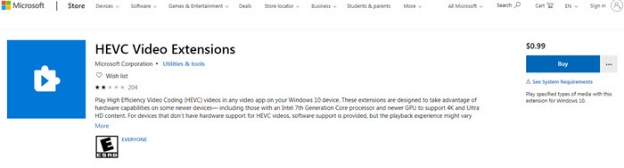
    • May require HEVC extension
    • Can be buggy on older systems.

Conclusion

CopyTrans HEIC for Windows is an effective solution for opening and converting HEIC files on a PC. It’s lightweight, free, and integrates seamlessly into the Windows environment making it ideal for beginners and everyday users. However, if you need more advanced features like bulk processing or image repair, tools like 4DDiG Photo Repair provide a more powerful solution. Ultimately, the right choice depends on your needs but for quick, hassle-free HEIC support, CopyTrans HEIC remains one of the best options available.

FREE DOWNLOAD

Secure Download

FREE DOWNLOAD

Secure Download

William Bollson (senior editor)

William Bollson, the editor-in-chief of 4DDiG, devotes to providing the best solutions for Windows and Mac related issues, including data recovery, repair, error fixes.

(Click to rate this post)

You rated 4.5 ( participated)