How to Make PDF Smaller | Reduce PDF File Size Effectively

5 mins read

Updated on 2025-11-26 17:57:52 to File Tips

Large PDF files can slow you down, whether you’re sharing documents, uploading forms, or saving space on your device. In 2025, knowing how to make PDF smaller is essential for faster workflows and smoother communication. Big PDFs often come from high-resolution images, or embedded fonts, all of which add unnecessary weight.

The good news? You don’t need advanced skills to compress a PDF without losing quality. With the right tools, you can compress files in just a few clicks. This article explores effective ways, both free and paid, to make your PDFs lighter and easier to handle.

how to make pdf smaller

Part 1. Why Is My PDF File So Large & Benefits of Compressing It

PDFs often become oversized due to a few key factors. Embedded or subset fonts can significantly increase file size, especially when multiple fonts are included. High-resolution images, color photos, and uncompressed graphics also contribute heavily. Scanned PDFs store each page as a full image, making them even larger. These issues often result in a PDF file too big to email or upload.

Why Is My PDF File So Large? (Common Reasons)

PDFs often become oversized because of several hidden factors inside the file. Some of the most common causes include:

  • High-resolution images embedded inside the PDF
  • Unoptimized graphics or scanned pages saved at large file sizes
  • Fonts not compressed or too many custom font types
  • Embedded media such as videos, audio, or interactive elements
  • No compression applied during PDF export or scanning
  • Large page dimensions or long documents with many elements
  • PDF created from scans using high DPI, resulting in oversized pages
  • Repeated edits saved using "Save" instead of "Save As"

These issues often lead to the frustrating situation where your PDF file is too big to email, upload, or share online.

Main Benefits of Compressing a PDF

Compressing a PDF comes with several immediate advantages:

  • Easier emailing & sharing, fixes the "PDF file too big to email" issue
  • Faster uploads to websites, apps, and cloud services
  • Saves storage space on devices and servers
  • Speeds up loading times for recipients
  • Improves workflow efficiency for businesses and teams
  • Better compatibility with platforms that limit file sizes

Even better, PDF compression typically reduces file size without noticeably affecting quality, unless the original images were extremely large.

Part 2. How to Make a PDF Smaller File Size Quickly

When your PDF is too large to upload or share, use any of the quick methods below to reduce its size. These options work on Windows, Mac, iPhone, and even online, so you can pick the one that fits your device.

Way 1: Use Adobe Acrobat's PDF Optimizer

Adobe Acrobat’s PDF Optimizer is one of the most powerful tools for reducing the size of large PDF files without compromising quality. It lets you reduce image sizes, remove unused objects, optimize fonts, and clean hidden data that makes PDFs unnecessarily heavy. The tool also includes a space analysis feature that shows which elements take up the most storage. This makes it ideal for people who want full control over how their PDF is compressed.

☞ Best For: Professionals or users who need high-quality, customizable compression.

Steps:

  • Open your PDF in Adobe Acrobat Pro.

  • Go to "File", then select "Save as Other" and choose "Optimized PDF".

    select optimized pdf feature in acrobat
  • Select what you want to reduce: images, fonts, transparency, objects, etc.

  • In the opened dialog box, choose "Audit Space Usage" to check which elements are the largest.

    acrobat audit space usage option
  • Click "OK" to generate a smaller file.

Way 2: Use Online Free Compressors – Reduce PDF Size Online Free

Online PDF compressors are the easiest way to reduce file size without installing software. They work on Windows, Mac, Linux, Android, and iPhone, making them ideal for quick, free PDF compression. These tools shrink your file by reducing image size, removing extra data, and optimizing the PDF format. Whether you need a PDF under 5MB for email or a lighter version for uploading, these online tools offer fast results in just a few clicks.

☞ Best For: Users who want a free, fast, and no-installation method to shrink PDF files.

♦️ 1. Adobe Compress PDFs Online Tool

Adobe Compress PDFs Online is a fast, secure tool that reduces large PDF files in seconds. It allows you to choose a compression level. It supports files up to 2GB and delivers high-quality results without requiring any software installation.

compress pdf size in adobe acrobat

Steps:

  • Open Adobe’s online compressor page.

  • Click Select a file or drag your PDF into the upload box.

  • Choose your compression level: High, Medium, or Low.

  • Wait while Acrobat automatically reduces the file size.

  • Download your compressed PDF or sign in to share it.

♦️ 2. SmallPDF Compressor

The SmallPDF Compressor lets you shrink PDF files quickly and securely online. It reduces file size by up to 99% while preserving quality. It is fully browser-based, fast, and GDPR-compliant, perfect for easy sharing, uploading, and storage optimization.

smallpdf pdf compressor

Steps:

  • Open the SmallPDF Compressor tool.

  • Drag and drop your PDF file.

  • Select "Basic" or "Strong" compression.

  • Click "Compress" to shrink the file.

  • Download or share your optimized PDF

♦️ 3. iLovePDF PDF Compressor

The iLovePDF PDF Compressor makes it easy to reduce PDF file size while keeping high quality. This tool is perfect for emails, websites, and bulk processing whether you need to make PDF smaller free or make PDF smaller than 5MB.

make pdf smaller with ilovepdf pdf compressor

Steps:

  • Open the iLovePDF PDF Compressor tool.

  • Upload or drag and drop your PDF files.

  • Select "Extreme", "Recommended", or "Less" compression.

  • Click "Compress PDF".

  • Download the file or save it online.

Way 3: Make PDF Smaller on Mac Using the Preview App

Mac users can reduce PDF size on Mac quickly using the built-in Preview app. It includes a Quartz Filter that automatically compresses images and removes extra data, creating a smaller version of your PDF without needing extra software. iPhone users can also compress PDFs through the Files or Mail app, which offers automatic size reduction when sharing. These tools make it easy to shrink PDFs on Apple devices in just a few taps.

☞ Best For: Apple users who want a free, built-in method to shrink PDFs without using online tools or installing third-party apps.

Mac Steps:

  • Open the PDF in Preview.

  • Go to "File", then choose "Export".

  • In the "Quartz Filter" menu, choose "Reduce File Size".

    reduce pdf file size in preview app
  • Click "Save" to create the smaller PDF.

Way 4: Use Windows "Print to PDF" to Shrink PDF File Size

Windows includes a built-in "Print to PDF" feature that quickly creates a lighter version of your document. This method removes extra metadata, lowers image resolution, and simplifies elements in the file. While some image quality may drop, it significantly reduces file size without requiring additional software. It’s a fast, reliable option when you need a smaller PDF for emailing, uploading forms, or saving storage space.

☞ Best For: Windows users who want a simple, built-in way to reduce PDF size instantly.

Steps:

  • Open the PDF in your browser or viewer (Chrome, Edge, Adobe Reader).

  • Press Ctrl + P to open the print window.

  • Select "Microsoft Print to PDF" as the printer.

    use windows print to pdf to shrink pdf file size
  • Click "Print".

  • Save the new, smaller PDF.

Part 3. Advanced Ways to Make a PDF Smaller

Sometimes basic compression tools are not enough, especially when your file contains scanned pages or lots of images. In such cases, advanced methods can help you further reduce file size. These techniques are ideal when your PDF is too large to email or needs to be optimized for sharing.

Way 5: Convert Scanned PDFs to OCR (Optical Character Recognition)

If your PDF file is too large to email, it may be because it contains scanned images. Converting a scanned PDF to OCR turns the images into searchable text. This instantly reduces file size and makes the document easier to edit or compress further. Many tools like Adobe Acrobat, Smallpdf, and OCR.Space lets you run OCR in one click. This method is perfect when you need to zip a PDF file for email without losing quality.

☞ Best for: Scanned PDFs that are extremely large due to high-resolution images.

Steps to Make PDF Smaller Using OCR:

  • Open Adobe Acrobat Pro.

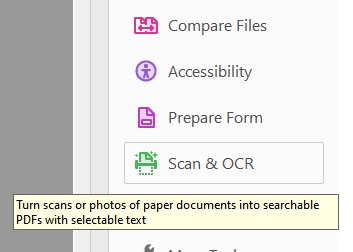
  • Go to "Tools", then open "Scan & OCR".

    select scan and ocr feature
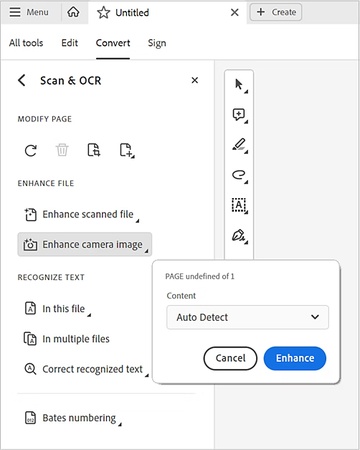
  • Select "Recognize Text", then choose "In This File".

    choose recognize text to proceed
  • Choose your preferred "language" and "Output".

    customize ocr settings
  • Click "Recognize Text" to start the conversion.

  • Save the new OCR-enabled PDF.

Way 6: Compress PDF in Google Drive to Make PDF Smaller to Email

Google Drive provides an easy way to reduce the size of a PDF when the file is too large to email. You simply upload the file, open it in Google Docs, and export it again as a PDF. Google automatically processes and compresses the content, reducing images and formatting to a smaller size. It works well for text-heavy documents and quick sharing needs. This is a simple, free method if you need to zip a PDF file for email.

☞ Best for: Users who store documents in Google Drive and want to shrink PDFs when attaching to Gmail.

Steps to Make PDF Smaller Using Google Drive:

  • Upload your PDF to Google Drive by clicking "+New" > "File upload".

  • Right-click the PDF file and choose "Open with Google Docs".

  • Google Docs will automatically run OCR and convert the PDF into a lighter version.

  • Go to "File", then select "Download", and choose "PDF Document (.pdf)".

    export file to compressed pdf
  • The downloaded file is much smaller and ready to email.

Bonus: Enhance PDF Image Quality – Best PDF Image Enhancer

Sometimes, even after enhancing your images, the moment you insert them into a PDF, the quality drops again. This typically occurs because PDF editors or converters automatically compress images, which reduces their clarity, sharpness, and resolution. As a result, your PDF may look grainy, blurry, or pixelated, especially if it includes scanned documents, old photos, or low-quality graphics.

The easiest way to fix this is to enhance the images before adding them to your PDF, using a powerful PDF quality enhancer. This is where 4DDiG AI Photo Enhancer becomes extremely helpful. 4DDiG AI Photo Enhancer uses cutting-edge AI to upscale and repair images before they go into your PDF. This ensures they stay clear and sharp even after conversion or compression.

Key features:

  • Upscale images to 1080p or 4K, ensuring they remain high quality inside PDFs
  • Extend the image background with AI in all directions to make the image larger
  • Sharpen blurry text or scanned pages, making letters and graphics clearer
  • Reduce noise in low-light and scanned document images
  • Restore colors so your PDF looks vibrant and professional
  • Fix faces and remove blemishes, especially in ID documents, forms, or old photos
  • Colorize black-and-white photos in your documents if needed
  • Batch enhance multiple images used in a PDF project
  • Also can fix gibberish text in PDF
  • Supports all major image formats

How to Increase Image Quality in PDF Using 4DDiG AI Photo Enhancer

Before enhancing, please take the images out of your PDF. You can do this using a PDF editor or an online PDF-to-image tool. Save the images as JPG or PNG.

  • Open the 4DDiG File Repair software. Go to "AI Enhancer" and then select "Photo Enhancer".

    FREE DOWNLOAD

    Secure Download

    FREE DOWNLOAD

    Secure Download

    select photo enhancer
    Tips:

    If you want to expand your images to enlarge it with more AI-generated infromative content, select "AI Expand Image" to proceed. Likewise, to restore old photos with vivid hues, please select "Photo Colorizer".

  • Click "Add Photos" and choose the images you want to improve.

    add photos downloaded from pdf to enhance
  • Select the best model for your image, such as the General Model, Denoise Model, or Face Model. You can also increase the resolution to make the images look sharper.

    • General Model: Best for normal photos; overall clarity and quality improvement.

    • Denoise Model: Best for low-light or grainy photos; removes noise.

    • Face Model: Best for portraits/selfies; enhances facial details.

    select ai model to enhance pdf images
  • Click "Enhance". The software will automatically fix blur, remove noise, and improve colors. Wait for the process to finish.

    enhancing pdf images
  • When the enhancement is done, preview the results and click "Save". Now replace the old images in your PDF with the improved ones. Your PDF will now look brighter, sharper, and more professional.

    preview and save enhanced pdf images

People Also Ask About Making PDF File Size Smaller

Q1: How to make a Canva PDF smaller?

Download the PDF, upload it to SmallPDF or the Adobe Online Compressor, and then export the reduced-size version. You can also choose Canva’s "PDF Standard" option to automatically create a smaller file.

Q2: Can I compress a PDF to 100KB for free?

Yes, many free tools like Smallpdf, iLovePDF, and Adobe Acrobat Online allow compression to around 100KB. Results may vary depending on images and design complexity.

Q3: What’s the best free PDF compressor in 2025?

Top free PDF compressors in 2025 include Smallpdf, iLovePDF, Adobe Online, and PDF24. They offer fast compression with minimal quality loss.

Q4: Is ZIP better than PDF compression?

ZIP compression is helpful for email sending, but PDF compression is more effective for reducing embedded images and objects. Use both when necessary.

Conclusion

Compressing documents doesn’t have to be complicated. With these six quick methods, anyone can learn how to make PDF smaller in just a few clicks, whether using online tools, built-in features on Mac or Windows, or advanced options like OCR. Reducing file size helps you share files faster, save storage space, and improve workflow efficiency. And if your PDF includes blurry images, enhance them first for the best results. Try 4DDiG AI Photo Enhancer to instantly improve your photo quality.

William Bollson (senior editor)

William Bollson, the editor-in-chief of 4DDiG, devotes to providing the best solutions for Windows and Mac related issues, including data recovery, repair, error fixes.

(Click to rate this post)

You rated 4.5 ( participated)