How to Fix Quickbooks Missing PDF Component on Windows 11/10 [4 Solutions]

5 mins read

Updated on 2026-10-28 11:21:52 to File Tips

Can't save invoices, print reports, or email forms as PDFs in QuickBooks Desktop and receive an error message like "QuickBooks detected that a component required to create PDF files is missing"? The QuickBooks missing PDF component error can interrupt your daily accounting tasks.

Fortunately, you can often resolve it by repairing QuickBooks' PDF tools or enabling a required Windows feature. In this guide, we'll explain why the error occurs and walk you through four practical solutions that work for QuickBooks Desktop on Windows 11 and Windows 10.

quickbooks missing pdf component fix

Part 1. Why Is the PDF Component Missing in QuickBooks? What It Means?

What Does "QuickBooks Missing PDF Component" Error Mean?

When QuickBooks cannot find the tools it needs to create PDF files, it displays a clear warning. The most common message reads: "QuickBooks detected that a component required to create PDF files is missing. This may cause issues with printing transactions, emailing forms, or saving anything as a PDF file inside of QuickBooks Desktop."

quickbooks missing pdf component error message

You might also see related notices such as "Component required for PDF print from QuickBooks is missing", "QuickBooks cannot save to PDF", or "QuickBooks PDF not working". In short, the software cannot finish the PDF process until the missing piece is restored.

Common Reasons Why QuickBooks PDF Component Missing

Several issues can trigger the QuickBooks missing PDF component error:

  • Microsoft XPS Document Writer is disabled. QuickBooks relies on Windows XPS functionality for certain PDF-related tasks. If the component is turned off, PDF creation may fail.
  • QuickBooks Desktop is outdated. An older release may contain bugs or compatibility issues that affect PDF conversion.
  • PDF and printing components are damaged. Problems with QuickBooks' PDF converter or printing configuration can prevent documents from being generated.
  • Temporary folder permissions are incorrect. QuickBooks may not have sufficient access to create temporary files during PDF conversion.

These issues often appear after a Windows update or a fresh QuickBooks install. Understanding the cause helps you choose the right fix faster.

Part 2. How to Fix QuickBooks Missing PDF Component (100% Working)

If QuickBooks won't save as PDF or displays a missing component message, try the following solutions in order. Start with the automated repair tool before changing Windows settings. If you're using Windows 11, pay particular attention to Microsoft XPS Document Writer, as it may need to be enabled manually.

Fix 1. Easiest & Fastest: Run the Official QuickBooks Print and PDF Repair Tool

The QuickBooks Print & PDF Repair Tool, a dedicated utility contained in QuickBooks Tool Hub, is a good first step because it automatically troubleshoots common printing and PDF components and related problems. Most users solve the issue in under two minutes with this tool.

  • Close QuickBooks completely.

  • Download the latest QuickBooks Tool Hub from the official Intuit website and install it.

  • Open the Tool Hub (QuickBooksToolHub.exe) and select Program Problems on the left.

  • Click QuickBooks Print & PDF Repair Tool and wait about one minute for it to finish.

    run quickbooks print pdf repair tool to fix missing components
  • Restart QuickBooks and try saving or emailing a form as PDF.

Fix 2. Most Effective: Enable Microsoft XPS Document Writer

QuickBooks relies on the Microsoft XPS Document Writer to create PDF files. If this Windows feature is disabled, the QuickBooks desktop missing PDF component error appears on Windows 11 or 10.

  • Press Windows + R, type optionalfeatures, and press Enter.

  • In the Windows Features window, scroll to Microsoft XPS Document Writer.

    enable microsoft xps document writer to fix quickbooks missing pdf component
  • Check the box next to it and click OK to wait for Windows to apply the changes.

  • Restart QuickBooks Desktop and try creating a PDF again.

book icon Note

If the box is already checked, uncheck it, click OK, then re-check it and restart. Or, you can test whether XPS printing works outside QuickBooks. Open Notepad, type a short line of text, select File > Print, and choose Microsoft XPS Document Writer. If this test also fails, the problem may involve Windows printing components rather than QuickBooks alone.

Fix 3. Update QuickBooks Desktop to the Latest Release

An older version of QuickBooks can lose compatibility with current Windows components and prevent PDF-related features from working correctly. Keeping the software current is a straightforward QuickBooks error troubleshooting step to restore PDF features automatically.

  • Open QuickBooks Desktop.

  • Go to Help > Update QuickBooks Desktop.

  • Select the Update Now tab, check Reset Update, and click Get Updates.

    update quickbooks desktop to fix missing pdf component
  • Once the download finishes, close and reopen QuickBooks.

  • Try creating a PDF to confirm the fix.

If QuickBooks save as PDF is not working after the update, continue to the final solution.

Fix 4. Reset Temp Folder Permissions

QuickBooks uses temporary files during some PDF creation tasks. If your Windows account lacks the necessary permissions to access the temporary folder, PDF conversion may fail. Resetting these permissions can help resolve the issue.

  • Press Windows + R to open the Run dialog, then type %TEMP%, and press Enter.

  • In the temporary folder, right-click an empty area and choose Properties.

  • Open the Security tab.

  • Select your Windows user account and check its permissions, ensuring it has Full Control.

  • Click Edit if needed, grant Full Control, apply the changes, and click OK.

  • Restart QuickBooks and test the PDF feature.

    reset temp folder permissions to fix quickbooks missing pdf component

Part 3. What If the PDF Was Created in QuickBooks But Corrupted or Won't Open

Even after you resolve the QuickBooks missing PDF component error, you may still face another problem: the PDF file itself is corrupted or refuses to open. This can happen if the creation process was interrupted, the temporary files were damaged, or the file became incomplete during saving or emailing.

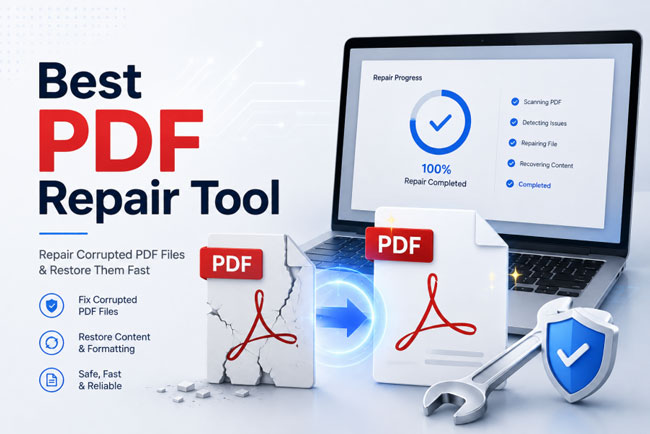
In these cases, a dedicated repair tool can help. 4DDiG File Repair is a reliable option that restores corrupted PDF files created in QuickBooks and handles a wide range of PDF errors. It supports damaged, blank, or unreadable documents and works quickly on Windows 10 and 11.

Key features that make it useful for QuickBooks users include:

  • Repair of corrupted or damaged PDF files without changing original content
  • Support for various PDF errors such as blank pages, unreadable text, failed opening, and more
  • One-click process that works on files generated from invoices, reports, and forms
  • Ability to preview the repaired file before saving
  • Batch repair multiple files in high success rate
FREE DOWNLOAD

Secure Download

FREE DOWNLOAD

Secure Download

Steps to fix corrupted PDF created by QuickBooks using 4DDiG File Repair

  • Launch the 4DDiG File Repair after installation. Then select the left File Repair module. Upload all damaged QuickBooks PDF files by tapping on Add Files (or drag and drop it).

    add corrupted quickbooks pdf files to 4ddig
  • Click Repair All and wait for the scan and repair process to finish.

    repair all corrupted quickbooks pdf files
  • Preview the fixed file and click Save All to store the repaired PDF in a safe location.

    preview and save repaired pdf files
Important Notes

If you don't want to install any software and only need to repair one or several PDF files, try this 4DDiG Online Free File Repair tool for instant process.

FAQs about QuickBooks Missing PDF Component

Q1: What does the "QuickBooks cannot complete the current action due to a missing component" error mean and how can I fix it?

This message appears when QuickBooks cannot find the required component to create or handle PDF files. It is closely related to the QuickBooks missing PDF component issue. To fix it, first run the QuickBooks Print and PDF Repair Tool from the Tool Hub. If that does not work, enable the Microsoft XPS Document Writer and update QuickBooks Desktop. These steps restore the missing pieces in most cases.

Q2: Does QuickBooks need Microsoft XPS Document Writer to create PDFs?

Yes. QuickBooks Desktop relies on the Microsoft XPS Document Writer to generate PDF files on Windows 10 and 11. When this feature is disabled or missing, you will often see the QuickBooks PDF component missing error. Enabling it through Windows Features usually solves the problem quickly.

Summary

The QuickBooks missing PDF component error on Windows 10 and 11 can interrupt daily tasks such as saving invoices or emailing forms, but it is straightforward to resolve. By running the official Print and PDF Repair Tool, enabling the Microsoft XPS Document Writer, updating QuickBooks, or resetting Temp folder permissions, most users regain full PDF functionality.

If a PDF file created in QuickBooks later becomes corrupted or will not open, 4DDiG File Repair offers a simple way to restore it. Follow the solutions in order, and you should be back to creating, saving, and sharing PDFs without further interruption.

FREE DOWNLOAD

Secure Download

FREE DOWNLOAD

Secure Download

William Bollson (senior editor)

William Bollson, the editor-in-chief of 4DDiG, devotes to providing the best solutions for Windows and Mac related issues, including data recovery, repair, error fixes.

(Click to rate this post)

You rated 4.5 ( participated)