How to Convert iPhone Photo to JPG on Different Device

5 mins read

Updated on 2026-09-24 20:26:23 to Photo Tips

Having trouble opening or sharing an iPhone photo on Windows, Android, or a website? Your image is likely saved as HEIC, Apple's space saving format. To convert iPhone photo to JPG, you can change your iPhone settings or use a converter on Windows, Mac, or online. This guide explains four easy methods, including how to convert photos in batches while keeping good image quality.

convert iphone photo to jpg

Why Are iPhone Photos Saved as HEIC Instead of JPG?

Apple introduced the HEIC format (High Efficiency Image Container) with iOS 11. It stores high-quality photos while using much less space than traditional JPG files. In simple terms, HEIC keeps more detail and color information in a smaller file size. That is why your iPhone camera defaults to this format.

The downside is compatibility. Older computers, some websites, and certain apps still struggle with HEIC files. You may not be able to open them, email them easily, or upload them without extra steps. That is exactly when knowing how to convert iPhone picture to JPG becomes useful.

Fortunately, turning those iPhone HEIC photos into the widely supported JPG format is straightforward. Below you will find four simple methods that work for most users. Each one is easy to follow, even if you are not tech-savvy.

Method 1. Change iPhone Camera Settings to Save Photos as JPG

If you prefer universal compatibility and want new photos saved directly as JPG (JPEG), switch the camera capture setting before taking more pictures. This only affects photos taken after the change while existing HEIC files stay as they are.

Steps to adjust your camera settings:

  • Fire up your iPhone's Settings app.

  • Scroll down and choose the "Camera" tab.

  • Then select "Formats" and click "Most Compatible" on the new screen.

    change iphone camera settings to take pictures in jpg
  • Take a test photo and check it in Photos or Files.

This way, New photos will save as JPG (and videos as H.264 instead of HEVC). The setting may use more storage because JPEG files are usually larger than HEIC files.

Note:

Changing iPhone camera settings makes your iPhone use the JPEG format for photos and H.264 for videos. Although these files take up slightly more space on your device, you can open them instantly on virtually any computer, website, or application without conversion tools. This is the best solution for users who prioritize compatibility over storage efficiency.

Method 2. Convert iPhone Photos to JPG on Windows

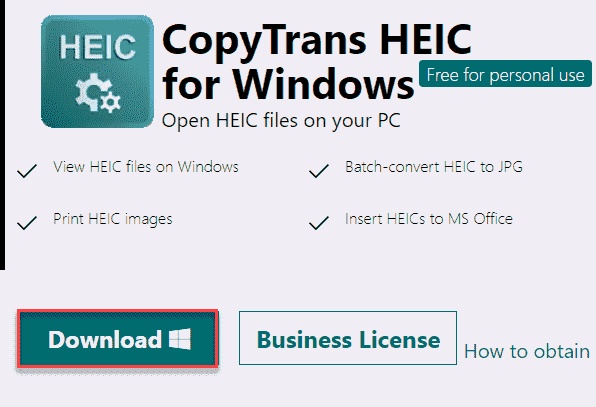
If you have transferred your iPhone photos to Windows and want to convert them to JPG for compatibility on PC, CopyTrans HEIC can be considered as the fastest way.

It is a free, lightweight Windows tool that adds native support for HEIC files in File Explorer (thumbnails, viewing) and lets you convert them to JPG with a simple right-click. It's offline, preserves EXIF data (date, location, etc.), and supports batch conversion.

Tip:

If you only want to open and view the transferred iPhone HEIC photos on Windows, you can try those top HEIC viewers for Windows 11, 10, and 7.

Steps to Convert iPhone Picture to JPG with CopyTrans

  • Download and install CopyTrans HEIC for Windows.

  • Open the folder containing your iPhone photos on File Explore.

  • Select one or more HEIC images, right click it, and choose "Convert to JPEG with CopyTrans".

    copytrans convert iphone heic photos to jpg
  • Find the new JPG copies beside the originals.

The original files remain available, so you can compare the results before deleting anything. The process runs on your PC, so you don't need to upload private photos to a website.

Tips:

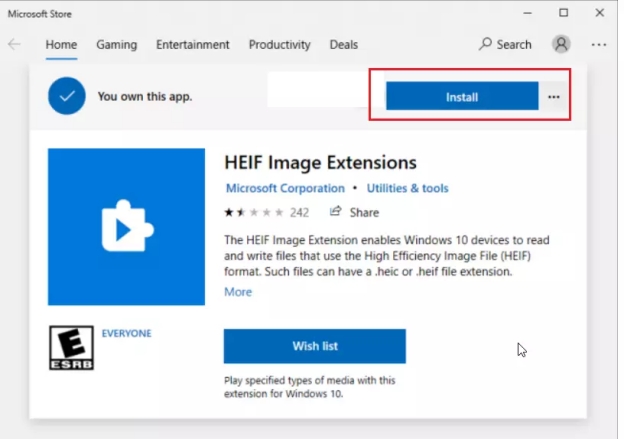
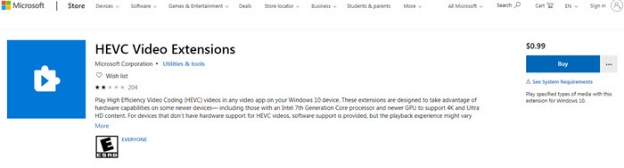
Alternative way for Windows: You can also install the HEIF Image Extension and the HEVC Video Extension from the Microsoft Store to add built-in HEIC support to Windows. After installation, open the photo in the Paint app, select File > Save as > JPEG picture, choose a folder, and save the converted JPG files.

install microsoft heif image extension

Method 3. Save iPhone Photo as JPEG on Mac with Preview

Macs handle HEIC files natively, but converting to JPG is still useful for sharing or compatibility with other software/devices. The built-in Preview app makes this quick and free with no extra software needed.

Steps to save your photos as JPG:

  • Transfer the HEIC photo to your Mac using Photos, AirDrop, iCloud Drive, or a cable.

  • Open the image in the Preview app. Then select "File," then choose "Export".

    mac preview export file option
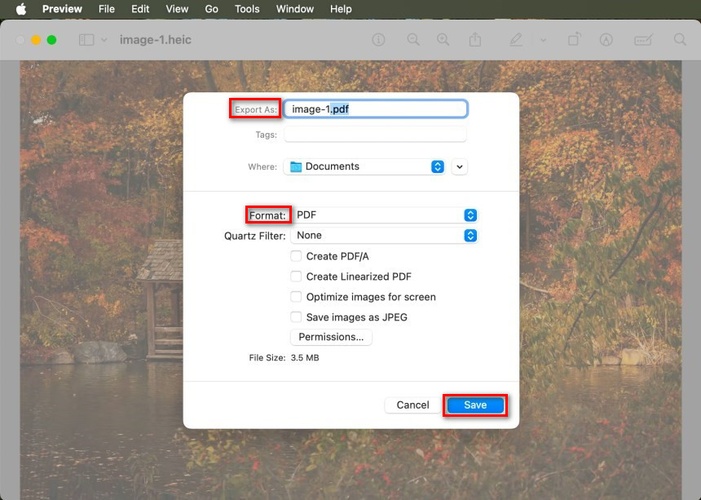
  • In the pop-up Export dialog, choose "JPEG" from the drop-down Format menu.

  • Select the quality level and click "Save".

    mac preview app convert iphone heic to jpg

Use a high-quality setting for printing. JPG uses lossy compression, so keep the original HEIC file and avoid exporting the same photo repeatedly.

Method 4. Convert iPhone Photo to JPG Online Free

An online iPhone photo converter is helpful on a Chromebook, Android phone, shared computer, or device without image software. It is also a practical way to convert Apple photos to JPG without a desktop converter. Avoid uploading confidential photos unless you understand a service's privacy and file-retention policies.

3 Recommended Online iPhone HEIC File to JPG Converters

  • iLoveIMG: This tool is incredibly fast and lets you convert multiple HEIC images to JPGs at once. You can upload files from Google Drive or Dropbox as well. Converts one or multiple HEIC images and can import files from connected cloud storage.
  • Zamzar: A highly trusted conversion site for individuals and businesses since 2006. It uses a simple three step workflow, but its page lists a 3 MB limit for the free web tool.
  • FreeConvert: This tool offers advanced settings that let you resize and compress your output images during conversion. It supports drag and drop, cloud sources, auto orientation, and metadata controls. Its page lists a 1 GB maximum file size.

Steps to Change iPhone Photos to JPG with iLoveIMG

  • Navigate to the iLoveIMG HEIC to JPG convert in your browser.

  • Click "Select images" to upload your images from your PC, Dropbox or Google Drive.

    iloveimg heic to jpg converter online free
  • Click the "Convert to JPG" button.

  • Once the conversion is complete, download the JPG files to your device.

Online tools are perfect for quick, one-off conversions, though they may have file size limits or require a stable internet connection.

⚡ How to Batch Convert Multiple iPhone Photos to JPG Without Losing Quality?

Online tools are convenient, but they often limit file size or the number of files you can process at once. For instance, some free versions limit uploads to just a few megabytes. If you have hundreds or thousands of photos, you should use a professional desktop tool like the built-in batch Image Format Converter in 4DDiG File Repair.

This tool lets you batch convert HEIC, PNG, CR2, and BMP files to JPG on your computer. Everything happens locally, so your photos stay private and never get uploaded to the cloud. It also avoids the compression that can sometimes reduce detail in other converters.

Key Features of 4DDiG's Image Format Converter:

  • Batch process many photos in one go (supports large numbers of files)
  • Converts HEIC file to JPG with no quality loss
  • Works offline and keeps your data secure
  • Simple interface that needs no technical knowledge
  • Also repairs corrupted images if needed
  • Preview converted images before save
FREE DOWNLOAD

Secure Download

FREE DOWNLOAD

Secure Download

Steps to batch convert iPhone HEIC photos with 4DDiG

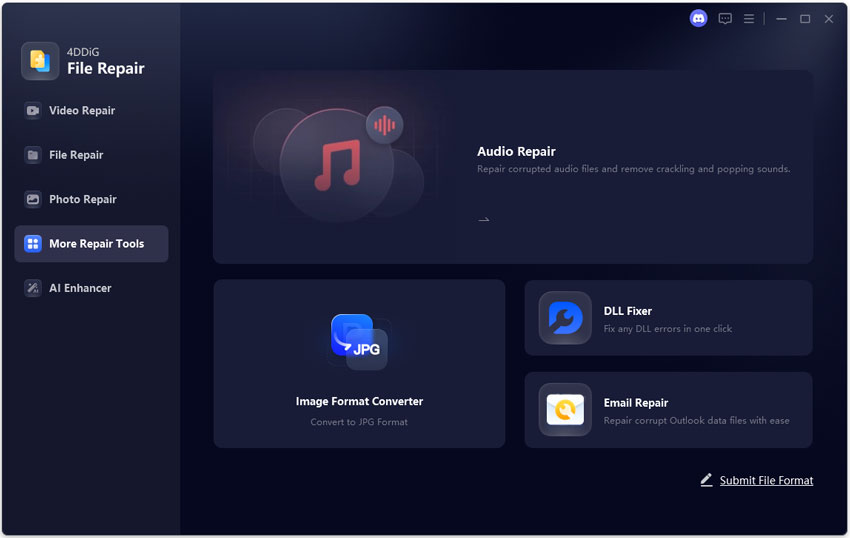
  • Download, install, and open 4DDiG File Repair. Choose "More Repair Tools," then "Image Format Converter".

    open 4ddig image format converter
  • Click "Add Files" and upload all iPhone HEIC images you want to convert.

    add iphone photos to 4ddig
  • Choose "Convert All to JPG" to select JPG as the output format, then click "Convert" to start converting iPhone HEIC photos to JPG at once.

    start iphone heic photo to jpg conversion
  • Once finished, preview the results, select "Save," and choose a destination. Click "Open Folder" to review the converted files.

    preview and save converted jpg files

Keep the originals as a backup. If a file is damaged and will not open, use Photo Repair first, then convert the repaired copy.

FAQs About iPhone Photo Format to JPG

Q1: Can you convert iPhone images to JPG?

Yes. You can convert Apple photo to JPG by changing the camera setting, exporting with Preview, using CopyTrans, or uploading the HEIC file to an online converter. Copying selected photos from the Photos app into Files can also create JPEG copies in some iPhone workflows.

Q2: Does converting HEIC to JPG reduce quality?

It can. JPG is a lossy format, although a high quality export may look almost identical for everyday sharing. Keep the original pixel dimensions, choose high quality, avoid repeatedly saving the same JPG, and retain the HEIC backup.

Q3: How to convert iPhone pictures to JPG on Android?

Transfer the HEIC image to the Android phone, open a mobile friendly converter such as Zamzar or FreeConvert, select JPG, and download the result. If you need to convert iPhone Live Photo to JPG, use the still image version and check the output before sharing. A browser based converter works well for a few files, while desktop software is more convenient for larger batches.

Conclusion

The best way to convert iPhone photo to JPG depends on your device and the number of images. Change Camera settings for future shots, use CopyTrans on Windows, export with Preview on Mac, or choose an online service for a quick job. For many files, 4DDiG File Repair's built-in Image Format Converter is a convenient option because it combines batch conversion with repair features. Keep originals, check output, and choose high quality when saving.

FREE DOWNLOAD

Secure Download

FREE DOWNLOAD

Secure Download

William Bollson (senior editor)

William Bollson, the editor-in-chief of 4DDiG, devotes to providing the best solutions for Windows and Mac related issues, including data recovery, repair, error fixes.

(Click to rate this post)

You rated 4.5 ( participated)