ChatGPT Photo Enhancer: How to Upscale Images with AI Prompts and Keep Face

5 mins read

Updated on 2026-08-24 18:41:13 to Photo Tips

Have you ever generated a stunning AI image only to find it looks blurry or soft when viewed full screen? Using a ChatGPT photo enhancer is the most effective method to refine these visuals. The right prompts make all the difference, whether you're fixing pixelation or restoring old memories.

This article covers how to use ChatGPT to enhance photos effectively, provides the best prompts for 4K quality, and introduces a professional alternative for batch processing.

chatgpt photo enhancer

Part 1: Can ChatGPT Enhance Photos and Upscale Images?

Yes, ChatGPT can enhance photos and create higher-quality versions of images, but with important limitations.

ChatGPT, powered by the latest GPT-5.6 models (Sol, Terra, and Luna) and GPT Image 2, has become significantly more adept at visual tasks, though it operates differently than traditional editing software like Photoshop.

What ChatGPT Does Well

ChatGPT excels at generative reconstruction. When you ask it to enhance a photo, it doesn't just "stretch" pixels. It interprets the image's content and uses its massive training data to reimagine the details. It is excellent for:

  • Clarity and Sharpness: Reducing atmospheric haze and sharpening edges.
  • Lighting and Color: Adjusting exposure, adding HDR effects, and correcting white balance through descriptive commands.
  • Old Photo Restoration: Verbally describing how to fill in cracks or remove sepia stains.
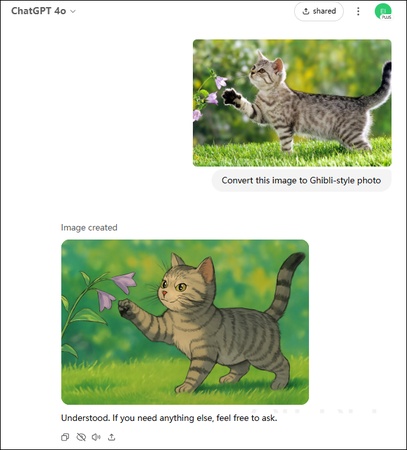
  • Contextual Upscaling: Creating a "higher resolution" feel by adding textures like skin pores or fabric weaves that were missing in the original.

What ChatGPT Cannot Do Perfectly

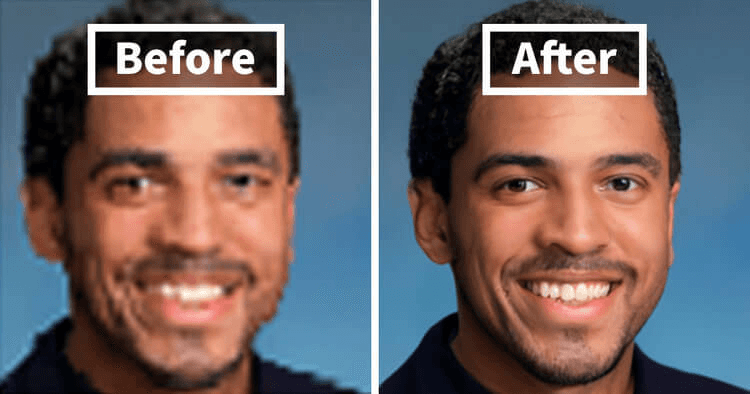
The primary limitation is that ChatGPT is not a true pixel-level upscaler. In a professional workflow, upscaling involves mathematical algorithms that preserve the exact data of the original file while increasing density. ChatGPT, conversely, often "hallucinates" new details. If you upload a photo of a person, ChatGPT might "enhance" it by generating a slightly different version of that person’s face. That is, ChatGPT may cannot preserve original face or identity.

Furthermore, ChatGPT has strict output resolution limits. This means you cannot natively export a 300 DPI, 24-megapixel file directly from the chat interface without external tools.

Part 2: Top 6 Best ChatGPT Photo Enhancement Prompts ⚡

The prompt is everything when it comes to getting the best results from a ChatGPT image enhancer workflow. You aren't just asking for "better quality". You are providing a blueprint for the AI to follow. Here are the best ChatGPT prompts to enhance photos designed for specific needs.

1. General Photo Quality Enhancement

This prompt is designed to provide a balanced improvement across all visual parameters.

Click to Copy & Paste ⬇

Analyze the uploaded image and regenerate it with significantly improved clarity. Increase the sharpness, reduce digital noise, and ensure all textures are crisp. Maintain the original composition exactly but make it look like it was taken with a high-end DSLR camera.

chatgpt general quality enhancement result

This AI prompt to enhance image quality gives ChatGPT several clear goals without asking for an extreme transformation.

2. ChatGPT Prompt to Enhance Photo Without Changing Face

Preserving identity is the hardest part of AI enhancement. This prompt focuses on anatomical consistency. Use this prompt to minimize unwanted changes to the subject.

Click to Copy & Paste ⬇

Sharpen and enhance this portrait. It is critical that you maintain the exact facial structure, eye shape, and unique features of the person. Focus on refining the skin texture and hair detail while keeping the face identical to the original. Do not beautify or alter the proportions.

chatgpt photo enhancement prompt without changing face

This prompt tells the ChatGPT image enhancer what to improve and what not to touch.

3. ChatGPT Photo Enhancer 4K Prompt

If you want a higher-resolution result, be specific about detail and quality.

Click to Copy & Paste ⬇

Convert this image using a convert image to 4k resolution prompt style. Apply ultra high definition textures, 8k resolution aesthetics, and photorealistic rendering. Focus on micro-details like fabric weaves, skin pores, and sharp environmental edges. The final result should be cinematic and hyper detailed.

chatgpt photo enhancer 4k prompt

Remember that asking for "4K" does not mean the original image's missing information can always be recovered.

4. ChatGPT Prompt for Old Photo Restoration

Old family photos often have fading, scratches, noise, and uneven contrast.

Click to Copy & Paste ⬇

Act as a professional photo restorer. Take this vintage, faded photo and repair all scratches and dust marks. Colorize it with natural, muted tones appropriate for the era. Sharpen the blurry areas and restore the contrast to make the image look like a well-preserved modern print while keeping its historical soul.

chatgpt old photo restoration

For black-and-white images, you can also ask ChatGPT to colorize the photo. Check the result carefully because AI-generated colors may not match the original scene.

5. Lighting & Color Enhancement Prompt

Sometimes a photo is already sharp but has poor exposure or dull colors.

Click to Copy & Paste ⬇

Enhance the lighting and color of this image. Apply cinematic HDR lighting, enhance color vibrancy, and balance shadows and highlights. Make the subject pop against the background with professional studio-grade color grading.

chatgpt photo color enhancement

This is especially useful for travel photos, indoor portraits, and smartphone pictures.

6. Advanced Professional Prompt

This uses technical photography terms to guide the AI’s "brain."

Click to Copy & Paste ⬇

Apply a high-pass filter effect to this image to enhance edge definition. Increase sub-surface scattering for skin textures and ensure Ray-tracing accuracy for reflections. The final output should mimic a 35mm lens at f/1.8 for crisp focus and natural bokeh.

chatgpt advanced photo enhancement

This is one of the best prompts to use when you want a balanced enhancement rather than a dramatic transformation.

Part 3: How to Use ChatGPT to Enhance Photos (Step-by-Step)

Using the ChatGPT image enhancer workflow is simple, but iterative refinement is often necessary to get the perfect result.

Clear Steps: How to Enhance Photo Using ChatGPT

Follow these steps to master the how to use ChatGPT to enhance photos workflow:

  • Upload the Image: Click the paperclip icon in the ChatGPT chat box and select your photo.

    upload photo to chatgpt photo enhancer
  • Input the Prompt: Use one of the specialized prompts from Part 2.

    write chatgpt prompt to enhance photo
  • Review the Output: ChatGPT will generate a new version of the image.

    check chatgpt photo enhanced result
  • Refine: If the face has changed too much or the colors are off, give follow-up instructions such as "Make the colors slightly cooler" or "Keep the nose shape exactly as it was in the original."

  • Download: Click the "download icon" on the top right of the generated image.

Tips for Best Results with ChatGPT Image Enhancer

Follow these tips when using AI to improve your photos:

  • Be Specific: Don’t just say "make it better." Say "increase the clarity of the hair fibers."
  • Use Reference Points:
    Use Reference Points: Tell the AI what is most important in the photo (e.g., "The most important part is the text on the sign").
  • Avoid Over-Processing: If you ask for too much "detail," the AI might add weird artifacts or textures that look like "deep-fried" memes.
  • Iterate: The first result is rarely perfect. Use 2-3 follow-up prompts to dial in the look.

ChatGPT Photo Enhancer Limitations

ChatGPT can be useful, but it is not a perfect solution for every enhancement task.

  • It may reconstruct missing details rather than recover the exact original pixels.
  • Very blurry faces may not remain completely accurate.
  • Fine textures can change during enhancement.
  • Results can vary between different photos.
  • Batch processing is not the main focus of the ChatGPT workflow.
  • It is not designed as a specialized photo restoration or enlargement application.
  • Image edits can sometimes extend beyond the selected area. OpenAI notes that selections are not always perfectly precise.
  • Long time to waste a batch of photos. This matters if you have dozens or hundreds of photos to process.

Part 4: A Better Alternative to Enhance Your Photos in Batch: 4DDiG Photo Enhancer

AI tools can improve photo quality, but some require detailed prompts or may change facial features during enhancement. This can be frustrating when you want to process many photos while keeping faces natural and recognizable.

For a simpler solution, 4DDiG Photo Enhancer is always a great choice for many users. It is a professional AI-powered tool designed to improve overall photo quality from many aspects without complex prompts. Compared to ChatGPT and other AI pletforms, 4DDiG export the magic quality while keeping original face.

Key Features of 4DDiG Photo Enhancer

  • Upscale photos to impressive resolutions up to 8K.
  • Enhance portrait details while preserving original faces.
  • Improve image sharpness, clarity, and fine details to fix blurry pictures.
  • Reduce noise from low-light photos.
  • Remove blemishes for cleaner, more polished portraits.
  • Choose General, Face, Denoise, or Colorize models.
  • Enhance multiple photos in batches.
  • Restore old photos and colorize old black-and-white photos with AI.
  • Easy and suitable for different users and scenarios
FREE DOWNLOAD

Secure Download

FREE DOWNLOAD

Secure Download

How to Use 4DDiG Photo Enhancer (Step-by-Step)

Here is how to upscale your photos:

  • Open 4DDiG File Repair, select "AI Enhancer" from the sidebar, and click "Photo Enhancer."

    open chatgpt ai photo enhancer
    Note:

    If you want to restore your old photos to bring it back to life, please choose “Photo Colorizer in this screen.

  • Click the "Add Photos" button to upload blurry or low-quality images.

    add blurry photos to 4ddig
  • Choose the model (General, Denoise, or Face Model) based on your photo. Adjust the output resolution, then click "Enhance". The selected AI model will process your photo. Wait while it reduces noise, sharpens details, and improves image clarity.

    4ddig start photo enhancement
  • Preview the enhanced image and zoom in to check the results. If needed, try another AI model or resolution. Once satisfied, click "Save" to export your enhanced photo.

FAQs About ChatGPT Photo Enhancer Text

Q1: Can ChatGPT enhance photo quality?

Yes, ChatGPT can enhance photo quality by using its generative AI to reconstruct images with better lighting, sharper details, and reduced noise. However, it may slightly alter the original subject.

Q2: Can ChatGPT enhance video quality?

No. ChatGPT and DALL-E 3 currently only support static images. For video, you would need a dedicated AI video upscaler.

Q3: Can ChatGPT upscale images for free?

Users on the free tier of ChatGPT have very limited access to DALL-E 3. For consistent photo enhancement, a ChatGPT Plus subscription is usually required.

Q4: Can ChatGPT enhance photos online?

Yes, ChatGPT is a web-based tool, so you can perform these enhancements on any browser without downloading heavy software.

Q5: How to get ChatGPT to generate high quality images?

Use technical keywords in your prompt, such as "8k," "photorealistic," "DSLR," and "unreal engine 5 render." The more specific you are about the lighting and texture, the higher the quality.

Q6: What is the best photo enhancer prompt for ChatGPT?

The best prompt depends on what you want to improve. For general enhancement, try: “Enhance this photo by improving sharpness, clarity, lighting, colors, and fine details. Reduce noise and blur while preserving the original composition, facial features, skin texture, and identity. Make the result look natural and realistic without adding or removing objects.”

Conclusion

Using a ChatGPT photo enhancer is a fantastic way to breathe new life into blurry or low-quality images with AI prompts. You can achieve impressive results by understanding how to use ChatGPT to enhance photos with specific 4K and face preserving prompts.

We highly recommend the 4DDiG Photo Enhancer for those who need pixel-perfect accuracy, 8K resolution, and the ability to process many files at once without changing the subject's face. This tool bridges the gap where generative AI falls short, ensuring your memories stay clear and authentic.

FREE DOWNLOAD

Secure Download

FREE DOWNLOAD

Secure Download

William Bollson (senior editor)

William Bollson, the editor-in-chief of 4DDiG, devotes to providing the best solutions for Windows and Mac related issues, including data recovery, repair, error fixes.

(Click to rate this post)

You rated 4.5 ( participated)