4 Easy Ways to Upscale Image to 4K

5 mins read

Updated on 2026-10-10 10:11:24 to Photo Tips

A low-resolution photo can look blurry when enlarged for a 4K display, print, or project. You need more than simple resizing to preserve useful details. An AI image upscaler can analyze the source and rebuild missing visual information during enlargement.

Our guide explains how to upscale image to 4k using ChatGPT, 4DDiG AI Photo Enhancer, online tools, and Photoshop. You will also learn which method fits different image types and quality needs.

⚡ Part 1. How to Upscale an Image to 4K with AI?

AI upscaling is usually the easiest way to improve a small or low-quality image. Instead of only increasing its dimensions, AI models analyze edges, textures, faces, and other visual patterns.

1. Using a ChatGPT Prompt to Upscale Image to 4K

ChatGPT can help enhance an uploaded image when image generation or image editing is available. You can upload the source image and describe the desired output clearly.

This approach is useful when you want a quick enhancement without learning dedicated editing software. It can work well for portraits, illustrations, product images, and other general-purpose images.

  • Open ChatGPT and start a new conversation with image capabilities enabled. Upload the image you want to enhance. Use the attachment option to add the original file at its highest available quality.

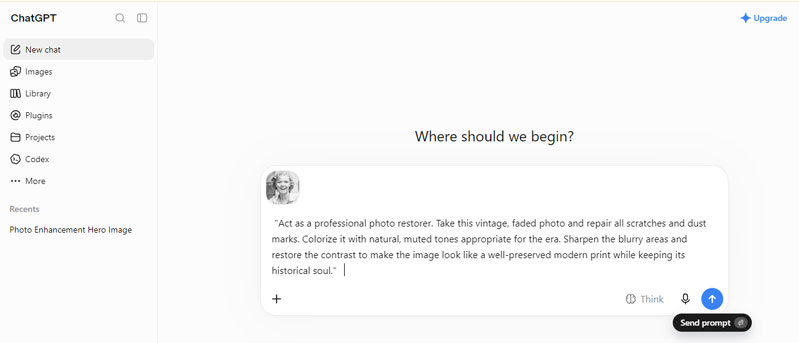
  • Enter a detailed prompt that explains the desired resolution and quality. Avoid asking only for “better quality.” Mention the target resolution, preserved details, natural textures, and other requirements.

    chatgpt prompt to upscale image to 4k
  • Review the generated result. Check important areas such as faces, text, hair, product edges, and fine textures. AI enhancement can sometimes alter details while trying to reconstruct them.

    chatgpt upscaled image
  • If the result needs improvement, provide another prompt. For example, ask the model to preserve facial identity, reduce artificial sharpening, or retain the original colors.

Prompt template:

“Upscale this image to 4K resolution. Preserve the original composition, subject, facial identity, colors, textures, and fine details. Reconstruct missing details naturally without changing the subject or adding new objects. Reduce visible noise and compression artifacts while keeping the image realistic. Avoid excessive sharpening, artificial textures, and plastic-looking skin. Produce a clean, high-quality 4K result suitable for viewing on a large display.”

Limitations of This Method

ChatGPT can be convenient, but it is not a dedicated image restoration workflow. The exact output can vary depending on the source image and the available image capabilities. It may also change small visual details and face features while reconstructing the image. This can be a concern for product photography, documents, technical graphics, and images where accuracy matters.

Another limitation is that a 4K output does not mean the original missing information has been perfectly recovered. AI generates plausible details based on patterns in the image. For more consistent enhancement controls, a dedicated AI photo enhancer is a better choice.

2. Using Dedicated 4DDiG AI Photo Enhancer

For reliable, one-click 4K upscaling with professional results, a dedicated tool is far more effective. 4DDiG AI Photo Enhancer is designed specifically for improving image quality and enlarging low-resolution photos. It uses AI models to enhance details instead of relying on basic pixel interpolation.

It is particularly useful when you want a repeatable workflow for upscaling image quality to 4K. Rather than repeatedly writing prompts, you can import your photos, choose an AI enhancement model and resolution, and let the software automatically process the images. Most importantly, it preserves the original face. You can use it for portraits, old photographs, compressed images, and other low-quality pictures..

Key features of 4DDiG AI Photo Enhancer:

  • 4K AI Upscaling: Enlarge low-resolution images to 4K (up to 8K) while improving clarity and detail.
  • Photo Blur & Noise Reduction: Sharpen blurry photos and reduce grain automatically.
  • Face Enhancement: Improve facial details in portraits and selfies.
  • Color Enhancement: Restore faded colors and improve overall image tone.
  • Old Photo Restoration: Colorize and restore old photos or black-and-white images.
  • Multiple AI Models: Choose different models for portraits, general photos, denoising, and colorization.
  • Batch Processing: Enhance multiple photos at once.
  • Wide Format Support: Works with JPG, PNG, HEIC, WEBP, BMP, and more.
FREE DOWNLOAD

Secure Download

FREE DOWNLOAD

Secure Download

Steps to Enhance Low-Quality Image to 4K with 4DDiG AI Photo Enhancer:

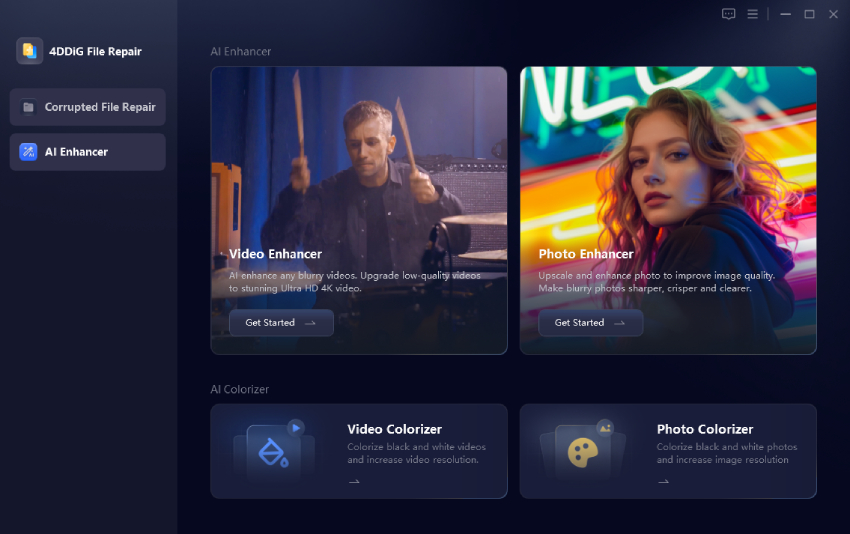
  • Install and open 4DDiG AI Photo Enhancer. Select the “AI Enhancer” function from the main interface and choose “Photo Enhancer”.

    4ddig ai photo enhancer
  • Click “Add Photos” to select the images you want to upscale to 4K.

    add low quality images to 4ddig
  • Select the appropriate AI model. Select the desired output resolution and click “Enhance”

    select ai model and resolution to enhance images
  • Preview the enhanced image before exporting it. Compare areas such as edges, faces, hair, textures, and backgrounds with the original. If you are satisfied with the results click “Save” and choose your desired location.

    preview and save enhanced images

Unlike ordinary resizing, AI enhancement attempts to estimate details that were lost when the original image was compressed or captured at a lower resolution. However, it cannot recover information that was never captured perfectly. The source image still has a major effect on the final result.

Part 2. How to Upscale Images to 4K Free Online?

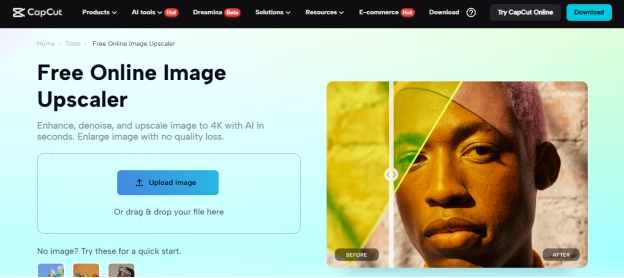
Online upscalers are convenient when you do not want to install desktop software or you want to upscale image to 4K free no sign up options. They can be useful for quick projects, social media images, product photos, and other occasional tasks.

The main differences between online services include output resolution, free usage limits, watermark policies, processing speed, and account requirements.

3 Online Free AI Image Upscalers to Enhance Photo Quality to 4K

Several online 4K AI image converter and upscaler can enlarge images with AI. Their free options and output restrictions can vary, so check the available settings before processing important files.

VanceAI

VanceAI Image Upscaler is an online AI enhancement service designed to enlarge images while improving their appearance. It provides AI-based enlargement rather than simply stretching pixels. It can be useful for users who want a free online image upscaler to 4k without installing a desktop application. Its AI processing is suited to photographs, graphics, portraits, and other common image types.

The service can also provide different enlargement options depending on the image and available account limits. Free usage may have restrictions, so it is better suited to occasional projects than unlimited processing.

vanceai image upscaler

Pixelcut Image Upscaler focuses on quick image enlargement through a simple online workflow. It is useful for creators who need to improve image resolution without opening a professional photo editor. The tool can help turn a normal image to 4k when the source has enough visual information for AI enhancement to work effectively.

Pixelcut is particularly convenient for product images, social media graphics, and marketing visuals. Its broader creative toolkit also makes it useful when image enhancement is part of a larger content workflow.

pixelcut ai image upscaler

Let’s Enhance

Let’s Enhance is an online image enhancement platform focused on enlargement and quality improvement. It supports larger output sizes and provides options designed for different types of images.

It can be useful when you need to enlarge an image for printing, e-commerce, marketing, or other high-resolution applications. The platform is better suited to users who need more than basic resizing. However, free usage can include restrictions depending on the current plan and processing requirements.

letsenhance ai image upscaler

Steps to Enhance and Convert Image to 4K Resolution Online Free

VanceAI provides a straightforward workflow for users who want to upscale image to 4k free online. The exact free limits can change, but the general process remains simple.

  • Open VanceAI Image Upscaler in your browser. Select the "Click to upload image” option and choose the original image from your computer.

  • Select appropriate upscale settings. Choose an output size and use features like “Enhance Face” when that option is available for your image and account and click “Process All”.

    vanceai upscale image to 4k
  • Review the preview before downloading. Examine faces, edges, small objects, text, and other areas where AI artifacts can become visible and download the final image.

A free online tool is convenient, but it is not always the best option for sensitive or valuable images. Uploading files to an online service also means the image is processed outside your computer.

For private photographs, large batches, or repeated enhancement work, desktop software can provide a more controlled workflow.

Part 3. How to Upscale an Image to 4K in Photoshop?

Adobe Photoshop is another practical option if you already have a Creative Cloud subscription. Its Generative Upscale feature uses AI to enlarge low-resolution images while improving sharpness, texture, and fine details. You can upscale an image by 2x or 4x, making it useful for preparing photos for 4K displays, printing, websites, or other high-resolution projects.

Steps to upscale an image to 4K in Photoshop:

  • Launch Photoshop and import the image you want to upscale via “File” > “Open”.

  • From the top menu, go to Image > Generative Upscale. Photoshop will open the Generative Upscale panel.

    photoshop generative upscale option
  • Select 2x or 4x and choose an available AI model, such as Firefly Upscaler.

    photoshop generative firefly upscaler
  • Click Upscale and preview the enhanced result.

  • [Optional] Go to Image > Image Size and set the image to 3840 × 2160 px if you need standard 4K UHD resolution.

    photoshop upscale image to 4k

Photoshop is a strong option for users who already work with professional image editing tools.

FAQs About Image Upscale to 4K

Q1: How to upscale Midjourney images to 4K?

You can upscale Midjourney images using an AI image enhancer or a dedicated photo upscaling application. First, export the highest-resolution version available from Midjourney. Then import it into an AI enhancer and select a 4K output.

A dedicated enhancer can be useful when you want additional control over sharpening, noise reduction, faces, and detail reconstruction.

Q2: What is the best way to upscale image to 4K in 2026?

The best method depends on the source image and your workflow. A dedicated AI enhancer is generally the most practical option for consistent results. 4DDiG AI Photo Enhancer is a strong choice when you need AI-based detail enhancement, face improvement, noise reduction, and 4K upscaling in a dedicated workflow.

Photoshop is better for users who also need detailed manual editing. Online tools are convenient for occasional images.

Q3: How to upscale image to 4K free without watermark?

You can use free online image upscalers, but their current limits and watermark policies vary. Some services may require credits, restrict output resolution, or add watermarks to free downloads.

If your priority is upscale image to 4k free online without watermark, check the final download settings before processing the image. A tool that offers free processing does not necessarily provide unlimited watermark-free 4K downloads.

Q4: How to resize an image to 4K resolution?

A standard 4K UHD image has a resolution of 3840 × 2160 pixels. You can enter these dimensions in Photoshop or another image editor using its image-size function. However, resizing and upscaling are not the same. Resizing changes the number of pixels. AI upscaling also attempts to reconstruct missing visual details.

If the source image is small or heavily compressed, AI enhancement usually produces a better-looking result than basic interpolation.

Conclusion

You can upscale image to 4K with ChatGPT, dedicated AI software, online tools, or Photoshop. Simple resizing changes dimensions but cannot recreate lost details. For a more controlled workflow, 4DDiG AI Photo Enhancer combines AI upscaling with detail enhancement, face improvement, noise reduction, and batch processing.

It is a practical choice when you need to enhance image to 4K free through a dedicated image enhancement workflow.

FREE DOWNLOAD

Secure Download

FREE DOWNLOAD

Secure Download

William Bollson (senior editor)

William Bollson, the editor-in-chief of 4DDiG, devotes to providing the best solutions for Windows and Mac related issues, including data recovery, repair, error fixes.

(Click to rate this post)

You rated 4.5 ( participated)