Discover 8 Best RAW File Viewers (Free, Online, or Professional)

5 mins read

Updated on 2026-08-24 18:32:59 to Photo Tips

Quick Answer: What is the best RAW file viewer for Windows?

For most Windows users, the free Microsoft RAW Image Extension is the fastest and easiest way to view RAW files with native thumbnails in File Explorer. If you need a dedicated viewer, FastRawViewer is the best paid option for high-speed professional culling, while FastStone Image Viewer is the top free lightweight alternative.

For photographers, the struggle to capture the perfect shot is often followed by the frustration of being unable to open the files. RAW images, which contain unprocessed data from a camera sensor, often appear as "unsupported" icons on standard systems.

Finding a reliable RAW file viewer is the most effective method to streamline your workflow and ensure image quality. This article explores the best native extensions, professional software, and online readers to help you master your RAW files instantly.

best raw file viewers

Part 1. How to View RAW Files on Windows 10 / Windows 11 (The Fastest Way)

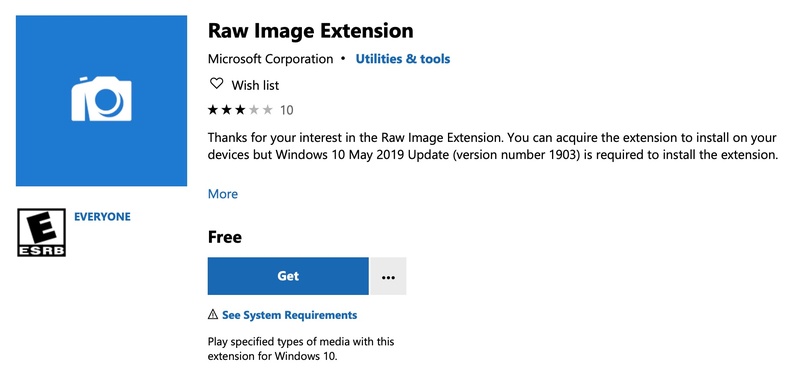
The fastest solution to is installing the Microsoft RAW Image Extension (also known as the Microsoft RAW codec pack) to add native support for a wide range of RAW formats.

It is a built-in fix that Windows user can have a try when they often find that the default Photos app displays a "file not supported" error for modern camera formats like .ARW or .NEF. It allows the operating system to treat RAW files like standard JPEGs, enabling thumbnails in File Explorer.

How to Download RAW Image Extension on Windows:

  • Open the Microsoft Store on your Windows 10 or 11 PC.

  • Search for "Raw Image Extension" (also known as the Microsoft RAW codec pack).

  • Click "Get" or "Install."

    install windows microsoft raw image extension
  • Once installed, restart your File Explorer to open your RAW images again.

You will now see thumbnails for your RAW images, solving the mystery of how to open raw pictures on Windows without launching heavy software.

Part 2. Top 5 Best RAW File Viewer for Windows 10/11

When the native Windows extension isn't enough, especially for culling hundreds of photos, you need dedicated software. Here are the five best photo viewers for raw files options for Windows users in 2026.

1. FastRawViewer – Fast RAW Culling

FastRawViewer is a professional-grade tool designed for photographers who need to sort through thousands of images quickly. Unlike other viewers that show a low-resolution JPEG preview, this software renders the actual RAW data on the fly.

It is the only real WYSIWYG raw image reader that lets you see exactly what your sensor captured before you even start the conversion process.

fastrawview raw file viewer
  • Pros
  • Cons
    • Extremely fast browsing and culling for large batches
    • Shows true RAW information (exposure, focus, clipping)
    • Allows for preliminary white balance and exposure adjustments.
    • Lightweight and works well even on average PCs
    • Not a free tool (though it offers a 30-day trial).
    • The interface can be overwhelming for beginners.
    • Does not support Sigma Foveon RAW files.

2. FastStone Image Viewer – Free Lightweight RAW Viewer

FastStone Image Viewer offers a lightweight environment for browsing, converting, and performing basic edits on camera formats. Its innovative full-screen interface uses hidden pop-up toolbars along the edges of the screen to maximize the viewing area.

It supports sophisticated tasks like batch processing and musical slideshows. The tool is highly regarded for its stability and the magnifier that simplifies checking fine details.

faststone image viewer
  • Pros
  • Cons
    • Completely free, lightweight and very stable
    • Native support for major RAW formats (CR2, CR3, NEF, ARW, RW2, DNG, etc.)
    • Built-in side-by-side comparison (up to 4 images)
    • Good batch conversion, resizing, and renaming features
    • Excellent full-screen mode with hidden toolbars and high-quality magnifier
    • The user interface looks a bit dated.
    • Does not support 64-bit architecture, which limits performance on large files.
    • Lacks advanced AI-based organization features found in newer tools.

3. XnView – Free Multi-Format Support

XnView is a versatile .raw file viewer that supports an astonishing 500+ file formats. It is an excellent choice for users who work with a variety of media beyond just photography. It acts as both a viewer and an organizer, making it easy to manage large libraries. Its "XnView MP" version is optimized for modern 64-bit systems, ensuring smooth performance.

xnview raw image viewer for windows
  • Pros
  • Cons
    • Wide native RAW support across major brands
    • Native support for modern formats such as RAW, AVIF, HEIC, WebP.
    • Powerful batch conversion and renaming
    • Free for personal use; available on Windows, macOS, and Linux
    • Available as a portable version that doesn't require installation.
    • Slow or shutdown when loading very large folders of high-res RAWs.
    • Advanced features are split into separate apps (like XnConvert ).

4. IrfanView – Ultra-Lightweight & Fast

IrfanView is one of the oldest and most respected names in the world of image viewers. It is designed to be small (only about 8 MB) but incredibly powerful. Installing the official plugins makes it a robust raw picture viewer. It is the go-to app for users who want a tool that opens instantly and can handle basic editing tasks with ease.

irfanview raw file viewer
  • Pros
  • Cons
    • Extremely fast startup and loading
    • Good RAW support (via Plugins pack)
    • Strong batch conversion, resize, and rename features
    • Fast hotkeys for almost every function.
    • Free for personal use and ultra-lightweight
    • Outdated-looking interface
    • Requires separate Plugins pack for full RAW support
    • Not ideal for culling thousands of images in a grid.

5. Darktable – Powerful Free RAW Editor

Darktable is often called the "Free Lightroom." While it functions as a raw file viewer, its true power lies in its non-destructive editing pipeline. For photographers on a budget, it provides professional-grade color grading, masking, and tethered shooting capabilities. It is the best choice for those who want to view their RAW files and start processing them immediately.

darktable raw file viewer for windows
  • Pros
  • Cons
    • Completely open-source and free forever.
    • Provides fully non-destructive RAW editing while keeping original files untouched.
    • Includes professional color management and advanced editing tools.
    • Excellent organization via tags, ratings, and color labels.
    • Database library and broad camera support
    • Steep learning curve and complex interface.
    • Can be slower to load images compared to lightweight viewers.
    • Performance varies significantly depending on your GPU drivers.

Part 3. Best RAW Image Viewer for Mac

Mac users often benefit from Apple’s deep integration of imaging technology. Whether using built-in tools or specialized software, viewing RAW on macOS is a seamless experience.

1. Using Mac Preview App with Built-in RAW Support

The Preview app (and Quick Look) is the default RAW image viewer for Mac. It is surprisingly powerful, allowing you to view, rotate, and even perform basic color corrections on RAW files without installing third-party apps. It is ideal for quick viewing, basic inspection, and converting RAW to JPEG/PNG/TIFF without installing extra software.

Note:

This method works for most common formats (CR2, NEF, ARW, etc.). Keep macOS updated for the best camera support.

How to open RAW files on Mac:

  • Locate your RAW file in the Finder.

  • Select the file and press the Spacebar for a "Quick Look" preview.

    mac quick look raw images
  • Double-click to open it fully in Preview if the RAW format is supported by Mac.

  • To view all metadata, go to "Tools," then "Show Inspector."

    check mac image exif data

2. Other RAW Photo Viewer Software for Mac

If you need more than just a quick preview, these tools offer better organization and culling features.

Tool Name Best Use Cases
FastRawViewer for Mac High-speed culling and exposure checking.
XnView MP for Mac Managing large libraries with 500+ formats and batch conversions.
RawTherapee Advanced open-source RAW processing and conversion.

Part 4. Top 2 Best Free Online RAW Viewers & Converters in 2026

Sometimes you are on a public computer or just don't want to install software. In these cases, you can open a raw file online using high-speed cloud viewers.

1. Evoto

Evoto has revolutionized the open raw file online space by offering a browser-based engine that processes images locally. This means your private photos are never uploaded to a server, ensuring 100% security. It is a powerful app for viewing raw files without requiring any installation, supporting over 50 formats, including the latest CR3 and ARW files.

evoto raw viewer and converter
  • Pros
  • Cons
    • Local browser-side processing (no upload required) and ultimate privacy.
    • Supports major RAW formats (CR3, ARW, NEF, DNG, etc.)
    • Batch conversion with fixed file size export options.
    • High-fidelity color rendering for pro-level accuracy.
    • Supports drag-and-drop for entire folders.
    • Requires a stable internet connection to load the web app.
    • Can be memory-intensive for very large folders.
    • Advanced AI editing features may require paid plans/credits

2. Pics.io

Pics.io is a powerful Digital Asset Management (DAM) tool that includes a strong online nef raw file viewer. It is designed for teams and professionals who need to manage and share their RAW libraries in the cloud. It provides a clean interface for viewing high-resolution previews and managing metadata without downloading the files.

pics io online raw image viewer
  • Pros
  • Cons
    • Easy online viewing of RAW files without downloading large originals
    • Integrates with Google Drive and other cloud storage
    • Supports metadata and basic organization
    • Excellent collaboration tools for photographers and clients.
    • Supports visual comparison between different file versions.
    • Free plan is limited; full features require a subscription
    • Relies on cloud storage uptime
    • More focused on management than pure high-speed culling

⚡ Part 5. Tips: How to Fix RAW Files Not Opening in Windows/Mac Still

Sometimes, even the best Sony RAW viewer or raw image reader cannot open a file. This usually happens if the file header is corrupted during a transfer or if the format is so new that your software needs an update.

Method 1. Repair Corrupted RAW Files Before Viewing

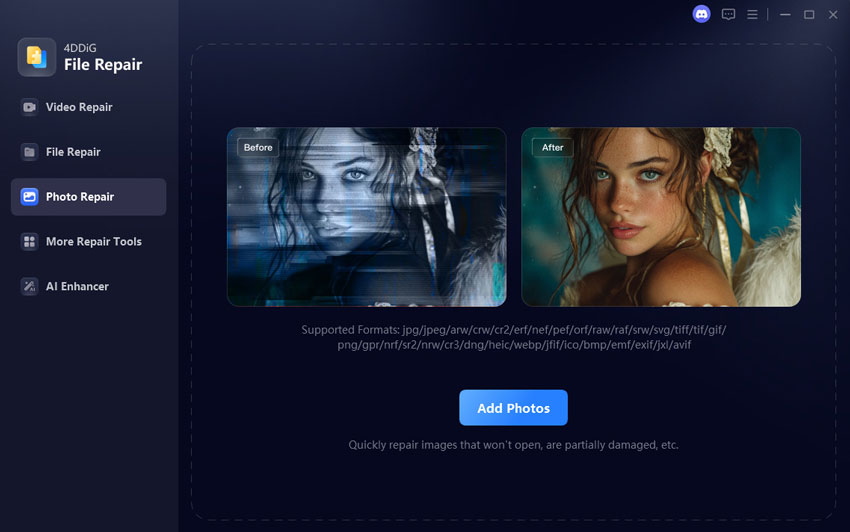
If you see a "File Header Corrupt" error or a greyed-out image, you should use 4DDiG Photo Repair. This AI-powered tool can analyze the underlying data of a damaged RAW file viewer entry and reconstruct the image. It is particularly effective for photos that were interrupted during a write process on an SD card.

FREE DOWNLOAD

Secure Download

FREE DOWNLOAD

Secure Download

  • Install and open 4DDiG File Repair and choose "Photo Repair". Click "Add Photos" or drag your corrupted RAW files into the window.

    add corrupted raw files to 4ddig
  • Click "Repair All" to start the repair process.

    4ddig repair all raw files
  • Click "Preview" to check the repaired RAW photos.

    preview repaired raw images
  • Select JPG, PNG, or the original as the output formats for your repaired RAW images. Then click "Save" or Save All to save the repaired photos.

    save repaired raw files in preferred format

Method 2. Convert CR2 RAW Images to JPG

If your goal is simply to share the photo, converting it is the best path. 4DDiG File Repair serves a dual purpose here. It not only fixes files but also serves as a high-fidelity converter. It can convert CR2 and other formats such as PNG, BMP, and HEIC to JPGs while preserving the original metadata.

  • Open 4DDiG File Repair and go to More Repair Tools > Image Format Converter.

    open 4ddig image format converter
  • Add your CR2 (or HEIC, PNG, BMP, etc.) files.

    add raw files to 4ddig
  • Select “Convert All to JPG” and tap on the bottom-right Convert button to start the conversion.

    convert all raw files to jpg
  • When converted, open the resulting JPG files in any standard image viewer.

FAQs about RAW File Viewers and RAW Format

Q1: What is a good free RAW file viewer?

FastStone Image Viewer and XnView are excellent free options for Windows users, while Mac users can use the built-in Preview app.

Q2: Can I convert RAW to JPEG?

Yes, you can use online tools like Evoto or desktop software like 4DDiG File Repair to convert RAW files to JPEG for easy sharing.

Q3: Can iPhone view RAW photos?

Yes, iPhones running recent iOS versions can view ProRAW files natively in the Photos app and edit them without third-party tools.

Q4: Which is the best Android RAW file viewer?

Google Photos and Adobe Lightroom Mobile are the most reliable apps for viewing and editing RAW files on Android devices.

Q5: Can Windows photo viewer open RAW files?

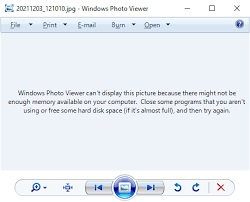
The classic Windows Photo Viewer cannot open RAW files natively, but the modern Windows Photos app can if you install the Raw Image Extension.

Conclusion

Choosing the right RAW file viewer depends on your specific needs, whether you value speed, editing power, or online accessibility. For most Windows users, installing the official extension or using FastStone is the best starting point.

If you encounter corrupted files or need to convert specialized formats such as CR2, we highly recommend 4DDiG Photo Repair. It is a versatile all in one solution that ensures your high-quality memories are always accessible and looking their best.

FREE DOWNLOAD

Secure Download

FREE DOWNLOAD

Secure Download

William Bollson (senior editor)

William Bollson, the editor-in-chief of 4DDiG, devotes to providing the best solutions for Windows and Mac related issues, including data recovery, repair, error fixes.

(Click to rate this post)

You rated 4.5 ( participated)