XnConvert Batch Image Converter Review: Is It Worth & Best Alternative

5 mins read

Updated on 2026-07-10 10:28:31 to Photo Tips

Managing large batches of photos can be time-consuming, especially when you need to convert formats, resize images, or apply quick edits. XnConvert batch image converter offers a free, straightforward solution for these tasks. In this guide, we'll explore what it offers, review its strengths and limitations, and share a helpful alternative if you're looking for even more user-friendly options.

What is XnConvert?

XnConvert is a fast, free batch image converter and editor developed by the team behind XnView. It helps users quickly process multiple photos at once, converting formats, resizing, cropping, and applying various adjustments without doing everything manually.

It stands out for its impressive compatibility: it supports over 500 input formats and around 80 output formats, along with more than 80 different actions you can apply. Whether you're working with common files like JPEG and PNG or specialized ones such as RAW, HEIC, or PSD, it handles them efficiently.

You can run XnConvert on Windows, Mac (including xnconvert mac version), and Linux. Some mobile options are also available through related apps. It's designed for both casual users and those handling larger photo collections, making it a practical tool for photographers, bloggers, and anyone who works with images regularly.

Key Features of XnConvert

XnConvert packs a lot of functionality into a lightweight program. Here are some of its standout features:

  • Broad Format Support: Open and convert between hundreds of formats, including modern ones like HEIC, WebP, AVIF, and camera RAW files. This makes tasks like xnconvert heic to jpg or xnconvert png to jpg simple.
  • Powerful Batch Processing: Add as many images or folders as you need, then apply the same changes to all of them in one go---saving hours of repetitive work.
  • Editing Actions: Choose from over 80 actions, such as resize, crop, rotate, add watermarks or text, adjust colors, apply filters, and more. You can combine multiple actions for complex workflows.
  • Presets and Templates: Save your favorite settings as presets so you can reuse them quickly for future batches.
  • Cross-Platform Availability: Works smoothly on Windows, Mac, and Linux, with consistent performance across devices.
  • Additional Tools: Options for renaming files, preserving or editing metadata, compressing images, and adjusting DPI for print-ready results.

The interface uses a drag-and-drop approach, which feels intuitive once you spend a few minutes exploring it. While it may look a bit straightforward compared to modern design apps, the focus remains on getting results fast.

XnConvert Review: Pros and Cons

After testing XnConvert and reviewing feedback from many users, here's a balanced look at how it performs in real situations.

  • Pros
  • Cons
    • Completely free for personal and non-commercial use, with no hidden ads or aggressive upsells.
    • Excellent format support that handles everything from everyday JPEGs to tricky RAW and HEIC files.
    • Strong batch processing that lets you convert, resize, and edit dozens or even hundreds of images quickly.
    • Lightweight and fast, even when working with large folders.
    • Cross-platform support for Windows, Mac, and Linux.
    • Useful editing tools like watermarking, color correction, and filters that go beyond simple conversion.
    • The interface looks somewhat dated and can feel overwhelming for complete beginners at first.
    • Learning curve for advanced actions and presets, though basic conversions are straightforward.
    • Limited creative editing compared to dedicated photo editors like Photoshop.
    • Business or commercial use requires a paid license.

Real-world User Experience

Many users appreciate XnConvert for its reliability when handling large photo libraries. Photographers often mention how it simplifies converting camera RAW files or preparing images for the web. One common praise is the speed and the ability to save presets for repeated tasks.

Editor's Review to XnConvert Batch Image Format Converter

In our testing, it delivered consistent results with good quality output. However, some people noted that the interface takes time to get used to, especially when combining multiple actions. Overall, it earns solid marks as a practical, no-frills tool for batch work. If you need something quick and powerful without spending money, XnConvert is a strong contender, though it may not replace a full photo editor for creative projects.

Is XnConvert Safe?

Yes, XnConvert is safe to use. It comes from a reputable developer (XnView) with a long track record in image software. The program is available directly from the official site at www.xnview.com/en/xnconvert, which is the recommended and safest download source.

It does not contain adware, spyware, or any data-collecting features in its standard versions. Users have been relying on it for years across Windows, Mac, and Linux without major security issues reported. As with any software, always download from the official website and keep your system updated for the best protection. If you see it offered on third-party download sites, it's wiser to avoid them to prevent any risk of modified or bundled files.

How to Use XnConvert: Step-by-Step Tutorial

Ready to put XnConvert to work? Whether you want to convert formats or resize a big folder of photos, the process is straightforward once you get started. This simple tutorial will walk you through a basic batch conversion so you can start using it confidently.

Quick Step-by-Step Guide:

  • Visit the official site at www.xnview.com/en/xnconvert and download the version for your operating system (Windows, Mac, or Linux). Install it like any regular program.

  • Open XnConvert. Drag and drop your photo files or entire folders into the main window, or click "Add" to browse and select them.

  • Go to the Output tab. Select your desired format (for example, JPG), set the destination folder, and adjust quality or size options if needed.

  • Switch to the Actions tab. Here you can add resize, crop, watermark, rotate, or other edits. Drag actions into the list and configure them.

  • Click the Convert button at the bottom. The software will process all images and save the results in your chosen folder.

Best Alternative to XnConvert Batch Image Converter

While XnConvert is a capable free tool, some users prefer a more modern interface, simpler workflow, or extra repair features when dealing with tricky files. If you want something easier for everyday conversions, especially with newer formats like HEIC, a strong alternative is the 4DDiG Image Format Converter.

This tool is built into 4DDiG Photo Repair and focuses on fast, high-quality batch conversions with excellent support for HEIC, BMP, CR2, PNG, and many other formats. It offers a clean design, reliable output, and helpful repair options if your images are corrupted.

How to Batch Convert Images with 4DDiG Image Format Converter

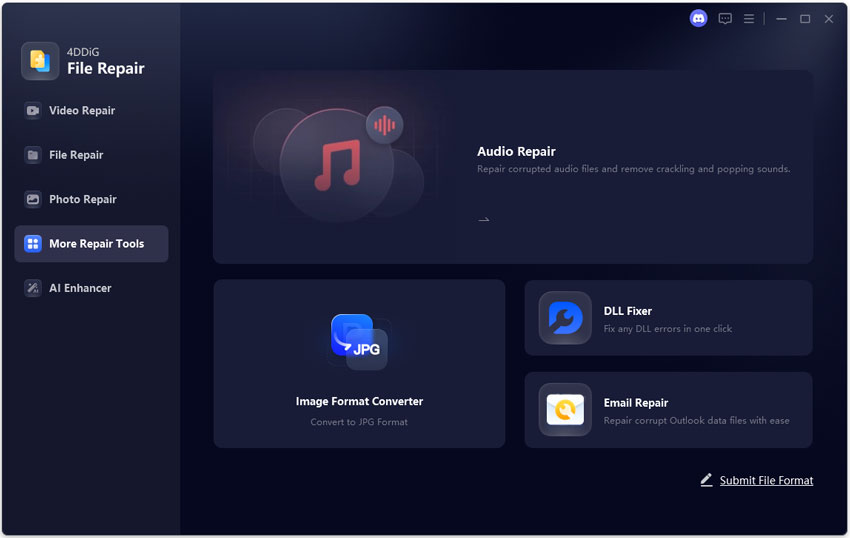
  • Install 4DDiG File Repair and launch the program. Then select More Repair Tools and the Image Format Converter feature.

    select 4ddig image format converter
  • Drag and drop HEIC, CR2, PNG, BMP, or other images.

    add images to convert
  • Choose Convert All to JPG and adjust settings like quality or resolution. Then click Convert and wait for the batch process to finish.

    convert all images to jpg
  • The software saves converted files in your selected location.

    save converted jpg files

⚡ Conclusion

XnConvert batch image converter remains a powerful and free option for batch processing photos across multiple formats and platforms. Its wide compatibility and action library make it valuable for many users. However, if you prefer a cleaner experience or need extra tools for stubborn files, 4DDiG Image Format Converter (part of 4DDiG File Repair) offers a modern and reliable choice. Try both and see which fits your workflow better for efficient image management.

FREE DOWNLOAD

Secure Download

FREE DOWNLOAD

Secure Download

William Bollson (senior editor)

William Bollson, the editor-in-chief of 4DDiG, devotes to providing the best solutions for Windows and Mac related issues, including data recovery, repair, error fixes.

(Click to rate this post)

You rated 4.5 ( participated)