How to Record FIFA World Cup 2026 Matches (Complete Guide)

5 mins read

Updated on 2026-06-18 17:22:37 to Video Tips

Whether you have work shifts, time zone issues, or simply want to rewatch the best goals and moments, recording FIFA World Cup 2026 matches and highlights lets you enjoy them on your own schedule. In this guide, you’ll learn easiest ways to record the games across different devices and platforms. Meanwhile, this full guide helps you fix corrupted or unplayable recordings when things go wrong due to various sudden issues.

record fifa world cup matches

Best Ways to Record FIFA World Cup 2026 Matches by Device & Platform

Recording the World Cup is easier than most people think. The right method depends on the device or service you use to watch the games. Below are the most popular and effective options to capture the FIFA live games, big moments, must-watch highlights, and best goals in 2026 FIFA, so you can save the action and watch it later.

Before you start recording, check where the match is available in your country. Some games may air on TV, while others may be available through official streaming apps or live TV services.

Record FIFA World Cup Matches on Windows/Mac

If you watch most of your matches on a laptop or desktop, this is the most flexible and highest-quality option. OBS Studio stands out as the top free choice for most fans because it delivers smooth recordings with clear audio and supports up to 4K resolution.

OBS Studio is completely free, lightweight, and trusted by millions of users for recording live sports. It works great with streaming services like DAZN, Fubo, or ESPN+ and lets you capture full matches all time without watermarks.

  • Download and install OBS Studio from the official website.

  • Open the program, click “+” under Sources, and select “Window Capture” or “Display Capture.”

    obs studio record options
  • Choose the browser window playing the match and make sure system audio is enabled.

  • Go to Settings > Output, select “Recording” quality as High or Indistinguishable, and set resolution to 1080p or 4K.

    reset output recording quality
  • Click Start Recording before the match begins.

Many fans also add a simple picture-in-picture overlay if they want to show chat or stats. Take a screenshot of your OBS setup for easy reference.

Note:

If your recorded videos still comes with low quality, the fatest and easiest way is to enhance the recording’s quality with a dedicated Video Enhancer tool, which improve the resolution, details, and colors overall.

4ddig video enhancer tool

Record FIFA World Cup Matches on iPhone, iPad & Android

Watching on your phone is convenient, especially when you’re away from home or luckily at the FIFA match itself. Both iOS and Android now have built-in screen recorders that work well for most World Cup offline matches or online streams.

For quick and simple recordings, vlogs, or on-site filming, your phone’s built-in screen recorder is usually enough and convenient to capture the highlights and excellent goal moments. If you need extra features like higher quality or internal audio, lightweight apps such as AZ Screen Recorder (Android) or the native iOS tool work reliably.

Steps on iOS (iPhone & iPad):

  • Open Control Center by swiping down from the top-right corner.

  • Long-press the Screen Recording button and turn on the microphone if you want to record commentary.

    ios screen record fifa matches
  • Tap “Start Recording.” A three-second countdown will begin.

  • Switch to your streaming app or browser and play the FIFA World Cup match.

  • To stop, tap the red status bar at the top and select “Stop.” The video saves to your Photos app.

Steps on Android:

  • Swipe down twice from the top of the screen to open Quick Settings.

  • Tap the “Screen Record” tile (add it if it’s not visible).

  • Choose whether to record internal audio, microphone, or both, then tap “Start recording”.

    android screen record fifa games
  • Open the match stream and play the game.

  • When finished, swipe down again and tap the notification to stop recording. The video will be saved in your Gallery.

Record FIFA World Cup 2026 Games on Smart TV

If you enjoy watching the World Cup on the big screen in your living room, recording directly on your Smart TV is very convenient. Most modern TVs from Samsung, LG, and Sony come with built-in recording features, though they have some limitations.

For the easiest experience, use your Smart TV’s built-in recorder if it supports USB storage. This method works well for live broadcasts and gives you a comfortable viewing size for reliving the best moments later.

  • Connect a USB flash drive or external hard drive to your Smart TV. Make sure the USB has enough free space (at least 8GB for one match).

  • Tune into the World Cup games 2026 on your preferred channel or app.

  • Press the Record button on your remote (or go to the channel menu and select Record).

    record fifa world cup matches on smasung tv
  • Stop the recording when the match ends. The file will be saved on your USB device.

Note: Check your TV manual or settings to see the maximum recording time allowed. Some older models have limits.

Record World Cup Games on Cable/Setellite TV & DVR

Many fans still watch matches through traditional cable or satellite providers. If this is your main setup, using the built-in DVR is one of the simplest ways to save full games without extra software. Most cable and satellite services like Comcast, DirecTV, Spectrum, and Dish offer Cloud DVR or set-top box recording. This is ideal if you want to schedule multiple World Cup games in advance.

  • Press the Guide or Menu button on your remote to open the TV program guide.

  • Use the arrow buttons to find the FIFA World Cup game 2026 you want to record.

  • Highlight the match and press the Record button on your remote (it may say “Record” or show a red circle icon).

  • Choose whether to record just this one game or all matches of a favorite team (Series Record).

  • Go to your DVR or Recorded Shows folder later to find and watch the full match.

This method automatically records in good quality and stores everything on your provider’s hard drive or in the cloud.

Record World Cup Matches with Live TV Streaming Services

If you watch the FIFA World Cup through online streaming services instead of traditional cable, you’re in luck. Most popular live TV streaming platforms offer Cloud DVR, which lets you record matches automatically and watch them later.

Services like Fubo, YouTube TV, Hulu + Live TV, and DirecTV Stream are excellent for sports fans. They record matches in the cloud, so you don’t need extra storage on your devices and can watch on any phone, tablet, or TV.

  • Open the streaming app (Fubo, YouTube TV, etc.) on your device.

  • Go to the TV Guide or Search section and find the FIFA World Cup 2026 schedule.

  • Find the match and click the Record button, which may show a red circle or the word “Record”.

  • Or tap on Series Record for all games of a team.

  • The service will automatically record the full match in the cloud.

  • Once finished, go to your Library or Recordings section to watch or download the game.

These platforms also let you record FIFA Club Wolrd Cup highlights and key matches without taking up space on your own devices.

⚡ How to Repair and Recover Corrupted or Unplayable World Cup Recordings (Important)

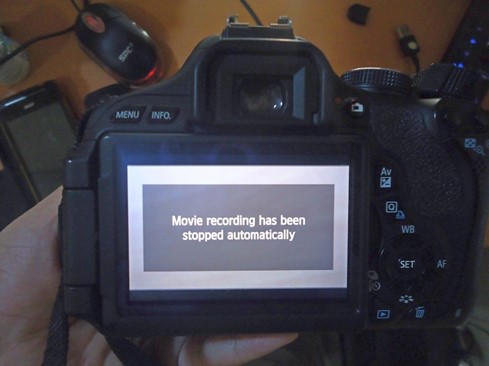
Even with careful planning, some match recordings can end up corrupted due to sudden power outages, device stuck, network drops, file errors, interruption during transfer, USB drive/memory card filled issue, etc. This can be incredibly frustrating when you just want to relive a thrilling match or save the best highlights.

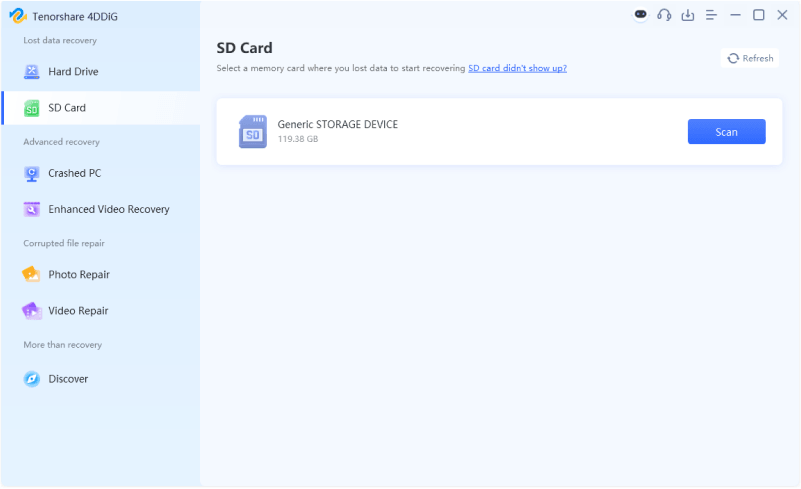
One tool many fans rely on for quick and effective fixes is 4DDiG Video Repair. It’s designed to recover and repair corrupted videos and handle common video problems like choppy playback, missing audio, files that refuse to open, etc. In addition, it supports most formats used in sports recordings from OBS, mobile, and streaming services.

Why Recommend 4DDiG Video Repair Tool

  • Fast repair of corrupted, unplayable, or broken video files from live streams
  • AI-powered tool that fixes severe corruption with excellent sucess rate
  • Support for HD and 4K recordings while preserving video clarity and detail
  • Support for common sports recording formats (MP4, MOV, MKV, and more)
  • Fix for common issues like video-audio sync problems, black screens, choppy playback, and missing sound
  • Easy-to-use interface and no technical skills required
  • Batch repair to fix multiple World Cup match or highlight recordings at once
  • Free full preview before saving to ensure quality
FREE DOWNLOAD

Secure Download

FREE DOWNLOAD

Secure Download

Steps to Repair or Recover Problem FIFA Recordings with Original Quality & Details Kept

  • Download and install 4DDiG Video Repair from the official website. Open the program, select “Video Repair” > click “Add Videos” to import all your corrupted FIFA game recordings at once.

    add problem fifa recordings to 4ddig
  • Let the software scan and fix the issues, this usually takes only seconds or minutes.

    repair all corrupted recordings
  • Preview the repaired video to check the repaired result and quality.

    preview repaired fifa recordings
  • Then tap on the triangle icon next to “Save” or “Save All” button to select an output video format (MP4, MOV, MKV, or AVI). Then save it to a new folder.

    select output format and save repaired recordings

How to Get the Best Recording Quality (HD/4K)

To enjoy crystal-clear FIFA World Cup 2026 matches and highlights, good recording quality makes all the difference. Here’s how to capture sharp HD or 4K footage without blur, lag, or poor audio.

  • Use a stable, high-speed internet connection: Wired Ethernet is ideal for computers as it prevents buffering and quality drops during live streams.
  • Set the highest resolution and frame rate: In your recording software or streaming service, select 1080p or 4K resolution and 60fps when available for smooth motion.
  • Close unnecessary apps and programs: This frees up CPU, RAM, and GPU resources so your device can focus on recording.
  • Adjust bitrate and audio settings: Higher bitrate improves video clarity; ensure the audio is set to capture commentary clearly.
  • Test before the match: Record a short 5-minute clip first to check quality, then fine-tune settings as needed.
  • Use supported devices and services: Confirm your streaming platform (like Fubo or YouTube TV) and playback device fully support 4K streaming and recording.

Following these tips will help you create professional-looking recordings that you can rewatch and enjoy for years.

Is It Legal to Record FIFA World Cup 2026 Matches?

In many cases, recording a World Cup match for personal viewing may be allowed, especially when you use a DVR, cloud DVR, or replay feature from an official provider. This is usually safer than trying to capture a protected stream manually.

However, recording rules vary by country, broadcaster, and streaming platform. You should always check your provider’s terms before saving FIFA World Cup 2026 matches or highlights.

The key rule is simple: keep recordings for personal use only. Do not upload full matches, share long clips online, sell recordings, or bypass DRM protection. If a streaming app blocks screen recording, use official replays, highlights, or cloud DVR instead.

People Also Ask about FIFA World Cup 2026

Q: Can I screen record World Cup matches from a streaming app?

Yes, in many cases, yet some apps block screen recording. Using a computer with OBS or checking your device’s built-in tools often works better. Test beforehand.

Q: Where can I watch World Cup 2026 replays?

Official broadcasters and services like YouTube TV, Fubo, or the Fox Sports app usually offer on-demand replays and highlights shortly after matches end. Check FIFA+ for select free content as well.

Conclusion

Now you know exactly how to record FIFA World Cup 2026 matches and highlights across different devices and platforms. With the right tools and settings, you can easily capture every thrilling moment in excellent quality and watch them whenever you want.

Moreover, if your recordings ever become corrupted or unplayable, 4DDiG Video Repair offers a fast and reliable solution to restore them. Enjoy the tournament stress-free and never miss a single goal!

FREE DOWNLOAD

Secure Download

FREE DOWNLOAD

Secure Download

William Bollson (senior editor)

William Bollson, the editor-in-chief of 4DDiG, devotes to providing the best solutions for Windows and Mac related issues, including data recovery, repair, error fixes.

(Click to rate this post)

You rated 4.5 ( participated)