What Is BMP & How to Open BMP on Windows, Mac, Online

5 mins read

Updated on 2026-07-02 19:52:02 to Photo Tips

Double-clicking your .BMP file does nothing? While BMP is one of the oldest and simplest image formats, many users are surprised when they can't open it or aren't sure which application to use. Many people don't know what a BMP file is and how to open a BMP file, so we will explain everything you need here.

Our detailed guide explains what BMP files are, their common uses, and the easiest ways to open them on Windows, Mac, and online.

What Is a BMP File & What Is It Used For?

Although modern formats like JPG and PNG dominate the web, BMP files are still widely used in certain industries because they preserve image quality without applying lossy compression. Understanding how the format works helps explain why it remains relevant today.

BMP File Meaning and Definition

BMP stands for Bitmap Image File, a raster graphics format developed by Microsoft. It stores image data as individual pixels, allowing software to reproduce an image exactly as it was created.

Unlike JPEG files, BMP images are typically uncompressed, although the format does support lossless compression in some cases. Because little or no compression is applied, BMP files usually retain excellent image quality but occupy significantly more storage space.

The BMP format is supported by Windows, macOS, Linux, and many image editing applications, making it one of the most universally recognized image formats.

What Is a BMP File Used For? (Key Characteristics)

BMP files are commonly used in situations where maintaining original image quality is more important than minimizing file size.

Now that you know what BMP means in text, here are some common applications:

  • Windows system graphics and icons.
  • Image editing before final compression.
  • Technical drawings and engineering diagrams.
  • Medical imaging systems.
  • Graphic design workflows.
  • Digital artwork storage.
  • Software development resources.
  • Printing projects that require lossless image quality.

Because every pixel is stored individually, BMP files preserve image detail extremely well, making them useful whenever image fidelity takes priority over storage efficiency.

Pros and Cons of BMP Files

  • Pros
  • Cons
    • Preserves original image quality
    • Widely supported across operating systems
    • No lossy compression artifacts
    • Excellent for editing and printing
    • Simple file structure
    • Large file sizes
    • Not ideal for web use
    • Slower file transfers due to size
    • Limited support for advanced transparency
    • Consumes more storage space than JPG or PNG

How to Open BMP Files on Windows and Mac (3 Fast Ways)

Fortunately, opening a BMP file is usually straightforward because most modern operating systems already include software capable of viewing bitmap images. If you need additional editing features or prefer working directly in a browser, several free alternatives are also available.

Below are three simple methods that work across different devices and user experience levels.

Method 1: Using Built-in Photo Viewer (Windows: Paint/Photos App; Mac: Preview App)

For most users, the quickest way to open a BMP file is with the software already installed on their computer. Windows includes both Paint and the Photos app, while macOS uses Preview to display bitmap images.

These built-in applications open BMP files instantly without requiring additional downloads, making them ideal for everyday viewing, basic editing, and printing tasks.

Windows (Paint or Photos App)

  • Locate the BMP file in File Explorer.

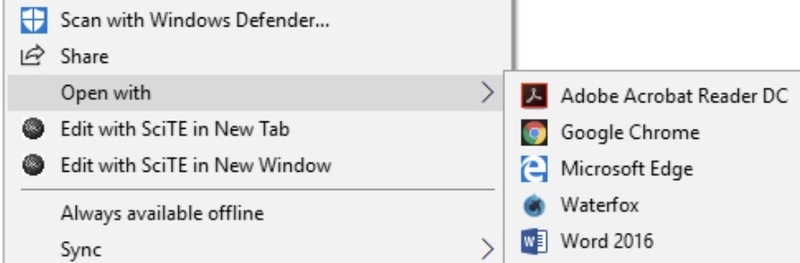
  • Right-click the BMP file. From the pop-up list, select "Open with" and then choose Photos. Paint, or Windows Photo Viewer.

    open bmp with windows paint
  • View or edit the image. Save changes if necessary.

Mac (Preview)

  • Locate the BMP image in Finder.

  • Double-click the file. Preview will open automatically.

  • Use Preview tools for basic edits if needed.

  • Save or export the image.

Method 2: Using Online BMP Viewer (Jumpshare)

If you're using a shared computer or simply don't want to install additional software, an online BMP viewer can be a convenient alternative. Jumpshare lets you upload and view BMP images directly from your browser, making it useful on Windows, Mac, Chromebooks, tablets, and even smartphones.

Since everything happens online, you can access your files from virtually any device with an internet connection.

  • Open the Jumpshare BMP Viewer website and click "Upload," then select your BMP image.

    jumpshare free online bmp viewer
  • Wait for the upload to complete.

  • View the image in your browser.

Method 3: Using Professional GIMP/Photoshop Software

If you plan to edit the image rather than simply view it, professional graphics software provides much greater flexibility. Both GIMP and Adobe Photoshop fully support BMP files, allowing you to modify colors, layers, dimensions, and other image properties before exporting to different formats.

These programs are especially suitable for designers, photographers, and anyone working with high-quality graphics.

  • Open Photoshop or GIMP and select "File," then click "Open".

    photoshop open photo files
  • Locate the BMP file and open the image.

  • Make your edits, then save or export in your preferred format.

⚡ Advanced Way: Convert BMP to JPG/PDF for Compatibility

Although BMP files preserve excellent image quality, they aren't always the most convenient format for everyday use. Their large file sizes make them less suitable for email attachments, websites, and mobile devices, while some applications have limited BMP support.

Converting BMP files to JPG or PDF can significantly improve compatibility, reduce storage requirements, and make sharing images much easier.

Batch Convert BMP to JPG in Seconds

If you need to convert multiple BMP files, doing them one by one can quickly become tedious. A batch converter is much more efficient, especially when dealing with image folders from old backups, scanned documents, or design projects.

4DDiG Image Format Converter, a built-in feature of 4DDiG File Repair, makes the process straightforward by allowing you to convert multiple BMP images to JPG in just a few clicks without sacrificing image quality.

Why Choose 4DDiG Image Format Converter?

4DDiG Image Format Converter stands out because it combines batch conversion with a clean, beginner-friendly interface, making it suitable for both casual users and professionals. Instead of converting files individually, it lets you process an entire folder at once while maintaining consistent image quality across every bitmap image to JPG converter file.

Standout Features

  • Converts multiple BMP, PNG, CR2, and HEIC images to JPG at once, saving time on bulk tasks.
  • Preserves image clarity and resolution whenever possible.
  • Offers a simple drag-and-drop workflow with no technical skills needed.
  • Handles large image collections quickly with batch conversion.
  • Built into 4DDiG File Repair, with extra image repair and recovery tools.
  • Suitable for photos, scanned documents, illustrations, screenshots, and graphics.
  • Works on both Windows and macOS.
FREE DOWNLOAD

Secure Download

FREE DOWNLOAD

Secure Download

Steps to Batch Convert BMP Files to JPG

  • Install and launch 4DDiG File Repair. Click "More Tools" from the left and open the "Image Format Converter" tool.

    open 4ddig image format converter
  • Click "Add Files" and import your BMP files that you want to convert to JPG. Import one or multiple BMP files.

    add bmp files to 4ddig
  • Under the "Convert" section, choose "Convert all to JPG" then click the "Convert" button from the bottom right to convert the BMP image to JPG.

    4ddig batch convert bmp files to jpg
  • Once the conversion is complete, click "Save" and choose your desired location to save the JPG image.

    4ddig bmp to jpg conversion completed
Tips:

Apart from the Image Format Converter, 4DDiG File Repair also features Photo Repair, which can fix various corrupted and problem photos (e.g., JPG, PNG, WebP, BMP, HEIC, TIFF, CR3, and more) in batch.

Convert BMP to PDF (Using Smallpdf Online BMP to PDF Converter)

Sometimes you don't need another image format---you need a document that's easier to print, archive, or share. Converting BMP images into PDF is particularly useful for scanned paperwork, receipts, diagrams, presentations, and reports.

If you're only converting a few images, Smallpdf provides a simple browser-based solution that works without installing desktop software.

  • Open the Smallpdf BMP to PDF converter online and click "Choose Files" to upload your BMP image.

    small bmp to pdf converter online
  • Adjust the page layout, if necessary, then click "Convert" to convert the BMP file to PDF.

  • Wait for the conversion to complete and download the finished PDF file.

People Also Ask About BMP File Format

What Is the BMP File Extension Related To?

The BMP file extension is associated with the Bitmap Image File format developed by Microsoft. It stores raster graphics using individual pixels and is widely supported by Windows, macOS, Linux, and many image editing applications.

Is a BMP the Same as a JPEG?

No. Although both are image formats, they work differently. BMP files typically store images without lossy compression, preserving maximum quality but creating much larger files. JPEG uses lossy compression to reduce file size, making it better suited for websites, email, and everyday photo sharing.

Conclusion

Knowing what a BMP file is and how to open a BMP file makes it much easier to work with this classic image format. Whether you choose built-in apps on Windows and Mac, an online viewer, or professional software like GIMP or Photoshop, opening BMP files is usually straightforward.

If you need better compatibility or smaller file sizes, 4DDiG Image Format Converter offers a fast way to batch convert BMP images to JPG while preserving image quality, making them easier to store, share, and use across different devices.

FREE DOWNLOAD

Secure Download

FREE DOWNLOAD

Secure Download

William Bollson (senior editor)

William Bollson, the editor-in-chief of 4DDiG, devotes to providing the best solutions for Windows and Mac related issues, including data recovery, repair, error fixes.

(Click to rate this post)

You rated 4.5 ( participated)