What Is an SVG File? How to Open, Edit, Convert, and Recover It?

5 mins read

Updated on 2026-06-22 11:30:18 to Wiki

What is an SVG file and why is it so widely used? SVG files are popular because they can be resized without losing quality, making them ideal for modern digital design. Whether you need to view, modify, convert, or recover one, understanding how SVG files work can help you manage them more effectively across Windows and Mac devices.

what is an svg file

What Is an SVG File?

An SVG (Scalable Vector Graphics) file is a vector-based image format developed by the World Wide Web Consortium (W3C). Unlike JPEG or PNG images that use pixels, SVG files use mathematical formulas to describe shapes, lines, colors, and text.

Because SVG graphics are vector-based, they can be enlarged or reduced without becoming blurry. This makes them particularly useful for websites, logos, icons, and professional design projects.

Key Features of SVG Files:

  • Resolution-independent scaling without quality loss
  • Smaller file sizes for many graphics compared to bitmap images
  • Supports transparency
  • Editable using text editors and graphic design software
  • Compatible with modern web browsers
  • Supports animations and interactive elements
  • Ideal for responsive web design

When people ask for the type of SVG file, the simplest answer is that it is a flexible vector image format designed for high quality graphics that can scale to any size.

Common Use Cases of an SVG File

SVG files are widely used in both web and graphic design environments due to their flexibility and scalability.

Website Icons and Logos

Many websites use SVG graphics for logos and icons because they remain sharp on all screen sizes and resolutions.

User Interface Design

Developers frequently use SVG files for buttons, menus, navigation icons, and other interface elements.

Illustrations and Infographics

Designers create complex vector illustrations and infographics using SVG because the graphics remain crisp when resized.

Printing Projects

SVG files can be used for posters, signs, and promotional materials that require high-quality scaling.

Cutting Machines and Craft Projects

Many Cricut and Silhouette users rely on SVG files for custom cutting designs and craft projects.

Technical Drawings and Diagrams

Engineers and educators often use SVG graphics for diagrams, charts, and instructional materials.

Advantages and Disadvantages of SVG Files

Like any file format, SVG files offer both benefits and limitations. Now that you know what is an SVG file, let's discuss its pros and cons.

  • Advantages
  • Disadvantages
    • Infinite scalability without quality loss
    • Smaller file sizes for many vectors graphics
    • Easy customization and editing
    • Search-engine-friendly text content
    • Browser compatibility
    • Excellent for responsive design
    • Supports animations and scripting
    • Not ideal for detailed photographs

    • Complex SVG files can become large and resource-intensive

    • Some advanced features may not render consistently across all applications

    • Requires compatible software for advanced editing

    • It can be difficult for beginners to edit manually

For graphics involving logos, icons, and illustrations, SVG is often the preferred choice. For photographs, formats such as JPEG or PNG are usually more suitable.

How to Open SVG Files?

When learning to open SVG file formats, several simple options are available depending on your operating system.

For Windows:

Here are 3 methods you can use to open SVG files on Windows:

Option 1: Open SVG Files Using Google Chrome

Modern web browsers can render SVG files natively without requiring additional software. Opening an SVG file in Chrome provides a quick way to view the graphic and verify its appearance.

  • Locate the SVG file on your computer and right-click it.

  • Select "Open With" and click "Google Chrome".

    choose open with to open a file
  • The SVG image will open directly in the browser window.

Option 2: Open SVG Files Using Graphic Software

For editing or detailed viewing, programs such as Adobe Illustrator, Inkscape, or CorelDRAW provide more advanced functionality. Graphic design applications offer advanced support for viewing and working with SVG files. They allow users to inspect vector elements, edit objects, and access features that are not available in standard image viewers.

  • Launch Adobe Illustrator and click "File" then "Open".

    open svg files with adobe illustrator
  • Browse to the SVG file location to select the file and click "Open".

  • The SVG graphic will appear in an editable workspace.

Option 3: Use File Explorer Preview

Windows File Explorer includes a preview feature that can display supported file types without opening a separate application. This method is useful for quickly identifying SVG files and reviewing their contents directly from a folder.

  • Open "File Explorer" and navigate to the SVG file.

  • Click the "View" tab and enable "Preview Pane".

    preview the svg via file explorer
  • Select the SVG file to view a preview.

For Mac:

macOS provides built-in support for viewing SVG files through Preview and other compatible applications. This allows users to open and inspect SVG graphics without installing additional software. Steps using Preview:

  • Locate the SVG file in Finder and right-click it.

  • Select "Open With" then choose the "Preview" app.

    open svg on mac via preview app
  • Preview will display the SVG image, where you can use zoom controls to inspect the graphic.

How to Edit SVG Files?

SVG files can be edited to modify text, colors, shapes, and other vector elements. Dedicated SVG editors provide tools for customizing graphics while preserving their scalability and image quality.

Learning to edit SVG files is useful when customizing logos, icons, or design elements. Depending on your needs, both professional and free applications can be used for SVG editing.

Recommended SVG Editors:

  • Adobe Illustrator: Best for professional design work
  • Inkscape: Free and open-source SVG editor
  • Figma: Online design tool with SVG support
  • Sketch: Popular among Mac users
  • Vectornator (Linearity Curve): Available for Mac and iPad

Steps to Edit SVG Files Using Inkscape:

  • Download and install Inkscape, then launch the application and click "File" then "Open" to select the SVG file.

  • Use the selection tool to choose elements.

  • Modify shapes, colors, text, or effects and work with layers as needed.

  • Review your changes, then click “File” and “Save As” to save the edited version.

Inkscape is often recommended for beginners because it offers powerful editing features at no cost.

How to Convert SVG Files to Other Formats?

Sometimes you may need to convert SVG graphics into formats such as PNG, JPG, PDF, or WebP for compatibility reasons. Several online converters, including CloudConvert and Convertio, can perform these conversions quickly. Here’re the steps:

  • Open the CloudConvert website SVG Converter and click "Select File" to upload your SVG file.

    convert svg using online cloudconvert tool
  • Choose the desired output format and convert it.

  • Wait for the conversion process to finish and download the converted file to your computer.

Always keep the original SVG file so you can make future edits without quality loss.

⚡ How to Recover Lost or Deleted SVG Files?

SVG files can sometimes be lost due to accidental deletion, formatting, software crashes, storage corruption, or system issues. When this happens, recovery software can help locate and restore missing files.

Many users rely on 4DDiG Windows data recovery because it supports recovery from hard drives, SSDs, USB drives, SD cards, and other storage devices.

FREE DOWNLOAD

Secure Download

FREE DOWNLOAD

Secure Download

Steps to Recover Deleted SVG Files with 4DDiG:

  • Download and install 4DDiG, then open the program. Choose the drive or storage device where the SVG files were lost to scan it with 4DDiG.

    launch 4ddig and enter interface
  • After the scan completes, use the "Filters" or "Search" tools to locate SVG files.

    click type to see all files 4ddig
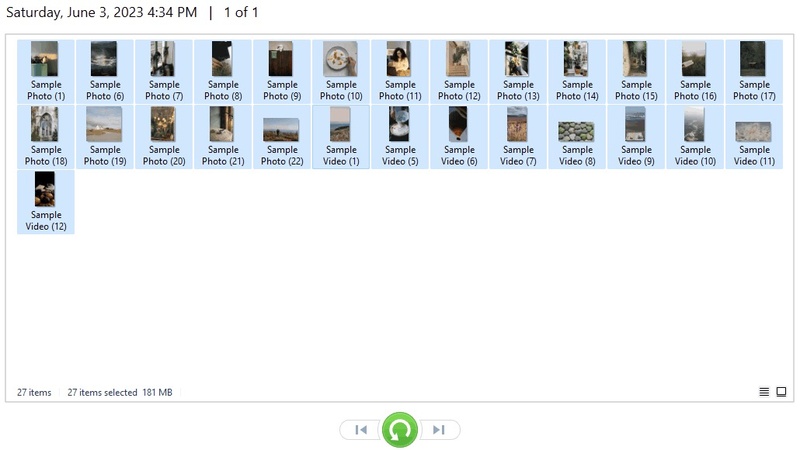
  • Preview available files by double-clicking to verify they are the correct SVG graphics, and click "Recover" for the files you want to recover.

    preview and recover the files
  • Now, choose a different location to save those recovered SVG files and click "Save Now".

    save the recovered files

For best results, stop using the affected storage device immediately after data loss occurs.

Conclusion

Understanding an SVG file can help you take full advantage of one of the most versatile image formats available today. Whether you need to open, edit, convert, or recover SVG graphics, the methods covered above can help you work with them effectively.

When important SVG files are accidentally deleted, Tenorshare 4DDiG can help locate and restore lost data from various storage devices.

William Bollson (senior editor)

William Bollson, the editor-in-chief of 4DDiG, devotes to providing the best solutions for Windows and Mac related issues, including data recovery, repair, error fixes.

(Click to rate this post)

You rated 4.5 ( participated)