How to Resolve ChatGPT Error Too Many Concurrent Requests?

5 mins read

Updated on 2026-01-21 12:26:24 to Windows Fix

If you rely on ChatGPT for work, study, or daily productivity, few interruptions are more frustrating than suddenly seeing the ChatGPT error: too many concurrent requests. This issue often appears without warning, blocking access when you need it most. In this guide, we first explain what the error means, then break down its real causes, followed by step-by-step fixes that work in 2026.

1.What is ChatGPT Error Too Many Concurrent Requests?

The mesage ChatGPT error: too many concurrent requests is telling you that your request volume, or the number of active sessions tied to you, has exceeded the allowed limit.

chatgpt error too many concurrent requests

It occurs when OpenAI’s servers temporarily block new requests from your account or IP address because too many requests are being processed at the same time. This is not a bug in your browser or device. Instead, it is a rate-limiting mechanism designed to protect system stability and ensure fair usage for all users.

🔍 Common Causes of Too Many Concurrent Requests Error in ChatGPT

Understanding the causes helps you choose the right fix instead of guessing.

  • High Request Frequency: Sending prompts too quickly, especially long or complex ones, can trigger ChatGPT's rate limits, even for normal users.
  • Multiple Active Sessions: Logging into ChatGPT on several browsers, devices, or tabs at the same time increases concurrent request counts.
  • VPN or Shared IP Address: VPNs often assign shared IPs. If many users on the same IP access ChatGPT simultaneously, limits may apply to everyone.
  • Server Load or Partial Outages: During peak usage or service degradation, OpenAI may enforce stricter limits to maintain platform stability.
  • Browser Cache or Site Data Conflicts: Corrupted local storage can cause repeated background retries, unintentionally increasing request volume.

2. How to Fix Too Many Concurrent Requests Error For ChatGPT?

Fix 1: Refresh Your Page

Sometimes, the "too many concurrent requests" error appears due to a partially loaded request rather than a real usage limit. Refreshing the page forces ChatGPT to reload the session and clear temporary conflicts. This is the fastest and easiest fix, making it the best starting point before trying more advanced solutions.

  • Click the browser “refresh” button or press “Ctrl + R.”

    refresh browser
  • Wait 10–15 seconds before sending another prompt and avoid repeatedly refreshing, as this may worsen the issue.

A single refresh often resolves temporary request conflicts caused by stalled responses.

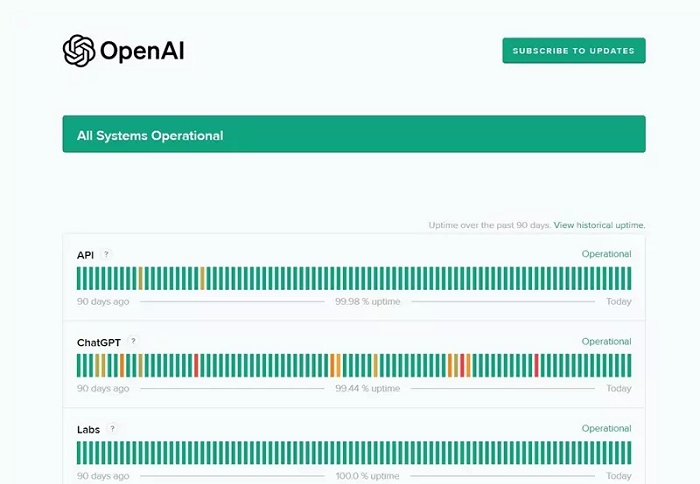
Fix 2: Check Downdetector and OpenAI status page

Service outages, traffic spikes, or backend maintenance can trigger request limits globally. Verifying platform status helps you avoid unnecessary troubleshooting when waiting is the only effective option.

  • Check the OpenAI Status page for ongoing incidents. If there is a reported outage, wait until services stabilize.

    openai status
  • If ChatGPT is experiencing widespread issues, waiting is the only effective solution.

Fix 3: Disable Your VPN

VPNs often use shared IP addresses, your requests may be grouped with other users’ traffic. Disabling the VPN temporarily allows ChatGPT to recognize a clean, direct connection and often removes rate limits instantly.

  • Start by opening your VPN client and disconnecting from the "VPN."
    Disabling VPN access and clearing relevant data is one of the most reliable fixes for recurring request errors.

Fix 4: Clear Storage and Site Data

Corrupted browser storage or stuck session data can cause ChatGPT to repeatedly retry failed requests in the background. Clearing site data resets your session environment, removes hidden conflicts, and gives ChatGPT a fresh start without affecting your account or chat history stored online.

  • Open “Settings” on your browser and go to “Privacy and Security."

  • Select "Delete Browsing Data" and choose the type of site data and storage that you want to clear, along with the time, and click "Delete Data."

    delete browsing data

It is recommended to select “All Time” and all the data options for the best results. This removes stuck sessions that may be silently triggering concurrent requests.

Fix 5: Reset IP Address

Resetting your IP address by restarting your router assigns a new network identity, which can clear up temporary restrictions. This method is especially effective if the error persists across browsers or devices on the same network.

  • Restart your router by unplugging it for 5-10 minutes, then power it back on.

  • Reconnect to the internet and open ChatGPT again in a fresh browser session.

A new IP often clears short-term rate limits imposed at the network level.

⚡ Boost System Efficiency and Prevent Overload: Deep Disk Cleanup with 4DDiG

Repeated browser issues, cache corruption, and background system slowdowns can indirectly contribute to repeated ChatGPT loading failures. Maintaining a clean and efficient system helps prevent request loops and browser instability.

4DDiG Partition Manager includes a Disk Wipe feature that removes unnecessary data at a deep level, reducing system clutter that can interfere with browser performance.

ℹKey Features include:

  • Partition management for better system organization
  • Boot repair and disk health optimization
  • Disk cloning for safe backups before system changes
  • Quick Install Windows without a installation media
  • Bypass Windows 11 upgrade requirements
  • Install and open 4DDiG Partition Manager. In the left sidebar, click “Toolkit”, then choose “Data Erase” to continue.

    FREE DOWNLOAD

    Secure Download

    click data erase
    Note:

    If you’re erasing a partition on an external hard drive, connect the drive to your computer first.

  • Select the disk or partition you want to wipe, then click Continue.

    click continue to proceed
  • After confirming you’ve chosen the correct disk or partition, click Sure to start.

    click sure to start wipe disk
  • The wiping process may take a while, so please wait patiently until it complete.

    wipe disk successfully

By freeing disk space and improving system responsiveness, background processes are less likely to interfere with ChatGPT sessions.

More FAQs about ChatGPT Error: Too Many Concurrent Requests

1. How long do I have to wait for ChatGPT to handle too many requests?

In most cases, the waiting time ranges from a few minutes to one hour, depending on server load and how heavily your account or IP was rate-limited. For repeated violations, the cooldown period may extend longer.

2. What is the request limit for ChatGPT?

ChatGPT does not publicly disclose exact limits, but restrictions depend on account type, server load, and usage patterns. Free users generally experience stricter limits than paid subscribers.

3. How to bypass ChatGPT's too many requests?

There is no legitimate way to bypass ChatGPT rate limits. However, reducing request frequency, closing extra sessions, disabling VPNs, and waiting for cooldowns are safe and effective solutions.

4. How to bypass ChatGPT's hour limit?

Hourly limits reset automatically. The best approach is to wait, reduce usage intensity, or switch to a paid plan that offers higher request thresholds.

Conclusion

The ChatGPT error: too many concurrent requests is a rate-limiting mechanism, not a permanent block or account issue. In most cases, simple actions, such as refreshing the page, disabling VPNs, clearing site data, or waiting briefly, restore access quickly. For long-term stability, maintaining system health is equally important.

Tools like 4DDiG Partition Manager help keep your system clean and efficient, reducing browser conflicts and background issues that may contribute to repeated loading errors. By combining smart usage habits with proper system maintenance, you can avoid hitting ChatGPT limits and enjoy uninterrupted access in 2026 and beyond.

FREE DOWNLOAD

Secure Download

William Bollson (senior editor)

William Bollson, the editor-in-chief of 4DDiG, devotes to providing the best solutions for Windows and Mac related issues, including data recovery, repair, error fixes.

(Click to rate this post)

You rated 4.5 ( participated)