6 Best RTF to PDF Converters | Convert RTF Quickly

5 mins read

Updated on 2026-07-10 10:28:29 to File Tips

Rich Text Format (RTF) files are widely used for editing across different platforms, but formatting can change depending on the software. When you need consistent, professional, and shareable documents, converting RTF to PDF is the most reliable solution. PDF files preserve layout, fonts, and structure across all devices, making them best for business, education, and professional use. This article reviews the best RTF to PDF converters in 2026 along with manual methods and troubleshooting tips.

rtf to pdf converter

Key Takeaways:

  • Smallpdf: Best for users who need a polished interface and mobile accessibility.
  • CloudConvert: Ideal for those who need high fidelity conversions equivalent to Microsoft Office.
  • Zamzar: Perfect for a quick, ad free experience with a massive variety of file types.
  • PDFgear: The best choice for large files without needing a paid subscription.
  • Online2PDF: Best for power users who need to merge, OCR, or heavily customize the output layout.
  • Foxit: A reliable, secure choice for professional documents, ensuring formatting consistency across platforms.

Top 6 Best Online RTF to PDF Converters Free: Convert RTF Files Free Online

If you need to convert RTF to PDF without installing heavy software, online tools offer the most agility. In our 2026 testing, we looked for speed, formatting retention, and data privacy. Here are the top six performers that make it easy to transfer RTF to PDF seamlessly.

1. Smallpdf

smallpdf rtf to pdf converter

Smallpdf has established itself as a global leader in document management since its inception in 2013. Its RTF to PDF converter is designed for simplicity. It allows users to convert rich text files into universal documents without installing software. The platform prioritizes security through GDPR compliance and ISO/IEC 27001 certification. It excels at preserving basic formatting while ensuring the output remains accessible across all digital devices.

  • Pros
  • Cons
    • No account creation is required for basic conversions.
    • Employs TLS encryption to ensure high level document security.
    • Fully compatible with all operating systems, including mobile platforms.
    • Preserves basic formatting, such as bold and bulleted lists, accurately.
    • Limits the number of free daily conversions for non pro users.
    • The free version often displays advertisements during the process.
    • Batch processing is locked behind a paid subscription wall.

2. CloudConvert

cloudconvert rtf to pdf converter

CloudConvert is the ultimate "Swiss Army Knife" for anyone needing a rich text format to pdf converter. It supports over 200 formats, and its RTF to PDF engine is highly customizable. You can adjust the engine versions to ensure that legacy RTF formatting is preserved perfectly. In 2026, it stands out for its API first approach, making it a favorite for developers and power users who need high fidelity results.

  • Pros
  • Cons
    • Provides high quality output similar to Microsoft Office 2021.
    • Supports extremely large file sizes even on the standard free plan.
    • Maintains complex nested tables and custom font settings effectively.
    • No software installation is required, as it runs entirely in the browser.
    • The interface can feel a bit technical for beginner users.
    • Free users are subject to a daily conversion minute limit.
    • Privacy policy is strong but involves third party server processing.

3. Zamzar

zamzar rtf to pdf converter

ZamZar has been a staple in the conversion world for decades, and its 2026 version is faster than ever. It excels in simplicity: you upload, choose the format, and convert. It is the best choice for users who want to transfer RTF to PDF without navigating through complex settings. The email delivery option is particularly handy for large files that might take a few minutes to process while you work on other tasks.

  • Pros
  • Cons
    • Supports over 1100 different file conversion types.
    • Exceptional compatibility with mobile browsers for tablet and phone use.
    • Optional email notifications allow you to walk away during long conversions.
    • Clean, ad light experience than other "free" online tools.
    • The free version has a strict 4MB file size limit.
    • Does not offer real time editing features after the conversion.
    • Desktop and mobile applications require separate installations.

4. PDFgear

pdgear rtf to pdf converter

PDFgear is a modern, high speed converter that prides itself on being completely free without typical restrictions. Unlike competitors, it offers unlimited conversions and does not add watermarks to the final PDF. The tool uses secure Amazon Cloud servers to process files in as little as two seconds. It is particularly effective for users who need to convert multiple documents quickly without worrying about daily task limits or hidden costs.

  • Pros
  • Cons
    • Completely free to use with no hidden daily limits.
    • Extremely fast conversion speeds, often under two seconds.
    • The output is entirely free of any watermarks.
    • Offers a powerful offline version for batch processing tasks.
    • The online version lacks the batch processing power of the desktop.
    • Advanced features like OCR are limited in the web browser.
    • Requires a desktop installation for the full suite of tools.

5. Online2PDF

online2pdf rtf to pdf converter

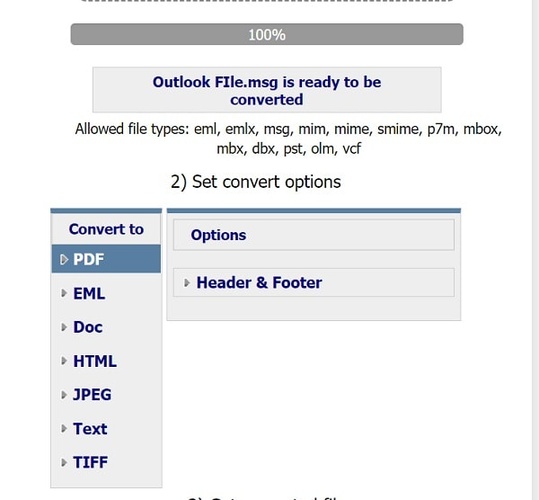
Online2PDF is the power user's dream for managing a rich text format to pdf workflow. While its interface looks like a relic from the early internet, its functionality is unmatched. It allows you to merge, edit, and convert multiple RTF files into a single, structured PDF. You can also define specific PDF properties, such as password protection and compression levels, during the initial conversion step.

  • Pros
  • Cons
    • Allows for extensive customization, including page rotation and reordering.
    • Boasts a massive 150MB file size limit for single uploads.
    • Offers built in OCR and header/footer customization during conversion.
    • Can merge multiple RTF files into a single PDF document.
    • File size limits are strictly capped at 150MB per session.
    • The site is supported by ads, which can be distracting during use.
    • Limited to 30 files per batch, which may hinder large projects.

6. Foxit

foxit rtf to pdf converter free online

Foxit is a name synonymous with professional PDF management. Their online tool is designed for users who need to transfer RTF to PDF while maintaining a professional standard. It is built for reliability, ensuring that the fonts and spacing remain predictable every time. This tool is especially useful for finalizing drafts before external sharing, where document stability and branding consistency are important for business communications.

  • Pros
  • Cons
    • Delivers professional grade output suitable for legal and business use.
    • Automatically deletes files from servers for enhanced privacy.
    • Supports a relatively high file size limit of 15MB online.
    • Part of a larger ecosystem of professional document editors.
    • The advanced desktop version only offers a 14 day trial.
    • Most powerful editing features are locked behind a purchase.
    • The online interface is fairly basic compared to its desktop counterpart.

Quick Comparison: Top 6 RTF to PDF Converters (2026)

  • Converter
  • Max File Size (Free)
  • Batch Conversion
  • Security & Privacy
  • Key Features
  • Smallpdf
  • Limited per day
  • Available (Pro)
  • TLS Encryption, ISO 27001, 1h deletion
  • Clean UI, mobile app
  • CloudConvert
  • Up to 25 tasks/day
  • Yes
  • SSL Encryption, immediate deletion
  • High quality output, 200+ formats, API
  • Zamzar
  • 4 MB
  • Yes
  • SSL Encryption, 24h deletion
  • Ad free, 1100+ formats supported
  • PDFgear
  • 100 MB
  • Yes (via Desktop)
  • HTTPS/SSL, 20 min deletion
  • No watermark, free, offline app
  • Online2PDF
  • 150 MB (200MB total)
  • Yes (up to 30 files)
  • Data deleted after conversion
  • OCR, merge, edit, and layout control.
  • Foxit
  • 15 MB
  • Available (Trial)
  • TLS 1.2, AES 256, auto deletion
  • Professional grade output

How to Convert RTF to PDF Manually (Step by Step)

Sometimes, you don't want to upload your sensitive data to a third party server. In these cases, knowing how to change RTF to PDF using tools you already own is vital. Most modern OS and word processors have built-in "Export" or "Print" functions that serve as local converters, keeping your documents offline and secure.

Method 1: Change RTF to PDF in Google Docs

Many users prefer staying within the cloud ecosystem for their daily tasks. If you want to know how to convert rich text format to PDF without downloading extra tools, Google Docs is a hidden gem. It preserves most basic formatting and allows for immediate sharing via Drive. It is the best workflow for students and collaborative teams who need a quick, no frills export option.

Steps

  • Open Google Drive and upload your RTF file.

  • Right click the file and choose "Open with," then "Google Docs."

  • Once the document opens, go to the "File" menu in the top left corner.

  • Go to "Download" and choose "PDF Document (.pdf)."

    google docs save rtf to pdf
  • The converted file will automatically save to your computer's download folder.

Method 2: Save RTF as PDF Manually Using Microsoft Word

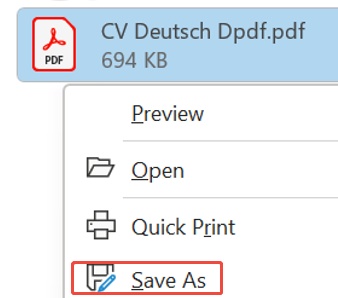
Microsoft Word is perhaps the most robust word rtf to pdf converter available. Since Word created many of the RTF standards, it handles the nuances of the format better than almost any other software. If you have a Microsoft 365 subscription, this is the most reliable way to ensure your margins and fonts remain exactly as intended.

Steps

  • Open Microsoft Word, go to "File," and choose "Open" to locate your RTF document.

  • Once opened, click on the "File" tab again.

  • Select "Save As."

    microsoft word save rtf to pdf
  • Click the file format dropdown menu and select "PDF (.pdf)."

  • Click "Save," and Word will handle the rendering and optimization for you.

Method 3: Convert Rich Text to PDF using the Microsoft Print to PDF Feature

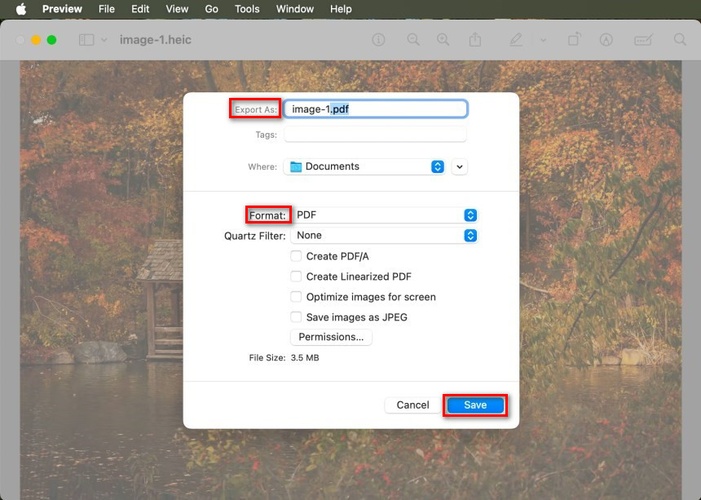
If you don't have Word or Google Docs, you can still figure out how to save RTF as PDF using the "Print to PDF" feature built into Windows and macOS. This treats the conversion like a print job, but instead of sending paper to a printer, it "prints" the data into a digital PDF file. This is often the fastest way to convert a simple text file.

Steps:

  • Open your RTF file in any basic text editor (like WordPad or TextEdit).

  • Press Ctrl + P (Windows) or Cmd + P (Mac) to open the Print dialog.

  • In the list of available printers, select "Microsoft Print to PDF" or "Save as PDF."

  • Click "Print" or "Save."

    microsoft print to pdf convert rtf to pdf
  • A window will appear asking you to name your new PDF and choose a save location.

⚡ What to Do If Your RTF or Converted PDF File Is Corrupted

Conversion isn't always perfect. Sometimes an old RTF file might be corrupted with age, or an online converter might produce a PDF that won't open. When this happens, common fixes like "Restarting the app" rarely work. You need a dedicated solution that can dive into the file's binary code to reconstruct the missing pieces. We highly recommend 4DDiG File Repair for these stressful situations.

Unlike generic repair tools, 4DDiG File Repair uses advanced AI algorithms to identify structural inconsistencies in document files. Whether your PDF shows a "Format error," a blank screen, or scrambled text, this tool can often restore it to its original state.

Key Features of 4DDiG File Repair:

  • Repairs both RTF related document issues and corrupted PDF files.
  • Fixes files that won't open, appear blank, contain gibberish, or show formatting errors.
  • Supports batch repair, allowing you to repair multiple files simultaneously.
  • Recovers important content, including text, images, tables, hyperlinks, and layouts.
  • Uses advanced repair algorithms to handle severe file corruption.
  • Supports a wide range of file formats.
  • Fast scanning and repair process for improved productivity.
FREE DOWNLOAD

Secure Download

FREE DOWNLOAD

Secure Download

Steps to fix corrupted RTF or PDF files in batch using 4DDiG File Repair:

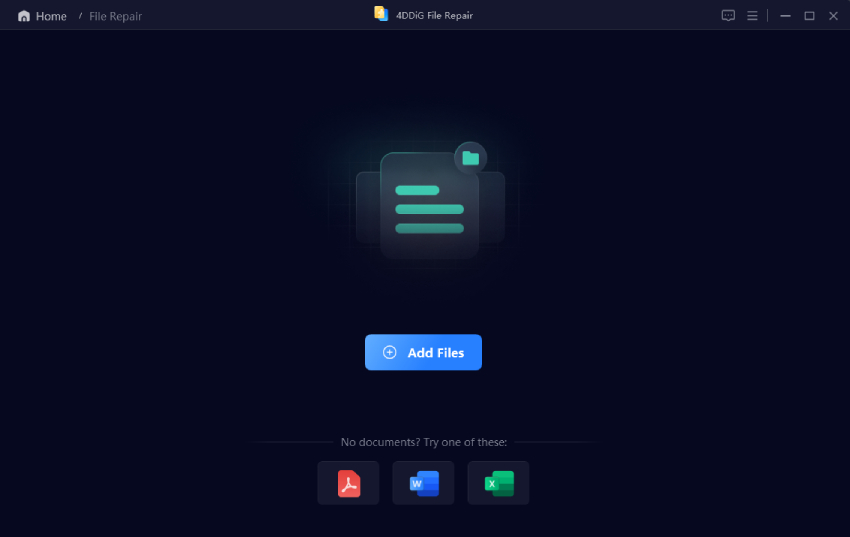
  • Install 4DDiG File Repair on your PC or Mac. Select the "File Repair" tab, then click "Add Files" to upload your corrupted RTF or PDF files.

    add corrupted rtf or pdf to 4ddig
  • Click the "Repair All" button. The software will scan and fix the internal logic of the files.

    repair all corrupted rtf and pdf files
  • Once the repair is complete, click "Preview" next to any repaired file. If you are satisfied with the results, click "Save" to export the individual file, or "Save All" to export all repaired files at once.

    preview and save repaired pdf files

Your repaired RTF or PDF files will now be ready to open, edit, share, or print without corruption issues.

People Also Ask about RTF to PDF

Q1: Is it safe to convert RTF to PDF online?

Yes, most reputable tools, like smallpdf and Foxit, use TLS encryption and delete your files from their servers within an hour. However, for highly sensitive legal or medical documents, using an offline tool like PDFgear or the manual "Save As" feature in Word is generally safer.

Q2: How to convert RTF file to PDF on an iPhone?

You can use the built in Files app. Open the RTF file, tap the "Share" icon, select "Print," and then use two fingers to "zoom in" on the preview. This converts the document to a PDF, which you can then save to your Files app.

Conclusion

Finding a reliable RTF to PDF converter online free is easier than ever in 2026. Whether you choose the speed of PDFgear or the professional polish of Foxit, converting your documents ensures they are secure and readable. If you ever face issues with file corruption, remember that 4DDiG File Repair is the best tool to restore your valuable data quickly and efficiently.

FREE DOWNLOAD

Secure Download

FREE DOWNLOAD

Secure Download

William Bollson (senior editor)

William Bollson, the editor-in-chief of 4DDiG, devotes to providing the best solutions for Windows and Mac related issues, including data recovery, repair, error fixes.

(Click to rate this post)

You rated 4.5 ( participated)