How to Fix "Please Wait While OneNote Inserts the Document" Error (2026 Full Guide)

5 mins read

Updated on 2026-04-08 17:08:13 to File Tips

Seeing the message which says, please wait while OneNote inserts the document can quickly turn a simple task into a frustrating delay. Whether you’re trying to insert a PDF or attach a file, the process may freeze or never complete. If you’re stuck waiting, this guide will walk you through quick fixes and permanent solutions.

Part 1. What Does “Please Wait While OneNote Inserts the Document” Mean?

please wait while onenote inserts document

The message about please wait while OneNote inserts the document appears when OneNote is processing a file you’re trying to insert, especially as a printout. Instead of simply attaching the file, OneNote converts it into a visual format that can be displayed directly on your notes page.

This typically happens when:

  • Inserting a PDF into OneNote as a printout
  • Adding Word, Excel, or PowerPoint files as printouts
  • Embedding large documents or scanned files
  • Importing files from cloud storage or shared drives

How Long Should This Message Normally Take?

Under normal conditions, the process should take a few seconds to a minute, depending on file size and system performance. Messages like Please wait while OneNote loads this printout or Please wait while selected items are retrieved are temporary indicators.

When attaching a file in OneNote, you are actually asking the app to render it visually, especially when you insert PDF content. If this process takes too long or gets stuck, it indicates an underlying issue that needs fixing.

Part 2. Why Can’t I Insert Anything into OneNote?

Here are the most common reasons behind this issue:

  • A corrupted PDF or document file prevents proper rendering. See: how to repair corrupted PDF files
  • Large file size is causing OneNote to freeze during processing
  • Outdated OneNote or Microsoft Office version
  • Cache overload is slowing down OneNote performance
  • The incorrect default PDF viewer is causing compatibility issues
  • System resource limitations (RAM or CPU usage)
  • OneNote sync conflicts or cloud-related delays
  • Bugs related to Windows updates or Office updates
  • Issues with inserting PDF printouts in OneNote due to format incompatibility

Part 3. Quick Fixes You Can Try in 2 Minutes When You Can’t Insert a File as a Printout

If you are also wondering, why can’t I insert anything into OneNote, here are the quick solutions that can help you:

Fix 1. Restart OneNote & Your Device

Sometimes, the issue occurs due to temporary glitches or memory overload. Restarting clears background processes and refreshes system resources. This simple step can resolve many cases where OneNote gets stuck inserting files.

  • Close OneNote completely. Press “Ctrl + Shift + Esc” to open Task Manager

  • End any remaining OneNote tasks by right-clicking the task and choosing “End Task”.

  • Restart your computer and open OneNote, and try inserting the file again.

Fix 2. Insert as a File Attachment Instead of a Printout

If OneNote fails to render the document as a printout, you can bypass the issue by attaching it instead. This avoids the conversion process and inserts the file directly. It’s a quick workaround when you can’t insert a file as a printout.

  • Open OneNote and go to your page. Click the "Insert” tab, then choose “File Attachment”.

    insert file attatchment into onenote
  • Select your file and click “Insert”. The file will appear as an icon instead of a preview.

⚡ Part 4. How to Fix “Please Wait While OneNote Inserts the Document” Permanently (Step-by-Step)

While you learned about fixing issues with inserting PDF printouts in OneNote in the previous section, let’s explore how to solve the problem permanently.

Fix 1. Repair Corrupted or Damaged Files Using a File Repair Tool

The “Please Wait While OneNote Inserts the Document” error is frequently caused by corrupted or damaged source files (especially PDFs, Word documents, or PowerPoint files). When OneNote tries to convert the file into printable images, even minor corruption can cause it to freeze indefinitely.

Repairing the original file first is often the fastest and most effective solution. It eliminates the root cause rather than just working around the symptoms. 4DDiG File Repair is one of the best AI-powered document repair tools in 2026. It supports PDF, Word (.docx), PowerPoint (.pptx), Excel, and many other formats, with high success rates and an easy-to-use interface.

It Helps:

  • Uses advanced AI to repair text, images, tables, and formatting
  • Compatible with the latest Microsoft 365 and OneNote versions
  • Batch repair corrupted PDF, Word, Excel, PPT, and more files
  • Allows you to preview repaired files before saving
  • Simple workflow suitable for both beginners and advanced users
FREE DOWNLOAD

Secure Download

FREE DOWNLOAD

Secure Download

  • Install and open 4DDiG File Repair, then click "File Repair". Click “Add Files” and upload the problematic document.

    add problematic documents to 4ddig
  • Click “Repair All” from the bottom right to start the repair process.

    repair all added documents
  • Preview the repaired file by clicking "Preview" against it, and save it by clicking the “Save” button after you are satisfied with the results.

    preview and save repaired pdf files

Fix 2. Untick “Using Multiple Pages”

OneNote splits large documents into multiple pages when inserting printouts. This can increase processing time and cause freezing. Disabling this option simplifies the insertion process.

  • Open OneNote and go to “File", then "Options", and click “Advanced” from the left menu.

  • Find the option “Insert long printouts on multiple pages” and “uncheck” the box, then click “OK”.

    untick using multiple pages
  • Then restart OneNote and try inserting the document again.

Fix 3. Reduce File Size Before Inserting

Large files take longer to process and may cause OneNote to freeze. Compressing or optimizing the file reduces load time and prevents errors. This is especially helpful for scanned PDFs or image-heavy documents.

  • For Word/PowerPoint: Remove unnecessary images, compress media, or split the document into smaller sections.

  • Aim to keep files under 10–20 MB for smooth insertion.

  • Try inserting the smaller version as a printout.

Fix 4. Use the Send to OneNote Virtual Printer

Instead of inserting files directly, you can use the virtual printer to send content to OneNote. This method often bypasses insertion bugs. It works especially well for PDFs and Office files when you are wondering why can’t I insert a PDF into OneNote.

  • Open the file you want to insert and press “Ctrl + P” to open the print menu.

  • Select “Send to OneNote” as the printer and click “Print”.

    use send to onenote to fix onenote inserting document error
  • Now, choose your notebook and page in the pop-up window and click “Print”. The selected file will be added to your OneNote notebook in a few seconds.

Fix 5. Set Adobe Acrobat Reader as the Default PDF Viewer

Using an incompatible PDF viewer can cause issues when inserting printouts. Setting a stable viewer like Adobe Acrobat improves compatibility. This ensures OneNote processes PDFs correctly.

  • Right-click a PDF file and click “Properties," then click "Change" against the "Open With” option.

    set adobe acrobat reader ad default pdf viewer
  • Select “Adobe Acrobat Reader” and click "OK," then try inserting the PDF again in OneNote.

Fix 6. Clear OneNote Cache Completely

Over time, cached data can become corrupted and slow down OneNote. Clearing the cache refreshes the app and removes problematic temporary files. This often resolves persistent insertion issues.

  • Close OneNote, then press “Win + R” and type: “%localappdata%\Microsoft\OneNote”.

    clear onenote cache to fix onenote inserting document wait issue
  • Open the folder and locate the cache files, and delete the cache folder content.

  • Restart OneNote and sync your notes again.

Fix 7. Repair or Update Microsoft OneNote/Office

Outdated or corrupted Office installations can cause insertion errors. Updating or repairing the software fixes bugs and restores functionality. This is one of the most effective long-term solutions.

  • Right-click the "Start" button and click "Installed Apps."

  • Select the "OneNote" app, then click "Options" and select "Modify."

  • Select “Online Repair” and click “Repair” to begin repairing.

    repair microsoft office
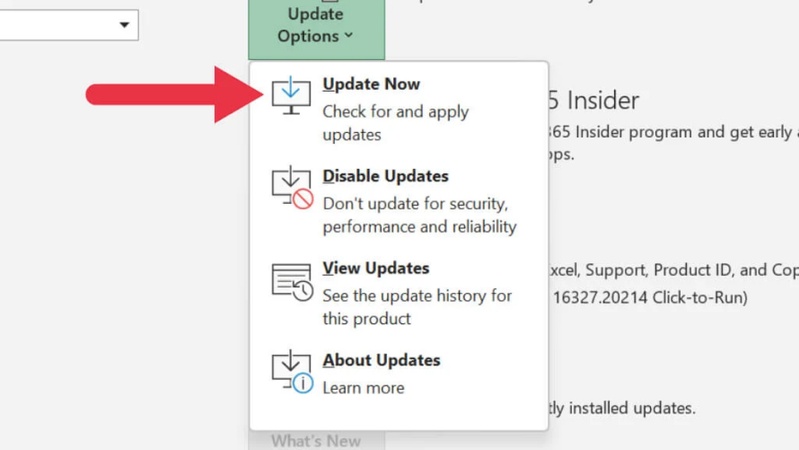
  • If repairing does not work, you can try updating it by opening "OneNote" and clicking your account, then choosing "Office User Info”.

  • Click “Office Updates” then choose “Update Now” and let it update the software.

Bonus: Pro Tips to Prevent This Error in the Future

If you want to prevent issues with inserting PDF printouts in OneNote, here are some of the best tips to follow:

  • Keep OneNote and Microsoft Office updated
  • Avoid inserting extremely large files directly
  • Regularly clear OneNote cache
  • Use compatible file formats (PDF, DOCX, PPTX)
  • Compress files before inserting
  • Maintain sufficient system memory and storage
  • Use trusted PDF viewers and tools

FAQs

Q1: Is Microsoft Discontinuing OneNote?

No, Microsoft is not discontinuing OneNote. It continues to receive updates and remains part of Microsoft 365, with ongoing improvements and support for both Windows and cross-platform users. However, they have ended support for the older version made for Windows 10.

Q2: Can I fix PDF Printout Issues on iPad Only?

Fixing PDF printout issues on an iPad is limited compared to Windows. You can try reducing file size or reinstalling the app, but advanced fixes like cache clearing are only available on desktop versions.

Q3: Does clearing the OneNote cache delete my notes?

No, clearing the cache does not delete your notes. It only removes temporary files, and your notes will sync back from the cloud once you reopen OneNote.

Q4: Why does inserting a PDF work fine, but a Word/PowerPoint printout get stuck?

Word or PowerPoint files may require additional rendering compared to PDFs, causing delays. Compatibility issues, file size, or formatting complexity can also lead to insertion problems.

Conclusion

The error please wait while OneNote inserts the document is usually caused by file size, corruption, or system limitations. By following these fixes, you can quickly resolve insertion issues and improve OneNote performance. For damaged files, using tools like 4DDiG File Repair ensures smooth insertion and prevents future errors.

FREE DOWNLOAD

Secure Download

FREE DOWNLOAD

Secure Download

William Bollson (senior editor)

William Bollson, the editor-in-chief of 4DDiG, devotes to providing the best solutions for Windows and Mac related issues, including data recovery, repair, error fixes.

(Click to rate this post)

You rated 4.5 ( participated)