[Fixed] Rockstar Games Launcher: an Error Occurred while Authenticating

5 mins read

Updated on 2026-02-02 18:55:12 to Windows Fix

Meeting with “an error occurred while authenticating with Rockstar Games services ” message is so frustrating. Whether you're trying to play GTA V or any other title from Rockstar's impressive catalog, authentication errors can bring your gaming session to a grinding halt.

This guide will walk you through the most effective solutions to resolve this error and get you back into the action. From simple fixes like changing DNS settings to more advanced troubleshooting steps, we've compiled everything you need to overcome this common but solvable problem.

1. What Does Rockstar Games Launcher Error Mean?

The Rockstar Games launcher “ an error occurred while authenticating ” message indicates there's a breakdown in communication between your local gaming setup and Rockstar's online services. When this process fails, you'll typically see an Rockstar Games launcher error message stating that authentication could not be completed, preventing you from accessing your games even though they're installed on your system.

Rockstar Games launcher error

2. Why an Error Occurred while Authenticating with Rockstar Games Services?
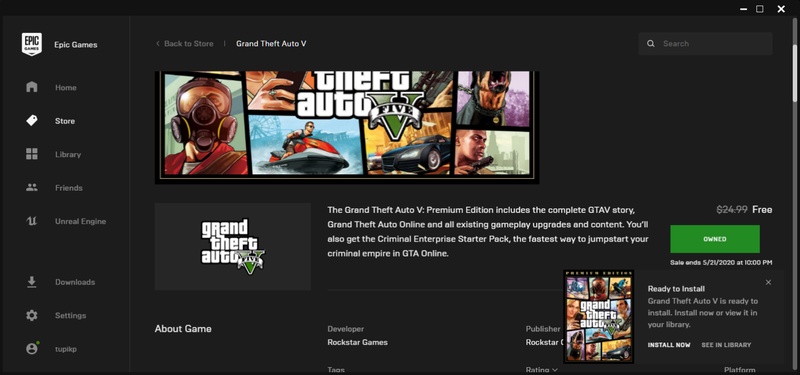
If you're wondering why am I getting an authentication error, several factors could be at play. The most common culprits behind being unable to authenticate with Rockstar Games services include server-side issues, network connectivity problems, or conflicts with your local system configuration.

  • Server-Side Issues: Rockstar's authentication servers occasionally experience downtime. When servers are down or overloaded, users worldwide may encounter the Rockstar Games launcher error message simultaneously.
  • Network Configuration: Your internet service provider's DNS servers, or router configuration might block or interfere with connections to Rockstar's authentication servers.
  • Security Software Conflicts: Antivirus programs, Windows Defender, or third-party security suites may mistakenly flag Rockstar Games Launcher as suspicious, blocking its network communications and preventing authentication.
  • Corrupted Installation Files: Damaged or incomplete launcher files can cause authentication failures. This often occurs after incomplete updates, system crashes during installation, or file corruption from other software conflicts.
  • Regional Restrictions: Some regions face access limitations to Rockstar's services due to licensing agreements or local regulations, which can manifest as authentication errors when trying to connect from restricted areas.

3. How to Fix Error Authenticating with Rockstar Games Services?

Now that you understand what causes an error occurred while authenticating with Rockstar Games services, let's explore proven solutions. These fixes are arranged from simplest to most comprehensive, allowing you to try quick solutions first before moving to more involved troubleshooting steps.

Fix 1: Use a VPN to Bypass Location Restrictions

Geographic restrictions or ISP-level filtering can prevent proper connection to Rockstar's authentication servers. Using a reputable VPN service can resolve the launcher problem by routing your connection through servers in different locations.

  • Download and install a trusted VPN service. Connect to a server location where Rockstar Games services are readily available.

    connct a vpn
  • Once connected, launch Rockstar Games Launcher and attempt to sign in.

Fix 2: Change DNS Address

Your default DNS servers provided by your ISP might have difficulty resolving Rockstar's authentication server addresses. Switching to public DNS servers like Google DNS or Cloudflare DNS can resolve this Rockstar Games launcher error.

  • Press Windows + R, type 'ncpa.cpl' and press Enter to open Network Connections.

  • Right-click your active network connection and select Properties. Select Internet Protocol Version 4 (TCP/IPv4) and click Properties.

  • Select 'Use the following DNS server addresses' and enter: Preferred DNS: 8.8.8.8 (Google) or 1.1.1.1 (Cloudflare); Alternate DNS: 8.8.4.4 (Google) or 1.0.0.1 (Cloudflare).

    change dns address
  • Click OK to save changes and close all windows. Then, restart Rockstar Games Launcher and try authenticating again.

Fix 3: Launch the Game through Rockstar Game Launcher

Sometimes launching games through alternative platforms like Steam or Epic Games Store can cause authentication conflicts. Launching directly through Rockstar Games Launcher ensures proper authentication protocol.

  • Close all gaming platforms and clients completely. Open Rockstar Games Launcher directly from your Start menu or desktop shortcut.

  • Log in with your Rockstar Games Social Club credentials.

This method ensures that authentication occurs through Rockstar's native client, reducing the possibility of third-party interference causing the authentication failed error.

Fix 4: Disable Real-time Protection

Windows Defender or third-party antivirus programs can occasionally block Rockstar Games Launcher's network communications, causing authentication failures. Temporarily disabling real-time protection can help identify if security software is causing the Rockstar Games launcher issue.

  • Open Windows Security by searching for it in the Start menu, and navigate to Virus & threat protection > Manage settings.

  • Toggle Real-time protection to Off temporarily.

    disable real time protection
  • Launch Rockstar Games Launcher and test authentication.

Note:

If disabling real-time protection resolves the error, add Rockstar Games Launcher to your antivirus exclusion list, then re-enable protection to maintain system security.

⚡ Extra Tip: Fix Partition Problems to Ensure Rockstar Game Launcher Runs Properly

Sometimes, underlying disk partition problems can also impact the Rockstar Games Launcher's performance and authentication capabilities. Corrupted partitions, lost data, or disk errors can prevent the launcher from accessing necessary files or storing configuration data properly.

4DDiG Partition Manager offers a comprehensive solution for maintaining healthy disk partitions. Its Partition Recovery function can recover lost or deleted partitions that might contain important game data or launcher files, ensuring your gaming setup remains stable and error-free.

Other Key Features of 4DDiG Partition Manager

  • Resize/Split Partitions: Optimize disk space allocation without data loss, perfect for creating dedicated gaming partitions with sufficient space for large game files.
  • Migrate OS to SSD: Transfer your operating system and all programs including Rockstar Games Launcher to a faster SSD drive for improved performance and faster loading times.
  • Clone Disk: Create complete disk backups before making major changes, ensuring you can restore your gaming setup if anything goes wrong.
  • Convert Disk Formats: Switch between MBR and GPT formats, or convert FAT32 to NTFS without data loss, optimizing your disk structure for modern gaming requirements.
  • Install and open 4DDiG Partition Manager. On the left navigation panel, select "Partition Recovery," then choose the disk containing the partition you wish to recover and click "Quick Scan" to begin.

    FREE DOWNLOAD

    Secure Download

    select partition
    Note:

    If you can't find the partition you're searching for, try running a deep scan. If the partition is still missing, consider performing a full scan.

  • The full scan process may take some time, so please be patient. You can stop the scan anytime by clicking the "Stop" button once the partition you're looking for is found.

    complete quick scan
  • Select the partition(s) you want to recover. Please note that this action will overwrite the existing partition(s), so ensure you confirm whether you want to proceed. After that, click "Sure" and then hit "Start Recovery" to continue.

    start recovery
  • Once the partition has been successfully restored, click "Finish" to complete the process.

    finish partition recovery

By maintaining healthy disk partitions, you create a stable foundation for Rockstar Games Launcher and all your games, reducing the likelihood of authentication errors caused by underlying storage issues.

Fix 5: Delete the Rockstar Games Folder

Corrupted cache files or configuration data can prevent proper authentication. Deleting the Rockstar Games folder forces the launcher to create fresh configuration files, often resolving persistent authentication issues.

Note:

This process doesn't delete your games, only the launcher's configuration files. You'll need to log in again, but your games will remain installed.

  • Close Rockstar Games Launcher completely. Press Windows + R, type '%localappdata%' and press Enter.

  • Locate the 'Rockstar Games' folder and delete it.

    delete rockstar games launcher folder
  • Restart your computer and launch Rockstar Games Launcher fresh.

Fix 6: Reinstall Rockstar Game Launcher

If all previous solutions fail to fix error authenticating with Rockstar Games Services, a complete reinstallation of the launcher itself may be necessary. This ensures you have the latest version with all components properly installed.

  • Open Windows Settings. Navigate to Apps & features. Search for 'Rockstar Games Launcher' in the app list, and select 'Uninstall,' then follow the prompts.

    uninstall rockstar games launcher
  • After uninstalling, restart your PC. Download the latest version of Rockstar Games Launcher from the official Rockstar Games website.

  • Install the launcher and log in with your credentials.

A fresh installation eliminates any corrupted files or outdated components that might cause the error while authenticating with Rockstar Games services error.

More FAQs about Rockstar Games Launcher Error

1. How to fix Rockstar Games launcher network error?

Start by checking your internet connection stability and speed. Run a network troubleshooter to identify potential problems. Additionally, try temporarily disabling your VPN if you're using one and restarting your router and flushing DNS cache can also resolve network-related errors.

2. How to fix not being able to connect to Rockstar Games services?

First, verify that Rockstar's servers are operational by checking their official status page or social media channels. If servers are up, ensure your system time and date are accurate, as significant discrepancies can cause authentication failures. Check that your Windows firewall isn't blocking connections.

3. How to authenticate a Rockstar account?

First, ensure you have a verified Rockstar Social Club account. Verify your email address by clicking the confirmation link sent during registration. When launching Rockstar Games Launcher, enter your Social Club email and password correctly. For persistent authentication issues, try resetting your password. Ensure your account hasn't been suspended or banned by checking for any notifications from Rockstar.

Conclusion

Don’t worry when an error occurred while authenticating with Rockstar Games services. As we've demonstrated, multiple effective solutions can resolve this issue. The six methods outlined in this guide address the most common causes of authentication errors. Remember to try solutions in order, starting with the simplest approaches first.

Additionally, maintaining healthy system storage with tools like 4DDiG Partition Manager ensures your gaming environment remains stable and problem-free. With these troubleshooting steps at your disposal, you'll be back to enjoying your favorite Rockstar Games in no time.

FREE DOWNLOAD

Secure Download

William Bollson (senior editor)

William Bollson, the editor-in-chief of 4DDiG, devotes to providing the best solutions for Windows and Mac related issues, including data recovery, repair, error fixes.

(Click to rate this post)

You rated 4.5 ( participated)