How to Convert MOV to MP4 in VLC on Windows & Mac [for Beginners]

5 mins read

Updated on 2026-07-10 10:28:30 to Video Tips

Need to change a MOV file into an MP4 for better compatibility? VLC Media Player offers a quick, free solution that works well on both Windows and Mac. Whether you're preparing videos for upload, editing, or playback across devices, this straightforward process gets the job done without extra software. In this guide, you'll find clear steps to convert MOV to MP4 in VLC Media Player, recommended settings, and fixes for common problems.

Before You Start: What You Need

  • Taking a few quick preparations helps ensure a smooth conversion and protects your files.Install or Update VLC Media Player: Make sure you have the latest version of VLC installed. Newer releases tend to be more stable and handle different video formats better. You can download it from the official VideoLAN website.
  • Backup Your Original MOV File: Always keep a copy of your original video. This way, if anything goes wrong during conversion, you won't lose your source file.
  • Check Your File Size and Video Length: Large files or very long videos may take more time to process. Knowing the details upfront helps you plan and avoid unexpected interruptions.
  • These simple checks set you up for success before diving into the actual conversion.

How to Convert MOV to MP4 in VLC on Windows and Mac

VLC makes it simple to convert MOV to MP4 using VLC on either operating system. The core steps are quite similar, with only minor differences in the interface. Here's how to do it.

On Windows

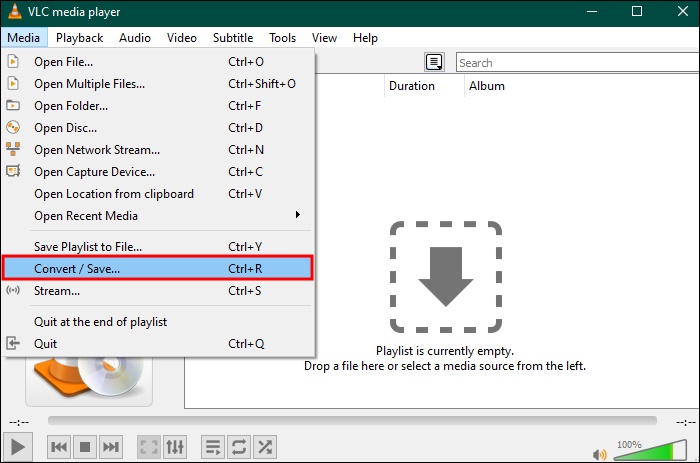
  • Open VLC Media Player. Click on Media in the top menu, then select Convert / Save.

  • In the Open Media window, click + Add and choose your MOV file. Click Convert / Save at the bottom.

  • Under Profile, select Video - H.264 + MP3 (MP4) for good compatibility and quality.

  • Click Browse to choose where to save the new file and name it with a .mp4 extension.

  • Click Start and wait for the process to finish.

The converted MP4 should now play perfectly on most devices and platforms.

On Mac

The process follows almost the same path, though the menu labels feel a bit different due to macOS styling.

  • Launch VLC on your Mac. Go to File > Convert / Stream.

  • Click Open media (or drag and drop your MOV file directly).

  • Choose the Video - H.264 + MP3 (MP4) profile.

  • Set your destination folder and file name (ending in .mp4).

  • Click Save or Start to begin conversion.

This method works reliably for free convert QuickTime to MP4 needs and keeps things straightforward. Once complete, test the new MP4 file to confirm everything looks and sounds right. If you run into playback problems, the troubleshooting tips below can help get things working smoothly.

Best VLC Settings for Converting MOV to MP4

After learning the basic conversion steps, using the right settings can make a big difference in video quality and compatibility. The default options in VLC work for most files, but tweaking a few details helps you get clearer results and avoid common issues like VLC convert MOV to MP4 no audio. Here are the recommended settings for the best outcome.

Recommended VLC Conversion Settings:

  • Profile: Video - H.264 + MP3 (MP4), which is the most reliable choice for broad compatibility.
  • Video Codec: H.264 (good balance of quality and file size).
  • Video Bitrate: 2500–5000 kbps (higher for HD videos, lower for smaller files).
  • Frame Rate: Keep original (or match the source video).
  • Resolution: Keep original to avoid quality loss.
  • Audio Codec: AAC (preferred) or MP3.
  • Audio Bitrate: 128–192 kbps for clear sound.
  • Encapsulation: MP4/MOV container.

These settings usually deliver excellent results when you convert MOV to MP4 using VLC.

Should You Keep the Original Audio Track?

It depends on your original file. Keeping the original audio track can preserve the best sound quality when it works well. However, for many MOV files (especially those from cameras or QuickTime) disabling this option and re-encoding with AAC often fixes convert mov to mp4 vlc no sound problems. Try both ways: start with it enabled, and if audio is missing in the output, convert again with it disabled. This small change makes a huge difference in many cases.

With these optimized settings, your converted MP4 files should play smoothly on almost any device. If issues remain, move on to the troubleshooting section for quick fixes.

⚡ How to Fix VLC Convert MOV to MP4 No Audio/Video Issue?

Sometimes after converting MOV to MP4 in VLC, you might notice problems like missing audio, no video playback, or both tracks failing to appear. These issues often stem from codec mismatches, profile settings, or minor file corruption during the process. Don't worry, most cases are easy to resolve with a few adjustments. Below are practical fixes you can try in order, along with a reliable tool recommendation if the file itself needs deeper repair.

Fix 1: Enable and Configure Audio Codec in Conversion Profile

If your converted MP4 plays without sound or shows video errors, the audio codec is often the culprit. VLC’s default settings may not always match your original MOV file perfectly. Adjusting the profile before converting again can fix convert mov to mp4 in vlc no audio problems and ensure both video and audio streams are properly included.

  • Go back to Media > Convert/Save.

  • Add your original MOV file.

  • Click Convert/Save, then choose the MP4 profile.

  • Click the wrench icon (edit profile) next to the profile.

    vlc wrench icon
  • Under Audio codec, select AAC or MP3 and enable it. Set a reasonable bitrate (e.g., 128–192 kbps).

    vlc audio codec
  • Save the profile changes, set your output, and start conversion again.

Fix 2: Disable "Keep Original Audio Track"

Another common reason for convert mov to mp4 vlc no sound is keeping the original audio track unchanged. This can cause incompatibility. Turning off this option forces VLC to re-encode the audio, which often resolves playback issues in the final MP4 file.

  • In the conversion window, click the wrench icon to edit the profile.

  • Uncheck “Keep original audio track” (or similar option).

    vlc keep original video track
  • Choose a compatible audio codec like AAC.

  • Apply changes, select your destination, and convert again.

Fix 3: Check & Repair Corrupted Video Files

If adjustments in VLC still don’t work and your MOV or converted MP4 remains unplayable, the file may have underlying corruption from recording, transfer, or editing. In these cases, a dedicated repair tool can restore both video and audio tracks effectively. One standout option is 4DDiG Video Repair, which uses advanced algorithms to fix a wide range of issues.

It supports batch repair for formats like MOV and MP4, fixes choppy/jerky playback, audio-video sync problems, no-sound issues, and more. It also includes AI-powered enhancement up to 8K and works on videos from various cameras and devices.

FREE DOWNLOAD

Secure Download

FREE DOWNLOAD

Secure Download

Steps to repair corrupted MOV or MP4 files using 4DDiG Video Repair:

  • Download and install 4DDiG Video Repair from the official site. Launch the program and select Video Repair and click Add Videos to import your corrupted MOV or MP4 files.

    add corrupted mov mp4 videos to 4ddig
  • Click Repair All to start the corrupted MOV or MP4 file repair process.

    4ddig repairs corrupted mov mp4 files
  • Preview the repaired video to check quality.

    preview repaired mov mp4 videos
  • Later, choose an video format for exporting repaired videos as picture shows below. Then save it to your desired location.

    save repaired mov mp4 videos in preferred format

Conclusion

Converting MOV to MP4 in VLC is a simple and effective way to make your videos more compatible across devices and platforms. By following the steps above, you can quickly convert MOV to MP4 using VLC while applying the best settings for quality results. If you encounter convert MOV to MP4 in VLC no audio or video issues, the troubleshooting tips should resolve most problems.

For stubborn corrupted files, we recommend 4DDiG Video Repair, a powerful tool that quickly fixes and even enhances your videos with AI technology. Enjoy smoother playback and professional results every time.

FREE DOWNLOAD

Secure Download

FREE DOWNLOAD

Secure Download

William Bollson (senior editor)

William Bollson, the editor-in-chief of 4DDiG, devotes to providing the best solutions for Windows and Mac related issues, including data recovery, repair, error fixes.

(Click to rate this post)

You rated 4.5 ( participated)