How to Compress MOV File and Reduce MOV File Size in 2026

5 mins read

Updated on 2026-07-10 10:28:31 to Video Tips

Large MOV files from your iPhone or camera can be a hassle for sharing or storing. The good news is you can compress MOV file effectively while preserving excellent visual quality. In this guide, we'll explore the best free online MOV compressors, step-by-step methods for Windows, Mac, and more, plus tips to shrink your videos for email or messaging apps without noticeable loss.

3 Best Free Online MOV Compressors

When you need a quick way to reduce MOV file size without installing software, online tools are the simplest choice. These browser-based options let you upload your file, adjust settings, and download a smaller version in minutes. Below, we compare three popular free tools that handle MOV file compression well.

1. VEED

veed mov compressor

VEED is a user-friendly online platform that makes it easy to compress MOV file without losing quality. It offers flexible presets and an estimated size preview, so you can control the final result. The tool also converts your MOV to MP4 automatically for better compatibility. Ideal for creators who want compression plus light editing in one place, VEED works directly in your browser on any device.

  • Pros
  • Cons
    • Clear presets with accurate file size estimates before compression.
    • Automatic MOV to MP4 conversion for wider compatibility.
    • Built-in editing tools for trimming and adding captions in the same session.
    • Simple drag-and-drop interface with no software installation needed.
    • Optimized for social media and email-ready videos.
    • Free plan limits export length and daily usage for large files.
    • Processing speed depends on internet connection.
    • Advanced features require a paid subscription.
    • Upload buffering can occur with very large videos.

2. Clideo

clideo online mov compressor

Clideo provides a straightforward way to compress MOV file quickly with minimal steps. Choose from Basic, Strong, or Superb settings and get an estimated output size upfront. This fully online tool requires no downloads and works smoothly on phones, tablets, or computers. It's especially useful for occasional users who want fast results without a learning curve.

  • Pros
  • Cons
    • One-click process with multiple compression strength options.
    • Shows estimated size and ratio before final compression.
    • Works in any browser on desktop and mobile devices.
    • Supports many formats while maintaining decent quality.
    • Secure file handling with private processing.
    • Free version caps files at 500MB.
    • Strong compression may cause visible quality loss.
    • Limited to processing one video at a time.
    • Requires stable internet for uploads and downloads.

3. Flixier

flixier online mov compressor

Flixier stands out by processing videos locally in your browser, so your files never leave your device. This makes it perfect for compress large MOV file tasks with no size limits and excellent privacy. It delivers fast results and lets you continue editing in its full online editor afterward. Great for users who value speed and security.

  • Pros
  • Cons
    • Local browser processing ensures privacy and no file size limits.
    • Very fast compression without upload delays.
    • Smart technology that preserves sharp video quality.
    • Easy transition to full video editing in the same platform.
    • Automatic conversion to compatible MP4 format.
    • Performance depends on your device’s hardware and browser.
    • Free users may see prompts for paid editor features.
    • Less guided interface for complete beginners.

These free online MOV compressors give you a great starting point. Choose based on your file size and whether you want extra editing features afterward. Next, let's look at more detailed methods you can use on your computer or online.

How to Compress MOV File on Windows/Mac/Online without Losing Quality

Online tools offer a fast start, but sometimes you need more control or offline options. Whether you're on Windows, Mac, or prefer no installation, several reliable methods help you reduce MOV file size while keeping video clear. Below are practical, step-by-step approaches that balance quality and file size for sharing, storage, or email.

1. Using Clideo Online MOV Compressor

If you want a quick, no-install solution that works on any device, Clideo is an excellent choice for compress MOV file tasks. This browser-based tool handles uploads easily and provides preset options to control how much you shrink the file. It's especially handy for occasional users who need fast results without learning complex software. The process stays simple while delivering decent quality for everyday sharing needs.

Steps:

  • Go to the Clideo MOV compressor page and click to upload your file (up to 500MB free).

  • Select a compression level: Basic for mild reduction or Strong for more savings.

  • Preview the estimated new size, then click Compress.

    clideo compress mov
  • Download the smaller file once processing finishes.

This browser-based method works well for occasional use and delivers decent results without software.

2. Reduce MOV File Size in VLC

VLC Media Player is a free, cross-platform favorite that many already have installed. It offers flexible controls to reduce MOV file size through conversion settings. Perfect for Windows and Mac users who want offline processing, VLC lets you adjust bitrate and resolution manually. This method gives reliable results with good quality retention for most videos.

Steps:

  • Open VLC, go to Media > Convert/Save.

  • Click Add, select your MOV file, then click Convert/Save.

  • Choose a profile like Video - H.264 + MP3 (MP4).

    vlc compress mov to mp4
  • Click the wrench icon to adjust video bitrate lower (e.g., 2000-5000 kbps for good quality) and set resolution if needed.

  • Choose a destination file name and click Start.

VLC gives you good control over compression while preserving reasonable quality.

3. Compress MOV Files with Handbrake

For users seeking professional-level control, HandBrake stands out as a powerful free tool. Available on Windows and Mac, it excels at compress large MOV file while preserving excellent visual quality through advanced encoders. It's ideal when you need significant size reduction without noticeable loss, especially for longer or high-resolution clips.

Steps:

  • Download and open HandBrake, then select your MOV source file.

  • Choose MP4 as the output container.

  • Under the Video tab, select H.264 or H.265 encoder and use Constant Quality (RF 20-23 for a nice balance).

    handbrake compress mov file
  • Adjust resolution or filters if desired, then set your save location.

  • Click Start Encode and wait for the process to complete.

HandBrake excels at significant size reduction with minimal visible quality loss.

4. Shrink MOV File Size with QuickTime Player

Mac users can rely on the built-in QuickTime Player for straightforward compression. This native app provides a simple way to shrink MOV file size by exporting at lower resolutions. It requires no extra software and works quickly for basic needs. While it offers fewer advanced tweaks, it maintains acceptable quality for sharing and storage.

Steps:

  • Open your MOV file in QuickTime Player.

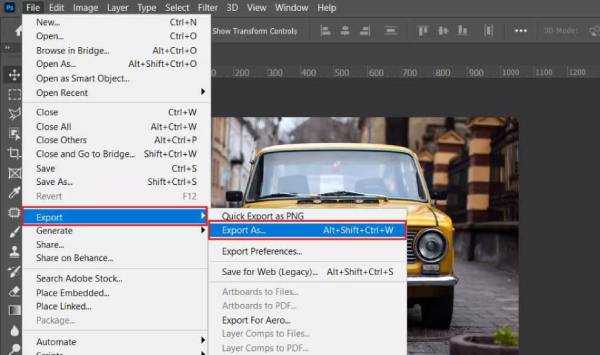
  • Go to File > Export As (or Export) and choose a lower resolution like 1080p or 720p.

    quicktime export mov files in low resolution
  • Then select Greater Compatibility (H.264) in the new screen.

    quicktime shrink mov file size h264 save
  • Pick your save location and click Save.

This method is quick for basic needs but offers fewer advanced controls.

5. Convert and Compress MOV to MP4

Converting your MOV to MP4 often yields smaller files due to more efficient encoding. This approach works across tools and platforms, making it versatile for MOV to MP4 compressor needs. It's particularly useful when compatibility matters more than keeping the original format. You can achieve great size savings while keeping videos looking sharp.

Steps: Steps:

  • Navigate to the CloudConvert Online MOV to MP4 Converter.

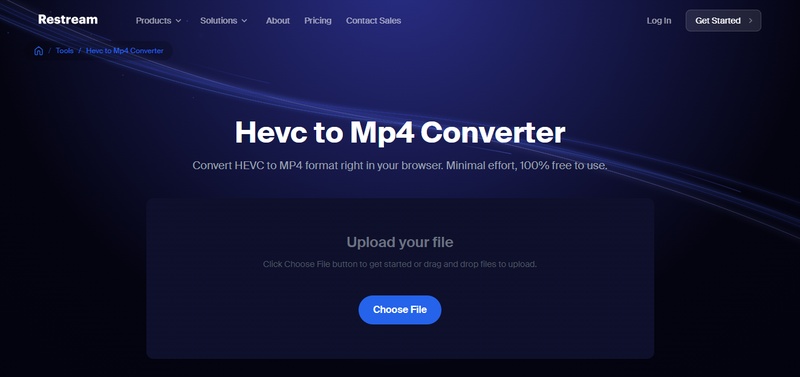
    cloudconvert mov to mp4 converter online
  • Click "Select File" or use the drag-and-drop action to upload the large MOV files to CloudConvert

  • Once done, click "Convert" to commence the large MOV file to MP4 conversion.

6. Make MOV File Smaller in iMovie

For Mac users who also want editing capabilities, iMovie combines trimming and compression seamlessly. This built-in app lets you make MOV file smaller after making quick edits. It's great when you need to shorten clips or adjust before exporting. The export options help balance quality and file size effectively.

  • Open iMovie and create a new project, then import your MOV file.

  • Drag it to the timeline and make any trims or edits.

  • Click Share > File.

  • Select a lower resolution (e.g., 1080p), adjust quality to Medium or High, and choose compression options.

    imovie make mov file smaller
  • Export to your desired folder.

iMovie is perfect if you want to edit before shrinking the file.

⚡ Bonus: How to Repair Corrupted MOV Files After Compression

Even with careful settings, the compression process can occasionally disrupt file structure, especially with larger videos or when pushing size limits. If your MOV stops playing, shows errors, or only loads partially, specialized repair software can often restore it quickly. One standout option is 4DDiG Video Repair, which focuses on deep analysis of video streams rather than surface-level fixes.

Why 4DDiG Video Repair Stands Out

  • Handles complex corruption in MOV files from various compression tools by rebuilding headers and codecs intelligently.
  • Supports batch repair so you can fix multiple videos at once without repeating steps.
  • Recovers video from severely damaged files where other programs fail, including those affected by interrupted compression.
  • Works on both Windows and Mac with a clean preview feature before final saving.
  • Preserves original resolution and audio tracks in most cases.
  • High success rate for repairing corruption

This tool is especially effective for videos that became unplayable after MOV file compression.

FREE DOWNLOAD

Secure Download

FREE DOWNLOAD

Secure Download

Steps to Repair Problem MOV Files Using 4DDiG Video Repair

  • Install and run the 4DDiG File Repair program. Select Video Repair from the left panel and click Add Videos to import your corrupted MOV.

    add corrupted mov files to 4ddig
  • Tap on Repair All. The tool scans and rebuilds the file structure.

    repair all corrupted mov files
  • Preview the repaired video to check quality.

    preview repaired mov files
  • Then pick an output format, such as MP4, MOV, MKV, AVI, or the original format. Afterward, save it to a new location.

    save repaired mov in preferred format

People Also Ask about MOV File Compression

Q1: How do I reduce MOV file size without losing quality?

Use tools like HandBrake with Constant Quality settings (RF 18-23) or online compressors with mild presets. Focus on efficient codecs like H.264 or H.265, lower resolution slightly if needed, and avoid maximum compression. Test short clips first to find the best balance.

Q2: Is MP4 smaller than MOV?

Yes, MP4 files are generally smaller than MOV because they use more efficient compression. Converting MOV to MP4 often reduces file size while maintaining good compatibility across devices and platforms.

Q3: Can I compress a 2GB MOV file online?

It depends on the tool. Some free online compressors have size limits (e.g., 500MB), but others like Flixier process locally with no limits. For very large files, desktop tools like HandBrake or VLC are more reliable and private.

Q4: How do I compress MOV file for email?

Aim for under 20-25MB. Use Clideo or VEED for quick online compression, or HandBrake/QuickTime on desktop. Trim unnecessary parts first, lower resolution to 720p, and convert to MP4 for best results. Test the attachment before sending.

Conclusion

Figuring out how to compress MOV file without losing quality gives you smaller files that are easy to share, store, and email while keeping excellent visuals. Whether you prefer quick online tools or powerful desktop software, the methods above deliver reliable results. And if compression causes issues, 4DDiG Video Repair offers a simple, effective way to restore your videos. Start optimizing your MOV files today and enjoy smoother workflows.

FREE DOWNLOAD

Secure Download

FREE DOWNLOAD

Secure Download

William Bollson (senior editor)

William Bollson, the editor-in-chief of 4DDiG, devotes to providing the best solutions for Windows and Mac related issues, including data recovery, repair, error fixes.

(Click to rate this post)

You rated 4.5 ( participated)