Top 9 Best MKV to MP3 Converts for Windows, Online & Mobile (2026 Updated)

5 mins read

Updated on 2026-07-03 21:58:29 to Audio Repair Solutions

Converting Matroska to MP3 is a frequent necessity. MKV is a versatile container that holds high definition video and multiple audio tracks. Its large file size makes it impractical for simple music playback. By choosing the best MKV to MP3 converter, you can save significant storage space, ensure device compatibility, and easily extract audio from movies, anime, or YouTube downloads. This guide covers the top rated tools to help you convert MKV files to MP3 efficiently.

mkv to mp3 converter

Quick Comparison: Which MKV to MP3 Converter Should You Choose

Choosing the right tool depends on your specific needs, such as file size, speed requirements, and technical comfort. When you need to perform a Matroska to MP3 transformation, refer to the table below to find your perfect match.

  • Feature
  • Online Converters
  • Desktop Software
  • Mobile Apps
  • Quality
  • Standard to High
  • Lossless / Pro Grade
  • Mobile Optimized
  • Speed
  • Internet Dependent
  • Fast (Hardware Accel)
  • Quick for Small Files
  • File Size Limits
  • Usually 50MB - 1GB
  • No Limit
  • Device Storage Dependent
  • Batch Support
  • Limited in the free versions
  • Strong (FFmpeg/VLC)
  • Basic
  • Best For
  • One off, small files
  • Large libraries, Pro editing
  • On the go extraction

How to Choose the Best MKV to MP3 Converter

Select based on your specific needs. For small files and occasional use, online converters like CloudConvert or Convertio are convenient. If you need to convert large MKV to MP3 files or process multiple videos, desktop tools like VLC, FFmpeg, and HandBrake offer better performance. Users who want simple audio extraction on phones can choose mobile apps designed for quick conversions.

Top 3 Best Online MKV to MP3 Converters (No Installation Needed)

Online converters are best for quick MKV to MP3 conversion without installing software. They work directly in browsers and are suitable for users who need simple audio extraction.

1. CloudConvert – Best Overall Online Converter

cloudconvert mkv to mp3 converter

CloudConvert has remained a leader in the file conversion space for years. It supports over 200 formats and offers granular control over audio settings. When you need to convert mkv to mp3, it allows you to adjust the bitrate, frequency, and volume before the process begins. Its API integration makes it a favorite for developers, but the web interface is equally powerful for average users.

  • Pros
  • Cons
    • Advanced "Trim" features allow you to extract specific segments.
    • Adjustable audio bitrate (up to 320kbps) and variable bitrate (VBR) support.
    • Seamless integration with Google Drive, Dropbox, and OneDrive.
    • Highly secure SSL encryption for all file transfers and deletions.
    • The free version is limited to 25 conversion minutes per day.
    • Requires a stable and fast internet connection for large uploads.
    • No batch downloading; files must be saved individually in the free tier.

2. FreeConvert – Best for Large Online Files

freeconvert mkv to mp3 converter

If you are looking for an mkv to mp3 converter with no limit on file size (or at least a very generous one), FreeConvert is the top choice. It allows free users to upload up to 1GB, which is rare for online platforms. This makes it unique among online tools, which are usually capped at 500 MB. It uses high quality codecs to ensure that the audio extracted from your high definition movies sounds crisp and clear.

  • Pros
  • Cons
    • Includes a "Fade in" and "Fade out" audio feature for smooth transitions.
    • Auto deletes files after 2 hours to protect user privacy.
    • Batch conversion allows for uploading multiple files simultaneously.
    • Option to save files directly to a QR code for mobile downloading.
    • The interface contains visible advertisements on the free version.
    • Conversion speed can be slower during peak traffic times.
    • Limited number of concurrent conversions for guest users.

3. Convertio – Best for Beginner Friendly UI

convertio convert mkv to mp3

Convertio is designed for the non technical user. The "Drag and Drop" functionality is flawless across all browsers. It offers a sleek, modern interface that makes it incredibly easy to change mkv to mp3. It is designed for users who want a "click and forget" experience. Beyond its aesthetics, it offers a unique OCR feature and supports a wide range of legacy formats that other online tools often ignore.

  • Pros
  • Cons
    • Automatically deletes files from their servers after 24 hours for security.
    • Chrome extension available for one click browser conversions.
    • Real time progress tracking with email notifications upon completion.
    • Supports over 300+ different format combinations beyond audio.
    • The 100MB file limit for the basic free tier is quite restrictive.
    • No option for advanced audio editing, such as trimming or merging.
    • Premium plans can be expensive compared to desktop alternatives.

Top 4 Best Desktop MKV to MP3 Software (High Quality & Batch Large Conversion)

Desktop software is the backbone of professional media management. They offer the stability needed to rip audio from mkv files of any size. These tools provide better performance, privacy, and unlimited conversion options.

1. VLC Media Player – Easiest Free Tool

vlc convert mkv to mp3

Most people know VLC as a video player, but it is actually a powerful mkv to mp3 converter freeware. It is ubiquitous and runs on virtually any OS. By using the "Convert/Save" feature, you can use VLC’s built in codecs to extract sound from MKV without downloading extra software. It is compatible with Windows, macOS, and Linux, making it a universal solution for desktop users.

  • Pros
  • Cons
    • Completely free and open source with no advertisements.
    • Handles 4K and 8K MKV files with zero lag.
    • Works offline, ensuring total privacy for your media files.
    • Hardware acceleration support for faster processing.
    • The conversion menu is hidden behind several layers of settings.
    • Batch conversion requires a slightly complex "Add" workflow.
    • Occasionally glitches when handling MKV files with multiple audio tracks.

2. Audacity – Best for Editing Extracted Audio

audacity extract mp3 from mkv

Audacity is the gold standard for open source audio editing. While it doesn't natively open MKV files, installing the FFmpeg library lets it rip audio from MKV files directly into its timeline. This is perfect if you need to remove background noise, normalize volume, or apply equalization to the extracted soundtrack. It supports 32 bit float audio for maximum dynamic range.

  • Pros
  • Cons
    • Multi track support allows you to layer multiple extractions into one file.
    • Spectrogram view for deep analysis of audio frequencies.
    • Allows for non destructive editing across multiple tracks.
    • Completely open source with a massive library of community plugins.
    • Supports extremely high sample rates (up to 384kHz).
    • Requires a separate installation of the FFmpeg library to read MKV.
    • Steep learning curve for users who just want a simple conversion.
    • Destructive editing (if you save over the project) can lead to data loss.

3. HandBrake – Best for Format Control

handbrake rip mp3 from mkv

HandBrake is a powerhouse for transcoding. While primarily a video tool, its "Audio Only" presets are incredibly efficient. It allows for meticulous control over the encoding process, including dynamic range compression and sample rate adjustments. If you have a specific target device with strict audio requirements, HandBrake’s presets are a lifesaver.

  • Pros
  • Cons
    • Optimized presets for every imaginable device (iPhone, Android, Xbox).
    • Excellent queue system for massive batch conversion tasks.
    • Hardware accelerated encoding via Intel QuickSync and NVIDIA NVENC.
    • Open source and frequently updated by a dedicated community.
    • The installation size is significantly larger than other converters.
    • Does not support "lossless" audio extraction to MP3 (always transcodes).
    • High CPU usage during the scanning and transcoding phases.

4. FFmpeg – Best Overall for Quality & Batch

ffmpeg convert mkv to mp3

FFmpeg is the engine that powers most other converters. As a command line tool, it offers an mkv to mp3 converter with no limit experience. There are no file size caps, no GUI overhead, and it is the fastest way to process thousands of files at once. For those who aren't afraid of a terminal, it provides unparalleled precision.

  • Pros
  • Cons
    • The fastest conversion engine available, using zero GUI overhead.
    • "Stream Copy" feature allows for instant audio extraction without quality loss.
    • Can be scripted to automate entire folders of media.
    • Supports every known audio and video codec in existence.
    • The command line interface is intimidating for non technical users.
    • No visual preview of the audio before or during extraction.
    • Requires manual installation and environment path setup.

Best 2 Mobile Apps to Convert MKV to MP3 (Android & iOS)

Mobile apps allow you to change mkv to mp3 directly on your device, which is essential for commuters and social media creators. These apps are optimized for efficiency, ensuring you can extract audio and share it without needing a computer.

1. Video to MP3 Converter (Android)

This app is perfect for Android users who need to extract sound from MKV on the fly. It features a dedicated "Video to Audio" module that simplifies the process. It is optimized for mobile processors, ensuring that your battery isn't drained while processing long movie files. It is lightweight and works well even on older hardware, making it a staple for mobile audio extraction.

  • Pros
  • Cons
    • Integrated "Audio Cutter" to trim the MP3 immediately after conversion.
    • Supports ID3 tag editing (Add Album Art, Artist Name, Title).
    • "Fast Mode" uses multi-core processing to deliver faster results.
    • Supports background conversion while you use other apps.
    • The free version contains frequent full screen video ads.
    • Limited output bitrate options compared to desktop tools.
    • Storage permission requests can feel invasive to some users.

2. iConv (iOS)

iconv

iConv is the most reliable file manager and converter for the iOS ecosystem. It handles the "Sandboxed" file system on Apple devices better than most, allowing easy import from the "Files" app or cloud services. Its "Drag and Drop" support on iPad makes it a professional grade mobile tool for editors on the move.

  • Pros
  • Cons
    • Seamless integration with the iOS "Files" and "Photos" apps.
    • Supports advanced "Batch Mode" even on mobile devices.
    • Includes a built-in player to preview files before and after.
    • Minimalistic design that aligns perfectly with iOS 19/20 aesthetics.
    • Limited daily conversions for the non subscription version.
    • AI features require a significant amount of battery power.
    • Interfaces can feel a bit cluttered due to the variety of tools.

How to Convert MKV to MP3 (Step by Step)

Extracting audio doesn't have to be complicated. Here are the two most reliable methods for desktop users.

Method 1: Convert MKV to MP3 Using VLC Media Player

VLC Media Player is not only a popular media player but also a handy tool for converting MKV files to MP3 format. Follow these simple steps:

  • Open VLC Media Player and select "Media" then choose "Convert/Save" from the main menu (On Mac, it may appear as File > Convert / Stream.)

    vlc convert save feature
  • In the Open Media panel, click "Add" to import your MKV file, then click "Convert/Save" to continue.

    add mkv files to vlc
  • In the Convert window, scroll down to the “Profile” section and select Audio - MP3 from the dropdown list.

  • Click Browse to choose the destination folder and filename for the output file. Finally, Click Save (or Start) to begin the conversion.

    vlc convert mkv to mp3

You can track the progress using the progress bar. Once the process is complete, your MKV file will be successfully converted and saved in MP3 format.

Method 2: Extract Audio from MKV Using FFmpeg

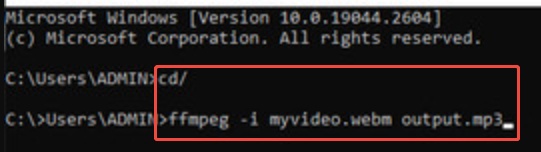
For the best quality, open your terminal and type: ffmpeg -i input.mkv -vn -ar 44100 -ac 2 -b:a 192k output.mp3. This command disables video (-vn) and encodes audio at a high quality 192 kbps bitrate.

⚡ How to Fix MKV to MP3 Conversion Issues

Converting MKV to MP3 is usually straightforward, but sometimes the resulting audio file may not play correctly. You might encounter problems such as no sound, crackling, distortion, audio dropouts, unsupported format errors, or a completely corrupted MP3 file. These issues can occur due to interrupted conversions, damaged source files, software bugs, or storage errors.

Instead of converting the file again from scratch, you can repair the damaged audio and recover its quality using 4DDiG Audio Repair. 4DDiG Audio Repair is designed specifically for fixing corrupted and unplayable audio files. Unlike many basic repair tools, it can repair multiple audio issues simultaneously while preserving sound quality.

Key Features:

  • Repair corrupted, damaged, broken, and unplayable MP3 files.
  • Fix audio distortion, crackling, popping sounds, and clipping.
  • Remove audio dropouts and interruptions.
  • Repair unsupported or damaged audio format errors.
  • Support MP3, M4A, AAC, WAV, FLAC, and other audio formats.
  • Batch repairs multiple audio files at once.
  • Fast repair speed with advanced repair technology.
  • Compatible with audio recorded from phones, recorders, cameras, and downloaded sources.
FREE DOWNLOAD

Secure Download

FREE DOWNLOAD

Secure Download

Steps to Repair Corrupted MP3 Files:

  • Open 4DDiG File Repair. Go to "More Repair Tools" and select "Audio Repair."

    select 4ddig audio repair
  • Click "Add Audio" and import the converted MP3 file with playback issues.

    add corrupted mp3 files to 4ddig
  • After importing the file, click "Repair All." The software will automatically analyze the audio and repair it.

    repair all corrupted mp3 files
  • Once the repair is complete, preview the repaired file directly within the software.

    preview repaired mp3 files
  • Choose your preferred output format, such as MP3 or WAV. Click "Save" or "Save All" to export repaired files.

    save repaired audio in preferred format

Conclusion

Finding the best MKV to MP3 converter depends on your needs. Online tools are best for quick tasks, while desktop software provides better quality and batch processing. VLC, FFmpeg, and mobile apps offer reliable solutions for different users. For damaged converted files, 4DDiG Audio Repair provides an effective way to restore audio quality and fix corrupted MP3 files.

FREE DOWNLOAD

Secure Download

FREE DOWNLOAD

Secure Download

William Bollson (senior editor)

William Bollson, the editor-in-chief of 4DDiG, devotes to providing the best solutions for Windows and Mac related issues, including data recovery, repair, error fixes.

(Click to rate this post)

You rated 4.5 ( participated)