Best MP4 Player for Mac 2026 to Play MP4 on Mac without Issues

If you wanna find a reliable and hassle-free MP4 player for Mac, then never miss this complete list, which helps you play MP4 files on Mac smoothly.

5 mins read

Updated on 2026-08-27 11:51:28 to Video Tips

Quick Answer: What Is the Best MP4 Player for Mac?

IINA is the best overall MP4 player for Mac, combining a native macOS experience with strong codec support. VLC is the best choice for users who need maximum compatibility with different video formats.

An MP4 file can look perfectly normal yet refuse to play on a Mac, especially when QuickTime cannot decode its video or audio tracks. The quickest solution is usually a compatible MP4 player for mac, but converting or repairing the file may be necessary when compatibility is not the real problem. Our detailed guide explains why MP4 playback fails, compares three free Mac players, and covers practical fixes for stubborn files.

best mp4 player for mac

Why Can't I Play MP4 Files On My Mac?

MP4 is not a single video format with one fixed codec. It is a container that can hold different video and audio streams, so a Mac may recognize the .mp4 extension while still being unable to decode what is inside. The most common reasons why MP4 won't play on QuickTime or other MAC media players include:

  • The MP4 may contain a codec that QuickTime does not support.
  • The video may work while the audio track fails, or QuickTime may refuse to open the file entirely.
  • Interrupted downloads, faulty storage devices, or incomplete transfers can damage the file structure.
  • Some files use unusual profiles, levels, frame rates, or encoding parameters that cause playback problems.
  • Older versions of macOS or media applications may have limited support for newer codecs.
  • Certain videos may have restrictions that prevent playback in ordinary media players.
  • A file can have the .mp4 extension but still be missing important data.

How To Play MP4 On Mac Smoothly [3 Easy Methods]

There is no need to immediately assume that an MP4 file is truncated or damaged. Start with a browser or another media player to determine whether the issue is limited to QuickTime, then convert the file only when compatibility remains a problem.

Method 1: Play MP4 In Browser (Chrome / Safari)

A modern browser can be a useful first test because it uses its own media playback framework rather than relying entirely on QuickTime. This method is especially convenient when you receive a single MP4 file and want to determine whether the video itself works before installing another application.

Here is how to open MP4 on Mac browsers:

  • Open Safari or Google Chrome and create a new browser tab.

  • Drag the MP4 file from Finder into the browser window.

    chrome play mp4 file
  • Wait for the browser to load the video then use the playback controls to test the file.

  • If it plays correctly, the issue is likely related to QuickTime compatibility.

Method 2: Use A Third Party Mac MP4 Player

When QuickTime cannot handle a particular MP4, a dedicated media player is usually the easiest next step. MP4 movie player for Mac such as IINA, VLC Media Player, and Elmedia Player support a much broader range of codecs and playback configurations, making them useful for videos from cameras, downloads, screen recordings, and other sources.

  • Install a compatible Mac media player and open the application.

  • Locate the MP4 in Finder and right click the file then select "Open With".

  • Choose your installed media player and play the video and check both audio and video.

Method 3: Convert MP4 To Another Format With HandBrake

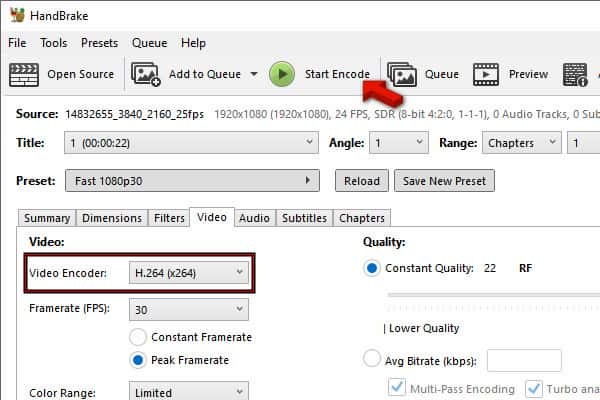
If several players struggle with the same MP4, conversion can help determine whether the original encoding is the problem. HandBrake can re encode the video into a more widely compatible combination, such as H.264 video with AAC audio in an MP4 container, although conversion takes longer than simply opening the file.

  • Install and launch HandBrake. Then click "Open Source" and select the problematic MP4.

    mac handbrake convert mp4 for smooth playback
  • Choose a compatible P reset such as Fast 1080p30.

  • Open the lower "Video" tab and select "H.264" as the video encoder and choose the "Format" of your choice, such as MOV.

  • Open the "Audio" tab and select a compatible AAC audio encoder.

  • Choose an output location and click "Start" then open the resulting MP4 in QuickTime.

Discover 3 Best MP4 Players For Mac In 2026

The right mac mp4 player depends on whether you want simplicity, broad codec support, or advanced playback controls. IINA, VLC Media Player, and Elmedia Player are three strong choices, but their interfaces and feature sets make them better suited to different types of Mac users.

1. IINA: Free Native macOS Video Player

IINA is designed specifically around the macOS experience, which makes it an attractive option for users who want a modern interface without sacrificing advanced playback capabilities. It supports MP4 files alongside many other formats and integrates features such as picture in picture, system media controls, subtitle management, and gesture based navigation.

iina play mp4 files on mac
  • Pros
  • Cons
    • Wide format and codec support (MP4, MKV, HEVC, AV1, multi-audio, subtitles)
    • Native macOS UI with Dark Mode, Touch Bar, gestures, and Picture-in-Picture
    • Smooth hardware-accelerated 4K/HDR playback with low resource use
    • Completely free and open-source
    • Occasional subtitle sync or minor UI quirks
    • Advanced settings may feel unfamiliar to casual users.

✨ Best for: Everyday users who want a clean, native player optimized for high-quality local MP4 and 4K content.

2. VLC Media Player: Free All Format Support

VLC is the classic free, open-source player that "plays almost anything." It reliably opens MP4 files that QuickTime rejects due to unusual codecs or audio tracks.

vlc playing mp4 on mac
  • Pros
  • Cons
    • Near-universal format and codec support without extra plugins
    • Built-in conversion, streaming, subtitle, and playlist tools
    • Completely free with no ads or restrictions
    • Extensive customization options
    • Can play partially downloaded or unusual files.
    • Dated, non-native interface on macOS
    • Less efficient for high-resolution HDR on Apple Silicon
    • Settings can feel cluttered for beginners

✨ Best for: Users who need maximum compatibility for any MP4 or obscure file, plus extra tools like conversion.

3. Elmedia Player: Feature Rich MP4 Player

Elmedia is a Mac-focused player with solid format support and convenient extras. The free version handles most MP4 needs; a one-time Pro upgrade unlocks advanced streaming.

mac elmedia player playing mp4
  • Pros
  • Cons
    • Wide format support with smooth HD/4K playback
    • Easy subtitles, equalizer, bookmarks, and video adjustments
    • Built-in AirPlay, Chromecast, and DLNA streaming
    • Clean native-feeling interface
    • Free version limits some advanced features (e.g., unlimited streaming)
    • Pro features require a paid upgrade (~$19.99)
    • Slightly higher resource use than IINA in some cases

✨ Best for: Users who want straightforward MP4 playback plus easy casting to TVs or other devices.

Mac MP4 Player Comparison Table

Tool Best Use Cases 4K/HDR Support Ease Of Use
IINA Native daily playback, high-quality local files Excellent (smooth hardware-accelerated) Very Easy
VLC Media Player Max compatibility, obscure files, video conversion Good (works, but HDR efficiency varies) Moderate
Elmedia Player Everyday MP4 + streaming/casting Strong (smooth 4K) Easy

⚡ Can't Play MP4 On Mac Still? Try This!

If the same MP4 refuses to play in QuickTime, browsers, and several third party players, repeatedly changing applications probably will not solve the problem. Amid this, corruption becomes a stronger possibility, especially when the file was interrupted during downloading, copied from a damaged drive, or recorded by a camera that stopped unexpectedly.

4DDiG Video Repair is designed to repair corrupted, damaged, and unplayable MP4 files and other video formats. It supports batch repair, lets you preview repaired results before saving, and can export repaired videos to formats such as MOV, MKV, AVI, and the original when another output format is more convenient.

What Makes 4DDiG Video Repair Useful For MP4 Problems?

  • Repairs corrupted MP4 files that fail to open or play correctly.
  • Handles most video problems such as black screens, no audio, stuttering, etc.
  • Batch repairs multiple damaged video files at once.
  • Provides a preview function before saving repaired results.
  • Supports numerous formats beyond MP4, including MOV, AVI, MKV, MTS, M2TS, FLV, and more.
  • Exports repaired videos into alternative formats: MP4, AVI, MKV, MOV, or original.
  • Uses AI assisted repair technology to retore damaged video structures.
  • Easy and suitable for all users
FREE DOWNLOAD

Secure Download

FREE DOWNLOAD

Secure Download

Steps To Repair Corrupted MP4 Files On Mac

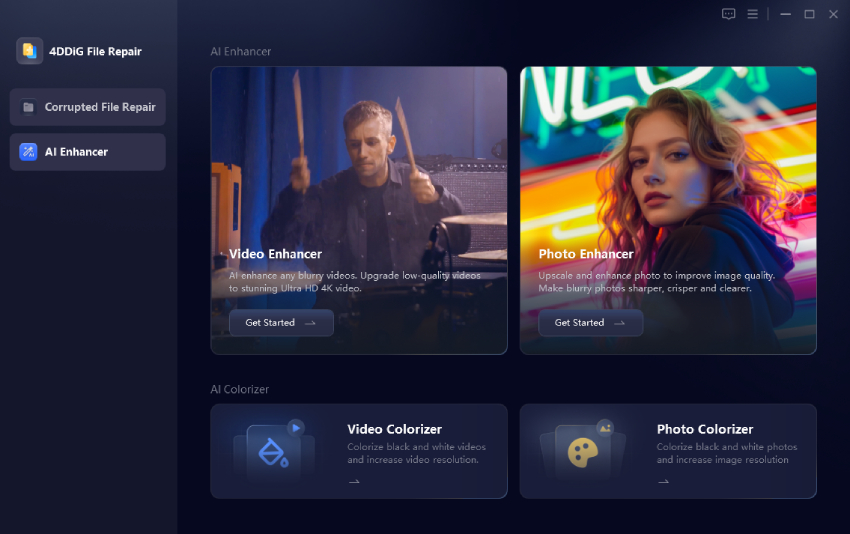
  • Install and launch 4DDiG File Repair software and select Video Repair. Click "Add Videos" to import one or more corrupted MP4 files.

    add mp4 videos to 4ddig
  • Click "Repair All" and wait while the software analyzes and repairs the MP4 videos.

    start batch repair multiple videos
  • Preview the repaired results with the "Preview" button then select the repaired MP4 files you want to keep.

    preview repaired mp4 videos
  • Choose the required output location if you want to export them as MOV, MKV, or AVI and click "Save" to save the repaired videos.

    save repaired mp4 videos in preferred format

FAQs About Playing MP4 On Mac

Q1: Can QuickTime Play MP4 On Mac?

Yes. QuickTime Player can play many MP4 files, particularly those using commonly supported video and audio codecs. However, an MP4 container can hold different codecs, so some files may still fail to play.

Q2: Why Won't My MP4 Play In QuickTime?

QuickTime Player supports many common MP4 combinations, but the .mp4 extension alone does not guarantee compatibility. If the file contains an unsupported codec, damaged metadata, or corrupted video and audio streams, QuickTime may display an error, show a black screen, play without sound, or fail to open the file altogether.

Q3: How To Play MP4 On Mac Without QuickTime?

Install a third party media player such as IINA, VLC Media Player, or Elmedia Player. These applications support more codecs and can open MP4 files that QuickTime cannot handle.

Q4: Why Won't My MP4 Play In QuickTime?

The file may use an unsupported codec, contain damaged data, have an incompatible audio track, or be incomplete. Try another player first. If several players fail, repairing the MP4 may be necessary.

Q5: What Is The Best Way To Play MP4 On Mac?

For most users, IINA is an excellent everyday mp4 player for mac because it combines a native Mac interface with broad playback support. VLC is the stronger choice when maximum format compatibility is the priority.

Conclusion

Finding the right MP4 player for M ac can solve many playback problems caused by codec incompatibility. IINA, VLC Media Player, and Elmedia Player all provide stronger format support than QuickTime in different ways.

When an MP4 still won't play after trying several players, the file itself may be corrupted. In that case, 4DDiG Video Repair can repair damaged MP4 files and help restore normal playback.

FREE DOWNLOAD

Secure Download

FREE DOWNLOAD

Secure Download

Ehtsham Ahmed (senior editor)

Ehtsham Ahmed, the content writer for 4DDiG, is dedicated to offering workarounds for Windows Data Recovery, Windows Troubleshooting, iDevices System Repair, etc.

(Click to rate this post)

You rated 4.5 ( participated)